

Windows Terminal Preview v0.3 has been published to the Microsoft Store! If you have previously installed the Terminal from the Store, you will receive this update automatically.
If you’ve not yet installed Terminal from the Microsoft Store, now would be a great time because it contains some MAJOR improvements and updates!
⭐ If you are unable to access the Microsoft Store, you can also download the Terminal from GitHub on our Releases page! Installations from GitHub will have to be manually updated each time a new release is published.
Updated UI
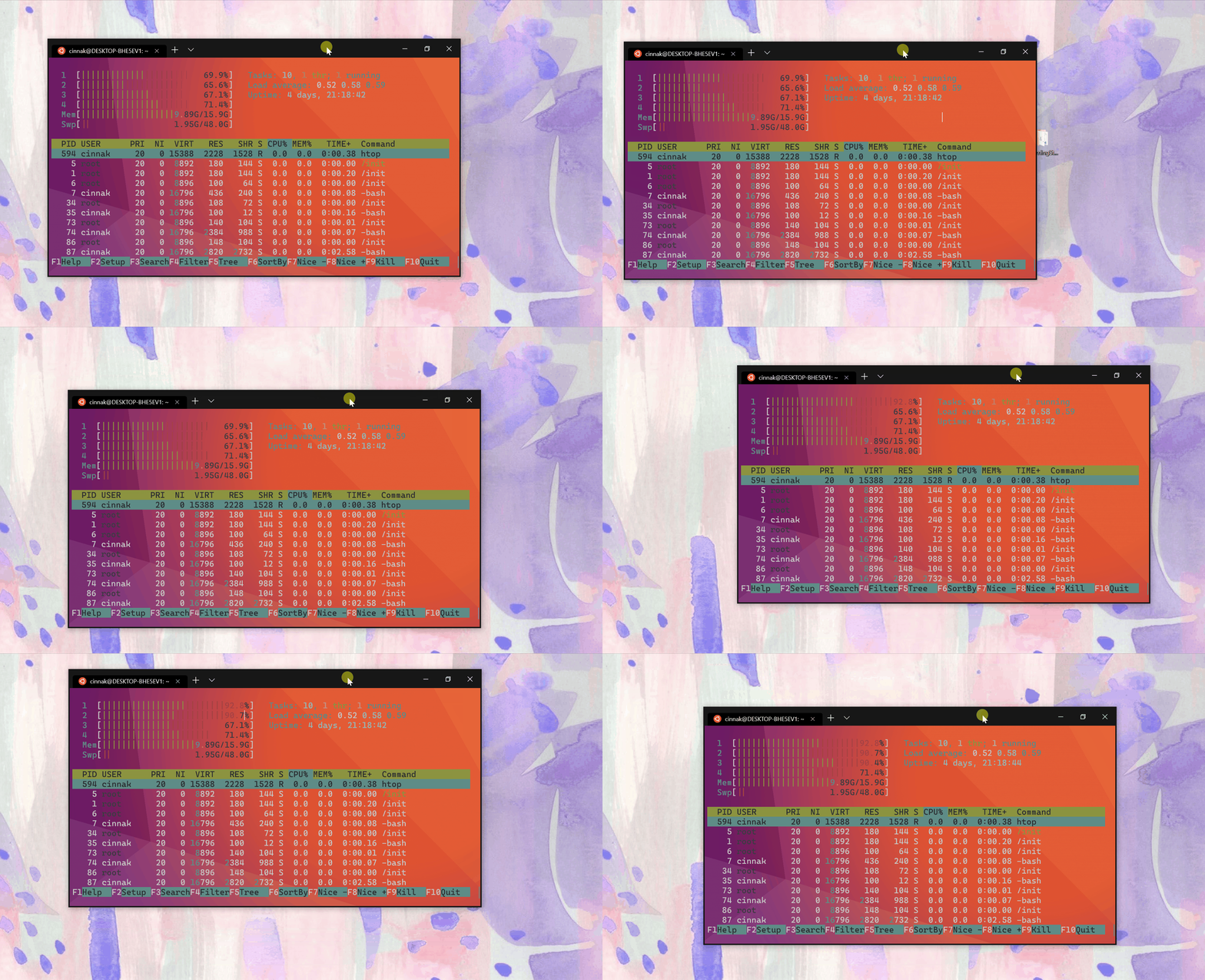
Draggable Title Bar!
The Terminal is now DRAGGABLE FROM ANYWHERE ON THE TITLE BAR!!! 🎉🎉🎉
Improved Dropdown Button Layout
Additionally, the title bar now has a new look! The dropdown button has been resized as well as recolored and it now stays to the right of the last opened tab. The minimize, maximize, and close buttons have also been recolored to provide a uniform experience.
Windows Terminal v0.3

Windows Terminal v0.2

Accessibility
We have started to reintegrate some of the assistive technology we added to Windows Console back in Windows 10 1703 into the Windows Terminal.
We now expose the Terminal’s controls and contents as a User Interface Automation (UIA) tree, enabling tools like Narrator to interrogate, navigate, and read the contents of the Terminal’s UI controls and text content.
⭐ The accessibility experience is early in its implementation and has not yet undergone thorough testing, so if you encounter any bugs please file issues on GitHub.
We’re continuing to improve the Terminal’s accessibility features, so stay tuned for lots of updates in this area in coming releases.
New Settings
As we’ve continued to develop and improve the Terminal’s capabilities and features, we’ve also added more configuration options for you utilize!
Custom Tab Title
You can now define the tab title of each profile within your settings by setting the "tabTitle" property in a profile. Applying this setting will override the tab title provided by the profile’s shell. This can help distinguish between profiles and provide a more customized experience.


Additional Background Options
You are now able to add a background image on top of an acrylic background with a color tint using the properties "backgroundImage", "useAcrylic", and "background"!
Additionally, you can offset your background image so it’s not only centered using the "backgroundImageAlignment" key and values of "center", "left", "top", "right", "bottom", "topLeft", "topRight", "bottomLeft", "bottomRight":

This animation demonstrates a gif background offset to the bottom right of the Terminal with a blue tinted, acrylic background.

New Selection and Key Bindings
Selection
When using your mouse to click and drag to select text within the Terminal, you are now able to drag your mouse outside the Terminal window to continue selecting text above/below. Additionally, you can now select sections of text by double or triple clicking. The delimiters for double clicking are set in your profiles.json using the “wordDelimiters” property. Triple clicking will select the whole line!

Key Bindings
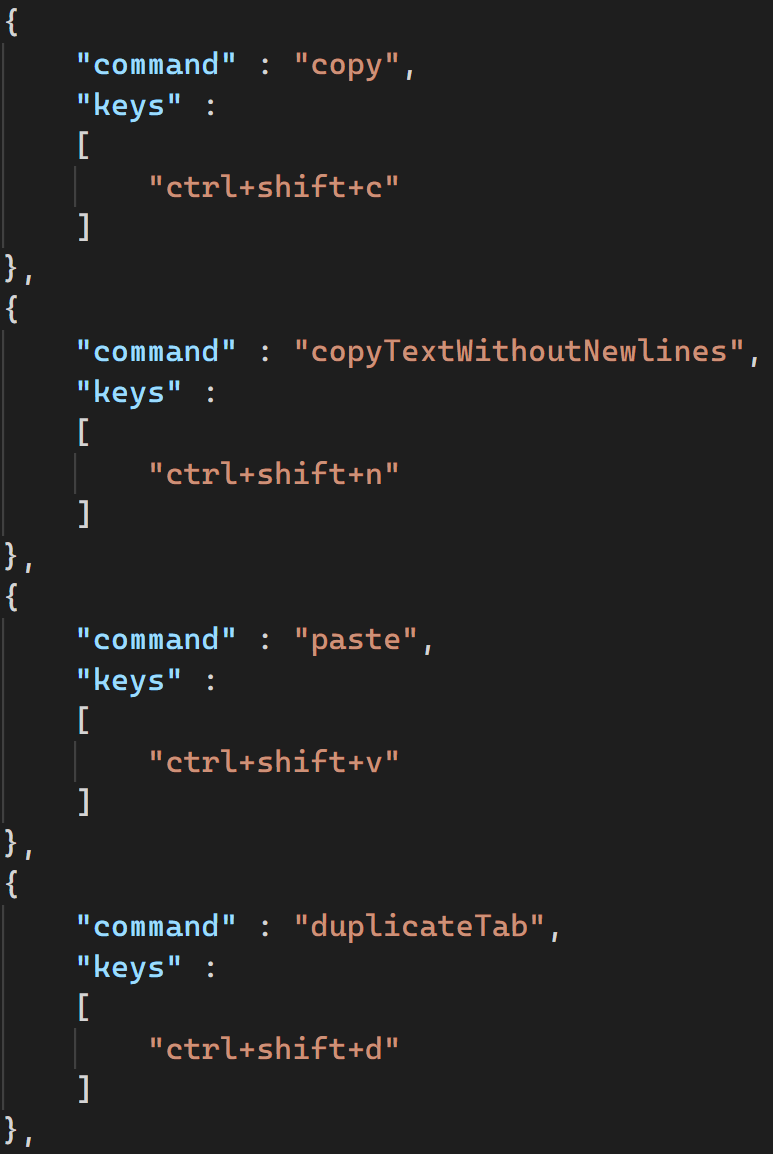
OEM keys ({}_+-=|/?<>:”;’) are now available for mapping within key bindings! Additionally, you are now able to have key bindings for copying, copying text without newline characters, pasting, and duplicating a tab! These are set in the profiles.json settings file within the “keybindings” property and are made default as of this release.
👉 Note: If you have previously installed the Terminal before this release, these key bindings will only appear by default once you delete your profiles.json and allow it to regenerate. You can save your original profiles.json elsewhere and copy over your customizations or just add these key bindings manually. We are aware this is not an ideal experience and are working to improve this.
Azure Cloud Shell Connector
You can now connect to the Azure Cloud Shell within the Terminal! Azure Cloud Shell is a browser-based command-line experience hosted in the cloud that gives you access to your files and projects stored within Azure. With this connector, you can add the Azure Cloud Shell as a profile and directly connect to Azure files through the Windows Terminal on your desktop. For details on how to use this new feature, check out Pankaj Bhojwani’s post!
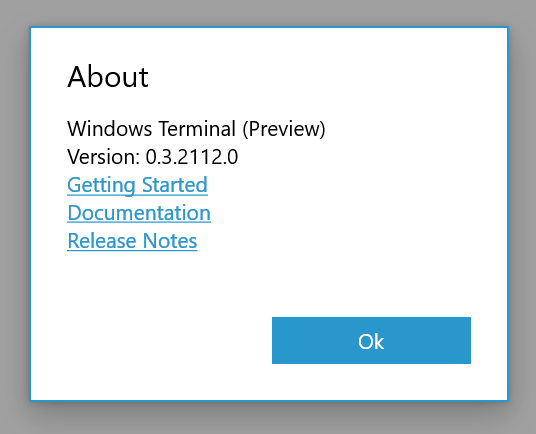
Updated About Section
The About section now includes links to documents you may find useful. These links route to pages on GitHub which provide information on how to get started customizing the Terminal, how to use the Terminal, and what features have been updated with each release.
Top Community Contributors
We have received many contributions from the community on our GitHub repository and we would like to acknowledge those who have especially made an impact since our last release!
Contributors Who Opened the Most Non-Duplicate Issues
🏆 j4james
Contributors Who Created the Most Merged Pull Requests
🏆 j4james
🏆 fcharlie
Contributors Who Provided the Most Comments on Pull Requests
🏆 j4james
Feedback
As always, if you have any questions, feel free to reach out to Kayla (@cinnamon_msft) and Rich (@richturn_ms) on Twitter or file an issue on our GitHub! We’ve had a great time working with all of you over the past few months and we’re looking forward to collaborating with you more!


I enjoy good coding tools but I don't see what it is this software project is trying to do. I don't use Twitter, so I'll leave my comments here. Useability has to improve to justify a software project, especially when you are adding another layer on top of other code that increases the key stroke count, mouse clicks, or mouse movements. For example, one of the very first things anyone would do with this code is adjust the window position, size parameters, or other parameters. Under Settings, the user is presented with a minimal JSON file. What...
I’m running Windows 10 Home build 1909. After installing the application from the Windows Store, it will not launch. P.S. Does the app installation require a reboot before launching successfully? Any other suggestions?
Where can we get that Windows Logo GIF?
I have already my ubuntu to wsl 2. But, I cannot add ubuntu to this windows terminal 2. Can you post a blog on how to do that?
I like the new look of the dropdown button, but I would give it up in a heartbeat to get back the old position.