
Windows Command Line
Insights from the teams behind Windows Terminal, PowerToys, WinGet, and WSL
Latest posts

Debian GNU/Linux for WSL now available in the Windows Store

We’re excited to announce that you can now download & install Debian GNU/Linux via the Windows Store! After we announced that you’d be able to install and run multiple distro’s side-by-side on WSL , we are happy to introduce another one of your favorite Linux distros to the Windows Store. As promised, we are expanding your ability to run multiple distros on WSL! Introducing Debian GNU/Linux running on WSL: Background First, a little background on Debian. Debian GNU/Linux is a stable, free & easy-to-use operating system for all of your laptop, desktop, server & cloud systems. It is free for any...

Kali Linux for WSL now available in the Windows Store
We’re excited to announce that you can now download & install Kali Linux via the Windows Store! Our community expressed great interest in bringing Kali Linux to WSL in response to a blog post on Kali Linux on WSL. We are happy to officially introduce Kali Linux on WSL 😊. Introducing Kali Linux running on WSL: Background First, a little background on Kali Linux. Kali Linux is an open source project that is maintained and funded by Offensive Security. Offensive Security is a provider of information security training and penetration testing services. For more information about Kali Linux, please visit ...
Per-directory case sensitivity and WSL

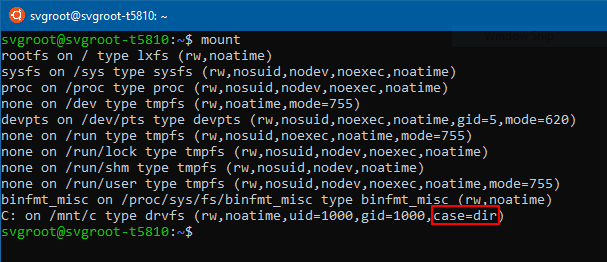
If you have used the Windows Subsystem for Linux, you’re probably aware that it allows you to treat your Windows file systems (mounted under /mnt/c, /mnt/d, etc.) as case sensitive. This means, among other things, that you can create files whose names differ only by case (e.g. foo.txt and FOO.TXT). However, using those files in Windows was not really possible. Since Windows applications treat the file system as case insensitive, they cannot distinguish between files whose names only differ in case. While File Explorer would show both files, only one would be opened regardless of which one you clicked. Starting ...
Automatically Configuring WSL

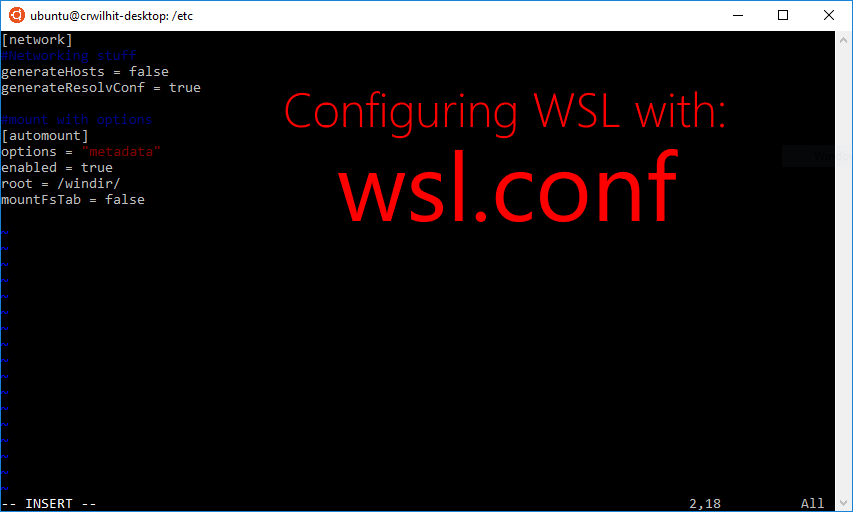
Beginning with Insider Build 17093, we added a method for you to automatically configure certain functionality in WSL that will be applied every time you launch the subsystem. This includes automount options and network configuration. We're introducing a file called wsl.conf to handle these configurations. For example, we released a blog post in the past about file system improvements in DrvFs. In order for a user to take advantage of this feature, they had to unmount and re-mount DrvFs each time they launched WSL--this is not the case any longer. How to use wsl.conf Wsl.conf belongs under the path /etc/wsl.co...

Windows/WSL Interop with AF_UNIX
Starting in Windows Insider build 17093, a WSL application can communicate with a Windows application over Unix sockets. Back in December, we blogged about bringing AF_UNIX to Windows. Now, we're building on that functionality. Consider a requirement where you want to run some kind of service as a Windows application. Additionally, you would like to make this service available to both Windows and WSL applications. Now, that’s possible with Unix sockets. How To Code Let’s look at how the code for such applications would be written. The code for this application is at the bottom of this article. One thing worth...
OpenSSH in Windows 10!

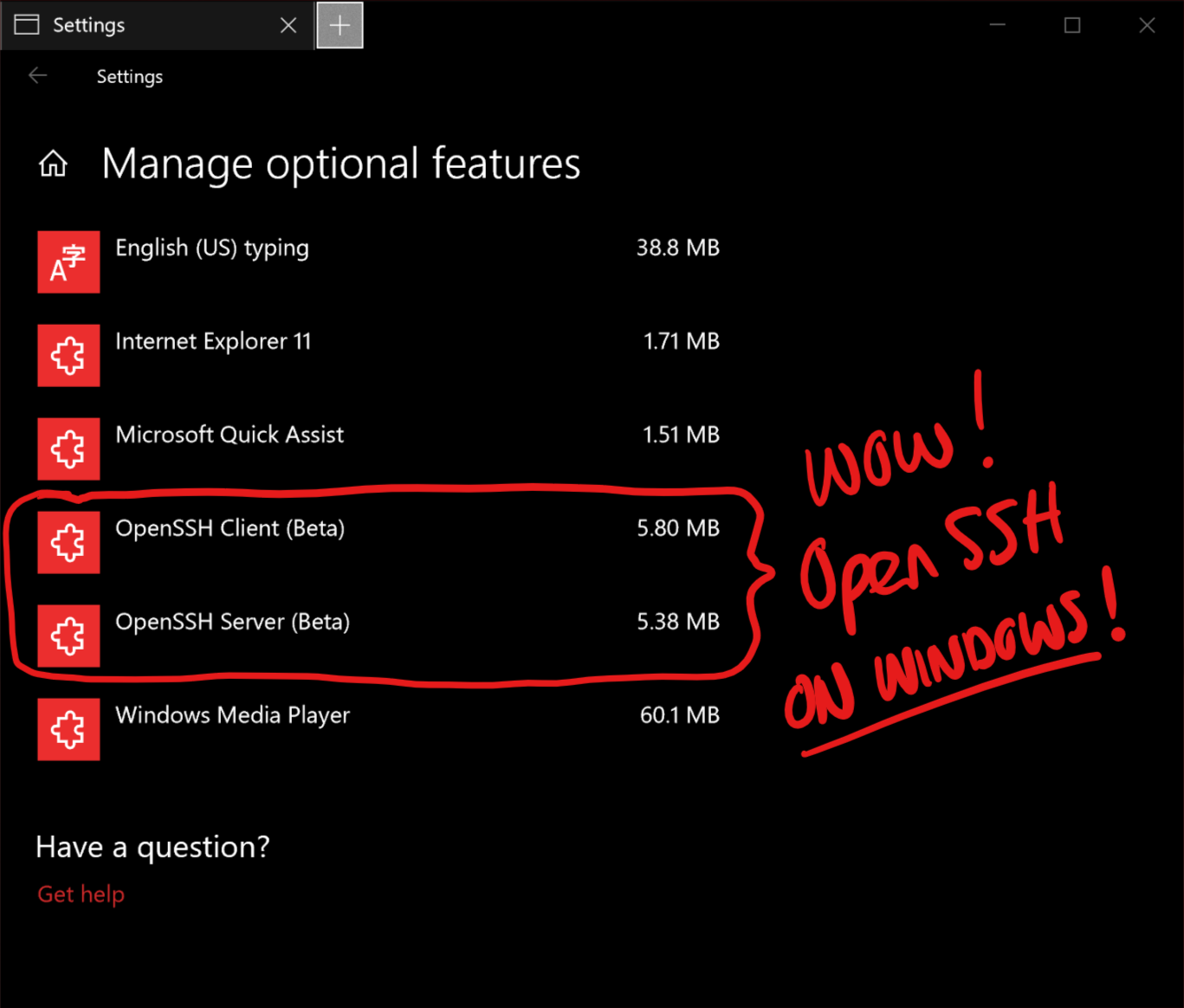
SSH is one of the most important tools in the *NIX world, through which users communicate with shells, applications, and services running on remote machines, devices, VM's and containers. Windows users most often remotely access Windows machines, devices, VM's and Containers via the amazingly powerful Remote Desktop Protocol (RDP) which, as the name says, remotes the entire Windows UX. But sometimes you only want to access & drive command-line tools - for which, RDP is both overkill and a poor fit. For this reason, PowerShell users use PowerShell Remoting which offers similar features to SSH, but via a diffe...
Tar and Curl Come to Windows!
One of the most frequent asks we hear across the entire Windows command-line spectrum is "I need curl" and/or "I need tar". If you're one of these people - HAPPY NEW YEAR! :) Windows 10 Insider build 17063 and later now include the real-deal and executables that you can execute directly from Cmd or PowerShell. Our sincere thanks to the LibArchive and curl.haxx.se teams who created and maintain bsdtar and curl, respectively. For more details, read Craig's announcement post: "Tar and curl come to Windows"

Chmod/Chown WSL Improvements
We've added new file system features to WSL in Insider Build 17063. You can now set the owner and group of files using chmod/chown and modify read/write/execute permissions in WSL. You can also create special files like fifos, unix sockets, and device files. We're introducing new mounting options with DrvFs for projecting permissions onto files alongside providing new Linux metadata on files and folders. There's one step you must take before you can enjoy these new features: you must unmount drvfs and remount it with the 'metadata' flag. To do this: sudo umount /mnt/c sudo mount -t drvfs C: /mnt/c -o metadata ...
Share Environment Vars between WSL and Windows
Hey WSL users—we have more features to share with you! Our latest Windows Insider build lets you share environment variables between WSL and Windows. Starting with Build 17063, let’s look at how you can leverage the new “WSLENV” to enhance environmental variable interop between Win32/WSL. Summary For the pros who’ve already heard about WSLENV and just want to know how it works, see below for a quick synopsis: A sample of how a WSLENV could possibly look: What are Environment Variables? Environment variables are a way to store configurable values across your entire system—all your programs have ac...