


Today we released PIX 2606.18-preview, available here.
This PIX release coincides with the preview availability of DirectX Dump Files (.dxdmp). The PIX UI can open DirectX Dump Files directly for analysis, and the PIX API can be used to analyze them programmatically. Please visit the DirectX blog for more information about the DirectX Dump Files preview and PIX support for them.
PIX 2606.18-preview also includes everything in the previous PIX preview build, PIX 2605.28-preview, and additional new functionality. The full list is:
- DirectX Dump Files
- DebugBreak() in GPU Captures
- Application Specific Driver State: enabled by default
- Heterogeneous Cores in Timing Captures
As a preview release, this build provides early access to new DirectX and PIX features before they appear in main PIX builds. You may encounter issues while we continue to refine the features, so if you do not need these preview features, we recommend that you use the latest public main PIX release from the Downloads page.
As always, we love to hear your feedback. Please contact us through the Send Feedback button in PIX, the #pix channel on the DirectX Discord, or the new dxdmpsupport@microsoft.com email address.
DirectX Dump Files
For more information about the DirectX Dump Files preview, including the new functionality in PIX, please visit the DirectX blog here.
DebugBreak() in GPU Captures
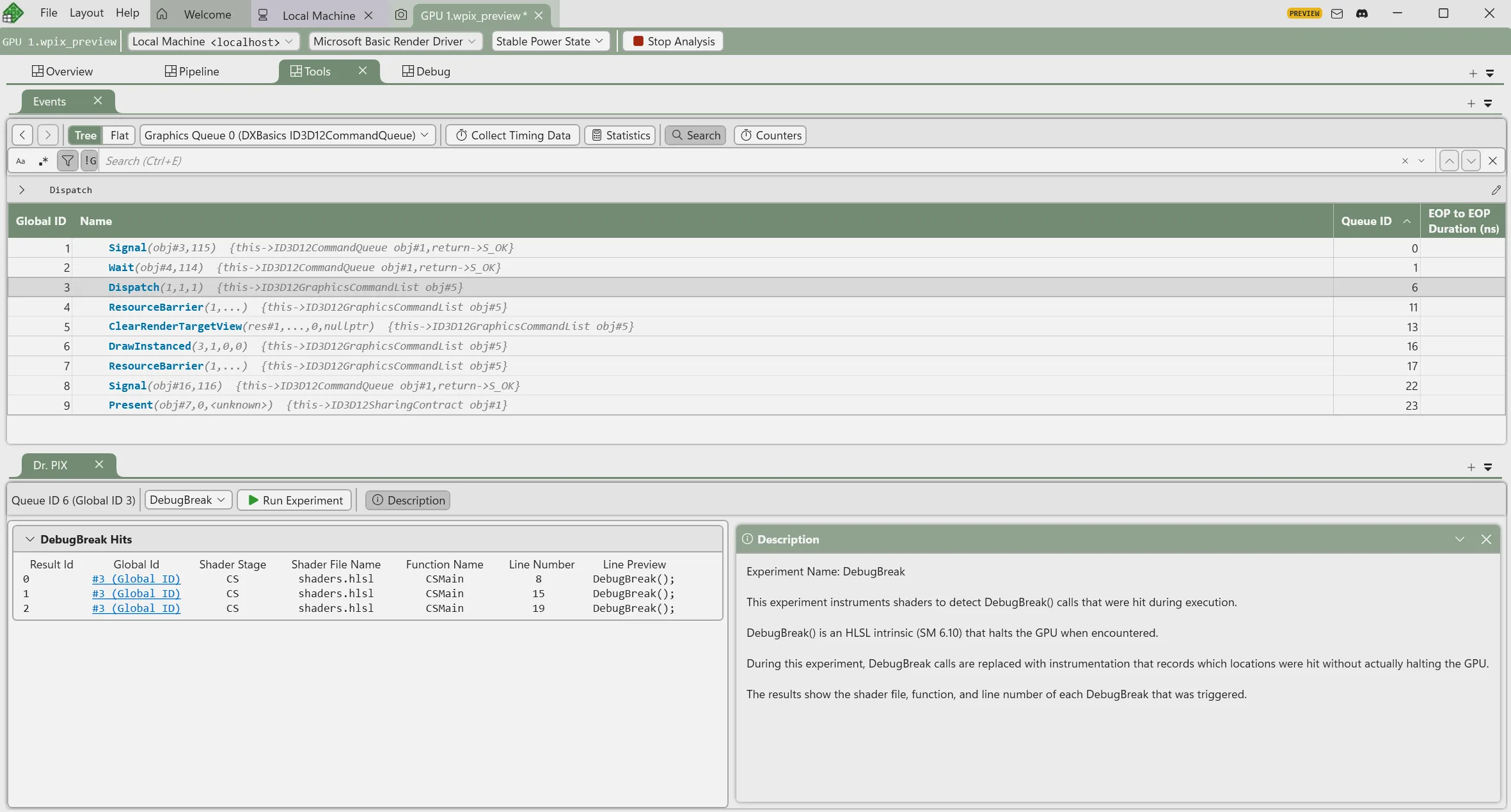
Today’s D3D12 release adds support for DebugBreak() in HLSL, along with some options to configure its behavior via Pipeline State Object (PSO) and State Object (SO) flags. These can be used to trigger DirectX Dump File generation, as described in the DirectX blog post linked to above.
This PIX release also supports using DebugBreak() inside GPU Captures in PIX. For this release, you can run a Dr PIX experiment that will conveniently log every DebugBreak() hit during shader execution for your selected events.
We hope to build on this feature in the future, including letting you jump straight from a DebugBreak() hit into the shader debugger.
Application Specific Driver State: enabled by default
Last year we announced Application Specific Driver State, a D3D12 feature to help improve the reliability of capture/replay tools like PIX by storing active driver-level workarounds in the PIX capture file and applying them during PIX playback.
This release enables this setting by default, improving capture/replay reliability for many big engines and titles on a wide variety of PC hardware. Many thanks to our hardware partners for making this possible!
Heterogeneous Cores in Timing Captures
Modern Windows PCs increasingly ship with heterogeneous CPUs that mix high-performance cores with power-efficient cores. Running critical work on an efficiency core, or non-critical work on a performance core, can quietly cost you frame rate, battery life, and thermal headroom. To help you catch these cases as part of your normal profiling workflow, PIX now surfaces per-core class information directly in the Timing Captures Timeline, automatically and with no extra capture option to enable.
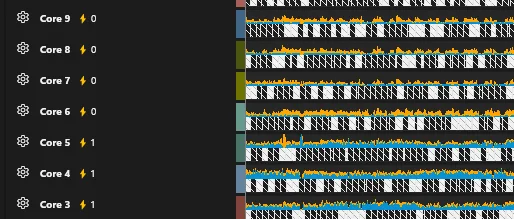
On a heterogeneous system, each Core lane header now shows a lightning-bolt icon with a number (the core’s efficiency class: 0 for efficiency cores, higher values for higher-performance classes) and a small gray badge with the physical core the logical core maps to, making it easy to spot two logical cores sharing the same physical hardware. Thread lane activity graphs are also split by core class: time spent on performance cores is drawn in the thread’s base color, and time on efficiency cores in a cooler shade of that same color, with a Thread Activity By Efficiency Class legend on hover that shows the fractions for Performance Core, Efficiency Core, and Secondary Performance Core

Together these indicators make common questions visual at a glance: is a critical thread running mostly on efficiency cores? Are long-running events landing on the wrong class of core? Are background threads eating into performance-core capacity. We will keep building upon this feature to include the performance class information in other sections within the PIX UI.

0 comments
Be the first to start the discussion.