


Today we released PIX 2610.28, available for download here.
This release supports all the new retail and preview D3D12 features released today in DirectX Agility SDK 620 and 721. This is the first PIX build combining support for both retail and preview Agility SDKs, simplifying the user experience.
Beyond that, 2610.28 brings many new features and improvements since the last regular PIX release, PIX 2603.25, including all the features previewed in the May and June preview builds.
It also includes the most bug fixes we’ve ever released in a single version of PIX.
Contents
- DirectX Dump Files
- Shader Explorer
- Support for new D3D runtime features
- GPU Captures: other improvements
- A new file format
- Save resolved shader PDBs into your GPU Capture
- Start Analysis / Replay performance improvements
- View captured screenshot directly from File Explorer
- Capture/replay robustness improvements
- Tile Mappings Viewer
- Dedicated Pipeline State Objects view
- Buffer Viewer improvements
- VS Output: new options
- Dr. PIX Tight Resource Alignment experiment
- Texture and Mesh Viewer improvements
- Other Pipeline View improvements
- Shader debugging, Edit and Continue, and symbols
- Capture-time improvements
- Export to C++ and analysis fixes
- Misc other GPU Capture fixes/improvements
- Timing Captures
- Understand scheduling on heterogeneous CPUs
- Compare CPU execution with normalized measurements
- Range Summary improvements
- Asset-mapping improvements
- Follow DirectStorage requests through processing stages
- Analyze Timing Captures with MCP
- New scripted capture options
- Faster large-capture analysis and more accurate memory totals
- Timeline and navigation improvements
- Metrics configuration improvements
- Metrics, memory, and symbol fixes
- Capture, conversion, and API reliability
- PIX API and command-line tools
- System Monitor
- Remote connections and application launch
- Welcome, settings, and everyday usability
- PIX documentation on Microsoft Learn
- Download and feedback
As always, many thanks to our hardware partners (AMD, Intel, NVIDIA and Qualcomm) for developing many of these features with us.
DirectX Dump Files
DirectX Dump Files are now available for use in retail games and applications! PIX has full support for analyzing them:
- In the PIX UI
- Programmatically through the PIX API
- With AI agents using PIX’s MCP/CLI tools or your own tools built on the PIX API.
See the dedicated blog post for more information.
Shader Explorer
Shader Explorer is now available in main PIX releases, with offline and live shader analysis for supported AMD and Intel hardware.
We introduced the static-profiling workflow in the May preview. Start with a Compute, Graphics, or Mesh Shader Explorer project from File > New, choose a compiler and target architecture, and compile your source.
The analysis views provide:
- GPU ISA correlation to source, when the compiler supplies source mappings.
- Register pressure with allocated and used register counts.
- Register-lifetime matrices showing liveness, reads, and writes.
- Incoming and outgoing instruction dependencies.
- Separate revisions for comparing shader and pipeline-state changes.
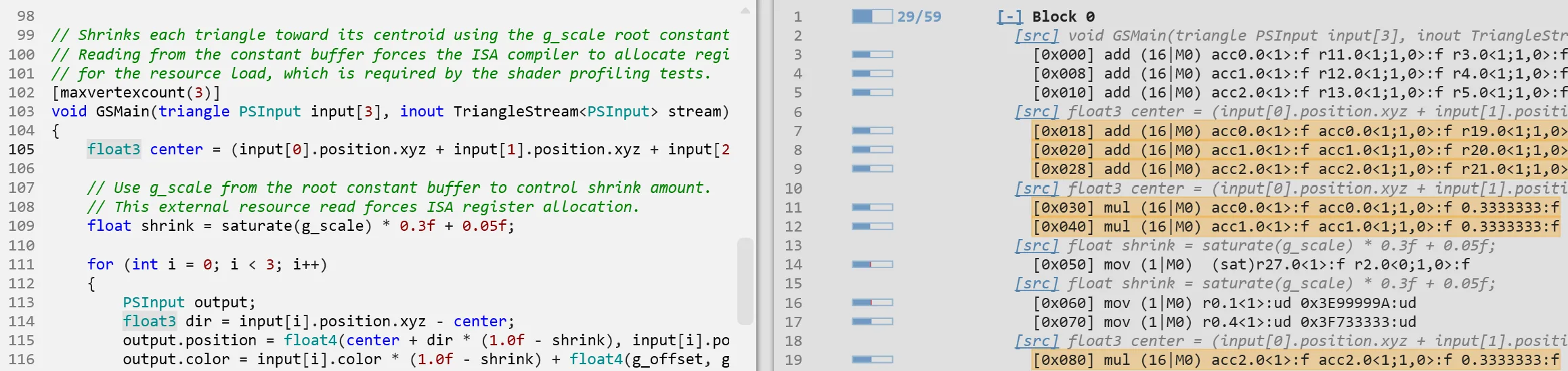

Add live instruction profiling
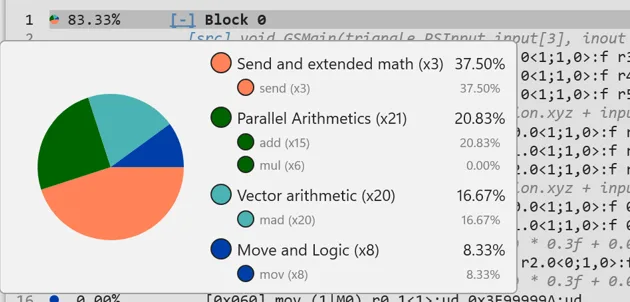
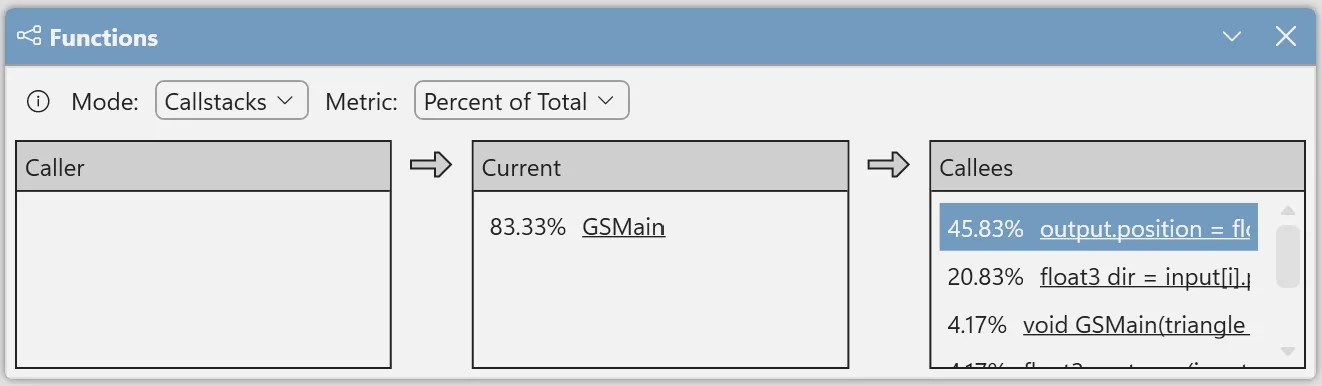
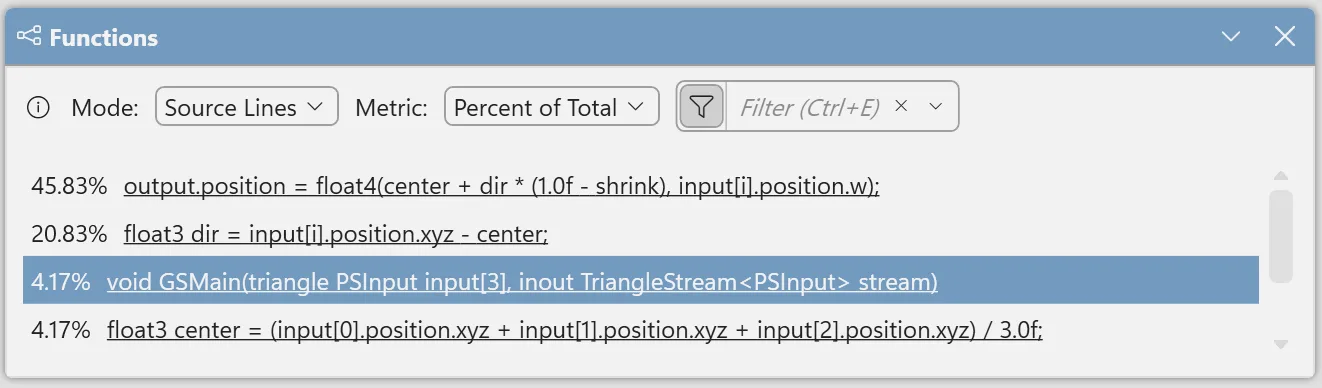
This release adds the ability to collect live profiling data for a shader pipeline. PIX replays the captured workload in a GPU Capture and gathers instruction statistics from a compatible GPU plugin, then brings the results into Shader Explorer.
Instruction costs are accumulated across shader waves and loop iterations in the profiled event. Start with expensive instructions and inspect their correlated HLSL. Dependency and stall data can help explain the cost.

Move between GPU Captures and Shader Explorer with ease
You can now export pipelines from GPU Captures to Shader Explorer.
To use the new export feature, open a GPU Capture file, select an eligible GPU event, start analysis, and choose Profile from the Pipeline view. PIX brings across the pipeline state and shader compilation information.

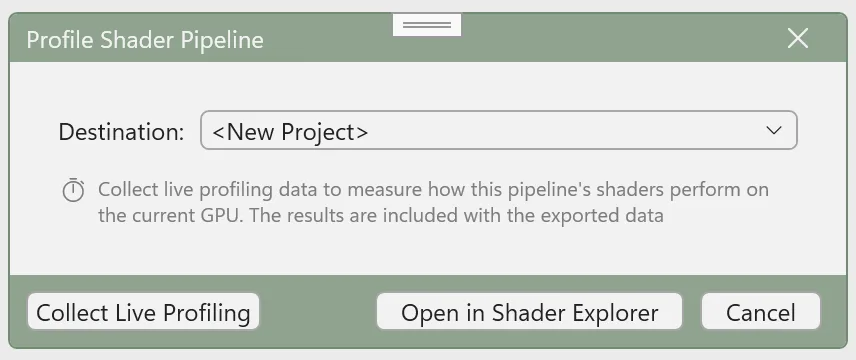
Export requires the shader source and compilation PDBs. The feature currently supports exporting traditional graphics and compute PSOs. Other pipelines like raytracing or work graphs will be available in a future PIX release.
For more details, see the Shader Explorer documentation.
Support for new D3D runtime features
This release includes support for all new D3D12 features in Agility SDKs 620 (retail) and 721 (preview) that were released today. It also adds support for some existing D3D12 features such as D3D12 video.
DXR Clusters and Partitioned TLAS (preview)
PIX adds support for the new ExecuteIndirectRTASOperations preview features, including GPU-driven acceleration structure operations and new ways to organize raytracing geometry:
- Cluster-level acceleration structures (CLAS).
- Clustered bottom-level acceleration structures (CBLAS), built from clusters.
- Partitioned top-level acceleration structures (PTLAS).
You can:
- Capture and replay batched indirect acceleration-structure operations, including cluster builds and partitioned-TLAS updates.
- Explore cluster geometry and partitioned acceleration structures in the Acceleration Structure Viewer, with hierarchy views grouped by instance or BLAS.
- Open an individual CLAS directly for inspection.
- Inspect build inputs and outputs in the Pipeline view, with labels identifying the operation and argument each buffer belongs to.
- Read indirect operation arguments in the Buffer Viewer using structured layouts instead of raw byte dumps.
- Inspect indirectly referenced vertex and index buffers with layouts that account for their supported formats and strides.
- Export captures which are using the new API and RTAS types to C++, including the batched operations and their indirect argument data.

Clusters and PTLAS support require a compatible preview runtime and GPU driver.
Partial graphics programs
This release expands the partial-program support introduced in the May preview and included in June.
Improvements since June include:
- Many robustness improvements to Capture/Replay
- API Objects: show more detailed information.
- VS Output: supported
- Pixel History: supported.
- Image visualizers: improved support
- Export to C++: supported
Other new retail and preview D3D12 features
PIX adds full capture/replay support for new D3D12 features, including:
- Async commands
- Texture GUID Layouts
- Serialized root signature
- Fence Barriers
- Explicit PSDB subobjects
- GPU descriptor copies (preview)
D3D12 video capture/replay
PIX has long had the ability to work with applications that use D3D12 video APIs, but before this release, PIX would just capture the output of that video work.
PIX now has an opt-in setting to do full capture of D3D12 video decode, processing, and encoding work, with replay and C++ export support. This means that the full video APIs can be analyzed, and standard PIX features like buffer/texture viewers let you see the inputs/outputs of the video APIs.
You can enable the full video-capture option in PIX’s File->Settings page. It is off by default.
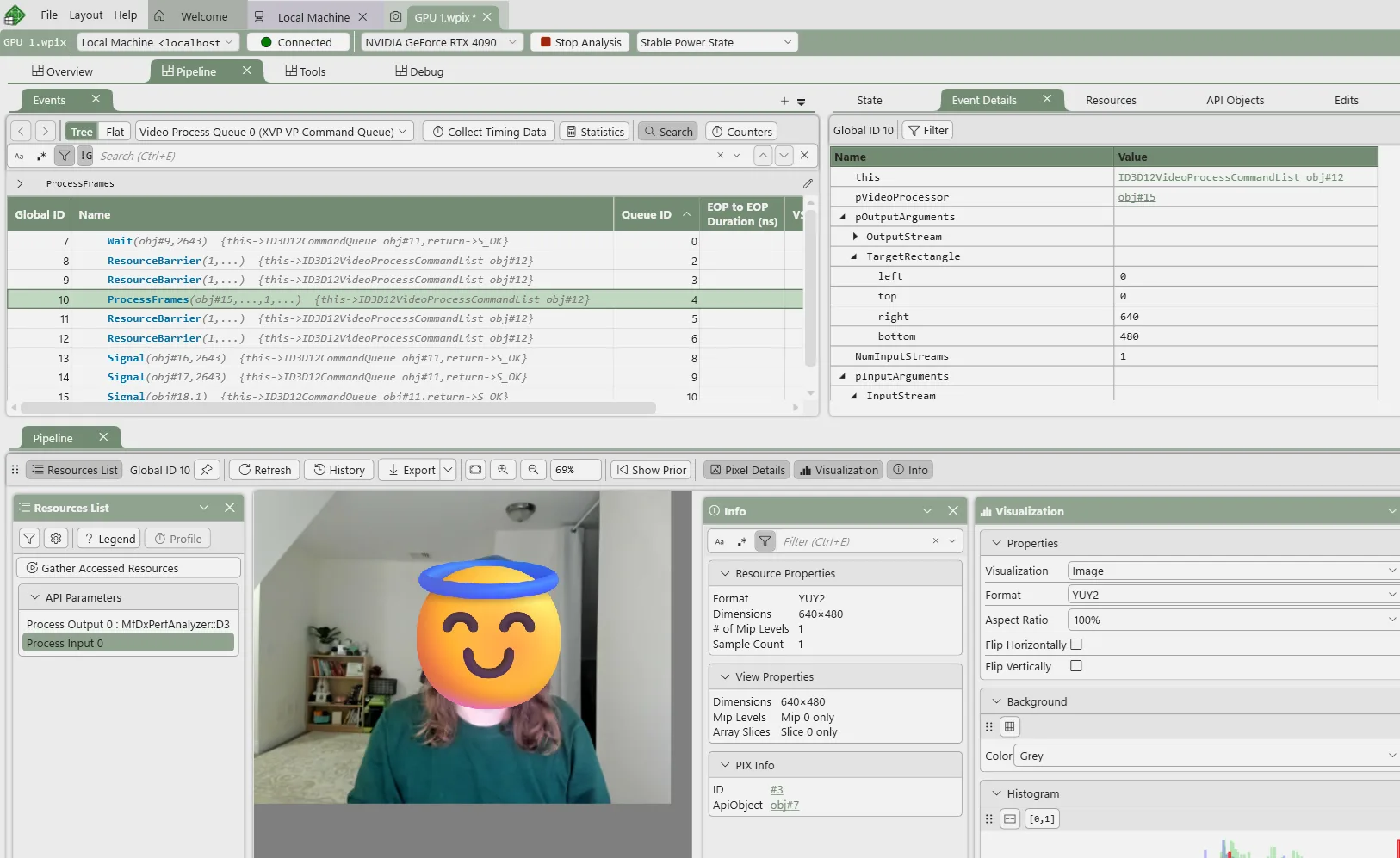
This support is marked as experimental for now, primarily because GPU plugins in PIX don’t support video queues so low-level hardware profiling information is not currently available. This will be fixed in a future version of PIX.
GPU Captures: other improvements
A new file format
Over the years, PIX’s file format for GPU Captures has proven to be a large performance and feature bottleneck. Although it was robust in lots of ways, it prevented us from saving additional data back to the capture file and had to be decompressed linearly.
We’re therefore excited to announce a new file format for GPU Captures with this release, which removes these restrictions and unlocks some exciting features and performance gains.
We have more planned around this, but in this release: PIX is now able to save resolved PDBs into the capture file, Start Analysis is no longer bottlenecked by single-threaded decompression, and captured screenshots are now visible from File Explorer. See their sections below to learn more!
Note that PIX can convert old captures to the new file format, so your old captures can get all these benefits. You will be prompted to do so when opening an older capture file.
Save resolved shader PDBs into your GPU Capture
The new capture format lets PIX save resolved shader PDBs inside the GPU Capture itself. After resolving symbols through the configured search paths or Resolve PDB, save the capture to keep those PDBs with it. This means that reopening the file no longer requires finding those same PDBs again. It also means that you can send the updated file to a colleague, and PDBs will automatically resolve for them.
Start Analysis / Replay performance improvements
The new capture format also allows us to better multithread Start Analysis. As mentioned above, we no longer need to decompress the capture linearly and can instead throw it all off to a threadpool. For captures that are gigabytes in size, this is a great speed-up.
We’ve also dedicated lots of attention to improving performance in other areas of how PIX plays back a capture. Depending on your workload, you should see that PIX is noticeably faster, especially when collecting timing data.

View captured screenshot directly from File Explorer
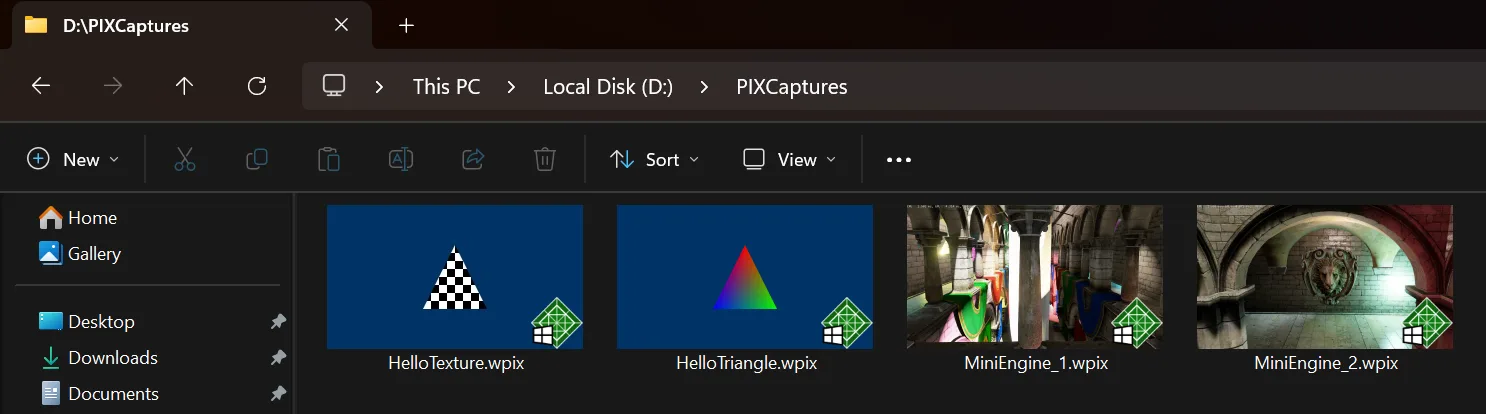
This release finally brings one of the most requested quality-of-life features: the ability to view the captured screenshot directly from File Explorer. This is another feature that has been unlocked by the new file format and is very handy to distinguish between your different captures.
Capture/replay robustness improvements
Application-Specific Driver State and Recreate-at-GPUVA are now enabled by default to improve capture correctness and compatibility with applications.
Tile Mappings Viewer
First introduced in the May preview, PIX now supports inspecting how reserved resources map to physical heaps. This information is available in the Texture Viewer’s new Mapping Details panel as well as new Resource Mappings and Heap Mappings views. See the Tile Mappings documentation.
Open a reserved resource in the Texture Viewer to use the Mapping Details panel. It provides:
- An overlay to visualize unmapped tiles directly on top of the texture.
- Mapping status per subresource.
- Mapping information for the selected tile, with links to the Resource Mappings and Heap Mappings views.
- General resource tiling information

The Resource Mappings and Heap Mappings views include:
- Automatically syncing the mapping state based on the currently selected event. A dedicated Mapping Events panel also provides a way to navigate between the capture’s initial mappings or subsequent UpdateTileMappings or CopyTileMappings operations.
- A pivot table to inspect individual tile mappings.
- A visualizer to quickly see tile mappings of a given subresource.
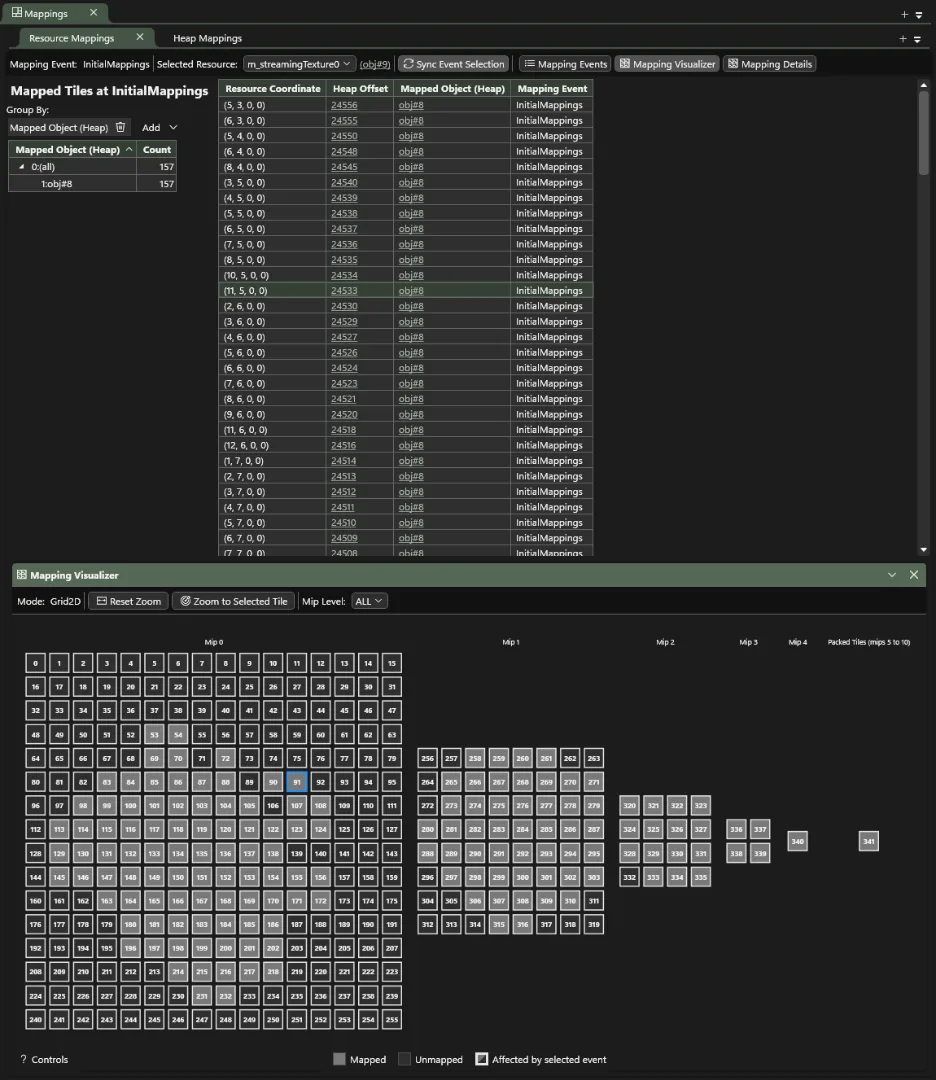
Note: Captures migrated from older PIX versions do not contain the mapping data necessary and must be recaptured.
Dedicated Pipeline State Objects view
The Pipeline States view returns in this release. The pipeline state object (PSO) list now appears directly in the main view, with filters behind buttons. Use it to compare PSO configurations and navigate to their shaders.
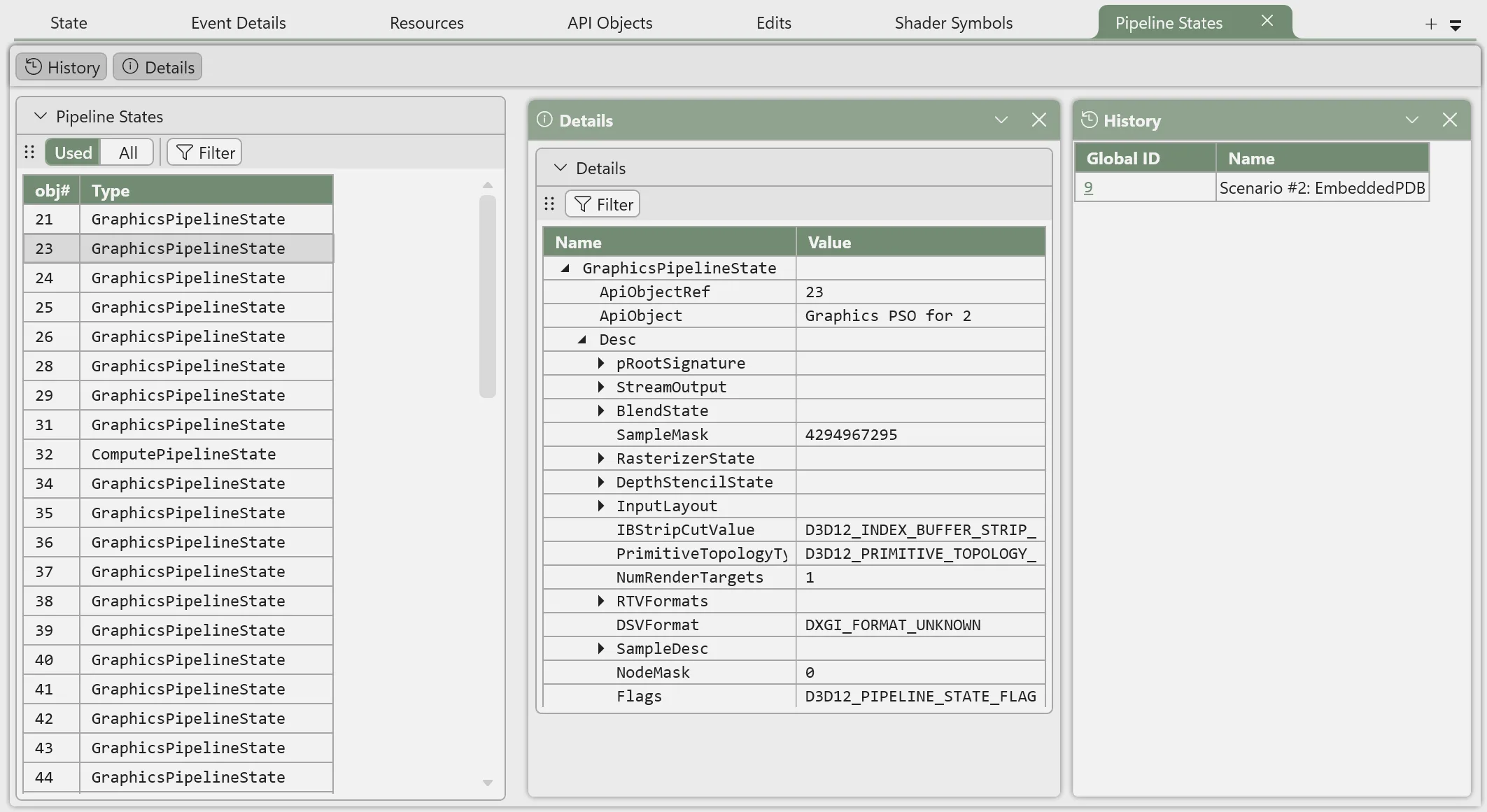
The updated view improves navigation between related PIX data. Global ID links in the History panel now open the corresponding pipeline and select its first shader in the Pipeline Resource view for easy access. This release also fixes an issue that could cause the PSO list to disappear, and includes additional usability and text improvements.
Buffer Viewer improvements
The Buffer Viewer has a new Image mode to display data visually, rather than just a long list or table of numbers. This is notably useful for image data outside the texture viewer’s usual domain of DXGI formats (such as multidimensional tensors for machine learning and for more niche formats), or at other points along the pipeline where a format isn’t known yet or is unspecified (such as uploaded raw data or generic UAV’s). It’s also a convenience for cases that don’t need a full custom shader for visualization.
Image mode
Visualization uses the existing tensor keyword to specify the data type, dimensions, strides (defaulting to packed), and optional axis semantics (tensor<dataType, dimensions, strides, axesSemantics, …>), and it works with multidimensional tensors too (e.g. unorm8_t pixels[480][640]). Below is a 3-channel float32 planar image in CHW layout:

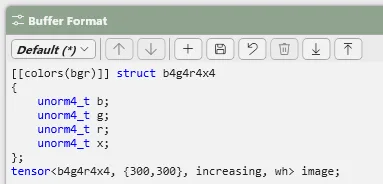
Tensor data types can even hold structures, such as this 16-bit b4g4r4x4 pixel:
Color order
The channel color order can be configured with a new [[colors(…)]] attribute, for planar tensors and packed structs, currently supporting: bgr, rgb, gray.

Channel Ranges
The color channel ranges normally have enough information from the data type alone (e.g. unorm8_t ranges [0, 255], unorm4_t ranges [0, 15], float32_t ranges [0, 1]…), but the new [[range(…)]] attribute can specify the low and high points explicitly (that is, the zero/black and full saturation/white points), such as range [[range(0, 1)]], [[range(0, 255)]], and [[range(-1, 1)]]. Below you can see an oversaturated image, and the proper range on the right: tensor<[[range(10000,40000)]] float32_t, {765,512}, increasing>:

Subtiling
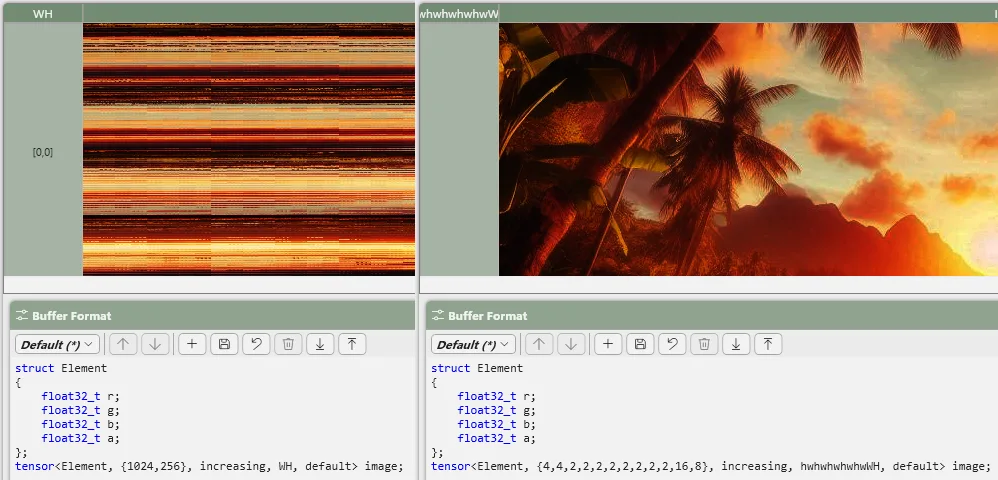
Since multiple dimensions are supported, you can indirectly achieve nested subtiled arrangements like the D3D standard swizzle here. Axes can be flipped by negating a size component (e.g. {-8, 16} would mirror the first axis):
Data Export
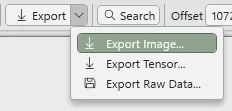
While in image mode, you can export images to PNG, BMP, or JPEG files, and copy the currently selected image to the clipboard (Ctrl+C or right-click context menu on the image). Additionally you can export buffer data to NumPy array .npy files to continue investigating tensor differences in Python, which preserves binary fidelity, dimensions, and data types (where possible). If there isn’t a 1:1 mapping to a NumPy tensor type, the data type is upcast to the nearest NumPy equivalent (e.g. bfloat16 to float32) or stored as opaque elements. Any strides (padded, broadcasted, reversed) are flattened first.
Data Types
The buffer-format language gains more element types:
- unorm* and snorm* types as familiar aliases to the older unint and snint types.
- Low-precision floating point types:
- float16m7e8s1_t – “Brain float” with standard infinity and NaN, mantissa with 7 bits, exponent with 8 bits, and final sign being 1 bit
- float4m1e2s1fnnn_t – finite, no NaN
- float6m3e2s1fn_t – finite, has NaN
- float6m2e3s1fn_t – finite, has NaN
- float8m3e4s1fnuz_t – finite, only unsigned zero with negative zero as NaN
- float8m2e5s1fnuz_t – finite, only unsigned zero with negative zero as NaN
- float8m4e3s1_t – has infinity, has NaN
- float8m0e8s0fn_t – finite, mantissa has 0 bits, 0 sign bits, all 1’s set as NaN
- float8m3e4b11s1fnuz_t – finite, only unsigned zero with negative zero as NaN
- float8m3e4s1fn_t – finite, has NaN
- (in addition to the existing float8m3e4s1_t and float8m2e5s1_t)
- Packed integer types:
- int1_t, int2_t, int4_t
- uint1_t, uint2_t, uint4_t
- unorm1_t, unorm2_t, unorm4_t
- snorm2_t, snorm4_t
- *Note field packing order depends on the current endianness setting.
- Character types: char8_t, char16_t, char32_t.

- Padding via the pad N statement was previously limited to bytes, but it now accepts a second parameter for the bit count (defaults to 8) or data type to pad out with. e.g. “pad 4, float32_t” pads out 3 floats worth, and “pad 12,1” pads 12 bits.
The new “Default buffer element format” setting controls the fallback data type used when PIX cannot determine a buffer’s format automatically:

Other fixes / usability improvements:
- Fixed [[offset(N)]] attribute being ignored when there’s a single tensor.
- Fixed the byte type to show unsigned, consistently with C# and C++.
- Fixed display of normalized bitfields.
- Fixed float64 formatting.
- Fixed element counts for per-instance vertex buffers.
- Preserved the starting offset when refreshing a buffer.
- Fixed fast CSV exports that could produce an empty file.
- Prevented an export file crash while a custom visualizer is active by disabling the unsupported export operation.
- Fix row_major annotations in using statements on predefined matrix types like float4x4_t.
- Clicking a format error moves the caret to the relevant location.
- The Settings dialog Buffer Format section wasn’t responding to left clicks for editing.
- Prevented the buffer-offset field from disrupting selection while typing.
- Clarified that built-in buffer-format names cannot be renamed.
VS Output: new options
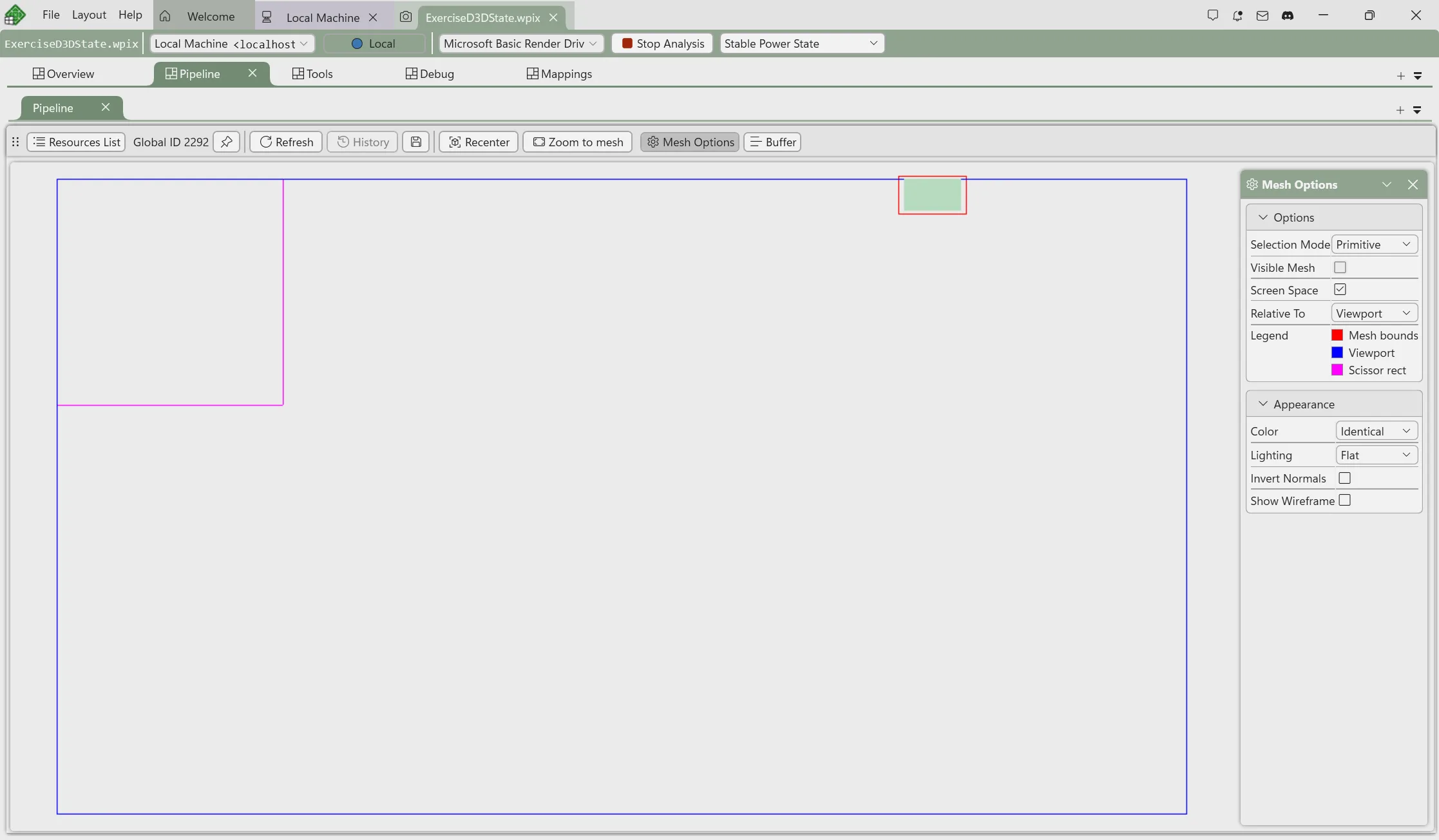
The screen-space VS Output view now overlays the scissor rectangle and viewport, with a legend explaining the displayed bounds. This makes clipping problems easier to diagnose without comparing coordinates manually.
The Relative To option switches between viewport-relative and render-target-relative positioning. Zoom to mesh frames the geometry’s bounding box in screen space.
Dr. PIX Tight Resource Alignment experiment
The Tight Resource Alignment experiment, available in the June preview, now joins the main release. Run it from Dr. PIX to estimate how much memory your placed resources could save by using D3D12_RESOURCE_FLAG_USE_TIGHT_ALIGNMENT.
The experiment compares the original resource layout with a tighter layout, including a compaction step that tries to reduce gaps between resources. Results include:
- Per-heap estimated savings in bytes and percentages.
- Original and tightly aligned resource extents.
- Detailed resource offsets and allocation requirements.
- Padding within allocations and between resources.
- Warnings for heap overallocation or aliased resources.
The experiment requires an analysis device that supports tight resource alignment. Aliasing can affect the accuracy of the estimates.
Texture and Mesh Viewer improvements
- Fix missing vertices and merged meshlets when an amplification shader drives a mesh shader.
- Fix mesh-output capture when the shader has no payload or never reads its payload.
- Fix incorrect mesh output caused by mismatched amplification- and mesh-shader payload layouts, including layouts with the same original size.
- Fix misleading mesh output when instrumentation would exceed the mesh payload-size limit by reporting a specific error instead.
- Fix sign extension for signed 16-bit mesh outputs.
- Fix Force MSAA Sample Zero not being applied to Shader Model 6.6+ and half-precision texture loads.
- Fix saved texture images including padding from the viewer canvas.
- Fix incorrect histogram channels for BGRA and other swizzled formats.
- Fix Pixel Details losing its relative selection position when switching textures.
- Fix unexpected wrapping of Pixel Details values.
- Fix a regression that prevented some custom texture visualizers from working.
- Fix a crash involving some compressed texture formats.
- Fix mismatches between displayed mesh and vertex data after selecting subsequent events in the event list.
- Improve screen-space display of large meshes.
- Fix a sporadic initially blank VS Output view.
- Fix a sporadic mesh-view crash when rendering
- Fix a VS Output crash involving an embedded root signature.
- Fix the selected-pixel highlight becoming misaligned or leaving the texture canvas while scrolling.
- Fix unwanted cross-axis panning and opening unrelated context menu after releasing mouse outside the texture viewer.
- Add a 1:1 actual-size zoom button to the Texture Viewer.
- Fix blurriness in textures when displayed at 1:1 zoom due to subpixel offsets.
- Improve high-DPI image sizing.
- Add horizontal and vertical panning via Home/End and Page Up/Down.
- Fix scrollbar sizing and scrolling to the edge of a texture.
Other Pipeline View improvements
- Fix incorrect overdraw and pixel-cost counts for pixel shaders with loops or early returns.
- Fix invalid overdraw instrumentation when pixel-shader inputs densely fill the signature.
- Fix handling of 16-bit and minimum-precision color outputs in highlighting and related visualizers.
- Fix missing out-of-bounds reports for certain writes and atomics.
- Fix dynamically indexed resource accesses sometimes being attributed to the wrong binding range.
- Fix Shader Model 6.6 dynamic accesses being attributed to register zero instead of the binding’s lower bound.
- Fix missing reports for out-of-bounds accesses exactly one element past the end of a resource range.
- Fix missing shader-stage attribution for out-of-bounds bindless raytracing accesses.
- Fix missing raytracing resource dependencies from helpers linked from another library.
- Fix UI navigation through work-graph local root arguments.
- Fix misc problems with resource-list filtering in the Pipeline view.
- Fix shader-node selection being lost in the resources list.
- Display Stream Output buffer strides.
- Fix incorrect displayed minimum and maximum depth bounds.
- Fix misleading contents being displayed for an empty vertex-buffer view.
- Fix resource access tracking that could omit resources on repeated draws.
- Add support for “Gather Accessed Resources” for work graphs.
- Fix a Resource History crash when a capture was closed immediately after selecting an item.
- Fix Pixel History synchronization that could produce incorrect results on some newer GPUs.
- Fix Pixel History and Gold Image Diff ignoring the viewer’s flip setting.
- Fix a crash when reopening Pixel History rapidly.
- Replace repeated Variable Rate Shading dialogs with a dismissible warning banner in affected pixel-investigation views.
- Fix static-analysis warnings being lost when changing adapters.
- Fix false unnecessary-transition warnings for ExecuteIndirect argument buffers.
- Fix missing CPU resource modifications in Resource History.
- Display full terms for pipeline stage abbreviations.
Shader debugging, Edit and Continue, and symbols
- Add Revert to Original to the Mod selector to clear both unapplied and previously applied Shader Edit and Continue changes together, after confirmation.
- Fix local variables initialized from constants being marked unavailable.
- Fix incorrect resolution of elements in static global multidimensional arrays.
- Fix incorrect bitfield display in padded structures and structures with mixed-width members.
- Fix incorrect member locations after nested structures with tail padding.
- Fix instrumentation using instructions unsupported by Shader Models 6.0 and 6.1.
- Fix debugging of vertex shaders whose input signatures already occupy all available registers.
- Fix stepping into non-inlined helper functions and inspecting their local variables.
- Fix missing raytracing callable-shader invocations in debug data.
- Fix work-graph node-shader debugging ignoring the selected thread.
- Fix work-graph debugging that could produce no debug data and time out on WARP.
- Fix missing debug data for hull-shader patch-constant functions.
- Fix debug-layer validation failures caused by missing raw/structured-buffer flags in instrumented DXIL.
- Fix debugging of empty or methods-only HLSL structures.
- Fix single-member structures being treated as scalars instead of displaying their member values.
- Fix shader-debugger and mesh-output overflow retries that failed to grow their output buffer.
- Fix shader-only edits making untouched pipeline states appear permanently unapplied.
- Fix incorrect FXC/DXBC hashes used when suggesting a shader’s PDB filename.
- Fix previously fetched IL being lost when asynchronous shader requests complete out of order.
- Fix incorrect Shader Symbols counts.
- Improve the presentation of embedded PDB data.
- Fix valid composite symbol-server paths being rejected.
- Fix source and PDB search-path changes not being persisted reliably.
- Fix shader-reference resolution using outdated source search paths.
- Fix incorrect dark-theme HLSL builtin-type colors.
- Fix stale intercepted raytracing shader tables when edits replace or remove state-object modifications.
- Fix subsequent replay failures caused by Shader Debugging or access tracking modifying the original raytracing shader-table buffers.
- Improve shader modification through state-object collections and AddToStateObject chains.
- Fix corrupted version text in the compiler-version mismatch dialog.
Capture-time improvements
- Capture CPU writes correctly for some pooled upload and GPU-upload resources.
- Capture newly placed upload resources in an already-recorded heap without replacing their data with zeros.
- Avoid incorrectly deactivating adjacent, tightly packed placed buffers.
- Preserve initial contents when placed/reserved resources or their heaps are destroyed.
- Avoid a potential capture-side fence-wait deadlock.
- Read partially populated reserved-buffer tiles without reading past the buffer’s end.
- More efficiently handle reserved resources with no mapped tiles.
Export to C++ and analysis fixes
In addition to the new runtime and video coverage described above:
- Generate valid resource-creation code when no castable formats are present.
- Export supported state-object captures containing serialized root signatures instead of rejecting them as unimplemented.
- Generate compilable pipeline streams for serialized root signatures and explicit precompiled shader databases without relying on unavailable SDK helper types.
- Avoid conflicting debug-information settings across MSBuild and Ninja/NMake projects.
- Preserve partial-program state and subobject lifetimes during modification.
- Apply modified root signatures to the correct compute or graphics binding.
- Treat compute-only generic programs as compute workloads.
- Correct the buffer clear used by Dr. PIX primitive-culling analysis.
- Report unsupported geometry/mesh-shader cases in the Vertex and Primitive Efficiency experiment rather than attempting them.
Misc other GPU Capture fixes/improvements
- Fixed the Event List filter button and expansion of matching parent events.
- Restored Enter-to-next-match behavior in Event List search.
- Excluded PIX’s internal query-resolution copies from application event timing.
- Fixed an exception when no GPU timeline lanes are available.
- Fixed GPU event-lane lifetime leaks.
- Handled invalid driver history-buffer data more gracefully.
- Improved occupancy handling for plugins that cannot collect occupancy concurrently.
- Fixed ExecuteBundle-related occupancy collection and wave-selection problems.
- Fixed DXR Invocations crashes caused by invalid GPU IDs.
- Fixed DXR Invocations instrumentation for state objects containing global root-signature subobjects.
- Added bounds checks when interpreting acceleration-structure visualization data.
- Made the acceleration-structure viewer’s Y-Up toggle actually take effect.
- Applied default Y-Up and handedness settings consistently, with manual controls disabled while automatic orientation is active.
- Fixed cases where Start Analysis was disabled for the first capture.
- Fixed lost adapter selections or analysis remaining in the stopping state when switching captures.
- Record the command line parameters passed to the captured app executable, displayed in the File Details pane.
- Added a clearer error for an empty GPU Capture.
Timing Captures
Understand scheduling on heterogeneous CPUs
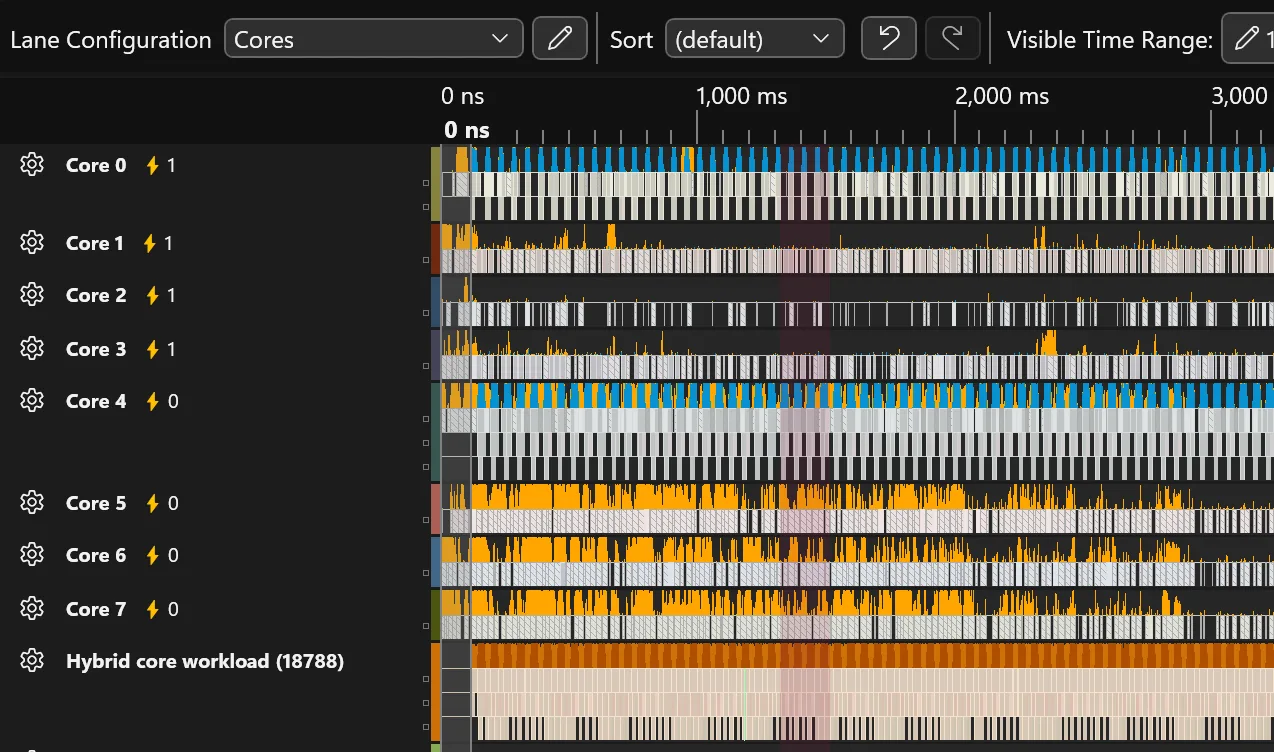
The heterogeneous-core timeline introduced in the June preview is now part of the main release. CPU lanes and thread activity distinguish core performance classes.
Core lane headers show a lightning-bolt indicator with the core’s efficiency class: class 0 represents efficiency cores, while higher values indicate higher-performance classes. Thread activity uses different colors for time on performance and efficiency cores. Hover over the activity graph for a breakdown of those fractions alongside stalled time.
Use these indicators to spot critical work scheduled on efficiency cores or background work occupying performance cores.
Since the preview, Range Details and Range Summary have also gained core-class analysis for PIX events and CPU samples in a selected range.
This information comes from the captured machine, including when converting an ETL offline. Older captures without the required topology records cannot display it retroactively.
Compare CPU execution with normalized measurements
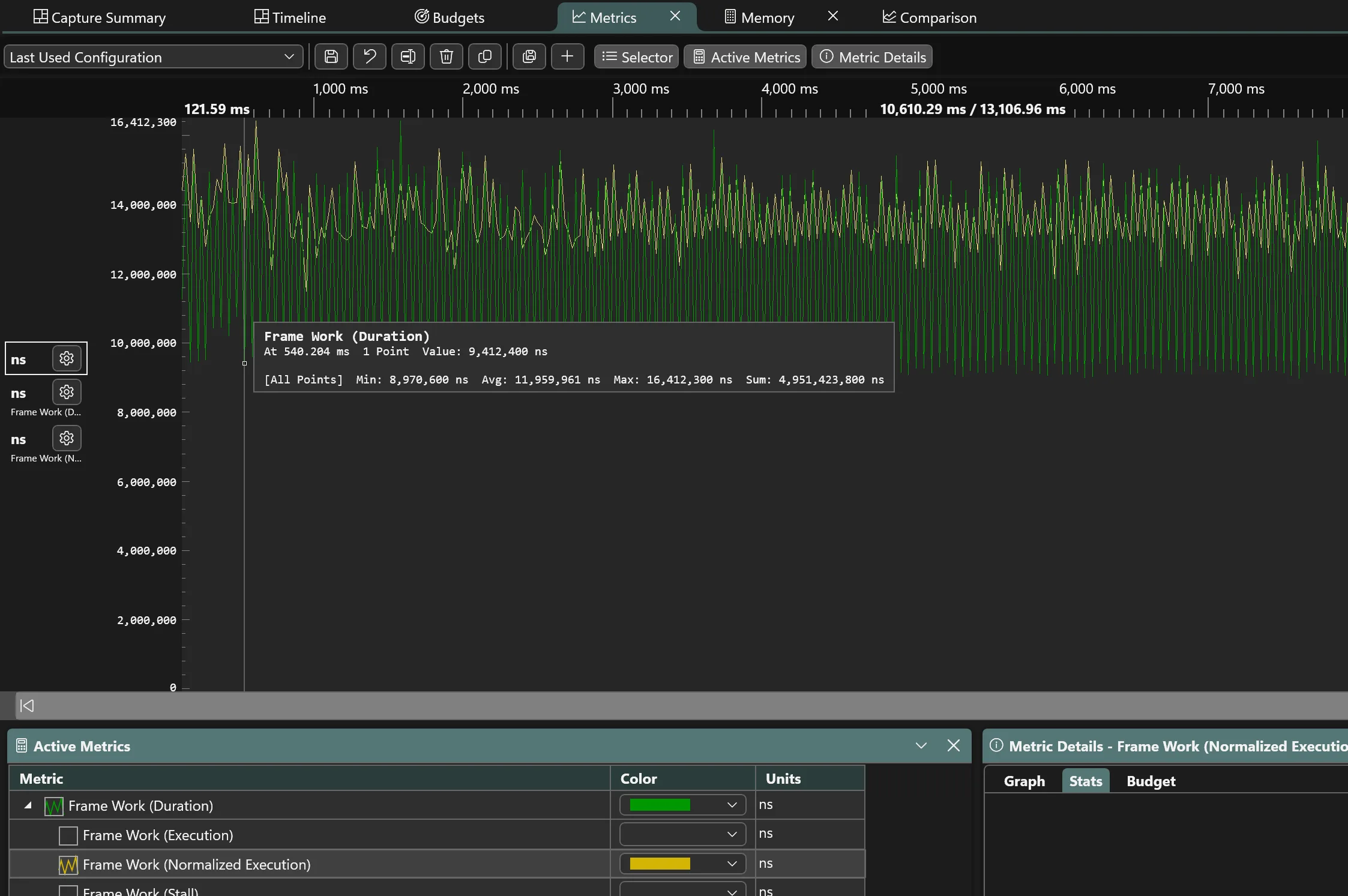
New experimental normalized CPU measurements help investigate changes in scheduling, boost, and throttling. They estimate execution relative to a reference core’s nominal performance rather than assuming that every millisecond of scheduled CPU time delivers the same capacity.
When a capture contains the required counters, normalized metrics and Range Summary values are discovered automatically. An experimental, default-off option adds more detail to Event Details:
- Normalized execution.
- Normalized performance ratio.
- Delivered Performance coverage.
Core-placement percentages remain separate. Their tooltips now explain how child events and unknown cores affect the totals.
These are model-based estimates, not exact predictions of how the same workload would execute on another processor. Heterogeneous support currently uses the Windows performance model for AMD and Intel CPUs; heterogeneous ARM and other vendor models are unavailable. Results require adequate measured coverage and are shown as unavailable when the data is insufficient, not as zero work.
Range Summary improvements
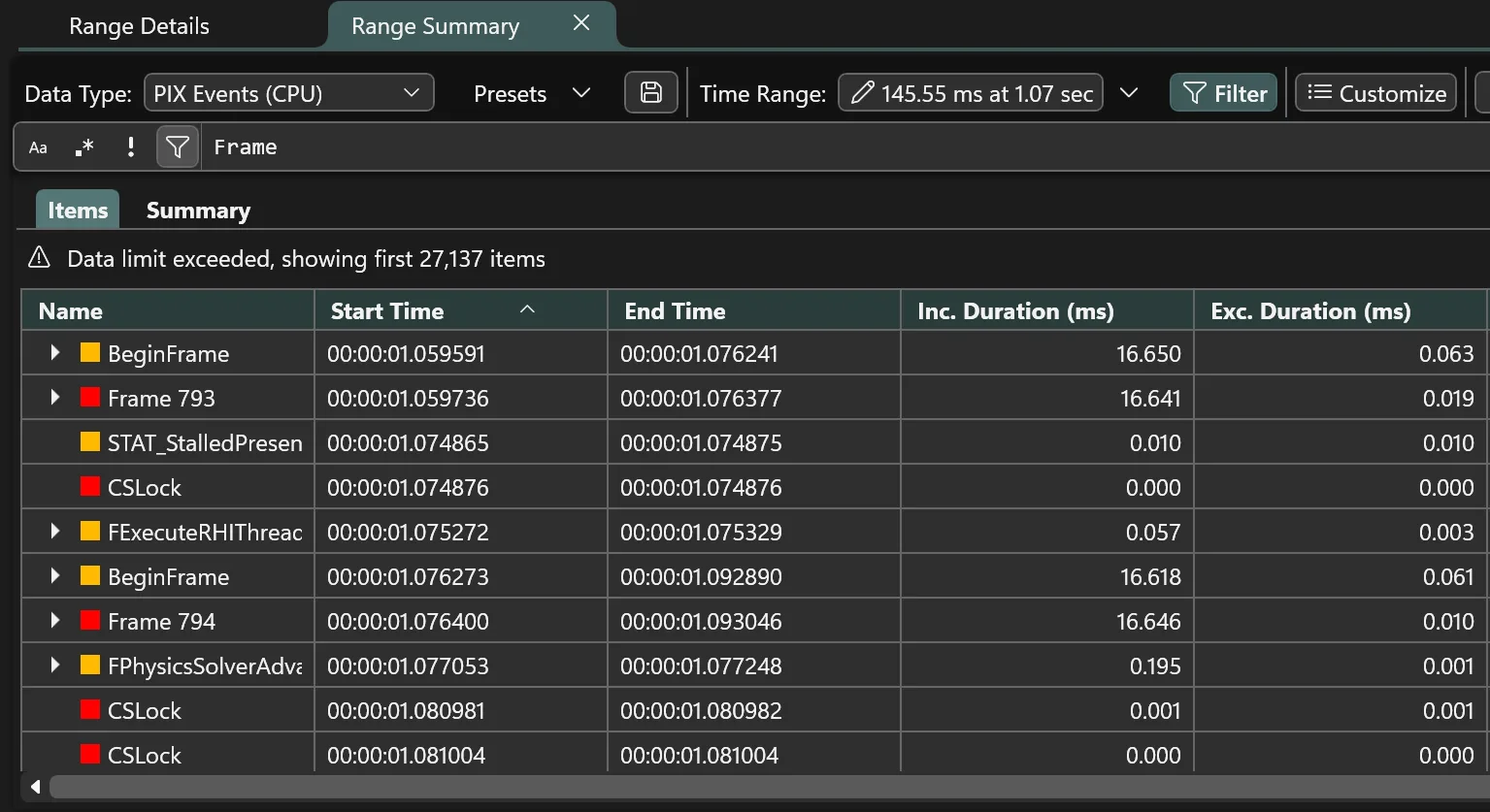
Range Summary now works more like Range Details, with separate Items and Summary results. Use Summary to group and aggregate results, then inspect the contributing work in Items.
New controls include:
- Text and regular-expression filtering alongside structured filters.
- Separate column choices for Items and Summary.
- Inclusive and exclusive percentages.
- Expansion of hot regions using the selected ranking metric.
- A Default action that restores the shipped grouping and display configuration.
- Customize mode for editing how data is aggregated. Turn it off to hide the editing controls.
- Summary columns can be edited, and the same column can be used for multiple summary types.
- Percentage-of-parent aggregation shows how time is divided among child nodes.
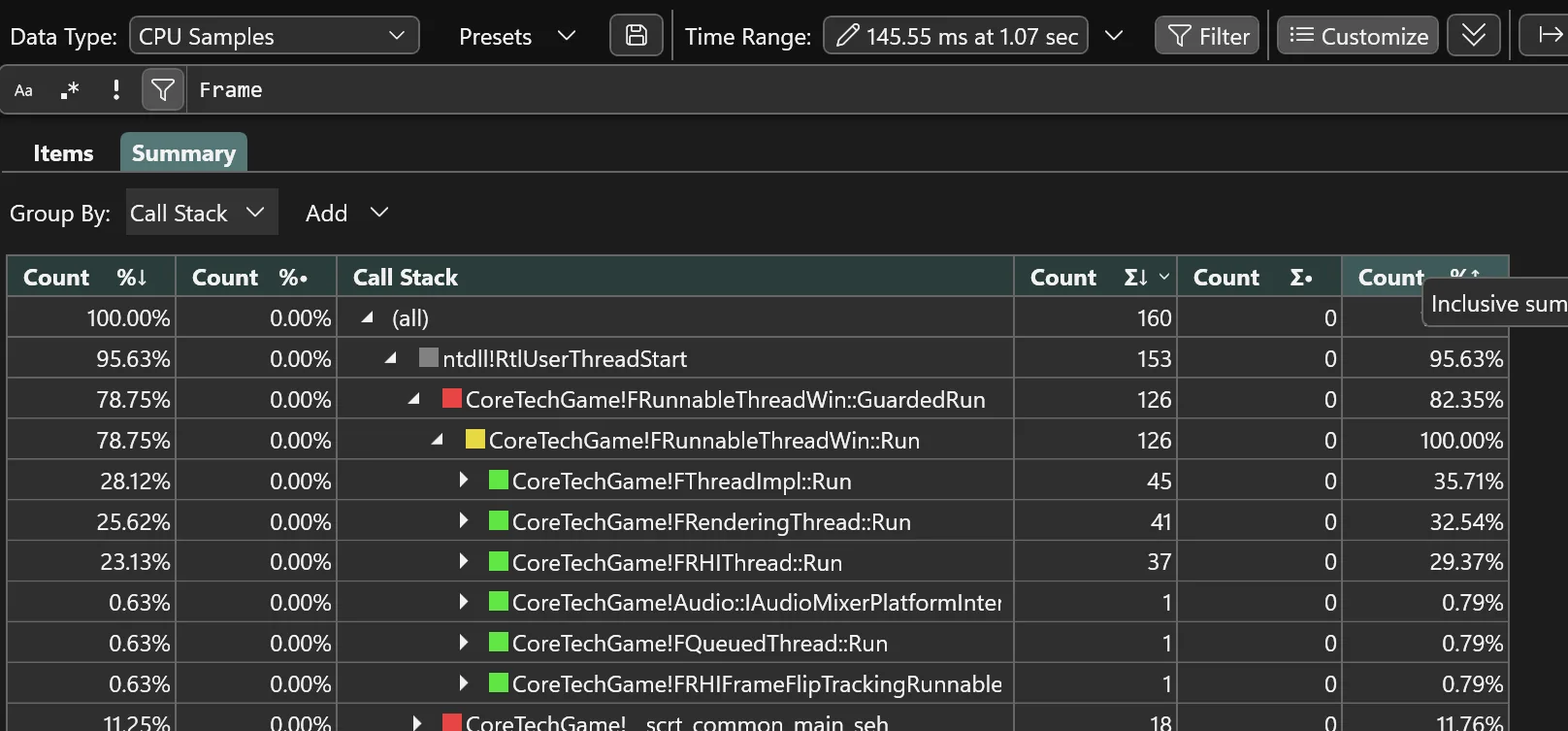
These improvements also apply to the existing file-I/O and memory summary tables.
Asset-mapping improvements
PIX uses CSV asset mappings to associate byte ranges in archive files with asset names. This lets you see which assets a DirectStorage batch or Win32 file read is loading.
PIX now handles ambiguous archive-file paths more reliably when applying asset mappings.
Follow DirectStorage requests through processing stages
DirectStorage analysis now exposes queue and processing-stage information from compatible DirectStorage 1.4 preview-or-later event streams. Follow a request through file I/O and decompression, and correlate it with the related GPU upload, decompression, or copy work.
The new timeline lanes and Range Summary tables expose request information such as:
- Source file and offset.
- Source and uncompressed sizes.
- Compression and destination type.
- Queue and process/thread context.
- Synchronization and completion information, where recorded.
Group requests to see where the most time is spent or the most data is loaded.

Processing-stage analysis requires the corresponding runtime events. Those stages cannot be shown in older captures that lack the events.
DirectStorage improvements also include:
- Compression and shuffle information in operation details.
- Corrected out-of-order request accounting so operations are not consumed by the wrong batch.
- More robust DirectStorage 1.4 request/fence correlation when events are orphaned.
- Corrected Show in Timeline navigation for DirectStorage operations.
- Kept selected enqueue markers visible above aggregated timeline markers.
Analyze Timing Captures with MCP
PIX now includes a standalone PixTimingCapturesMcp.exe server for MCP-capable clients. Register the installed executable as a standard-input/output MCP server, then open an existing .wpix capture. It does not require a running PIX UI or a listening network port.
The server supports:
- CPU samples, stacks, and scheduling queries.
- PIX CPU/GPU events and GPU-work correlations.
- File-I/O and memory-allocation queries.
- D3D object information.
- DirectStorage queue and processing data.
- Metric discovery and range statistics.
- Comparing a metric across two ranges within one capture.
- Reading and updating bookmarks.
Multiple captures can be open at once, with explicit capture IDs. The built-in metric comparison compares two ranges in the selected capture; it does not automatically compare different capture files.
When consolidated patterns share a name, MCP clients can use a unique display name to select the intended metric.
Symbol lookup initially uses the capture’s embedded cache for the captured application. Clients can opt into a wider process scope and external symbol lookup. Migration and bookmark updates can modify capture files.
For agents that support .mcp.json configuration, create a file like this in your working directory:
{
    "mcpServers": {
        "pix": {
            "type": "stdio",
            "command": "C:\\Program Files\\Microsoft PIX\\<PixVersion>\\PixTimingCapturesMcp.exe",
            "args": [],
            "tools": [
                "*"
            ]
        }
    }
}
The installation also includes an optional skill that guides your agent through the Timing Capture analysis techniques our engineers use. You can find it at C:\Program Files\Microsoft PIX\<PixVersion>\skills.
New scripted capture options
pixtool exposes more Timing Capture configuration for repeatable collection:
- Circular recording and ring-buffer size.
- Raw ETL output.
- CPU sampling rate and stack collection.
- File-I/O and memory instrumentation.
- Managed-code data.
- Capture duration or recording until process exit.
- Minimal GPU instrumentation where supported by the application’s Agility SDK.
Existing camelCase option spellings remain supported. Optional configuration passed through the PIX API is now honored, and errors reported while finalizing a capture reach the API/CLI instead of being mistaken for success.
Raw ETL collection can also merge the image metadata needed for symbol resolution automatically. If the merge fails, PIX preserves the ETL and reports the manual workaround.
Faster large-capture analysis and more accurate memory totals
Opening and navigating large Timing Captures now uses less memory. PIX looks up saved symbols on demand and aggregates more results before passing them to the UI. Symbol loading is faster thanks to parallel function/source enumeration and lower-overhead caches.
D3D memory views distinguish an object’s logical size from the physical memory it owns. This avoids double-counting committed resources and their implicit heaps. Placed and reserved resources remain inspectable as objects without being counted as separate backing allocations.
Resource sizes no longer wrap at roughly 4 GiB, and allocation summaries show the D3D object type instead of a placeholder.
Timeline and navigation improvements
- Keep matching Range Details results in view after filtering, scrolling to a visible selected row or back to the top.
- Keep the expected pattern selected after deleting an entry in the consolidated-event editor.
- Color sampled functions by module/function or callstack depth.
- Show command-list debug names in GPU timing lanes.
- Select a budget profile directly from the capture toolbar.
- Use one lane-sorting dropdown containing the applicable ordering choices.
- Resize bookmark popups to read and edit longer comments.
- Filter ETL-conversion process lists by name or PID and sort them.
- Honor the accumulated mouse-wheel delta when zooming, reducing delayed overshoot.
- Respect Windows’ configured scroll amount.
- Keep timeline labels from drifting vertically after repeated rendering.
- Page long context-switch-stall lists instead of materializing the whole list at once.
- Keep core-lane loading responsive and avoid a save/read deadlock.
- Correct zoom-to-sampled-functions framing.
- Preserve pinned tooltips during screen-snipping transitions.
- Report the thread-activity time bin under the pointer correctly.
- Keep context-switch/stall lanes visible at close zoom levels.
- Show lanes containing GPU work, samples, or API-object activity even when they contain no PIX events.
- Prevent stale asynchronous hover results from reopening at an old pointer location.
- Match video-frame tooltips and selected images to the rendered tile at scaled zoom levels.
- Correct Copy to Clipboard and Save as BMP for selected video frames.
- Reduce contention between video decoding and other timeline work.
Metrics configuration improvements
- Fix crashes when deleting configurations and restore Rename.
- Honor Cancel without creating or changing a configuration.
- Prevent duplicate Last Used configurations from accumulating.
- Preserve existing configurations when importing another with the same name.
- Keep named empty configurations across restarts and label them (empty).
- Suggest unique names and explain naming conflicts before saving.
Metrics, memory, and symbol fixes
- Keep shared Y-axis and histogram ranges up to date as metrics with the same units finish loading.
- Improve consolidated CPU-event matching in budgets and cross-capture comparisons when thread IDs change.
- Use each capture’s own consolidated events when calculating comparison statistics.
- Include low-activity title threads in Summary’s CPU Thread/Core Usage table, grouping them instead of dropping their contribution.
- Explain missing thread activity and avoid invalid utilization percentages for empty ranges.
- Correct CPU execution/stall accounting when context-switch records are missing.
- Copy Allocated Size and Unfreed Size cells as text instead of empty values.
- Prevent duplicate metric entries and errors from repeated or out-of-order graph toggles.
- Prevent budget-profile initialization from changing a metric list while it is still being constructed.
- Prevent missed histogram updates and collection-modified errors during asynchronous loading.
- Stop memory animations from following a replaced analysis model.
- Release retained metric configuration, timeline lanes, and symbol graphs when captures or views close.
- Release intermediate storage used while paging Range Details and Range Summary results.
- Attribute source-analysis samples to the selected function’s stack node rather than its parent.
- Avoid appending duplicate saved function/source records when adding newly resolved type information.
- Repair older duplicate symbol data when migration is required.
- Preserve same-timestamp kernel/user stack ordering.
- Reduce long finalization delays caused by repeatedly sorting pending stack data.
- Bound the memory retained for Delivered Performance collection and analysis.
- Correct full-range metric queries at the maximum timestamp.
- Correct GPU event completion’s handling of nested timing state.
Capture, conversion, and API reliability
- Fix installed native Timing Capture API initialization when its managed runtime configuration was missing.
- Reduce per-record allocation churn during circular ETW recording.
- Distinguish viewer-local and UTC capture times in Summary.
- Preserve the meaning of older stop timestamps recorded in the capturing machine’s local time.
- Handle quoted filenames correctly in the ETL converter.
- Avoid misleading validation errors for valid conversion filenames.
- Enable a separate destination when migration is not in place.
- Allow data-repair migration even when the capture already has the current schema version.
- Rebuild changed indexes during capture migration instead of accepting stale same-name indexes.
- Identify the associated metric in budget-detail headings.
- Release replaced buffers when recalculating budget-exceedance markers.
- Handle malformed or truncated ETW array payloads more robustly.
PIX API and command-line tools
PIX API SDK
The PIX API, introduced as a beta in the May preview, is included in the main release. Use it to build tools around PIX capture documents and device connections, including the new retail interfaces for DirectX dump analysis and shader profiling.
The installation includes:
- Native headers under include.
- lib\PixApi.lib and pixapi.dll.
- C# extension assemblies.
- Packaged API documentation in docs\pixapi.zip.
Python integrations use pythonnet with the C# layer rather than the earlier separately installed Python package. Native integrations should use the current headers rather than the removed IDL/WinMD surface.
Use the new online documentation alongside the PIX API samples when setting up an integration. Follow the sample’s version requirements and use headers from your installed PIX SDK.
Code built against older preview headers needs rebuilding: the factory interface ID and a number of API types have changed. Experimental native interfaces remain separate from the retail surface.
System Monitor
Several new counters are available in System Monitor:
- Per-IHV counters exposed via plugins. Currently supported by AMD and NVIDIA.
- Advanced Shader Delivery cache statistics, including PSO creation and cache-hit/miss categories.
- System power and usage related counters, including battery discharge rate, CPU requested and nominal frequency, and CPU C-State.
To view available counters on your system open the System Monitor Modify Graphs panel. These counters are also recorded during a Timing Capture and can be plotted in the Metrics view.

Remote connections and application launch
Manage paired PCs from PIX
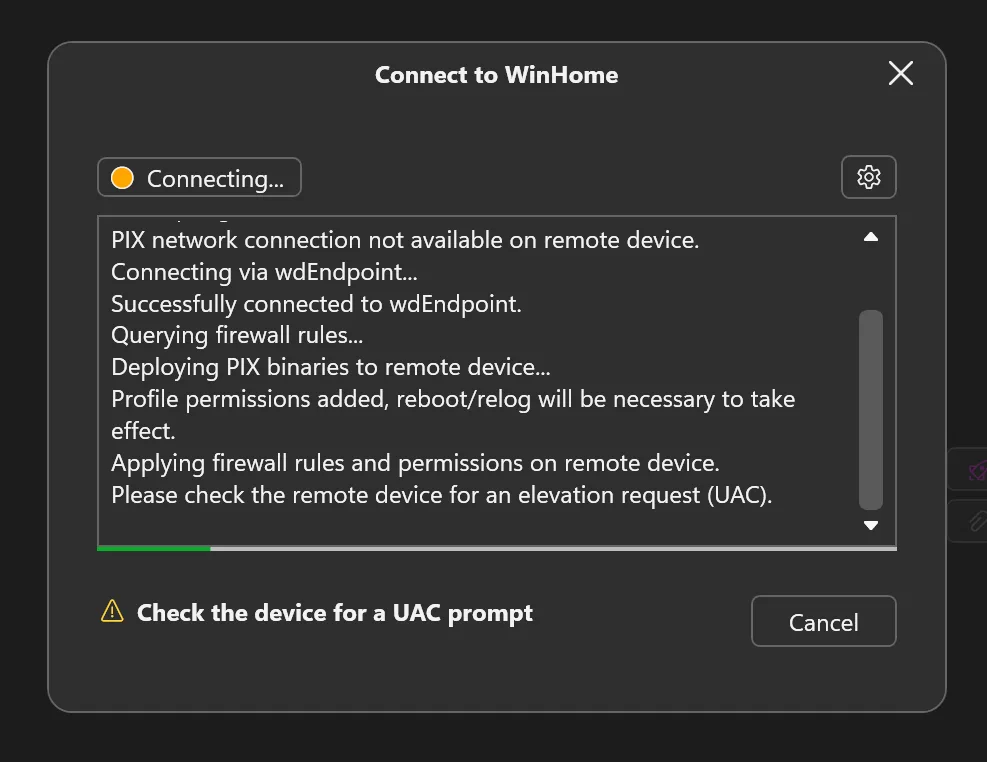
The remote connection support introduced in the May preview uses the Xbox PC Remote tools to manage paired Windows PCs. PIX can deploy its engine and start the remote connection. A flyout shows connection status and setup instructions. You may need to acknowledge a UAC prompt on the remote device to deploy the engine and configure firewall rules; PIX will tell you when this is needed.

Reattach to Last Process and launch improvements
Reattach to Last Process is new since June. After restarting your application, use it to find processes with the previous executable name without reopening Attach to Process.
The launch controls now show longer recent-launch lists and command-line history.
When the defaults are suitable, use Launch directly without first going through Next. The capture-mode selector no longer unexpectedly toggles away from GPU Capture when you click the already-selected option, and its keyboard handling is improved.
Additional fixes include:
- Launch the correct remote engine architecture from an ARM64 installation.
- Match executable names correctly in Attach to Process filtering.
- Clean up packaged applications that fail partway through launch.
- Correct packaged-app recent-list cache-miss handling.
- Use the required process access rights for packaged-app GPU capture.
- Correct x86 child-process launch passthrough.
- Handle connection timeouts like disconnects rather than displaying an unrelated error.
- Avoid an adapter-selection worker-thread exception.
- Release connection, docking, and System Monitor state when a connection closes.
Welcome, settings, and everyday usability
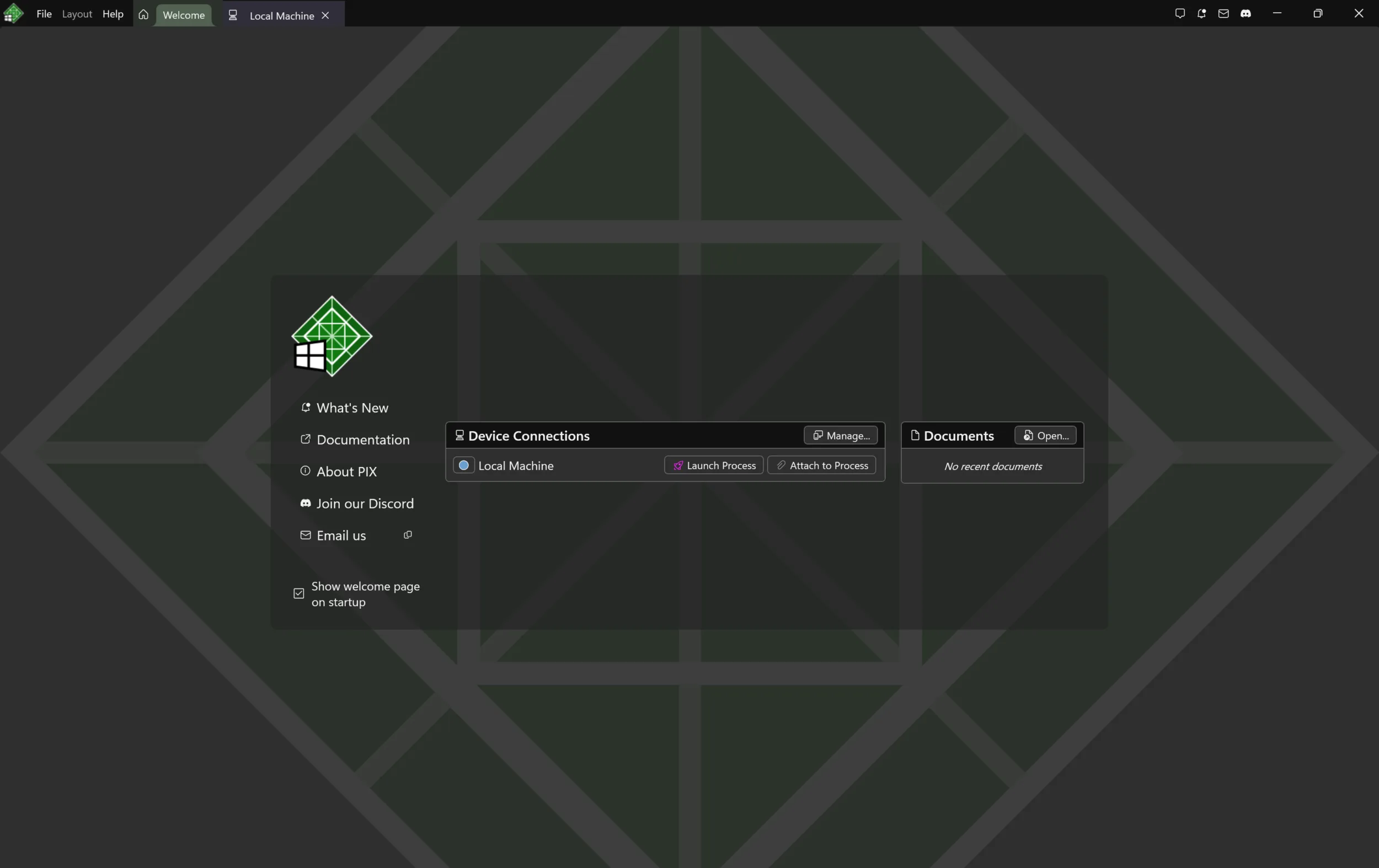
PIX now opens to a new Welcome page. Open recent documents with a double-click or Enter, or launch or attach to applications from the device connections list. If a connection fails, you can retry with one click. The page also links to documentation and feedback. It stays available as a tab, and you can choose whether it appears on startup.
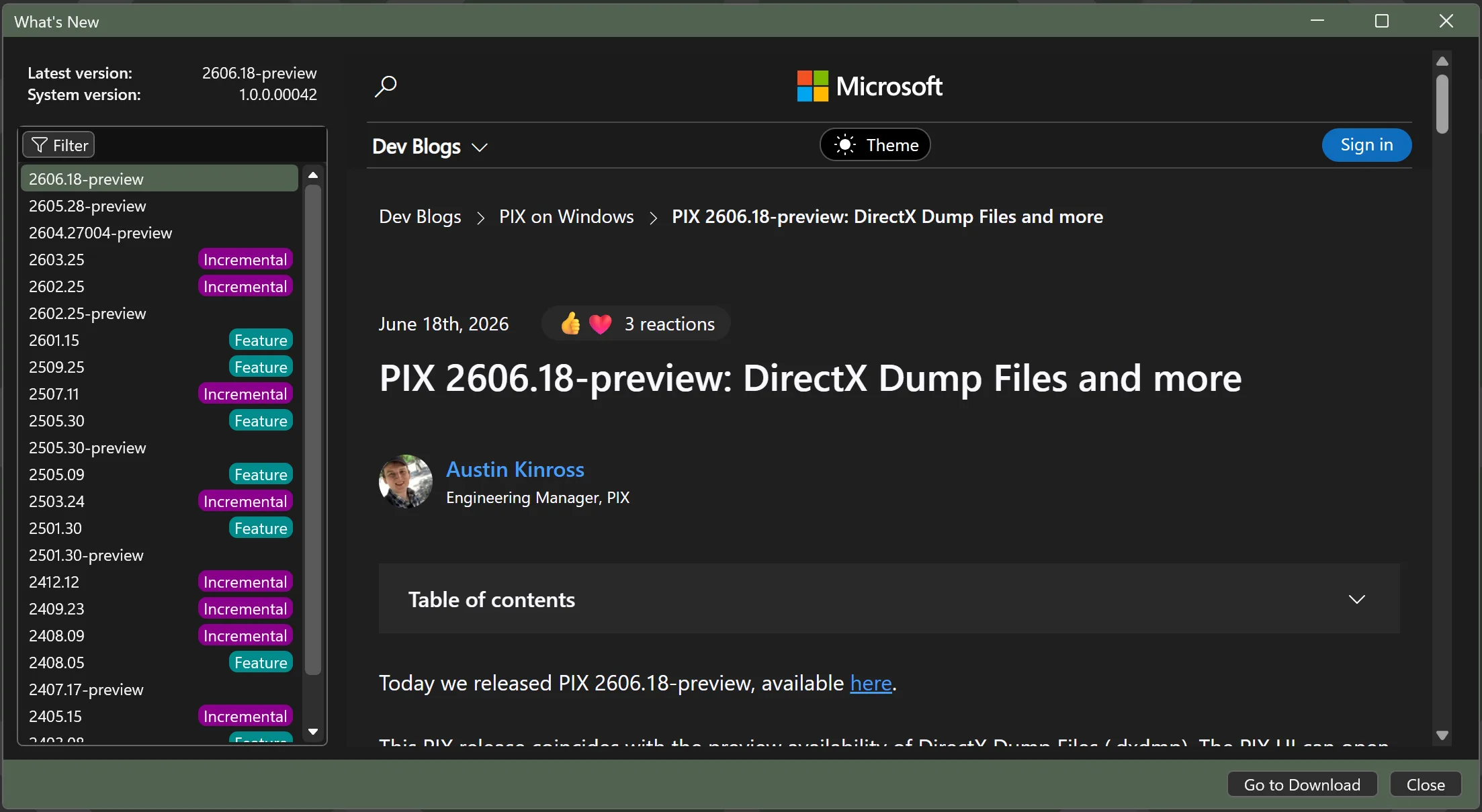
When a newer version of PIX is available, a notification shows the release highlights and a download link. You can reopen it from a button in the top right corner. The redesigned What’s New page, opened with F2, shows the installed version next to the latest release. It also lists past releases, with filters for feature, incremental, and preview releases, and shows each release announcement inside PIX.

PIX now follows the Windows light or dark theme by default through the Use System Theme setting. It switches immediately when the Windows theme changes while PIX is running. These changes first appeared in the June preview and are now part of the main release.
The installer now updates the required .NET Desktop and Visual C++ runtimes and includes WebView2. A failure to remove an older version of PIX no longer blocks installation of the new version.
Other UI improvements include:
- Capture workflow:
- Start Analysis no longer blocks views that don’t need analysis.
- The Captures panel opens automatically for all GPU capture sources.
- Opening and saving documents:
- Captures without a thumbnail, including programmatic or non-rendering ones, show a more visible placeholder.
- File opening uses the standard Windows file picker with a recent folder menu. It remembers the last folder used and offers an “All PIX Files” filter.
- Opening a capture that is already open no longer fails.
- Recent Documents checks the file type before opening a file and keeps entries after errors unrelated to the file.
- Screenshot saving now handles file extensions correctly.
- Tabs, docking and layout:
- The selected tab stays visible when tabs overflow, and long titles are shortened in the middle.
- Docking prefers nearby views, and panel-group splitters and layout rounding are fixed.
- Detached panels no longer hit layout failures, and the cursor and window state recover after opening or minimizing.
- Filtering and search:
- Ctrl+E now focuses filters consistently in dialogs.
- The About dialog filter works, and the dialog loads its content asynchronously.
- Text editors and copying:
- Text editors highlight other instances of the word under the cursor.
- Improved horizontal scrolling and draggable editor overlays.
- File Details text is easier to select and copy.
- Keyboard: Escape closes popups. Switches support keyboard input, and keyboard focus is more reliable.
- Visual polish:
- Dark theme selection, breadcrumbs and panel titles are easier to read.
- Improved tree-view scrolling and sizing.
- Pipeline Resources shows a loading indicator and clearer errors.
PIX documentation on Microsoft Learn
Alongside this release, we’re bringing PIX documentation together on Microsoft Learn. The new site consolidates guidance previously spread across blog articles and existing documentation, with a common starting point for learning PIX and looking up its APIs. This blog will continue to carry release announcements.
Detailed PIX API documentation
The new documentation includes a getting-started guide for the PIX API and an extensive reference generated from its native headers. The guide explains the installed SDK layout, with examples that open a capture or establish a local connection through a PIX factory.
The WinPixEventRuntime APIs are separate and have their own documentation.
Public samples for your own tools
The new docs are complemented by samples in the public PIX API samples repository. New examples include:
- Upgrading older GPU Capture files.
- Running Dr. PIX experiments.
- Inspecting captured pipeline state.
- Inspecting resources and their views.
- Opening Timing Captures and resolving symbols..
Download and feedback
Get PIX from the download page. Please don’t hesitate to contact us with feedback – either via the Send Feedback button in PIX or via the DirectX Discord.
0 comments
Be the first to start the discussion.