



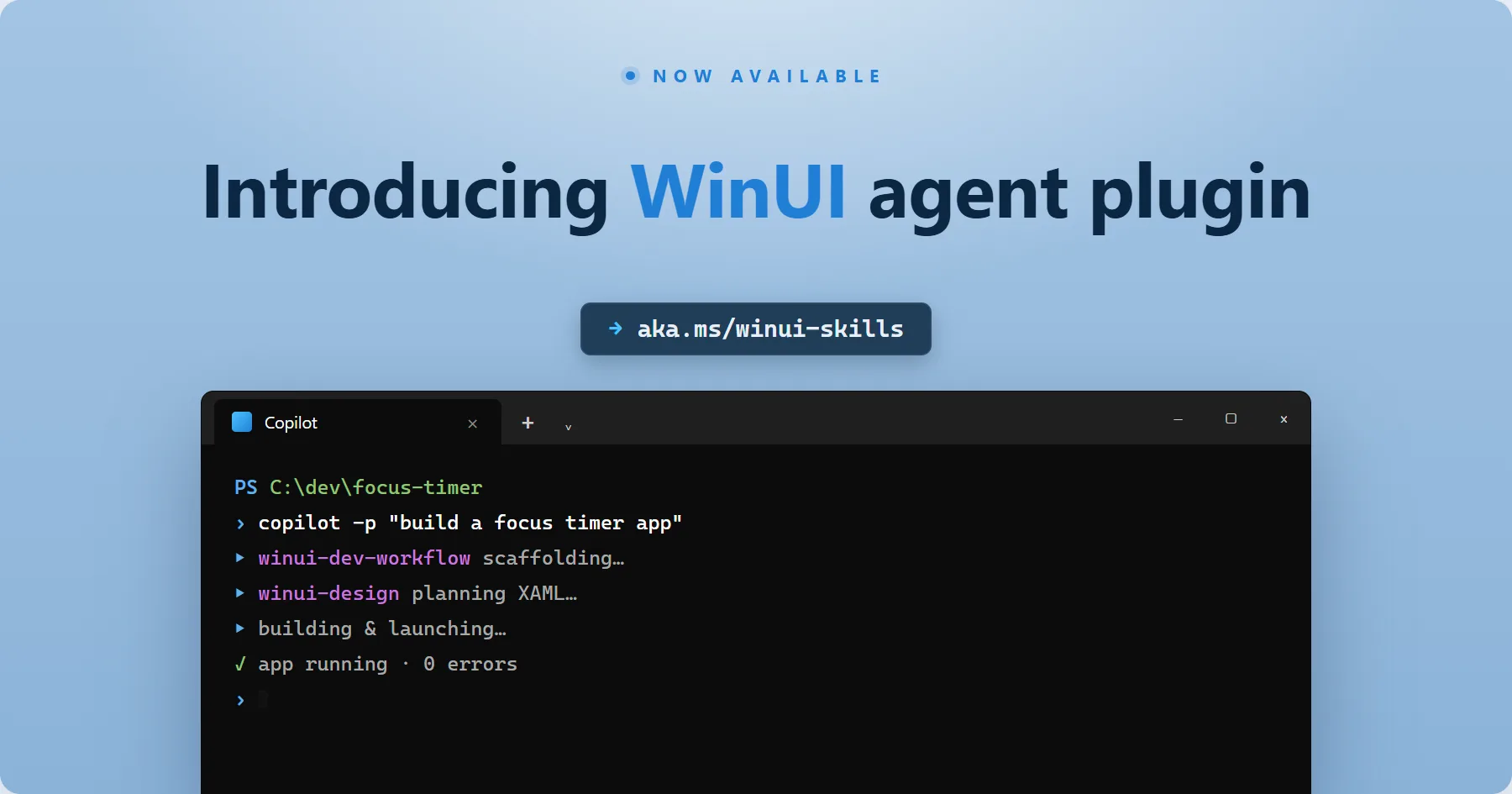
We’re excited to share agent skills designed to efficiently build native Windows apps with WinUI and the Windows App SDK with agents such as GitHub Copilot and Claude Code.
These skills enable your agent to take your ideas to a native Windows app in minutes! They are built around the end-to-end loop: scaffold, build, run, test, iterate. They’ve been optimized to know how to drive each stage, recognize common failures that get normal agents stuck in loops, and steer towards successful patterns, while also minimizing the number of tokens used by your agent. We hope to continually improve this experience and outcomes as we gather more feedback and examples from our developer community!
Try it
Open GitHub Copilot CLI and use the following commands:
# Add the WinUI plugin to GitHub Copilot CLI
/plugin install winui@awesome-copilot

# Run the winui-setup skill to install all prerequisites
/winui:winui-setup
Then ask GitHub Copilot for the WinUI 3 app you’ve been meaning to build, and tell us how it goes.
Skills built for WinUI development
Modern Windows app development covers a lot of ground – XAML and Fluent Design, MVVM, MSIX packaging, code signing, Store submission, accessibility, theming, UI automation. Each piece is well-documented on its own but stitching them together into a smooth inner loop takes practice. AI agents working from generic web context tend to mix WinUI with older stacks, miss the packaged-execution model, or stop short of running and verifying what they built.
dotnet new through a packaged app – and keep them cheap to run so developers aren’t paying for unnecessary context on every turn. The two goals push in opposite directions, so we paired the skills with purpose-built tools (covered below) that give the agent ground-truth answers on demand, instead of loading entire reference pages up front.Copilot CLI agents and skills let us put that knowledge right next to the developer. You ask copilot -p "create a WinUI 3 photo viewer with thumbnails and EXIF metadata", and the agent:
- Picks the right template and scaffolds the project
- Builds it and runs it through the right packaged-execution pipeline
- Interacts with the app to validate functionality, if requested
All the while it’s:
- Designing with XAML theming and accessibility in mind
- Using MVVM principles to separate concerns
- Fixing compilation errors automatically
- Considering the right usage of controls for your scenario
and when you think you have your ideal validated, the agent can polish your app at a higher level with:
- Accessibility audits
- Code reviews
- Packaging
- and UI testing
…all without you needing to guide it or teach it how to do any of those steps. And because each skill only loads what it needs and leans on the tools below for the rest, the agent does all of this in more than 70% fewer tokens than when we started – on the same model.
What’s inside the plugin
The plugin ships one agent, eight skills, and several supporting tools. The agent is the entry point – it loads by default the skills for building, debugging, and design, and you can add additional skills in the prompt or individually use just the skills you need.
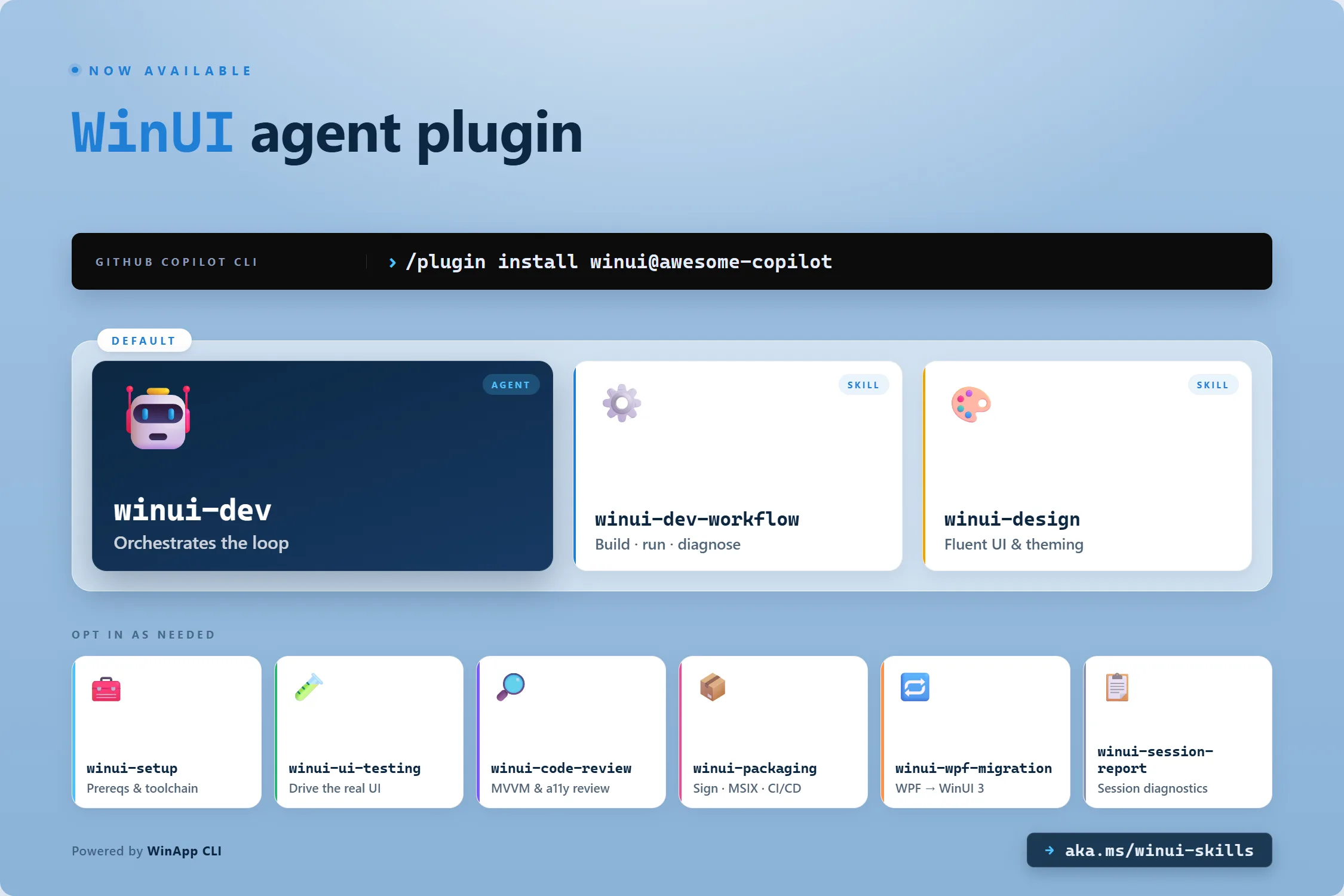
The agent: winui-dev
A focused agent for WinUI / Windows App SDK / XAML / C# work. Use it for new apps, adding features, converting from WPF/Electron/web, or fixing bugs. It’s the orchestrator that pulls in the winui-dev-workflow and winui-design skills by default and kicks of the agent to accomplish the task.
The skills
Each skill is a focused, self-contained playbook. The agent loads winui-design and winui-dev-workflow by default – those cover most “build me a WinUI 3 app” requests end-to-end. You opt into the others when you want them. Mention UI testing and the agent will load the winui-ui-testing skill to drive your app through real UI automation, find functional issues, and iterate on fixes; ask forwinui-packaging when you’re ready to ship; include winui-wpf-migration when you’re porting from WPF. Skills compose cleanly, so adding one doesn’t disrupt the others.
| Skill | What it does |
|---|---|
winui-dev-workflow |
Build and run workflow – project creation from templates, the BuildAndRun.ps1 helper, winapp run, error diagnosis, prerequisites. Use when building, running, or fixing build errors. |
winui-design |
UI design and XAML correctness – layout planning, control selection, Fluent Design, theming (Light/Dark/HighContrast), typography, spacing, brushes, accessibility, data-binding review. Use when designing new pages, converting from WPF/Electron/web, reviewing XAML, or fixing theme issues. |
winui-code-review |
Code-quality review before committing – MVVM compliance, x:Bind correctness, accessibility, theming, security, performance. Catches the issues the compiler and UI tests won’t. |
winui-ui-testing |
Automated UI testing – generates a batch test script, runs all tests in one pass, reads results. Covers element assertions, interactions, value checks (TextBox, ComboBox, ToggleSwitch), file pickers, flyouts, dialogs, persistence, and accessibility audits. |
winui-packaging |
MSIX packaging, code signing, and distribution – release builds, certificate generation (winapp cert generate), trust, signing (winapp sign), self-contained deployment, GitHub Actions CI/CD, and Microsoft Store submission. |
winui-wpf-migration |
WPF → WinUI 3 migration – namespace replacement, control mapping (DataGrid → ListView, WrapPanel → ItemsRepeater, TabControl → TabView), Dispatcher → DispatcherQueue, System.Drawing → BitmapImage, MVVM conversion to CommunityToolkit.Mvvm, and DynamicResource → ThemeResource. |
winui-session-report |
Diagnostic report on the current or a recent Copilot session. Use when asking for session feedback, debugging agent behavior, or reviewing what happened during a build session. |
winui-setup |
Setup your development environment – only call once if needed to ensure all the tools are installed and available. |
The tools we lean on
Skills are prompts plus playbooks. They get their actual leverage from a small set of tools – some included as part of each skill.
External: tools expected on your machine
- WinApp CLI (
winget install Microsoft.WinAppCLI) – the command-line driver for installing, running, signing, packaging, and automating WinUI 3 / WinAppSDK apps. Withoutwinapp, these skills wouldn’t be possible. Packaged WinUI apps can’t just be launched as a.exe– they need to be installed and started through the right activation pipeline.winapp rundoes exactly that, and crucially streams the app’s debug output back to the agent so it can see crashes and exceptions instead of staring at silence.winapp uipowers the entirewinui-ui-testingskill: enumerating elements, asserting state, driving controls, capturing accessibility audits – all from the command line, all scriptable, all readable by an AI agent.winapp manifestandwinapp packare what makes thewinui-packagingskill able to take a build all the way to a signed MSIX.winapp CLIis built in parallel with these skills, in lockstep. Every time a skill needed a new automation surface, a missing JSON output mode, or a tighter feedback loop, that requirement landed inwinappfirst. The two repos co-evolve, and we expect that to continue. Read the latest WinApp CLI blog post for more details onwinapp runandwinapp ui. - Microsoft.WindowsAppSDK.WinUI.CSharp.Templates — the new
dotnet newtemplates for WinUI 3 + Windows App SDK. The dev-workflow skill uses these as the canonical scaffold so every new project starts from the same supported baseline. Read the blog post introducing the new dotnet new templates for WinUI to learn more.
In-skill: the three tools we built alongside the skills
These pre-build binaries ship with the plugin. Each one solves a problem that prevents the skills from being reliable. All three are early days – see the “What’s next” notes for where each is heading.
🛠 winui3-analyzer – a Roslyn analyzer for WinUI 3 pitfalls
A netstandard2.0 Roslyn analyzer that catches common WinUI 3 / WinAppSDK issues at build time: UWP namespace leaks, Window.Current and CoreDispatcher usage, WebView2 without EnsureCoreWebView2Async, TabView items containing raw content, attached-property initializer bugs, removed ONNX GenAI APIs, the old field-backed [ObservableProperty] pattern, and more. Distributed today as a prebuilt DLL the winui-dev-workflow skill auto-injects into your dotnet build.
- What’s next: the goal is to ship this as a standalone NuGet package with a categorized rule catalog, severity-ceiling policy (no
Errorrules by default), and per-rulehelpLinkUris. Whenever that lands on NuGet, the skill will switch to a<PackageReference>and the in-repo distribution path goes away. Feedback on rule severity, false positives, and which categories matter most will shape the catalog.
🔍 winui-search – a fast, offline catalog of WinUI Gallery + Community Toolkit samples
A native-AOT CLI that indexes WinUI Gallery and CommunityToolkit/Windows scenarios so the agent has grounded knowledge of which control to pick, and how to use it well. WinUI 3 ships with a lot of controls – and Community Toolkit adds many more on top. Knowing whether the right answer is NavigationView or TabView, ListView or ItemsRepeater, a stock Expander or a Toolkit SettingsExpander, isn’t something a generic LLM gets right reliably. winui-search puts the actual shipping samples behind a fast lookup so the agent can see real usage before writing a single line of XAML. When a skill is drafting a settings page, it can ask winui-search for “toggle switch with description text” and get back the actual XAML pattern from WinUI Gallery – including the expected resource keys, spacing, and ancillary controls. Need a NavigationView example with a custom title bar? An ItemsRepeater with virtualized cards? A Community Toolkit SettingsCard with an icon and a hyperlink? It’s one query away. Backs the design skill’s “show me a real-world example” capability and grounds the agent’s XAML in patterns that already shipped to real users.
- What’s next: the data layer and the CLI surface are both in flux. We’re considering a few directions: shipping it as a standalone CLI tool, folding the search surface into
winappitself, or exposing the catalog over a small MCP server. We’re also working on expanding what’s searchable – multi-control composite patterns (a full settings page, not just a singleToggleSwitch), and going beyond UI into C# code patterns so agents can reliably search for snippets like “how do I implement a customICommand” or “Dispatcher-safe progress reporting from a backgroundTask“. The right answer depends on where developers want to use it – your feedback will decide.
🧬 winmd-cli – offline WinRT + .NET API metadata lookup
A native-AOT CLI that indexes .winmd and managed .dll metadata from NuGet, the Windows SDK, and WinAppSDK and provides fast, offline API lookup with the same XML doc text Visual Studio IntelliSense uses. The agent can use it to verify that an API actually exists and has the signature it thinks it does – before writing code that won’t compile.
- What’s next: same set of options as
winui-search– standalone CLI, integration intowinapp, or MCP server. Likely shares whatever distribution decision we land on forwinui-search.
One more in-repo tool you should know about
🩹 BuildAndRun.ps1 – a temporary build wrapper
The winui-dev-workflow skill currently invokes a small PowerShell helper, BuildAndRun.ps1, instead of calling dotnet build directly. Why? There’s a known XAML compiler issue (issue, issue) where, under dotnet build, a malformed XAML file produces no useful diagnostic – the build just fails with no indication of what’s wrong in which .xaml. Agents that hit this get completely stuck: they can see the build failed, but they have no signal to act on, and they thrash through unrelated guesses.
The script’s actual workaround is small but specific: if MSBuild is available on the machine (i.e. Visual Studio with the right workload is installed), the script builds with MSBuild instead of dotnet build, because the XAML diagnostics flow correctly through MSBuild. If MSBuild isn’t there, it falls back to dotnet build and surfaces what it can. Either way, after a successful build it hands off to winapp run so the app launches the right way.
- What’s next: this script is explicitly temporary. It’s slated to be removed entirely once the XAML compiler fix ships in the next Windows App SDK release. We’d rather not paper over platform bugs forever – the right fix lives in the platform.
We want your feedback!
This is the part we want to over-communicate: everything you see today is a starting point.
- Skill names, scopes, and structure can change. We’ve already collapsed and re-scoped a few skills based on early internal feedback.
- Distribution mechanics for the analyzer and CLI tools are open questions – see each tool’s “what’s next” above.
- The
BuildAndRun.ps1helper will go away when the platform fix ships. - The
winappCLI is itself young and evolving in lockstep with these skills.
If a skill produces something wrong, surprising, or just not as good as it should be, we want to know. The fastest way to influence the direction is to file an issue on the microsoft/win-dev-skills repo (the bug template asks you to attach a session report – generated for you by the winui-session-report skill).
Give the plugin a try and let us know what you think!


This is not designed to be used in Visual Studio 2026 with Copilot, correct? I have many custom instructions for Copilot tailored to my WinUI development in VS, but I was wondering if I could benefit from this at all? Thanks.
It’s designed for working outside of VS mostly, with tooling for the agent to be able to build, run, and self-correct. The design skill would be the main one that would be beneficial regardless of how the app is built.
Can this be used with GitHub Copilot inside GitHub? Or only on local machine?
Yes, I have this working on a test repo here: https://github.com/nmetulev/winapp-ui-test
To set it up, first ensure Copilot uses a windows image by creating this workflow: https://github.com/nmetulev/winapp-ui-test/blob/master/.github/workflows/copilot-setup-steps.yml
And then ensure the skills and agents are added to the .github folder in your repo.
You can then ask copilot on github.com to use the skills and can build/run the apps, do ui testing, etc directly.
Could not have come at a better time, I have been trying to get a WinUI app working with agents and they keep messing up simple bindings for UI – days lost in just getting the interface gluded togeather. Would be great to see if these skills make sure these simple issues never happen.