


Windows App Development CLI v0.3 is here! This release brings some of our best features yet including a full run-and-debug experience outside Visual Studio and built-in UI Automation from the command line.
With v0.3, we’ve unlocked a whole class of agentic and automation scenarios. Agents or a script can now run, debug, see, and interact with a running Windows app — not just build it.
Whether you’re building with WinUI, WPF, WinForms, C++, Electron, Rust, Tauri, Flutter, or Avalonia — the Windows App Development CLI is for you. It provides the tooling to package, run, add Windows App SDK support, and more to any Windows desktop app. And for .NET developers in particular, this release makes things even smoother with a new NuGet package that brings dotnet run support for packaged apps right out of the box.
Get the update by running winget install Microsoft.WinAppCli or check the repo for other install options.
Let’s dive in!
🏃♂️➡️ winapp run: The Visual Studio F5 experience, anywhere
Think of winapp run as Visual Studio’s F5 — but from the command line, and for any packaged app. Give it an unpackaged app folder and a manifest, and it handles the rest: registers a loose package, launches your app, and preserves your LocalState across re-deploys.
# Build your app, then run it as a packaged app
winapp run ./bin/Debug
It works across the full range of app types we support and comes with a set of modes designed for developers or automated workflows:
--detach: Launch the app and return control to the terminal immediately. Great for CI/automation pipelines where you need the app running but don’t want to block.--unregister-on-exit: Automatically cleans up the registered package when the app closes. Perfect for clean test runs where you don’t want leftover state.--debug-output: CapturesOutputDebugStringmessages and exceptions in real time. When a crash occurs, a minidump is automatically captured and analyzed in-process. Managed (.NET) crashes are triaged via ClrMD; native (C++/WinRT) crashes are analyzed via DbgEng. Add--symbolsto download PDBs from the Microsoft Symbol Server for full function names in native stacks.
Whether you’re a developer iterating locally or an agent running end-to-end validation, winapp run gives you a single command to go from build output to a running, debuggable packaged app.
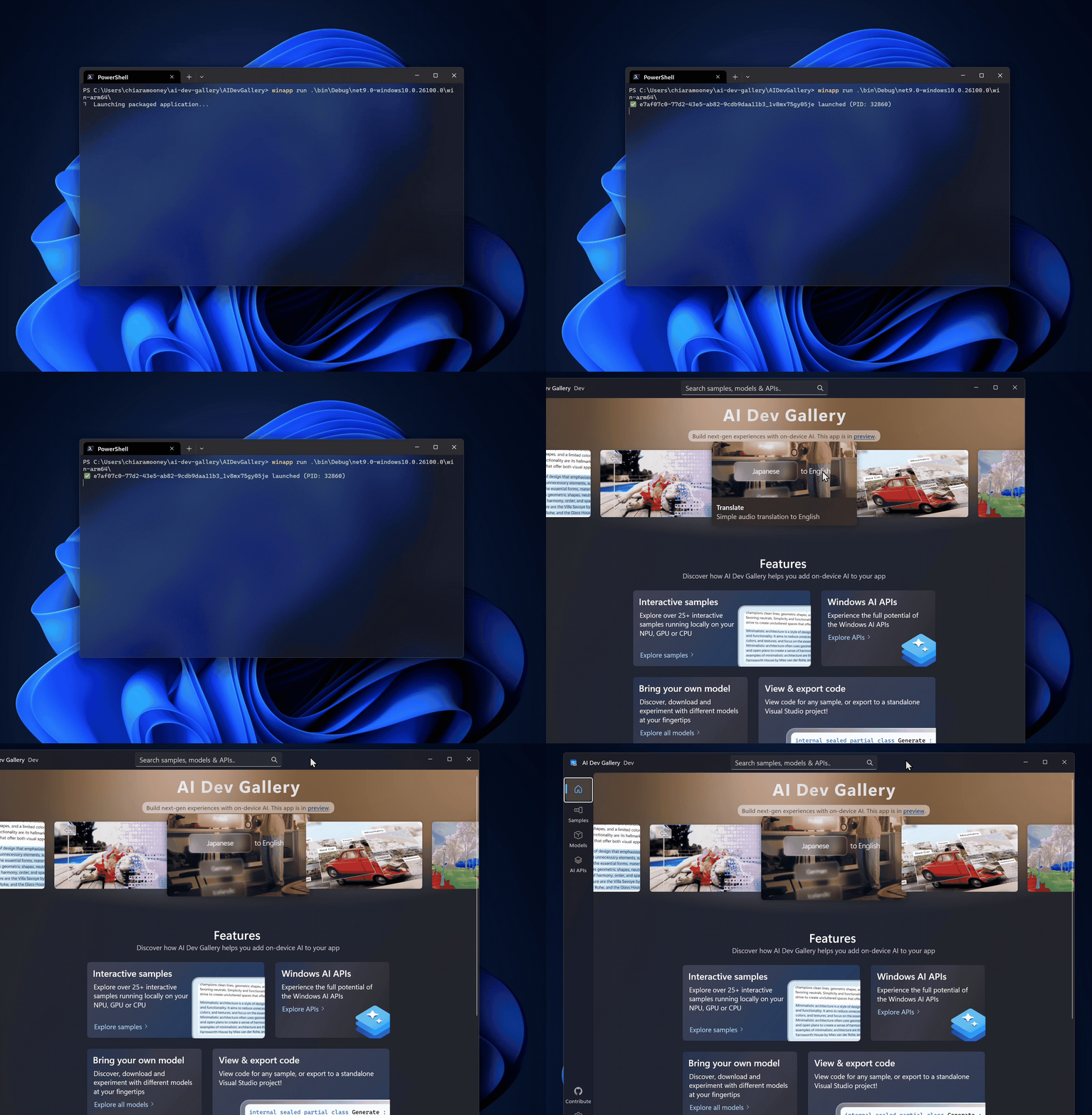
See full usage instructions for winapp run at WinApp CLI Run Command.
📦 New NuGet package: Microsoft.Windows.SDK.BuildTools.WinApp
We’re introducing a new NuGet package that enables dotnet run to launch packaged .NET apps. It works with WinUI, WPF, WinForms, Console, Avalonia, and more.
With Microsoft.Windows.SDK.BuildTools.WinApp configured, dotnet run can handle the entire inner loop: it can build your app, prepare a loose-layout package, register it with Windows, and launch — all in one step. No extra commands, no manual registration. Just dotnet run.
Install it directly via NuGet or let winapp init set it up for you (which also ensures your .csproj has all the right properties):
# Option 1: Let winapp init do the work
winapp init
# Option 2: Install the NuGet package directly
dotnet add package Microsoft.Windows.SDK.BuildTools.WinApp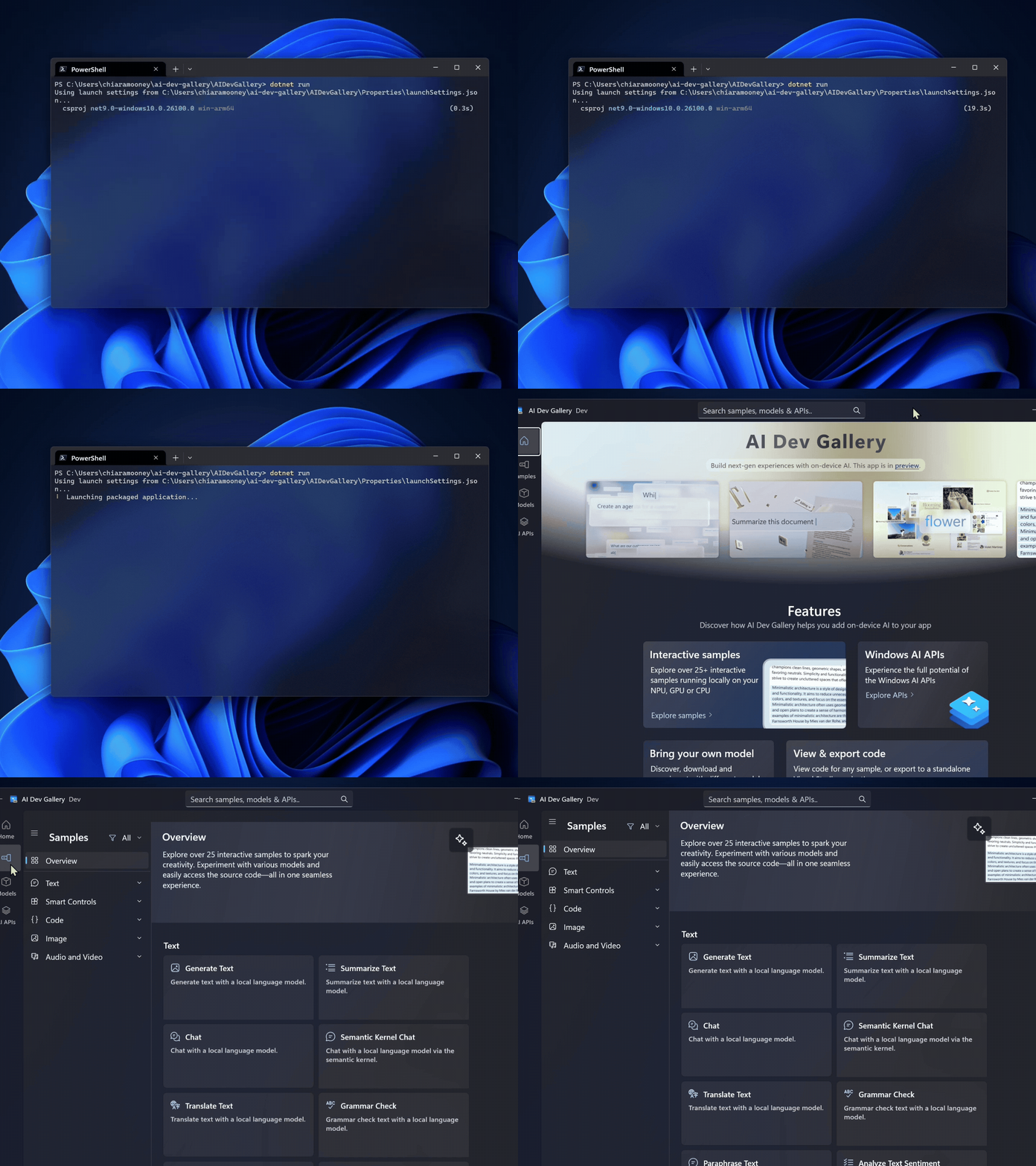
For more information on dotnet run and the Microsoft.Windows.SDK.BuildTools.WinApp NuGet package, check out dotnet run Support for Packaged WinUI Apps.
🖥️ winapp ui: UI Automation from the command line
UI Automation is now built right into the CLI. winapp ui lets you inspect and interact with any running Windows application — WPF, WinForms, Win32, Electron, WinUI3 — all from the command line.
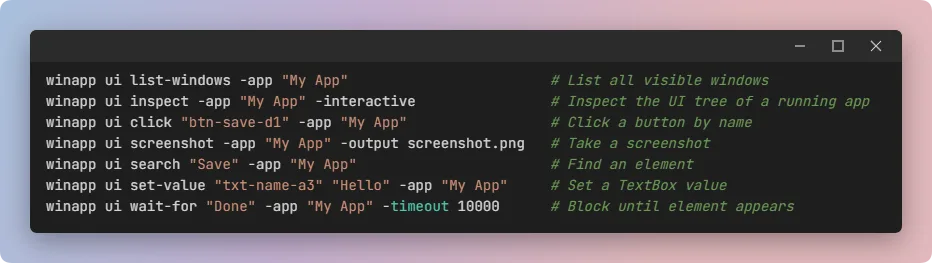
Here’s what you can do:
- List windows — enumerate all top-level windows on the desktop.
- Inspect trees — walk the full UI Automation tree of any window.
- Search across windows — find elements by name, type, or automation ID.
- Click, invoke, set values — drive the app just like a user would.
- Take screenshots — capture individual windows or multi-window composites.
- Wait for elements — block until a specific element appears, ideal for test synchronization.
This unlocks several new agentic and automation scenarios. Agents or a script are now able to see and interact with a running app. Combine winapp ui with winapp run for a complete build → launch → verify workflow entirely from the terminal — driven by an agent, a script, or just you.
See full usage instructions for winapp ui at WinApp CLI UI Command. Also check out our UI Automation Getting Started Guide.
🐚 Shell Completion
Tab completion is here. Run one command and every winapp command, subcommand, and option becomes discoverable right in your terminal with descriptions.
# Set up permanently (PowerShell)
winapp complete --setup powershell >> $PROFILE
# Try it in the current session
winapp complete --setup powershell | Out-String | Invoke-Expression
Press Tab to cycle through commands, or Ctrl+Space to see the full list with descriptions. Works for nested commands (winapp cert <Tab>) and options (winapp init --c<Tab>).
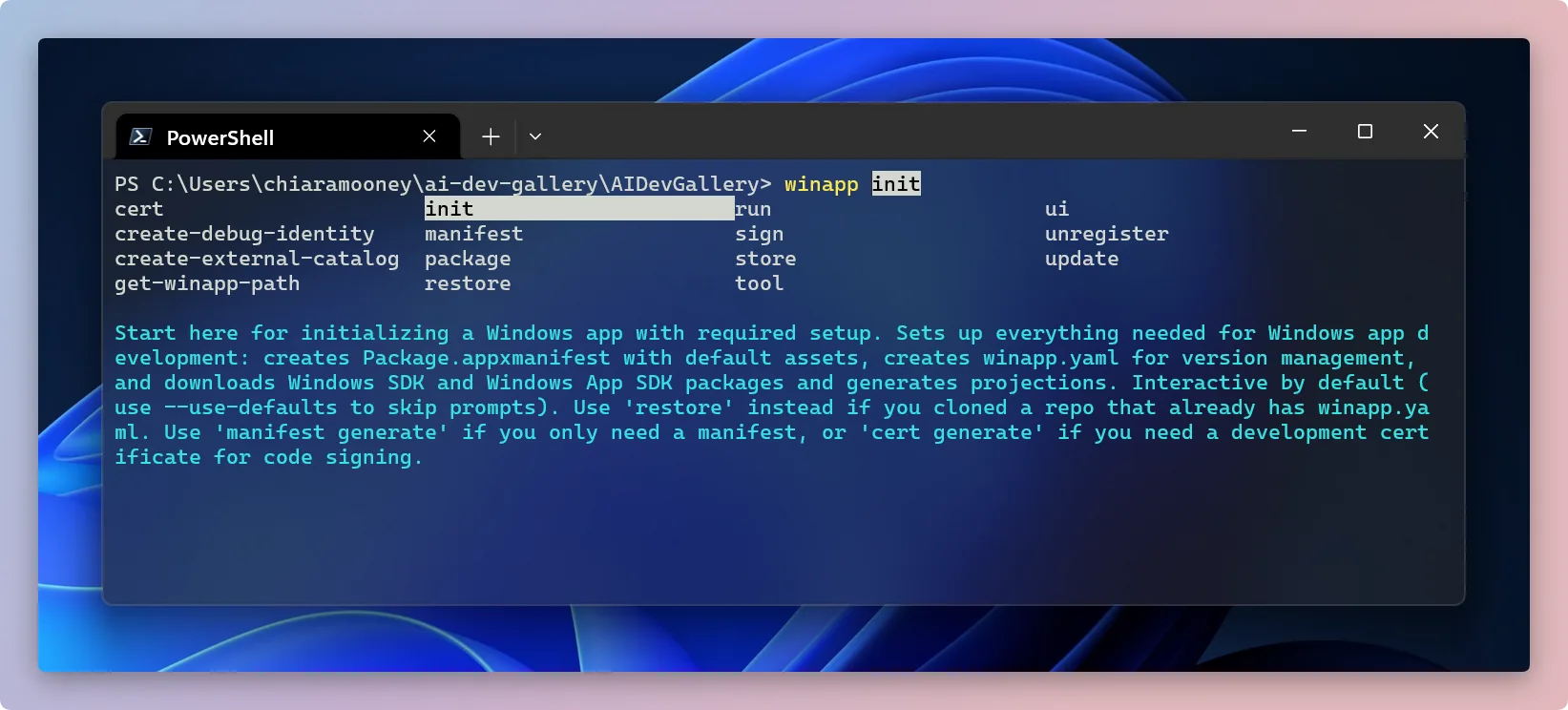
See more information on shell completion at Shell Completion Guide.
⚡ Other notable changes
winapp unregister: The cleanup counterpart towinapp run. Safely removes a sideloaded dev package when you’re done with it.winapp manifest add-alias: Adds auap5:AppExecutionAliasto your manifest so a packaged app can be launched by name from the command line. No more hunting for full package family names.Package.appxmanifestby default:winapp initandwinapp manifest generatenow create aPackage.appxmanifestfile instead ofappxmanifest.xml. This aligns with the Visual Studio convention and makes it easier to open and edit manifests in VS with the visual manifest editor.- Taskbar icon fix: Fixed a visual bug where a blue plate appeared behind app icons in the taskbar when running with a debug identity.
Get started today
The Windows App Development CLI is available now in public preview. Visit our GitHub repository for documentation, guides, and to file issues.
We would love to hear your feedback!
To get started:
Install via WinGet:
winget install Microsoft.WinAppCliInstall via npm:
npm install -g @microsoft/winappcliCheck out our .NET, C++/CMake, Electron, Rust or Flutter guides for getting started quickly.
Happy coding!


Is there support for UWP? It’s lighter, faster, and has elegant, non-flickering window rendering.
Interesting that you would mention avalonia and flutter but omit Uno Platform