


Productivity Improvements
This month, we are bringing you a series of small yet long requested and popular features to let you better control and customize your editor. These features are currently only available in the Insiders channel and will be available in Release soon.
- Fast scrolling: Hold down the
Altkey while scrolling the mouse wheel to move quickly when reviewing code or reading documentation. You can adjust the fast-scrolling speed in Tools > Options > Text Editor > Advanced > Touchpad and mouse wheel scrolling sensitivity. - Middle click scroll: Press down on your scroll wheel and move the mouse to quickly scroll through your document, making it easier to explore large files. This feature is off by default and needs to be enabled via Tools > Options > Text Editor > Advanced > Middle click to scroll.
- HTML-rich copy paste: Visual Studio now supports HTML clipboard format when cutting or copying code from the editor. You can paste colorized code into web versions of Office apps, Azure DevOps work items, or other HTML-based controls. This feature is available in the latest Insiders and will be shipped in the Release channel soon.
- Syntactic line compression: Lines without letters or numbers are compressed by 25%, letting you see more code at once. Regular lines stay the same height. Enable this feature in Tools > Options > Text Editor > Advanced by checking Compress blank lines and Compress lines that do not have any alphanumeric characters.
- Slimmer left margin: We’ve heard you that you would like to see a slimmer left margin to have more horizontal space for your code! To save an extra column, we moved the Quick Actions icon (lightbulb or screwdriver) from the margin into the editor, where it appears inline with your code when fixes or refactoring are available. To try out the experience now, go to Tools > Options > Text Editor > Advanced and check Show Quick Actions icon inside the editor. We also have more customized margin controls coming, so stay tuned!
Colorized Code Completions
Code completions are now colorized with syntax highlighting to help you quickly parse suggested code between variables, functions, and other elements! To try out this experience, go to Tools > Options > Text Editor > Code Completions and check “Use colorized text for code completions.” This feature is currently only available in the Insiders channel.
To differentiate suggestions from actual code, colorized completions use lower opacity and italic styling. If you want to further customize the look, go to Tools > Options > Environment > Fonts and Colors and select “Code Completions” from the Display items list. From there, you can customize the font, size, foreground/background colors, and styles (bold, italicized…).
Click to Accept Code Completions Partially
Have you ever wanted to accept a code completion partially with a single click? With this new feature, you can click directly inside a suggestion to accept it up to the cursor position. As you hover over the suggestion, each segment highlights to show exactly what will be accepted. This feature is currently only available in the Insiders channel.
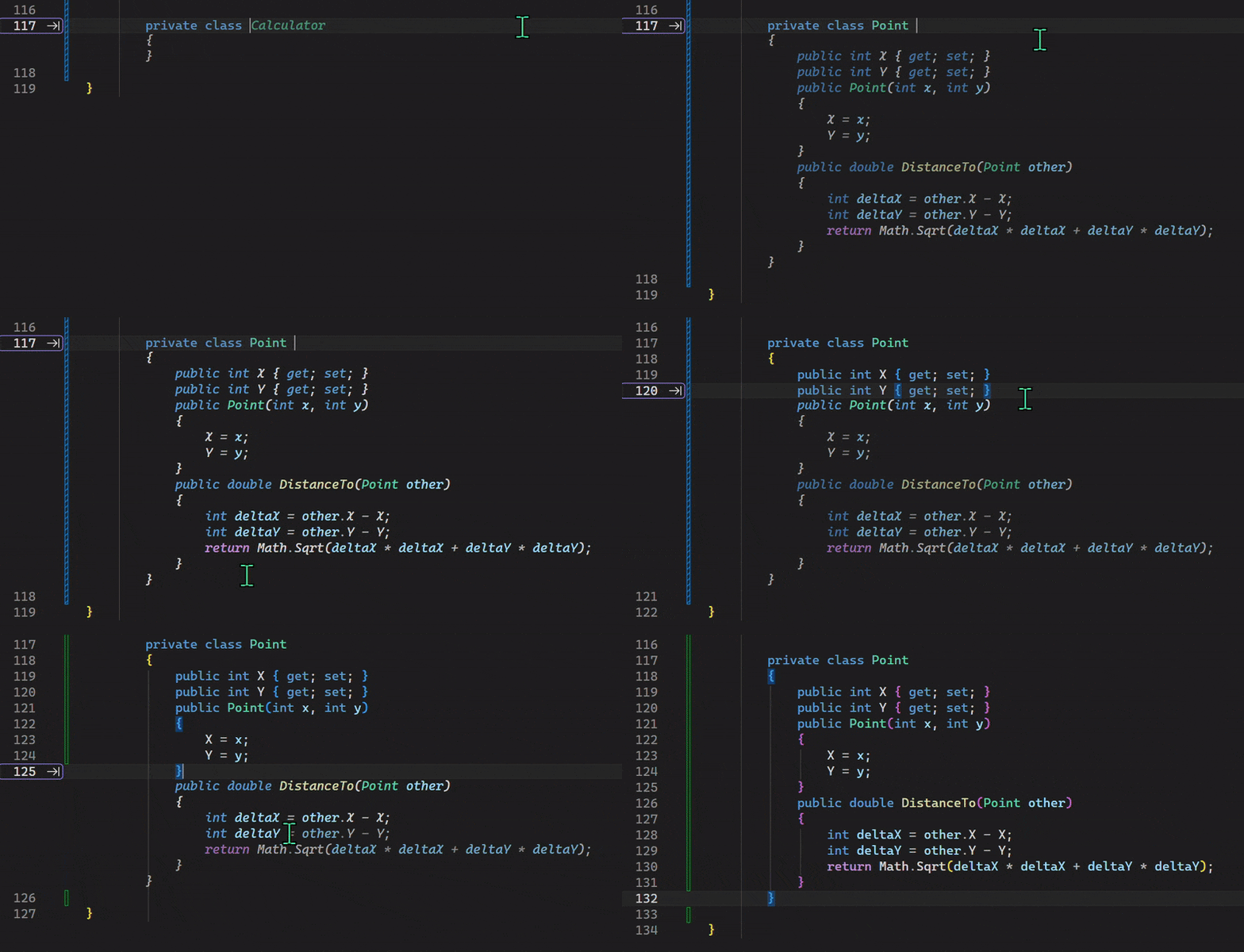
This feature gives you more control over how much of a completion you want to accept. If you prefer using the keyboard, you can still press Ctrl + Right Arrow to accept one word at a time, or Ctrl + Down Arrow to accept one line at a time.
Streamlined Markdown Preview Controls
Visual Studio Markdown editor now gives you faster, clearer access to preview options:
- Switch between preview modes: Split Preview shows the editor and preview side by side, Open Preview shows only the preview, and Edit Markdown shows just the editor. The preview-only mode helps you focus on rendered content, especially for large images or complex Mermaid diagrams.
- When previewing a Mermaid diagram, use the zoom controls in the top-left corner to zoom in or out for better readability.
- When Copilot Chat generates markdown content, click the Preview button at the top right corner of the chat window to see a rendered view. You can then edit and save the content directly. No need to copy and paste manually.
To try all this latest goodness, please update your Visual Studio regularly and join us in the Insiders Channel if you haven’t yet! (Note: All features shared in this blog post are available in Visual Studio 2026 only.) Please give them a try and let us know any feedback you have or the next thing you would like to see!


‘Colorized code completions’ works for C# but not C++. Is that intentional? If so, is it on the roadmap?
Hi Kevin, we implemented it for C# first and added support for other languages later. Now, C++ completions also have colorization in the Insiders Channel, and will be available in the next release soon. 🙂
I really appreciate the github account authorization flow now being fixed.
And three of the layout adjustments suit me:
– “Compress blank lines” (I don’t personally like the appearance when compressing other lines)
– “Hide symbols under files”
– “Compact spacing in Solution Explorer”
Thank you 🙂
AndroidManifest.xml had really crazy coloring when I first installed.
vs’s copilot still deon’t support ollama, so I swtiched to vs code !!!!
Hi John, Thanks for reaching out!
At the moment, we don’t have built-in support for Ollama, and it isn’t currently on our prioritized backlog. I know that’s not ideal, and I appreciate you flagging the use case.
As a workaround, you can use an Azure Foundry API key to access Llama models instead. Azure Foundry provides availability for these models, and Visual Studio supports bringing your own key for select model providers, which should allow you to unblock your workflow.
You can find step-by-step guidance here:
https://learn.microsoft.com/en-us/visualstudio/ide/copilot-select-add-models?view=visualstudio
Please let us know if you have any questions or run into issues...
Hi Simona, I recognize these editor productivity features from Productivity Power Tools, which I am I’m sure many other devs have installed. If this is now/will be integrated with VS will there be guidance on removal of the now-unnecessary extensions?
Are these features not in the stable January 2026 Feature Update (v18.2.1) release?
For example, the two “compress” options do not exist. Neither does the “Show Quick Actions icon inside the editor” option.
Hey folks, the markdown controls are available in the 18.2 release channel now. The rest of the feature are in the Insiders now and will be available in the upcoming release soon 🙂
Thanks everyone for your feedback in this thread! In the future we will only include Release Channel features in the Monthly update/recap blog. 🙂
I think, going forward, you need to make it clearer that new features are in the insider channel right now and will soon drop in stable. Then tell us to watch out for them in the What’s New page in subsequent stable updates. I can confirm they are in 18.3 stable, although I’ve not checked for every feature, just those that are most important to me. 🙂
Lol there was absolutely no reason to release this article then.
Unfortunate. By the time these changes appear, I will have completely forgotten this article and most likely these features will go unused.
Seems like none of the features mentioned in this article are in the stable version, only Insiders (according to the release notes).
LOL
The title and banner image clearly say “Visual Studio January update”. Which is an actual feature release already released.
Very misleading.