


Not every question deserves the same amount of thought. Renaming a variable isn’t the same as debugging a memory leak, and they don’t need the same level of thinking. So why should your model treat them the same way every time?
Starting in Visual Studio 18.9 Insiders 2, it doesn’t have to. Supported models now come with a thinking effort control, so you can dial up the reasoning when a problem is genuinely hard and dial it back down when it isn’t. It’s a small knob with a big payoff: better-matched answers, and more control over how many credits you spend getting them.
A dial, not a switch
Thinking effort is exactly what it sounds like: how much reasoning a model does before it answers. It shows up as a set of named levels, and which ones you get depends on the model.
Here’s what each level is for:
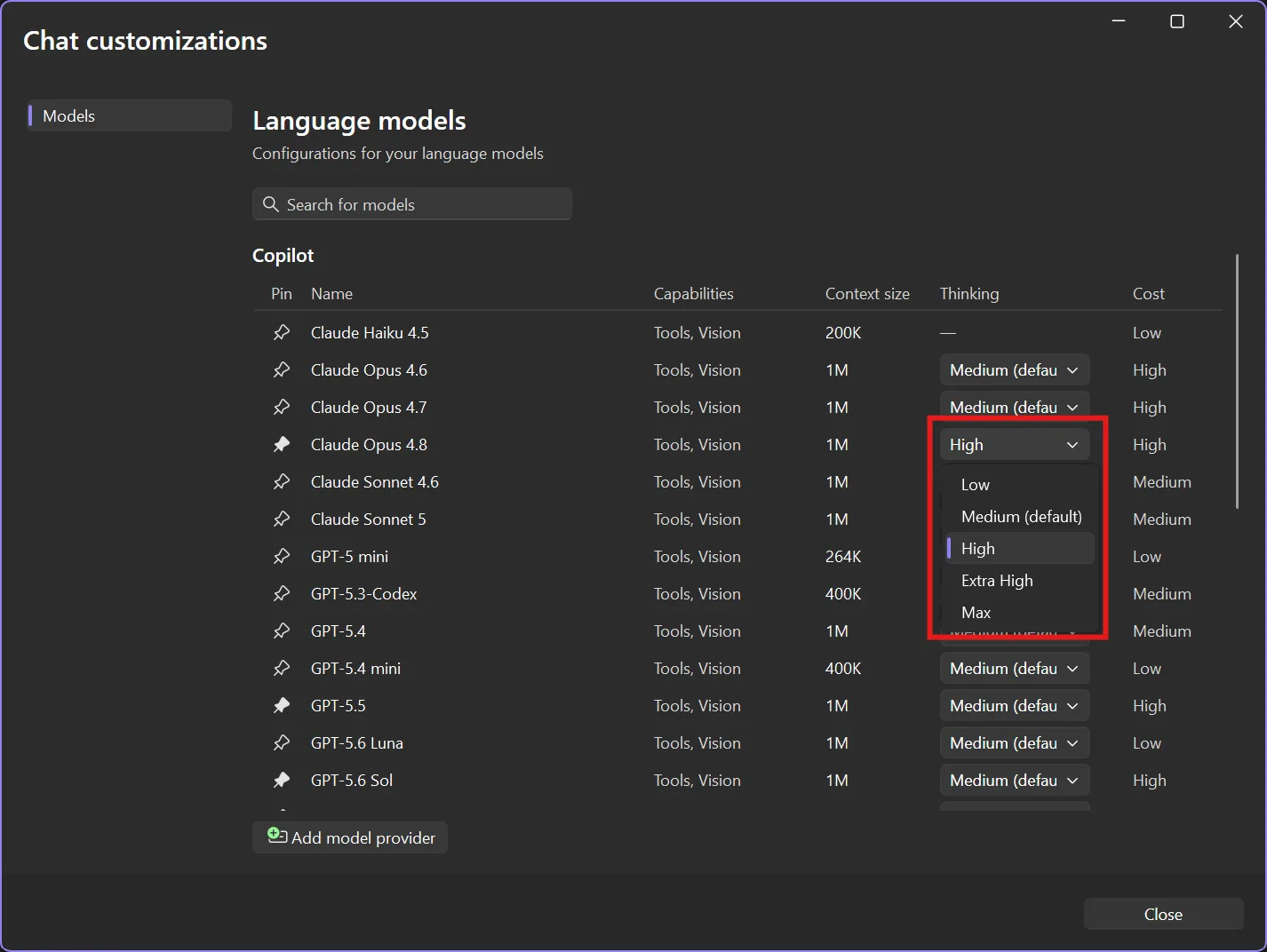
- Low – Quick responses with minimal reasoning. Great for straightforward questions and everyday code suggestions, and it consumes fewer AI credits.
- Medium – Balanced reasoning and speed, and usually the default. A solid fit for typical coding tasks.
- High – Deeper reasoning for complex problems. Reach for it when you’re staring down a tricky algorithm, an architecture decision, or a bug that won’t let go.
- Extra High and Max – The most reasoning some models offer, for the gnarliest problems where you want the model to leave nothing on the table.
Which levels show up depends on the model you’ve picked, so the list you see is tailored to what that model actually supports. A few models don’t expose a thinking control at all, and that’s fine too: they’ll show a dash and keep working as they always have.
Set it where you already work
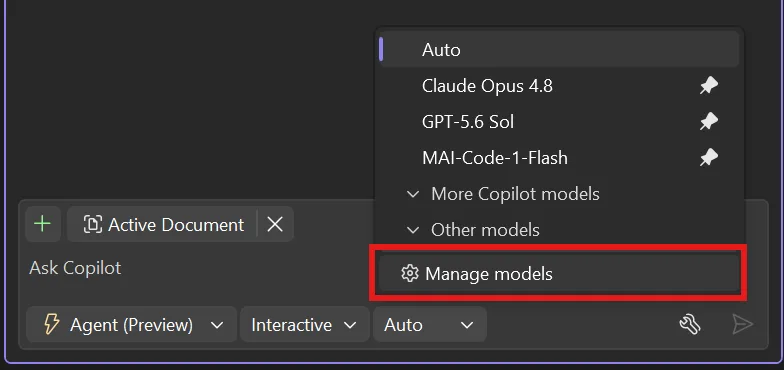
Setting it is quick. Open the model picker and click Manage models to bring up the expanded model management window, then adjust the thinking level for each model from there.
In the management view, thinking effort sits in its own column, next to each model’s capabilities, context size, and cost. So the same place you go to compare models is now the place you tune how they think. Pick a model, glance at what it can do and what it costs, and set how hard it should work, all in one pass.
Consume your usage credits where they count
Here’s the part that adds up over a long day. Higher thinking levels do more reasoning, which consumes more credits. Lower levels use fewer. When you match the thinking effort level to the task, you stop consuming more credits than you need to for shallow-reasoning questions.
That means you can keep a model on Low for the dozens of small asks that fill a normal session, then bump it to High for the one hard problem that actually needs it. Same model, same conversation, right amount of thought each time. Your usage budget stretches further, and you’re the one deciding where it goes.
Give it a try
Thinking effort is a quiet feature that changes how the everyday feels: less waiting on simple questions, more depth on the hard ones. It lives in the model management view, which does a lot more than this one setting. For the full tour, check out Pick, manage, and get the most from your models.
Try it in Visual Studio 18.9 Insiders 2 or later, and let us know what you think.
More coming soon!




Hmm, wouldn’t it be faster if there was a selector below the chat window, like for model selection?
Because I think this setting is more for each entry you make, not the model.
While I don’t use AI, neither in Visual Studio, this could be great for vibe coders, I think.
I feel like a race car driver having to tune every little bell and whistle just to use AI. At this point I can do everything AI can do faster and easier without having to tune anything. Maybe focus on making AI smarter in how it does things rather than making us fine tune things. I mean what might work great for one problem may be terrible for another and tuning things constantly defeats productivity. Perhaps AI should already have “pre-tuned” settings that automatically kick in when you are doing A vs B…
Excellent! Looking forward to software engineers with the ability to think harder.