


You open the model picker, scroll past a dozen options, and pause. How are these models different? Which one should you actually use? And once you’re a few hundred messages deep, how much capacity is even left before things start dropping off?
We’ve all been there. These are the kinds of questions Visual Studio now makes a little easier to answer. Here’s a closer look at how you can see, compare, and get more from the models you already have.
A model picker that works the way you do
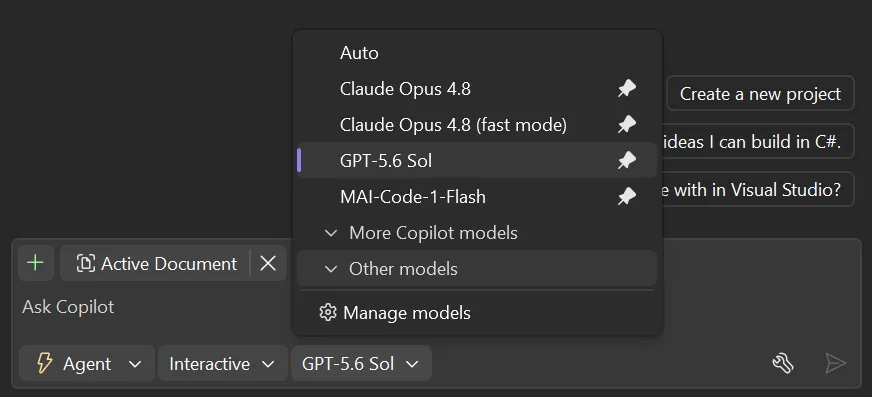
The model picker presents a long list of models you’ve needed to scroll through every single time. Starting in 18.9 Insiders 1, you can better focus on the models you care about most. Pin the models you actually reach for and they stay right at the top. Expand to see the full list, and collapse to hide the ones you never touch to send them out of your way.
What’s left is a short, familiar list that looks like your workflow, not the full catalog. It’s a small change you’ll feel every day.
The full story on every model
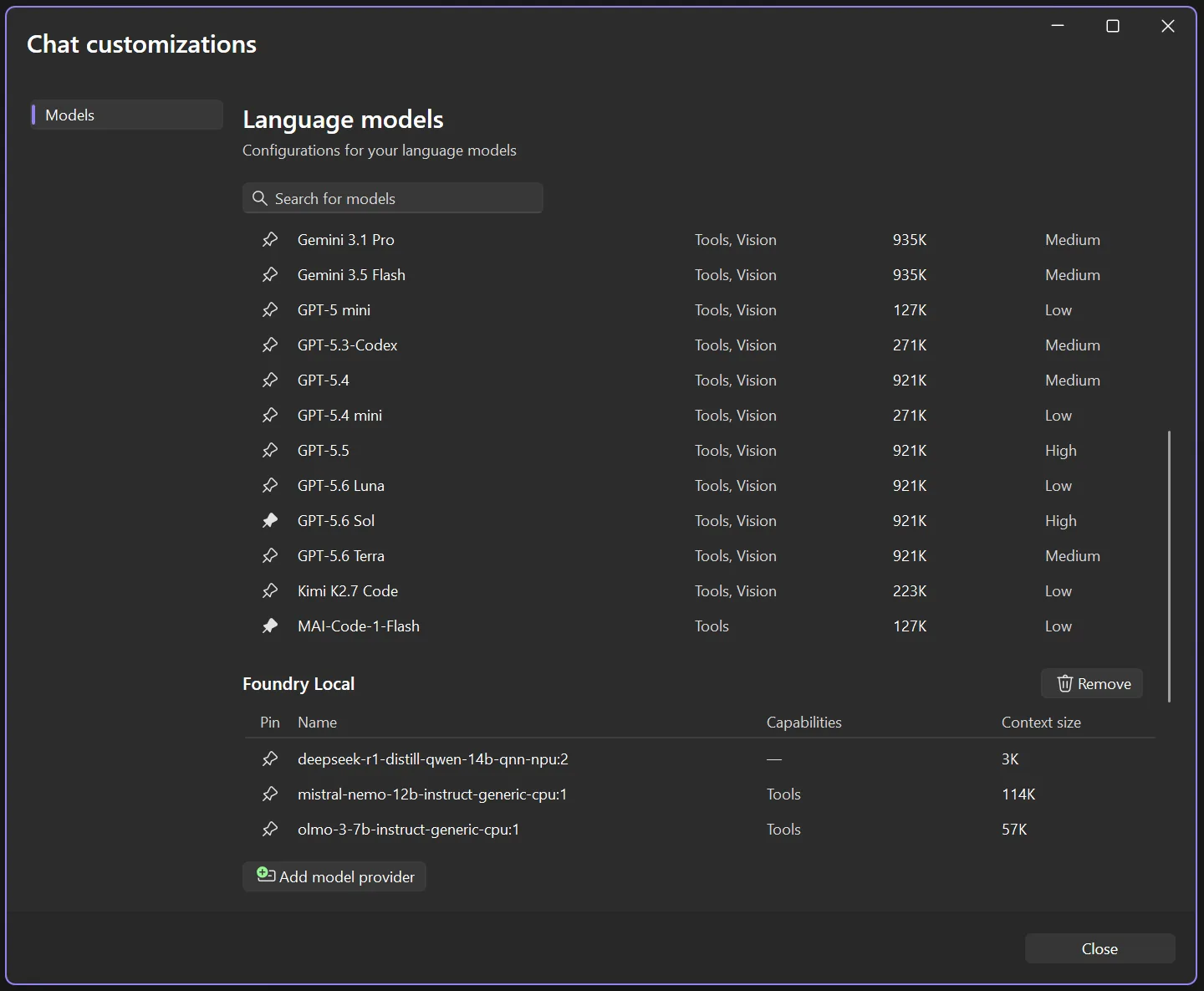
But sometimes the model picker isn’t enough. You might want to take a closer look at the model details, and compare specs. Select Manage models and the new language models view opens up with everything laid out side by side: what each model is capable of, how big its context window is, and what the cost level is. No more guessing whether a model supports vision, or which one gives you the most space to work.
Your own models live here too, right alongside the Copilot lineup. Pin them, review their capabilities, or wire up a new provider, all without leaving the view.
See how much capacity you’ve got left
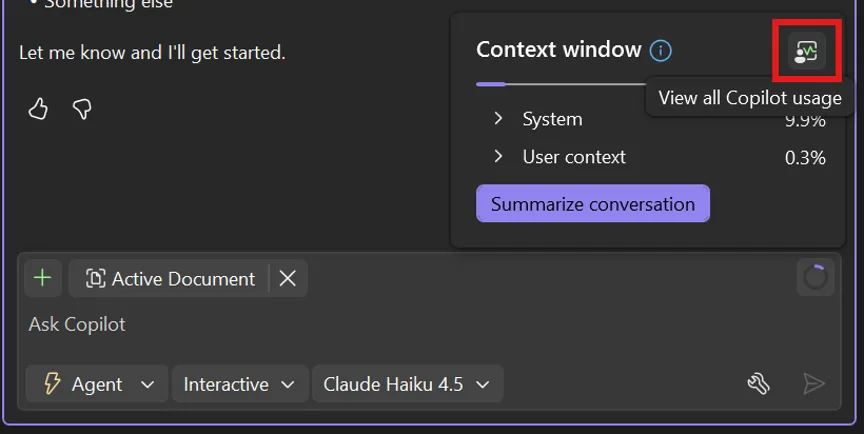
Knowing a model’s context window size is one thing. Knowing how much of it you’ve used is what really matters when a conversation runs long. So as you work, Visual Studio shows you how full your context window is getting, no math required. In 18.6.0 and onward, click the donut chart icon in the upper right corner of your prompt box to see your context window usage for the current thread.
When you’re brushing up against the limit, you’ll see it approach 100% and you can decide when it’s time to summarize the conversation, start a new thread, choose a model with a higher context size, or make any other adjustments.
In 18.9 Insiders 1 onward, you’ll also catch a glimpse of an additional button to open the Copilot Usage window and see your full Copilot plan usage, so nothing sneaks up on you. The Copilot Usage window can also be accessed in earlier versions from the Copilot badge menu dropdown.
Work with more confidence
Picking a model, checking what it can do, keeping tabs on your context window: none of it should slow you down or leave you guessing. These updates are all about giving you a little more clarity in the moments that matter, so you can spend less time wondering and more time building.
And we’re just getting started, so keep an eye out for more updates coming soon!
Give it a try in the latest Visual Studio Insiders and let us know what you think.


Please add support to use ChatGPT Codex or generally an external AI provider in Copilot.
Hi Kryštof, you can use your API keys from OpenAI and other providers in VS today! and improved support is on its way 🙂
Learn more about BYOK at https://docs.github.com/copilot/how-tos/copilot-sdk/auth/byok
In the models window shown in the blog, click the “Add model provider” button at the bottom to select OpenAI and use your API key. Then, you’ll be able to use your OpenAI models right in VS!
I have the latest VS 2026 18.9.0 (non-insiders). The “Add model provider” is there but does nothing. It fails silently.
EDIT: The problem was because of my organization prohibiting MCP through Github enterprise configuration.
I get that improved support is coming, but the posted solution doesn’t help with his request.
100%
Very little improvement, we would rather be able to add our own providers with BYOK (OpenRouter), like VS Code and everyone else is already doing.
Hi D, you can use your API keys from other providers in VS today! and improved support is on its way 🙂
In the models window shown in the blog, click the “Add model provider” button at the bottom to select a provider and add your API key. Then, you’ll be able to use those models right in VS!
Sorry, that won’t help anyone who wants to use a provider outside the ones currently supported by Visual Studio. VS Code has supported OpenRouter for over a year now.
True, also support for any OpenAI compatible api inside copilot would be very helpful.
Exactly this, I can’t plug OpenRouter to Visual Studio but I can to PyCharm or even VSCode
Hi Rachel. Could you please provide instructions on how to add Azure Foundry model. The “Add model provider” in Agent(preview) on VS Insiders, silently fails when choose ‘Azure’, and does not log anything in the Output even when ‘verbose’.
Hi ozbobWA, this should be working now in the latest Insiders version. If you continue to run into issues, please create a feedback ticket so the team can take a closer look! https://developercommunity.visualstudio.com/VisualStudio/report
we need add custom model , not just the provider you provided!!!!