



Today we are releasing the first preview of the Microsoft C++ (MSVC) Build Tools version 14.51. This update, shipping in the latest Visual Studio 2026 version 18.4 Insiders release, introduces many C++23 conformance changes, bug fixes, and runtime performance improvements. Check out the release notes for an in-progress list of what’s new. Conformance improvements and bug fixes will be detailed in an upcoming blog post and Insiders release notes in the near future.
We plan to ship more frequent, incremental MSVC Build Tools previews, just as we are shipping more frequent IDE updates. As a result, we have adjusted the process for enabling and using MSVC previews, and this post describes the new process.
We encourage you to explore MSVC previews to adapt to breaking changes and report issues early. MSVC previews do not receive servicing patches and thus should not be used in production environments.
How to opt in
Visual Studio 2026 has changed the process for opting in to MSVC Build Tools previews. Most Visual Studio updates will include fresh MSVC previews, bringing compiler changes to you far faster than ever before. These updates will occur more frequently in the Insiders channel. Soon, you will also be able to install MSVC previews from the Stable channel, though these will be less recent than the builds available in Insiders.
Installing MSVC previews
To install MSVC v14.51 Preview, you must select one or both of these components in the Visual Studio installer depending on what architectures you are targeting for your builds:
- MSVC Build Tools for x64/x86 (Preview)
- MSVC Build Tools for ARM64/ARM64EC (Preview)
You can install these from the Workloads tab under Desktop development with C++ or from the Individual components tab.
How to install MSVC v14.51 Preview from the C++ desktop workload
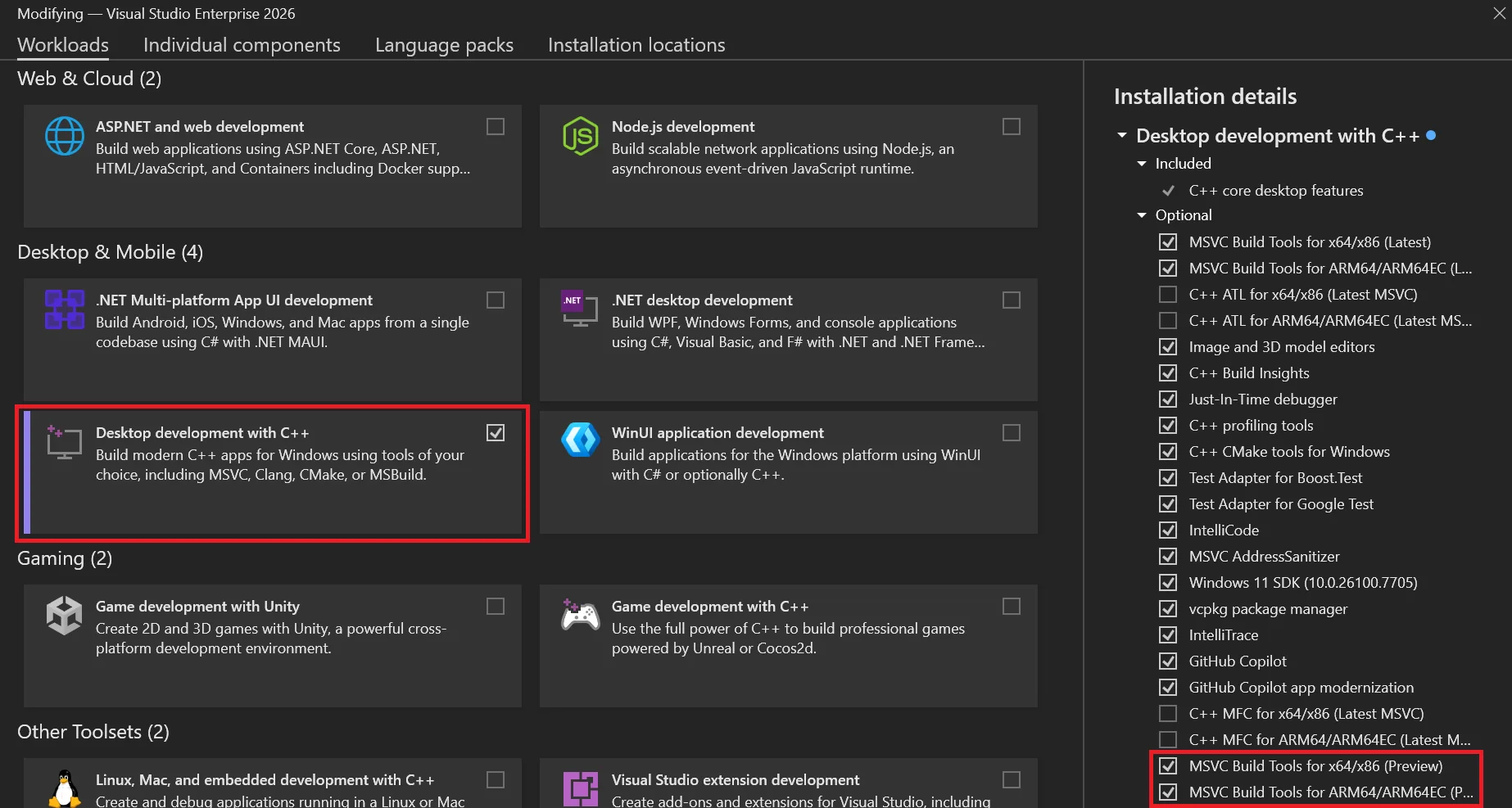
MSVC v14.51 components under “Individual components”
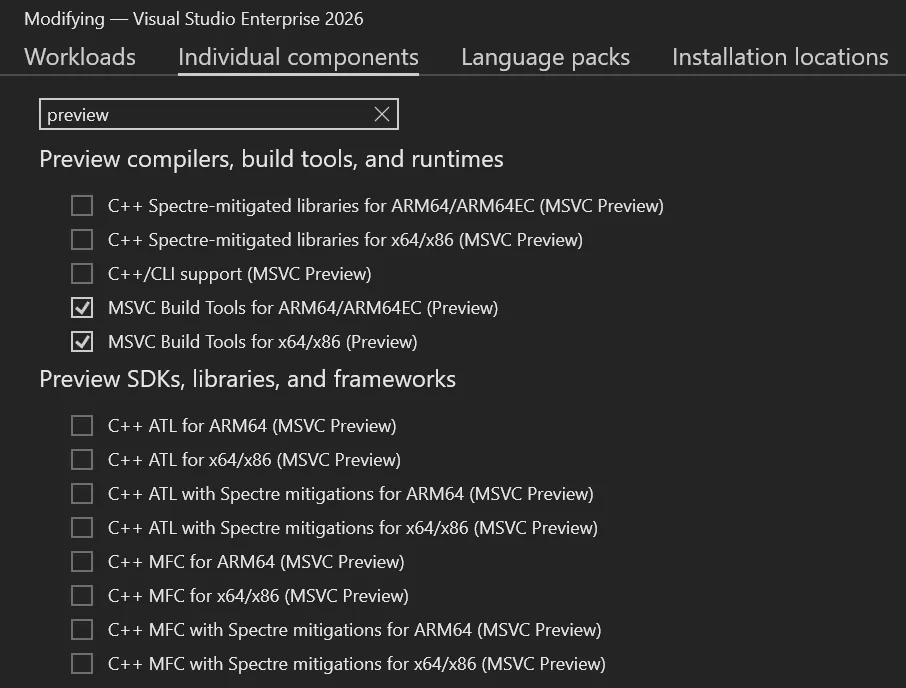
An easy way to find the relevant components under Individual components is to search for “preview”. Here you will also find support libraries and frameworks like MFC, ATL, C++/CLI, and Spectre-mitigated libraries compatible with this MSVC preview.
The components are the same as stable MSVC releases, except they are marked with “(MSVC Preview)” rather than “(Latest)” or a specific version number. Whenever you update Visual Studio, your MSVC preview will also be updated to the latest available build in that installer channel. Preview MSVC builds are not designed with version pinning in mind and do not receive servicing updates, though you can always download fresh builds as you update the IDE.
If you only want to build in the command line, you can also install MSVC v14.51 Preview using the Build Tools for Visual Studio 2026, by selecting the same checkboxes.
Configuring Command Prompts
You can configure MSVC Preview command-line builds by navigating to this path and running the appropriate vcvars for your desired environment:
cmd.exe example for x64 builds:
cd "C:\Program Files\Microsoft Visual Studio\18\Insiders\VC\Auxiliary\Build"
.\vcvars64.bat -vcvars_ver=Preview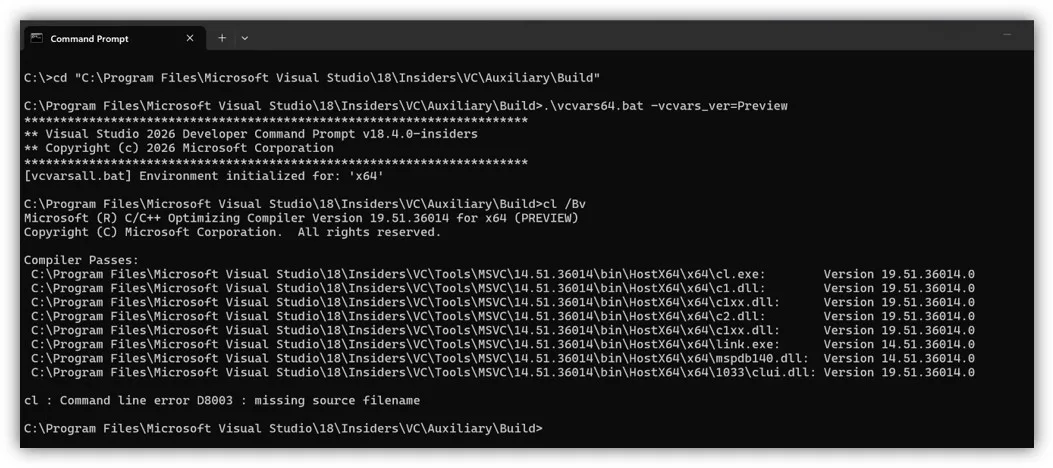
Configuring MSBuild Projects
For MSBuild projects, you must enable MSVC preview builds in the project system by setting the new Use MSVC Build Tools Preview property to “Yes” and making sure the MSVC Build Tools Version property is set to “Latest supported”. If MSVC Build Tools Version is set to something other than “Latest supported”, that MSVC version will be used for builds instead. If you wish to switch back to a stable MSVC build, you should set Use MSVC Build Tools Preview to “No”.
Instructions – Enabling MSVC previews in MSBuild projects
First, right-click the project you want to modify in Solution Explorer, select Properties.
Next, make sure your Configuration and Platform at the top are set to what you want to modify.
Under the General tab (open by default), set Use MSVC Build Tools Preview to “Yes”.
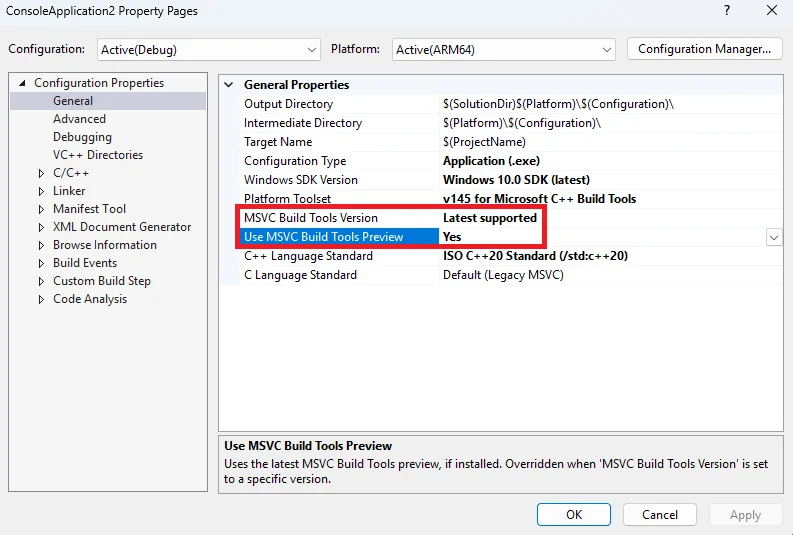
Make sure the MSVC Build Tools Version property is set to “Latest supported”, or else your project will build with the version specified there instead.
Lastly, run a build to make sure it works. Your project will now build using the latest preview tools.
Note: For command-line builds, you can also set the new property by running:
msbuild <project_or_solution_file> /p:MSVCPreviewEnabled=trueConfiguring CMake Projects
For CMake projects, you should specify the MSVC version in a CMakePresets.json file under the toolset property. The same process applies regardless of what version of MSVC you want to use (and whether it’s a Preview or not).
Instructions – Enabling MSVC previews in CMake projects
First, open your CMake project in Visual Studio. Ensure your workspace has a CMakePresets.json file in the root directory. See Configure and build with CMake Presets | Microsoft Learn if you need help configuring a CMakePresets file.
Then, add a base preset under configurePresets that specifies MSVC v14.51:
{
    "name": "windows-msvc-v1451-base",
    "description": "Base preset for MSVC v14.51",
    "hidden": true,
    "inherits": "windows-base",
    "toolset": {
        "value": "v145,host=x64,version=14.51"
    }
}
Next, add more specific presets for each individual architecture, e.g.:
{
    "name": "x64-debug-msvc-v1451-preview",
    "displayName": "x64 Debug (MSVC v14.51 Preview)",
    "inherits": "windows-msvc-v1451-base",
    "architecture": {
        "value": "x64",
        "strategy": "external"
    },
    "cacheVariables": {
        "CMAKE_BUILD_TYPE": "Debug"
    }
}
Next, slect the new build configuration from the list of targets beside the Play button at the top of the IDE.
Lastly, run a build to make sure it works. You can create additional presets the same way for other MSVC versions to easily swap between them.
Known issues
There are several known issues that will be fixed in a future MSVC Build Tools Preview and/or Visual Studio Insiders release.
CMake targets using Visual Studio generator
There is a bug configuring CMake targets using the Visual Studio (MSBuild) generator. A workaround is described below.
First, open Developer Command Prompt for VS Insiders (or the prompt for the version of Visual Studio you are using) as an administrator.
Then, run the following commands, which create a new folder and copy a file from another location to it:
pushd %VCINSTALLDIR%\Auxiliary\Build
mkdir 14.51
copy .\v145\Microsoft.VCToolsVersion.VC.14.51.props .\14.51\Microsoft.VCToolsVersion.14.51.props
copy .\v145\Microsoft.VCToolsVersion.VC.14.51.txt .\14.51\Microsoft.VCToolsVersion.14.51.txt
Lastly, run a build to make sure it works.
Command-line builds using PowerShell
Command line builds in PowerShell (including via Launch-VsDevShell.ps1) are not yet configured for the preview.
C++ CMake tools for Windows dependency on latest stable MSVC
If you are using the CMake tools in Visual Studio, their installer component still has a dependency on the latest stable version of MSVC. Therefore you will need to install both latest stable and latest preview MSVC Build Tools until we correct this dependency relationship.
Try out MSVC v14.51 Preview in Visual Studio 2026!
We encourage you to try out Visual Studio 2026 version 18.4 on the Insiders Channel, along with MSVC version 14.51 Preview. For MSVC, your feedback can help us address any bugs and improve build and runtime performance. Submit feedback using the Help > Send Feedback menu from the IDE, or by navigating directly to Visual Studio Developer Community.


I have installed MSVC Build Tools for x64/x86 (Preview) but this vcvars64.bat file is missing and when I’m running cl.exe form developer command prompt getting below error
C:\Program Files\Microsoft Visual Studio\18\Insiders>cl.exe
‘cl.exe’ is not recognized as an internal or external command,
operable program or batch file.
I’m try to Build STL repo so followed instruction form here microsoft STL repo
I recently updated the microsoft/STL README (on 2026-02-24 with GH-6095, followed by a minor update on 2026-03-16 with GH-6157) to provide accurate instructions for using the MSVC Build Tools 14.51 Preview to build the STL. Our instructions depict the use of `vcvarsall.bat`. Please double-check that you’re following them strictly. If you still need help, please join the STL Discord server linked at the top of our README, and we can help you in the `#getting-started` channel there.
@Augustin Popa
Can you guys please fix the Visual Studio debugger to respect and use local symbol cache specified in <code>?
If I have <code> set, Visual Studio Debugger ignores <code> part and insists on downloading symbols into <code> thus trashing my system drive, putting files in a folder which it shouldn't rely on for persistence (it's called TEMP for a reason!), and ignoring symbol path variable despite acknowledging in the settings that it is set and that it will be used.
Worse yet, if you prevent it from writing into <code>, then it does download symbols into <code> but fails to load...
Hi Igor, thank you for sharing your feedback. Can you file a ticket on Visual Studio Developer Community? https://developercommunity.visualstudio.com/index.html
This can help us track and triage this.
Igor, you can also file bugs from Visual Studio Installer, as opposed to having to open Visual Studio.
Hi, and thanks for the response.
I am afraid I can’t — I have stopped filing bug reports since it became mandatory to do it from Visual Studio.
You have all the information in the comment above, do with it what you want.
Very much appreciated!!
When will the issue of C++23 modules exceeding the 4 GB object file limit be resolved ?https://developercommunity.visualstudio.com/t/C23-Modules-Exceed-4-GB-Object-File-Li/11048553
Hi, an update will be shared in the Developer Community ticket once it gets triaged by our team.
Great! The release notes say: Look a the blog post for C++23 feature details. The blog post says: Look at the release notes! :)))))
I really want to know what happens to C++23 conformance and when are we going to get C++26’s reflection and complete modules support (incl. VSCode, which I now prefer to use for cross compatibility).
There will be another blog post going over conformance improvements and bug fixes before MSVC v14.51 becomes generally available. For now, this is just the first preview, but we are working on more updates to share with everyone soon.