


There’s a particular rhythm to good development work: you think, you try, you check, you adjust. This month’s Visual Studio update leans into that rhythm. Whether you’re sketching an approach with the Plan agent before touching a single file, reviewing a wave of changes across many files, or fine-tuning the context Copilot has to work with, the May release adds deliberate, observable steps between an idea and a finished change.
Alongside that, we shipped a fresh release of MSVC Build Tools with a long list of C++ improvements, because foundations matter too. Download the Visual Studio 2026 Stable Channel to try everything below.
Plan before you build with the Plan agent
Ever start writing code, then realize three files in that you should have thought about the design first? The new Plan agent (labelled Plan in the agent picker) is built for that moment. Instead of jumping straight into edits, you collaborate with Copilot on an implementation plan, with no changes made to your codebase.
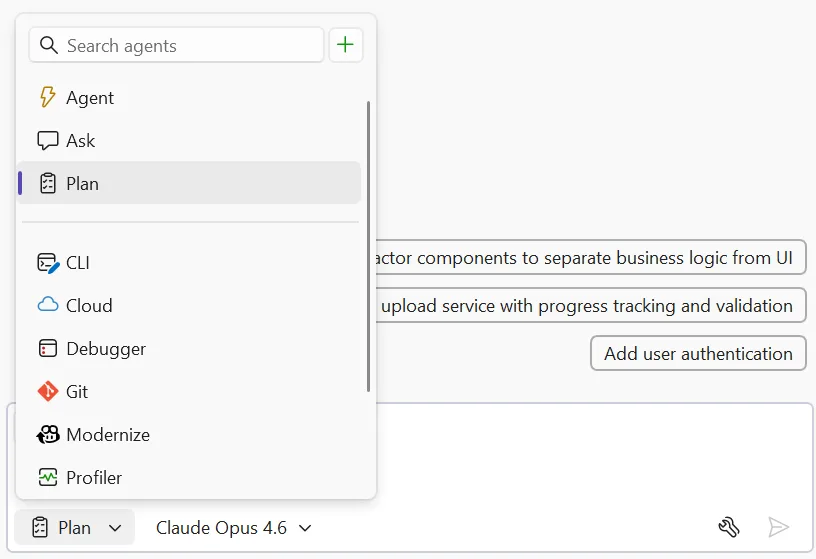
When you select the Plan agent, Copilot works in two steps. First it explores and clarifies, using read-only tools to understand your codebase and asking questions when it needs to. Then it drafts a detailed plan you can review, discuss, and refine together. For straightforward tasks, it often drafts a plan right away.
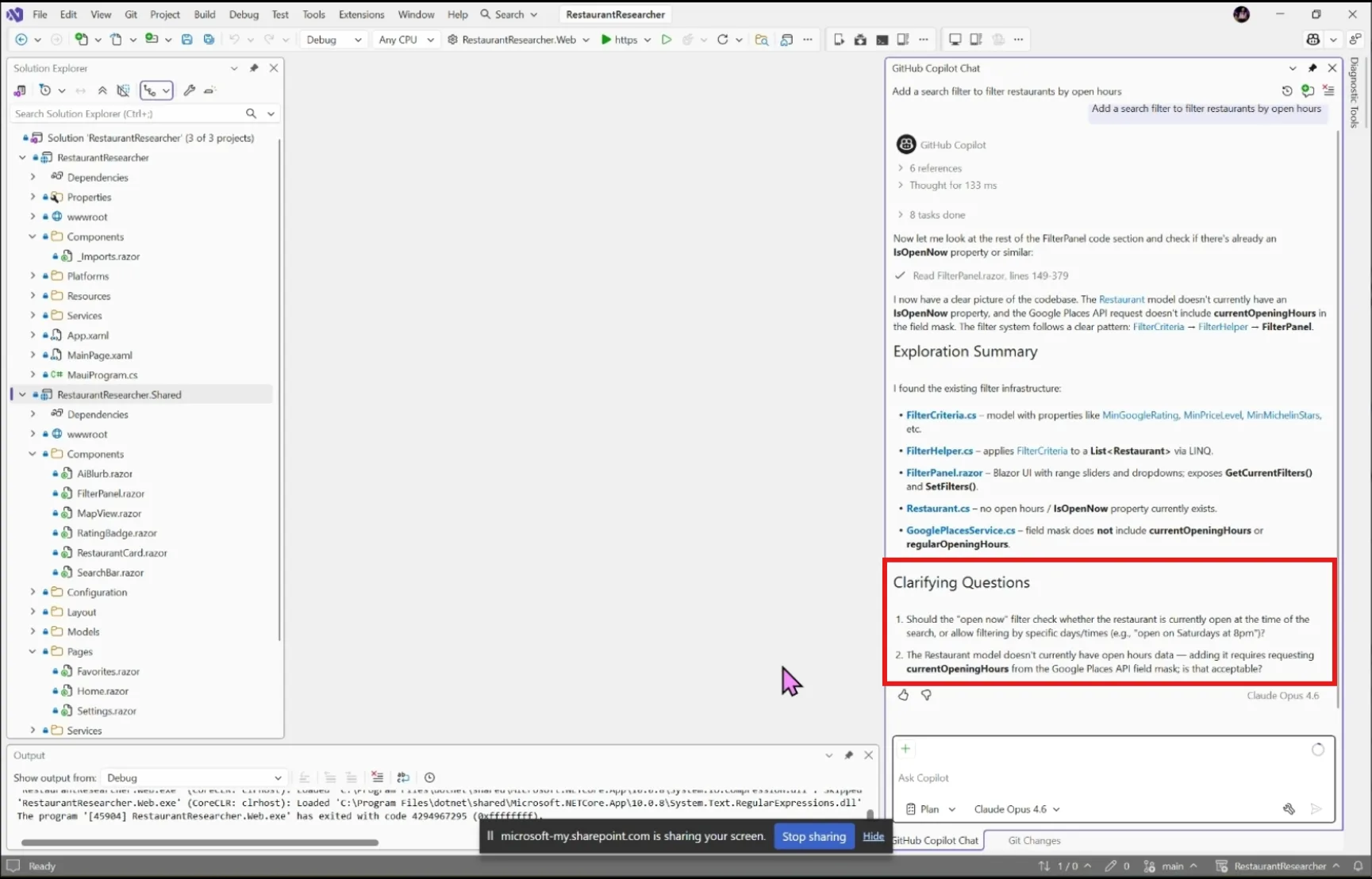
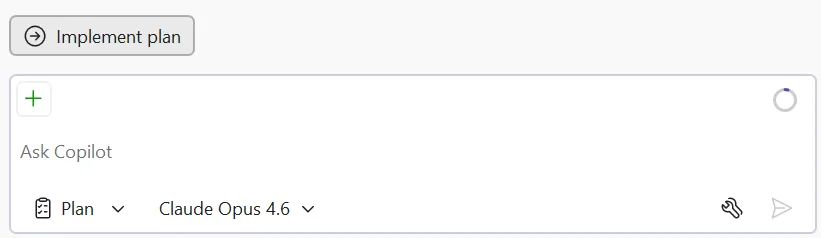
Every plan is saved as a markdown file at .copilot/plans/plan-{title}.md. That file is the single source of truth: edit it directly in the editor, refine it through chat, or share it with your team for review. When you’re ready, click Implement plan to hand it off to Agent mode for execution.
The Plan agent is especially useful for big features, unfamiliar codebases, and team collaboration. The plan becomes a conversation rather than a guess.
View and manage Agent Skills
As your collection of Agent Skills grows, finding and editing them can get unwieldy. The new skills panel gives you one place to see and manage every skill discovered from your workspace and user profile. Click the tools icon at the bottom right of the chat window to open it.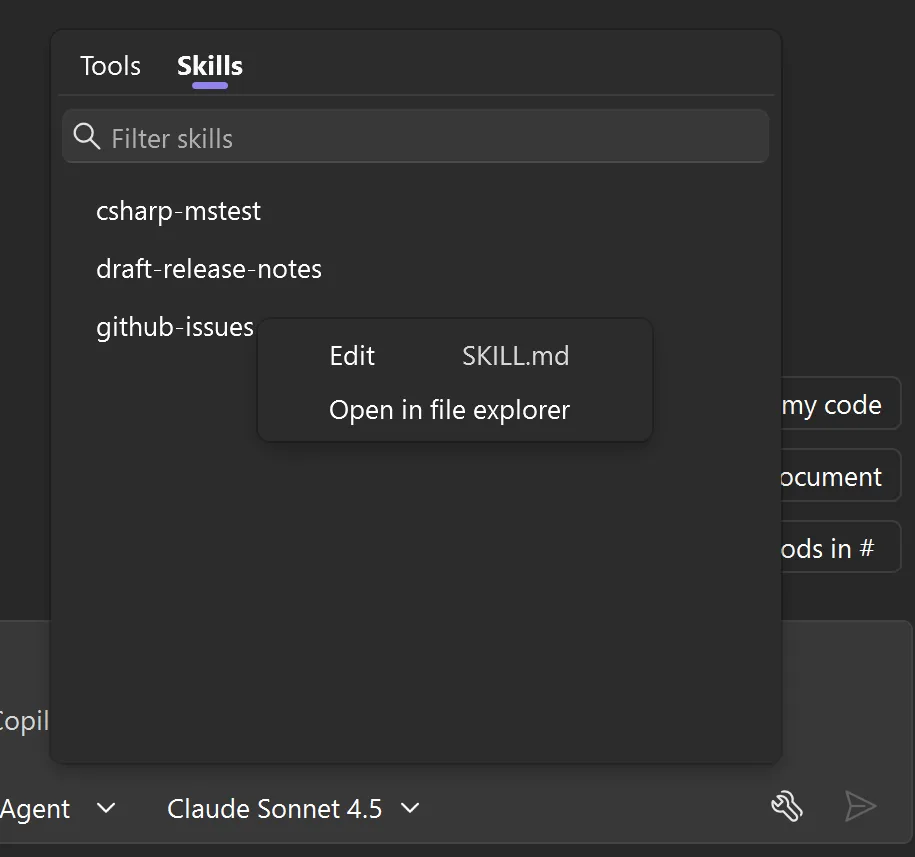
From the panel you can act on any skill via the ⋯ menu: Edit opens the skill file directly in Visual Studio, and Open in file explorer jumps to its location on disk. Use the Filter skills search bar at the top to find a skill by name or keyword. It’s a small change with a big effect on how you actually live with skills day to day.
Manage context window usage
When you chat with Copilot, it tracks your conversation history, attached files, and other context to give you relevant responses. That space, the context window, has a limit. Once it fills up, Copilot starts losing track of earlier parts of the conversation. You can now see exactly how much of that window you’ve used.
Look for the ring icon at the top right of the Copilot Chat prompt box. The mini donut chart fills as your conversation grows, so you know at a glance how much context you’ve consumed.
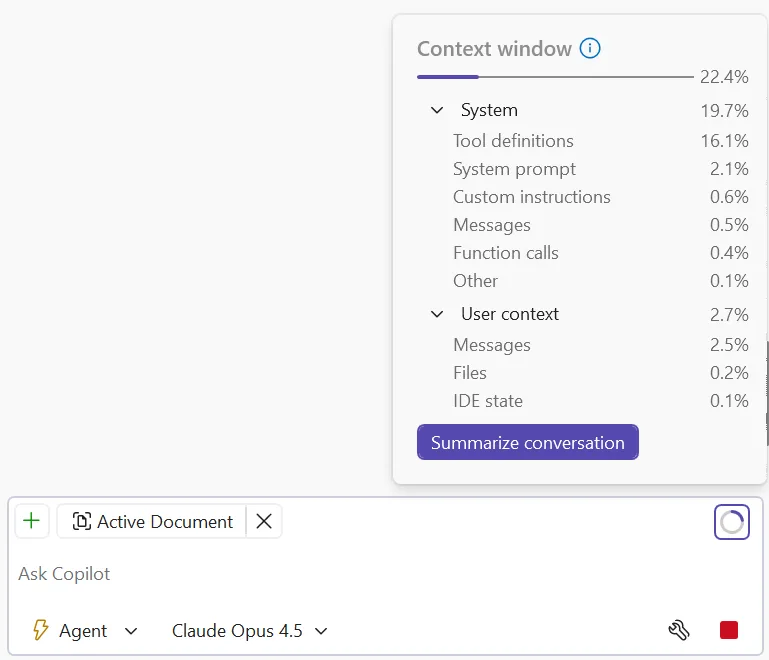
You can now see exactly how much of that window you’ve used, based on the current conversation and selected model.
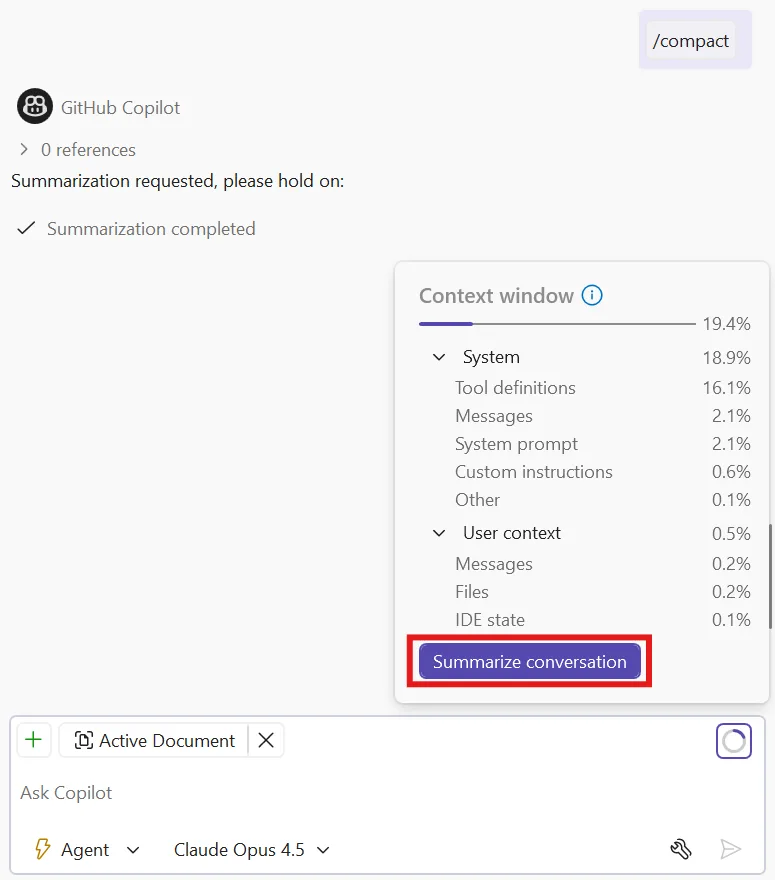
Multi-file summary diff for Copilot changes
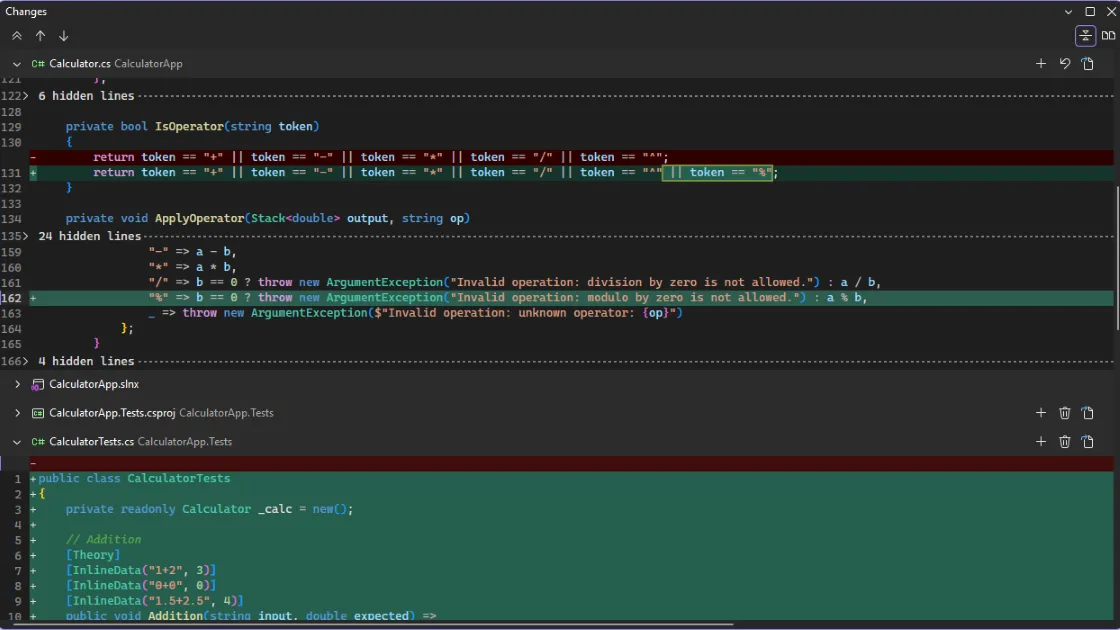
When Copilot edits more than a couple of files, reviewing each one separately gets old fast. The new multi-file summary diff shows every change in a single view. After Copilot finishes editing, click the Open change summary view button in the Copilot Chat working set.
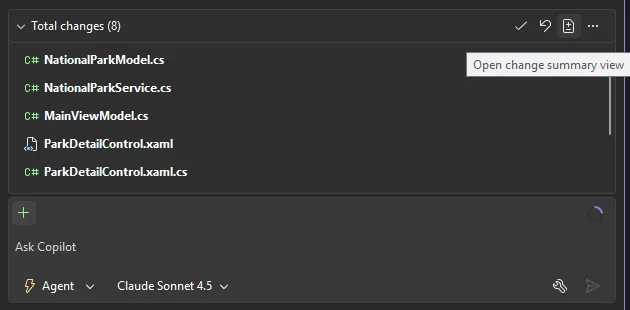
You’ll see one tab with all changed files and their diffs together. Accept or undo at three different levels: across all files at once, on a per-file basis, or per individual diff chunk. Use the toolbar to collapse all file contents for a quick overview, or to navigate between diff chunks with next and previous buttons. You can still open any file separately when you need full context.
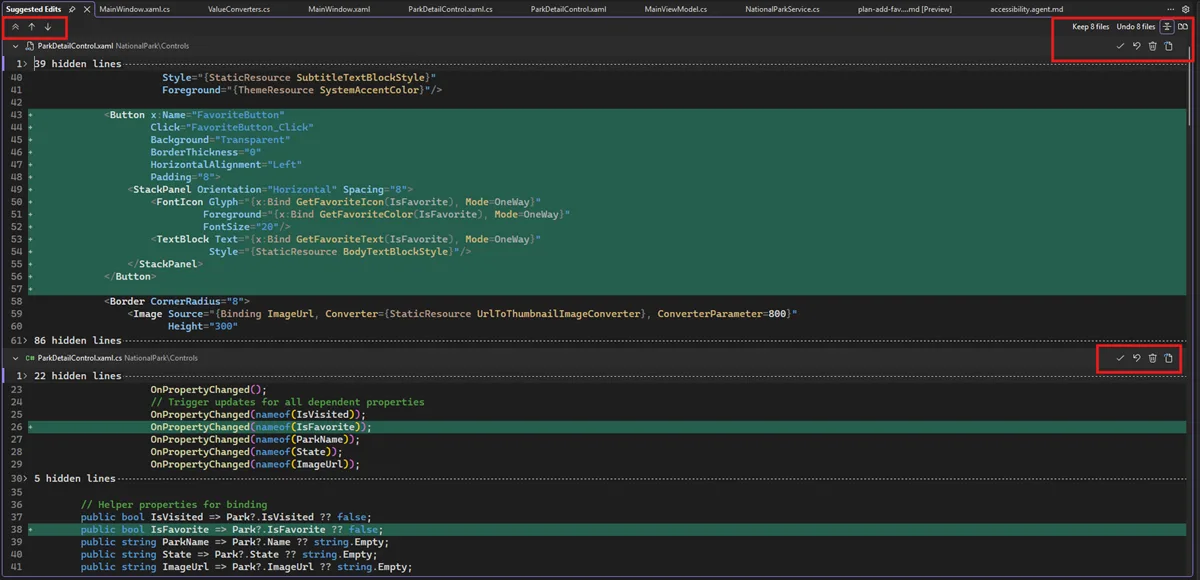
It’s a smaller surface for a bigger picture, which is exactly what you want when you’re deciding what to keep.
Multi-file summary diff
The same unified review experience is now available beyond Copilot edits. Multi-file summary diff displays all changed lines from several files in a single view, so you can quickly grasp the scope of a commit or pull request without jumping between files.
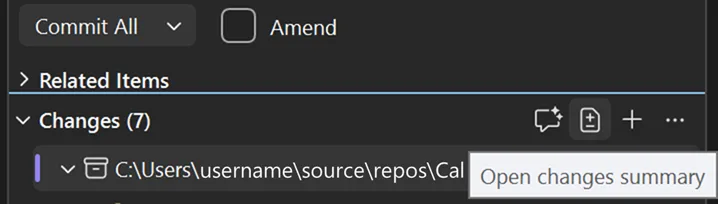
You’ll see the Open changes summary button in several places: Git Changes, the commit details in Git > View Branch History, and the pull requests list in the Git Repository window. The pull requests list is currently available in Visual Studio Insiders with the View pull requests for a Git repository preview feature enabled.
Commit message instructions moved
If you’ve been using the Commit message custom instructions text input under GitHub > Copilot > Source Control Integration, heads up: that setting no longer applies. Commit message instructions are now managed through the Copilot custom instructions file in your repository.
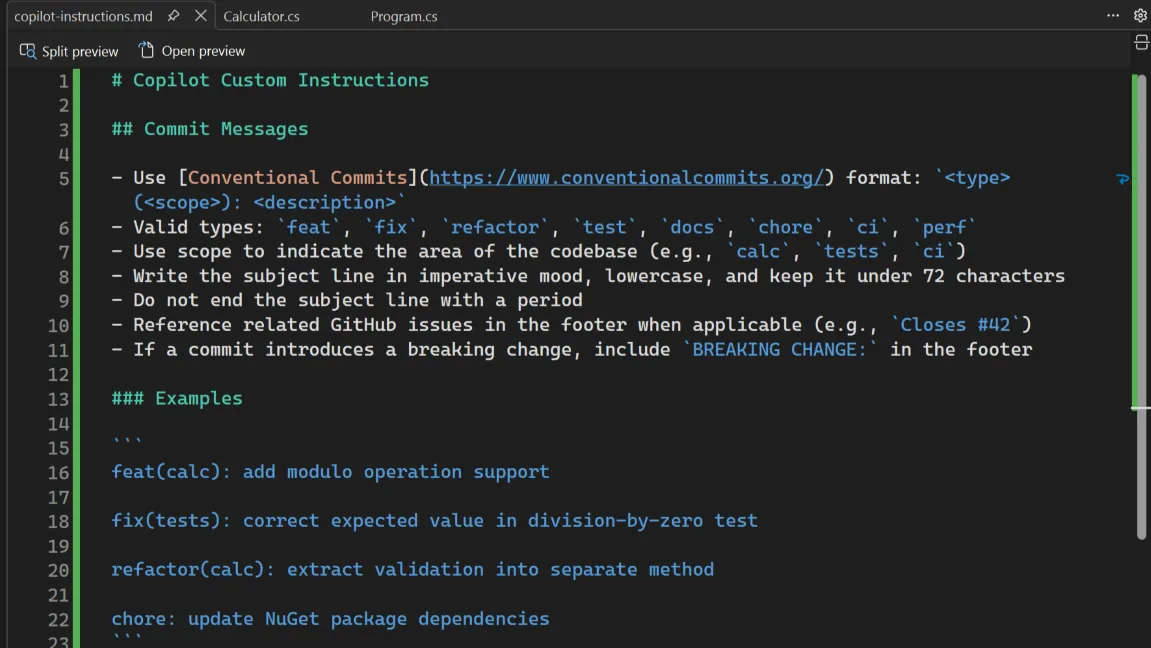
This brings commit message guidance in line with how every other Copilot custom instruction works, keeping everything in one place. For setup details, see Add repository instructions.
MSVC Build Tools v14.51
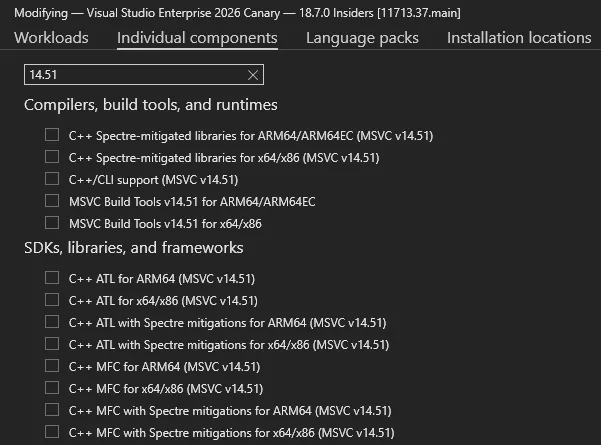
Microsoft C++ (MSVC) Build Tools version 14.51 is now available and installed by default with the C++ desktop and gaming workloads. To check it’s installed, make sure one or both of these components are selected in the Visual Studio installer: MSVC Build Tools v14.51 for x64/x86 or MSVC Build Tools v14.51 for ARM64/ARM64EC. You can also pin to v14.51 explicitly by selecting one of the version-labelled components.
This release brings broad investment across the toolchain, including continued C++23 conformance work, consteval and coroutine improvements, sample-based profile guided optimization, preview support for Intel APX, and a major new ARM SVE (Scalable Vector Extension) implementation. The Standard library adds <flat_map> and <flat_set>, plus a full overhaul of <regex>. The v14.51 release will also receive nine months of servicing fixes.
For the full picture, see C++23 Support in MSVC Build Tools 14.51 and the microsoft/STL changelog.
From our entire team, thank you for choosing Visual Studio! For the latest updates, resources, and news, check out the Visual Studio Hub and stay in touch.
Happy coding! The Visual Studio team


0 comments