


Pull request integration in Visual Studio has been one of the most requested Git features. Developers have been asking for a way to open a PR, inspect the changes, discuss feedback, and finish the review without switching to the browser. The feedback on that request has played a big role in shaping this experience over time.
You’ve been able to create pull requests in Visual Studio since 2024. Now you can also review, comment on, and approve pull requests from both GitHub and Azure DevOps, all without leaving the IDE.
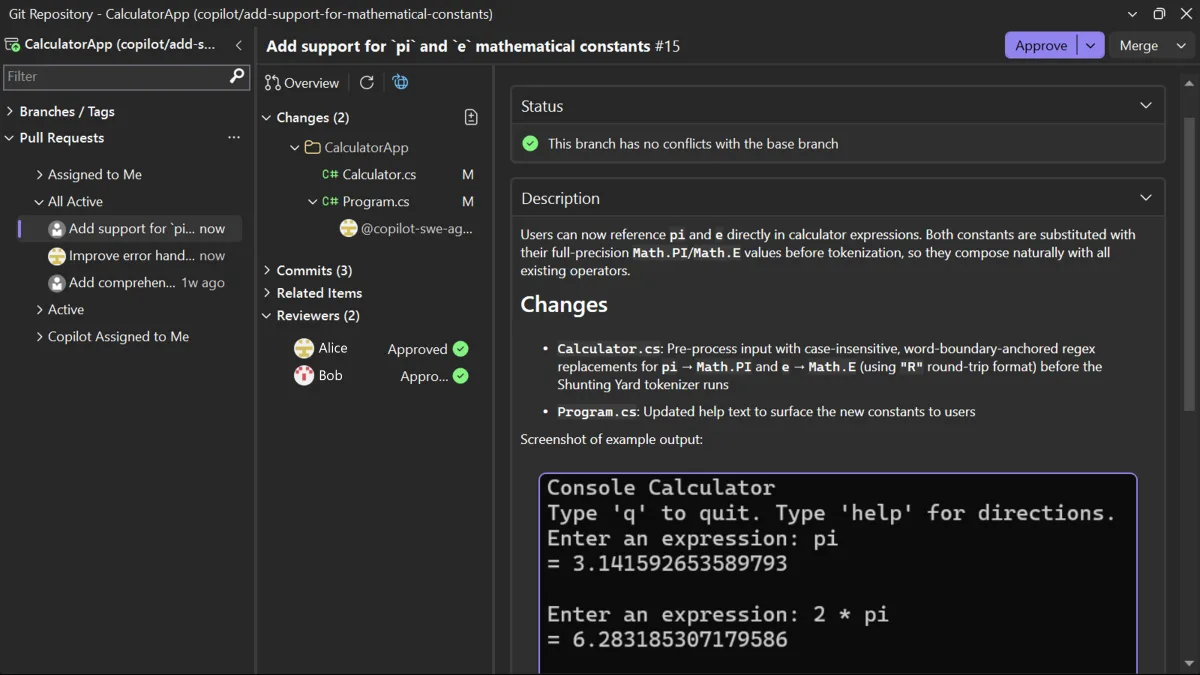
Find and open pull requests
You can view the list of pull requests for the open repository from the Git Repository window, the Git Changes window, or the Git menu. If your current branch already has an active PR, you can also open it directly from Git Changes.
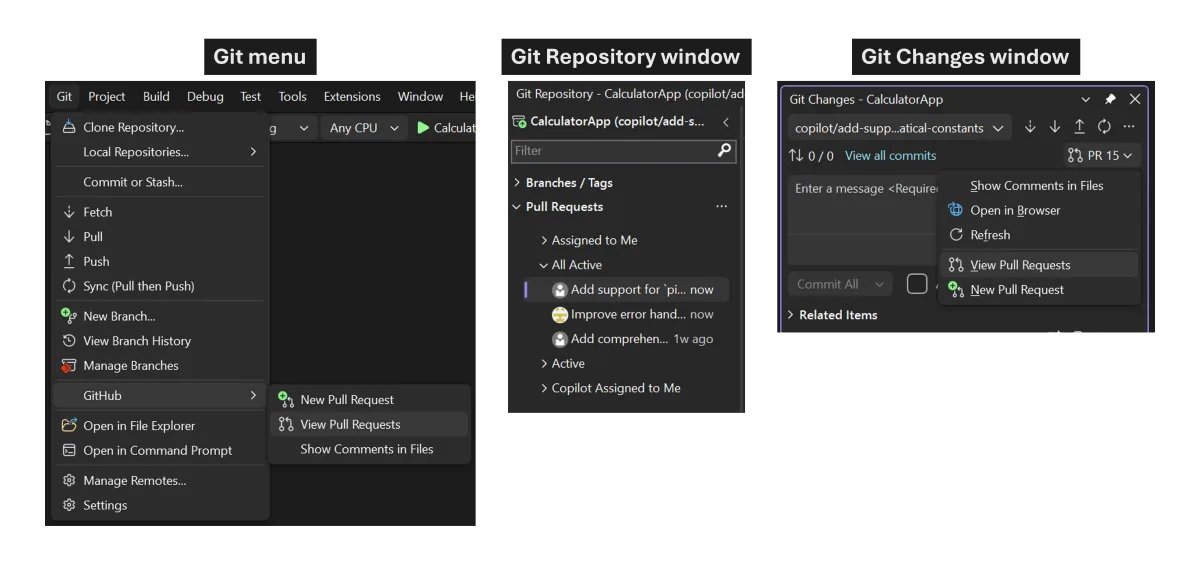
When you open a pull request, you can see the overview, changes, commits, and reviewers together in one place. If a teammate asks for a quick review, you can open Visual Studio, find the PR, and get straight to what you need.
From there, you can choose how deep you want to go. You can review the pull request without checking out the branch, which lets you inspect the changes while keeping your current branch, uncommitted changes, and working state intact.
If you want a closer look, you can also check out the PR branch and use Visual Studio’s navigation, build, and debugging tools to dig into the code. Reviewing without checking out is great for a quick pass, while checking out the branch is better when you want to investigate more deeply.
When you’re juggling multiple reviews, you can switch between active pull requests without having to check out all of them. That makes it easier to jump in on reviews during the day, then get back to your own work.
Browse the changes
The pull request view is designed to help you move through a pull request quickly. Open any changed file to see the diff inline or side by side, or use the multi-file summary view to see all changes at a glance.
Tip: If you want a wider view of the diff, collapse the left panel and focus on the code.
You can also review commit by commit, which is useful when a pull request covers several logical steps and you want to understand how the change evolved.
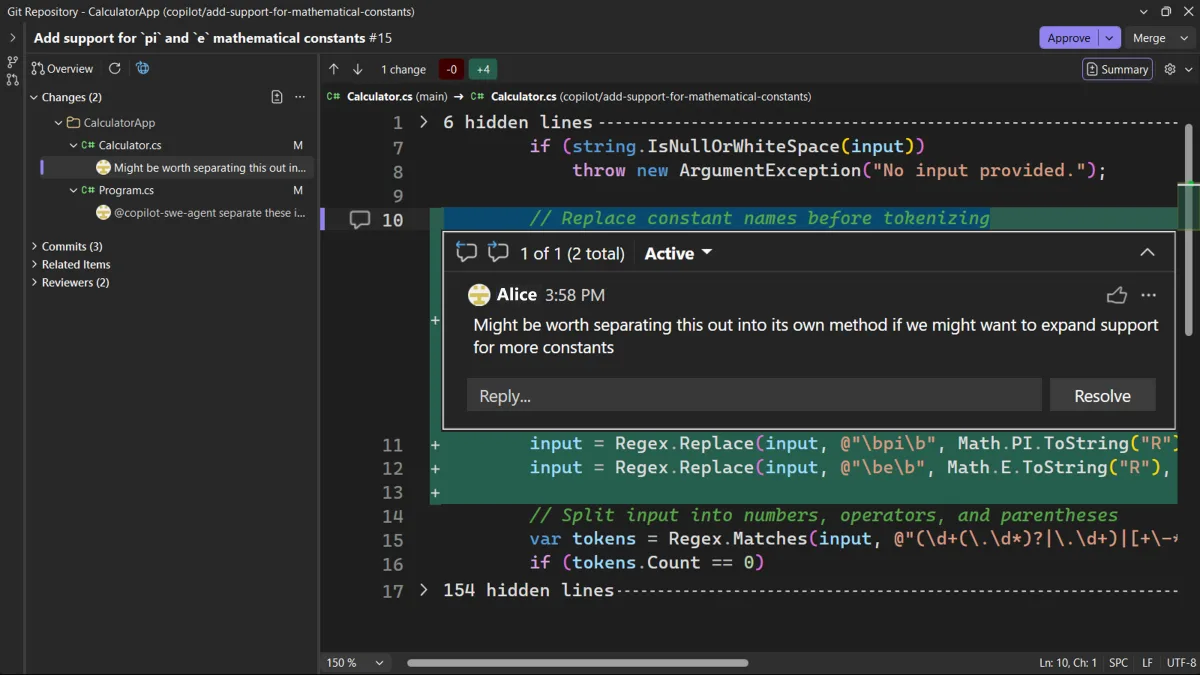
Comment and discuss
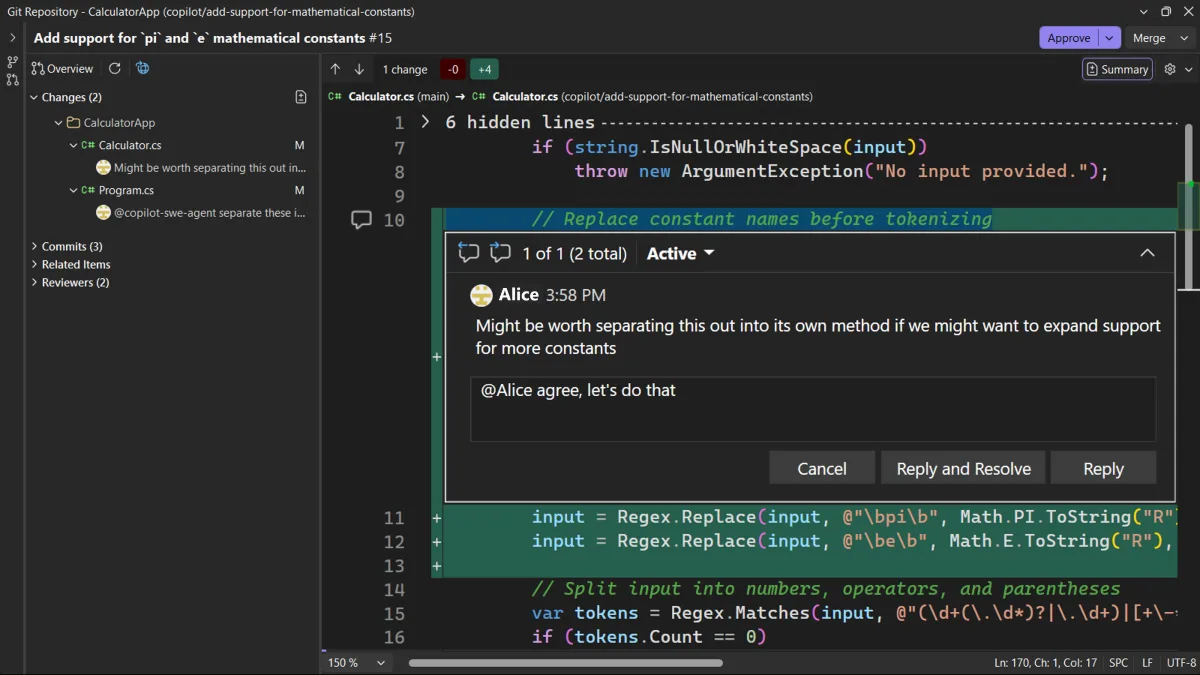
You can leave comments on specific lines, reply to threads, and resolve conversations when the discussion is done. Files with active comments are marked in the Changes list, so it’s easy to spot where discussions are happening. Everything syncs between Visual Studio and the browser.
When you’re reviewing a pull request in checked-out code, you can apply a code suggestion directly to your working copy with one click. When there isn’t one, Copilot can generate a fix based on the comment and surrounding code, so you can evaluate and test it right away.
Approve, complete, and merge
When you’re ready to decide, you can see the information you need and act without leaving the review. On the Overview tab, you can see status checks, merge conflicts, and whether any required approvals are still missing. You can approve the pull request from the diff view, with additional vote options for Azure DevOps pull requests.
You can also complete or merge the pull request right in the IDE. If plans change, you can convert it to draft or close it. Once you open the pull request, you can get all the way through the review in one place.
Try pull request review in 18.7
This is a big step forward for pull request review in Visual Studio, but we’re not done. We’re still working on features like comment filtering, a timeline of PR activity, and a smoother checkout flow for deeper review. We’re also keeping a close eye on feedback to figure out what’s next.
The pull request review experience is now available in the June 18.7 stable release. Try it out, and let us know what you want to see next on Developer Community or through our survey at aka.ms/ReviewPR.
Thanks to everyone who shared feedback and tried out pull request review in Insiders along the way. Your feedback helped shape the experience we’re shipping now.


It's a great feature overall, however, there are a few things I would like to suggest:
1. I can't find a way to add code suggestions when adding a comment on the PR. Like in GitHub, you can click on the icon to add code suggestions.
2. When the comments are added and the author updates the code based on the comments, those comments are displayed at the top of the file, and so the context is lost, and you have to figure out where the comments were made and what changes are applied.
3. I can't find a way of...
👍🔥
Could we also integrate other repository servers like bitbucket , Gitlab etc for this code review feature or is it restricted to just GitHub at this moment
Could you tell me exactly how to do that?
When I connect to our DevOps Server 2022, my current Solution/git Repo closes and it looks like VS thinks I have on old tvfc Branch/Repo