


On March 9, Microsoft announced a major step forward in agent capabilities: agents can now bring rich, app powered UI experiences directly into Microsoft 365 Copilot chat, via MCP Apps or the OpenAI Apps SDK. Both work seamlessly with Copilot.
From conversational to interactive
Traditional apps are evolving with the help of intelligent agents that do more than deliver information—they help users take action in those apps directly from Copilot chat, with built in control and transparency. Through interactive, HTML based interfaces, agents can surface relevant data and next steps without forcing users to switch apps or lose conversational context, all grounded in organizational insights from Work IQ.
Using MCP Apps or the Apps SDK, agents go well beyond text responses. They can present tables, forms, diagrams, dashboards, maps, rich media, and specialized creation surfaces, all securely rendered in a sandboxed iFrame within chat. Agents can then guide users through next steps, request input when needed, and carry out instructions on their behalf.
Together, Work IQ and apps in agents enable powerful end to end workflows for developers and organizations. Work IQ supplies the context—helping Copilot understand meetings, emails, and organizational data. For example, Copilot can automatically match travel receipts from email, update a CRM opportunity after a meeting, or reconcile invoices. With app powered UI rendered inline or side by side in chat, structured data like forms and tables appears exactly where users need it, turning complex workflows into seamless experiences.
What customers and partners are building
Here are a few examples of how Microsoft partners have used MCP Apps and Apps SDK to build interactive, in-chat app experiences for Copilot:
Data entry and visualizations
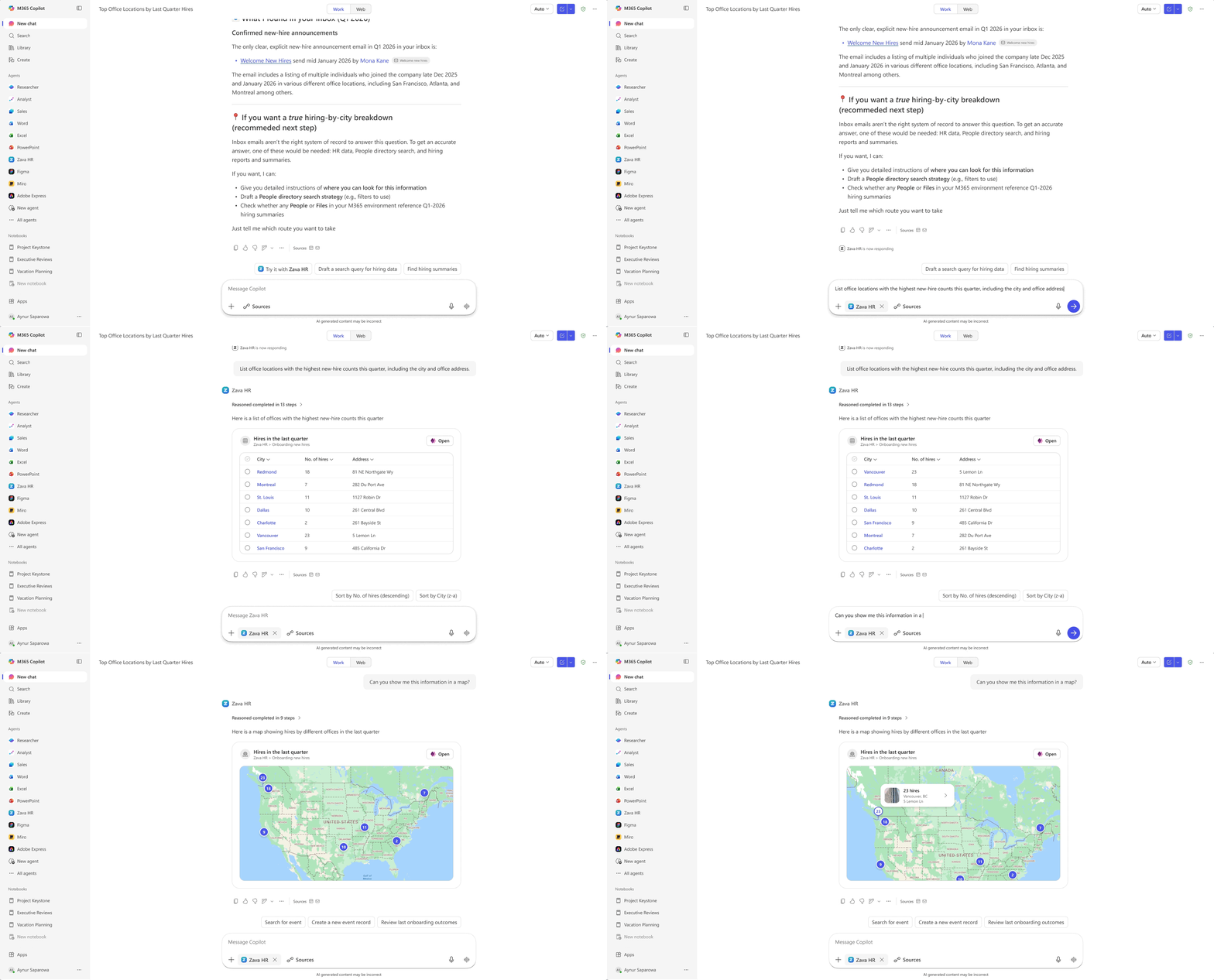
Need to automate data entry based on information available in Work IQ, or view information in a richer format like a heat map? Power Apps agents bring all these capabilities to chat with compelling visualizations.
Project or process management
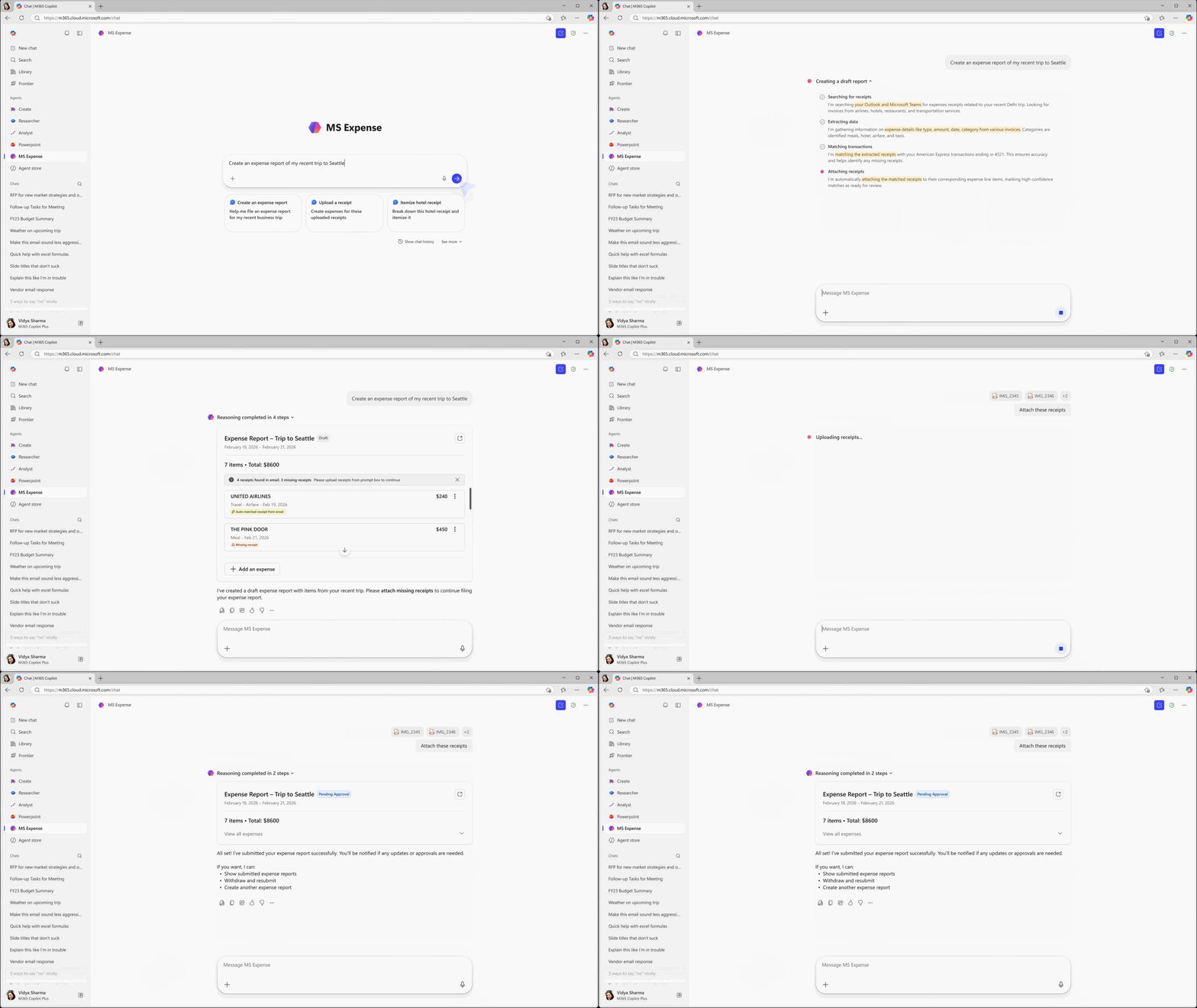
Bring records from enterprise or partner applications directly into Copilot with added context from Work IQ. This example from Microsoft Expense illustrates automatically matching and attaching expense receipts from emails to pending credit card transactions for streamlined expense reporting.
Content generation
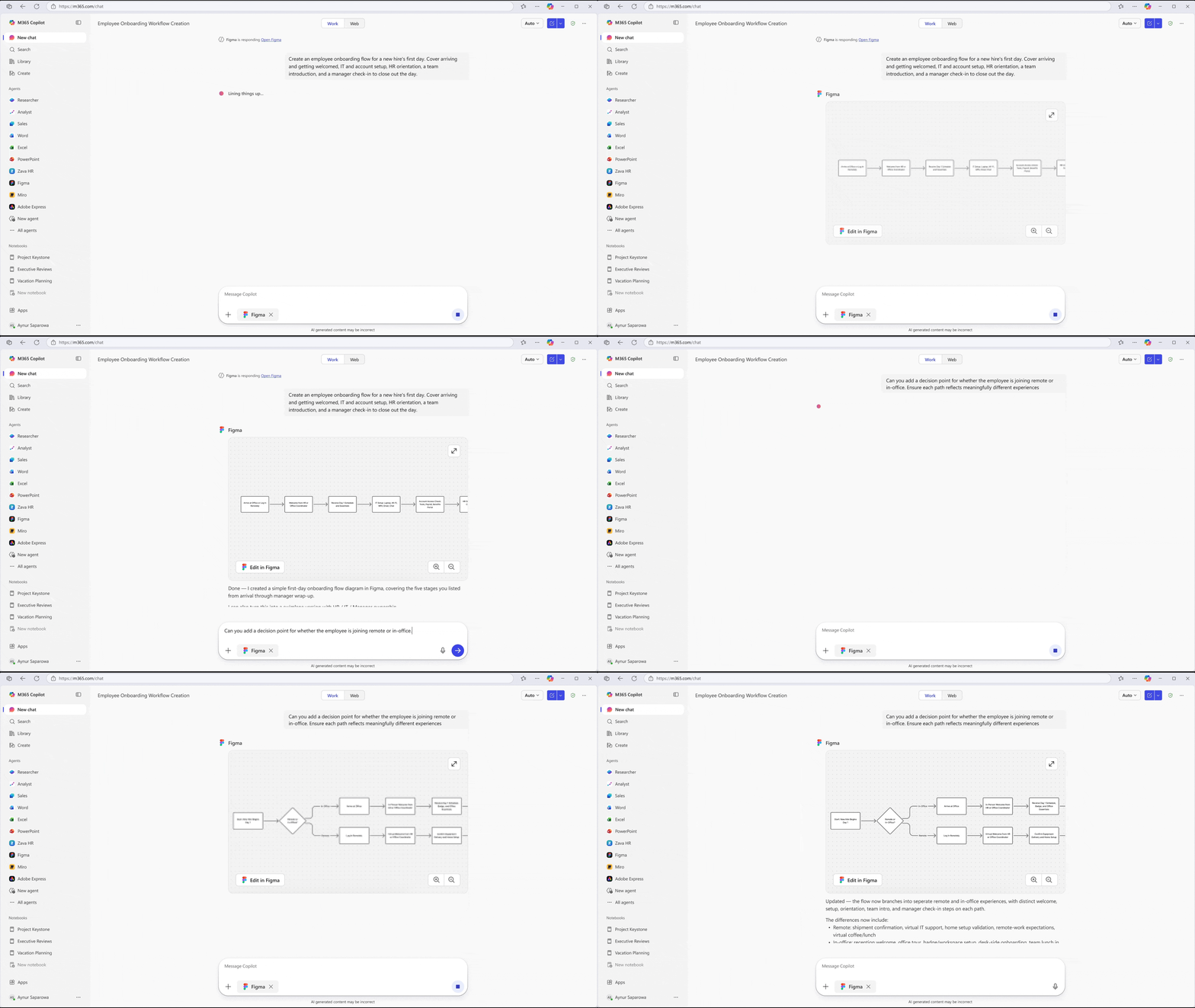
Whether it’s building marketing flyers and social assets in Adobe Express, structured FigJam diagrams in Figma, or graphic designs in Canva, apps in agents lets users design the whole project in natural language. For example, Figma can help generate an employee onboarding workflow customized to a user’s instructions in chat.
Employee training and learning resources
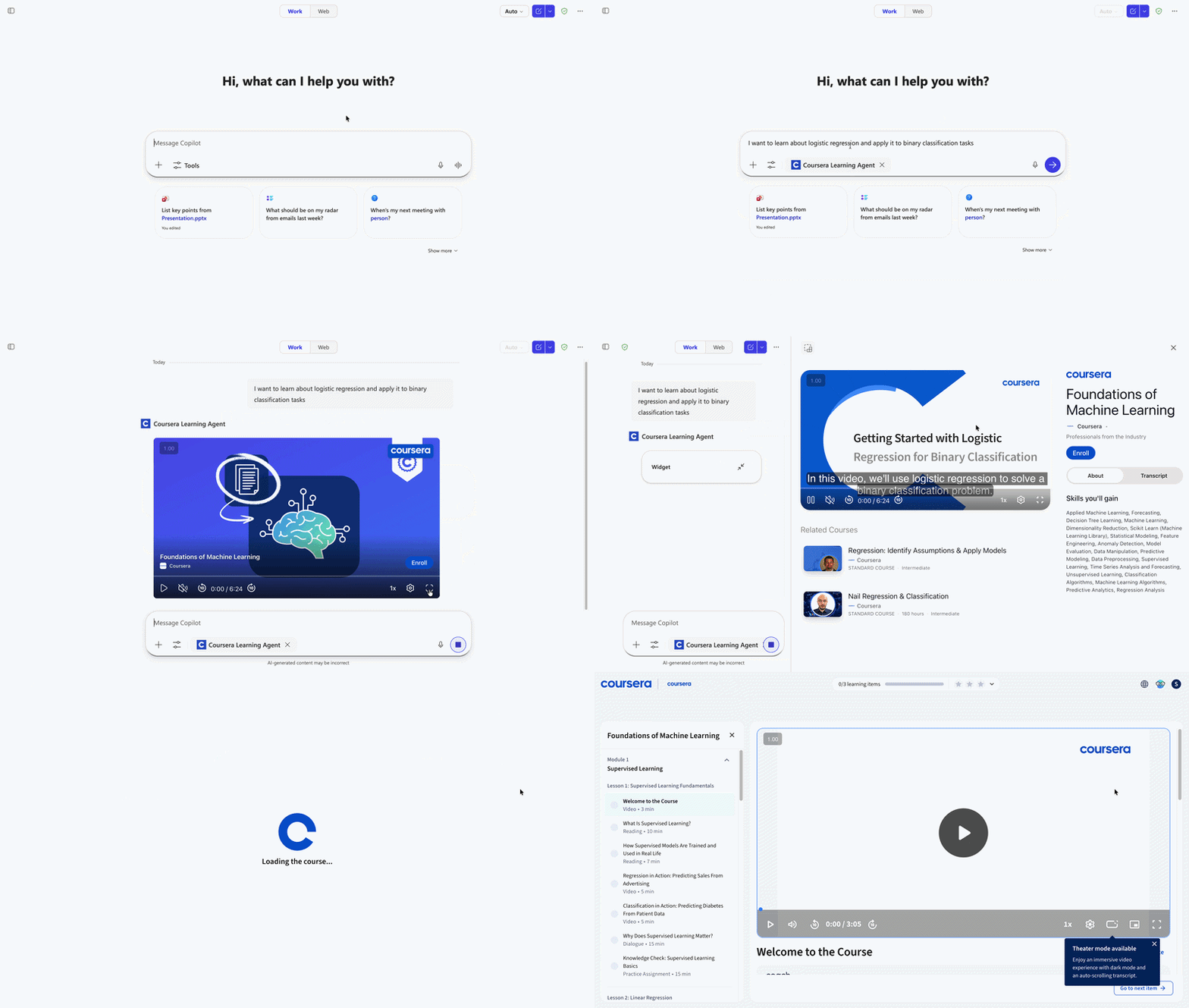
Curious to learn more about a new technology you just heard about in a meeting? Simply prompt Copilot to explore learning tools and resources on Coursera- directly alongside the tasks you’re already working on:
“Bringing the monday.com experience into the environments our customers already depend on is a natural evolution of how work gets done,” said Shanee Radzewsky, monday.com’s API & MCP Team Lead. “With MCP Apps, we’re meeting teams where work already happens and extending monday.com into the tools they use every day, helping turn context into action and move work forward faster with AI.”
You can try apps in agents with our launch partners, including Outlook (compose and scheduling), Power Apps (available now in public preview), Adobe Express (available now), Coursera (available now), Figma (available now), monday.com (available now), and more. All pre-built partner app experiences will be available via the Microsoft 365 Agent Store by mid-April. Simply select an agent in Copilot chat or @mention it to get started.
Getting started
Ready to build your own agent? MCP servers offer a consistent, secure, and low-friction way for AI models to access the tools and resources they need. Your current functionality, authentication, and integrations stay intact. UI components are layered through the meta property, ensuring they’re additive and backward compatible. That means your app continues to work seamlessly across existing clients—while gaining new interactive capabilities in Copilot.
If you are building a new MCP server, MCP official SDKs are the fastest way to get started. Once your MCP server is in place, there are two straightforward ways to integrate it:
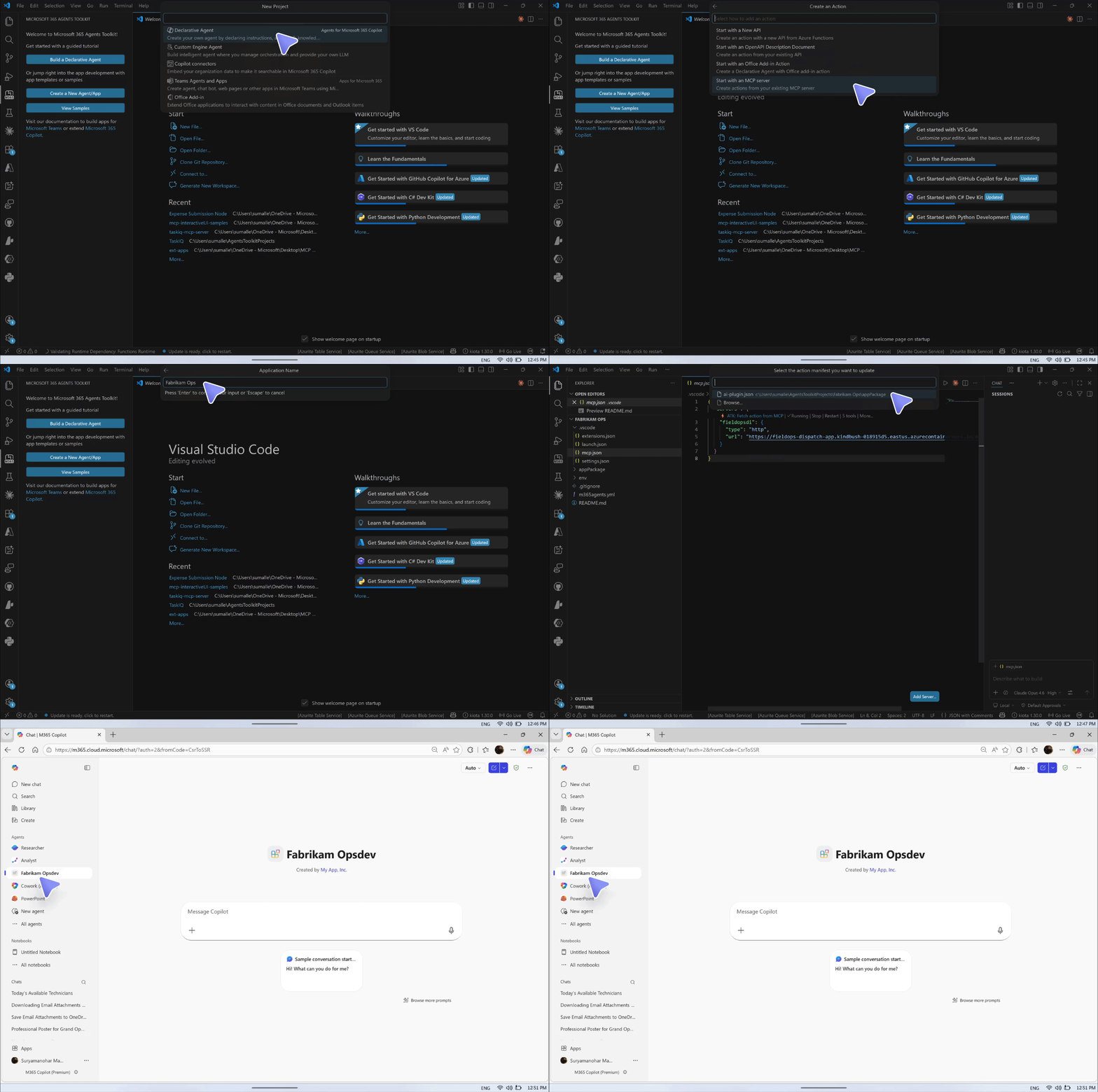
- Use the Microsoft 365 Agents Toolkit for Visual Studio Code. In VS Code, select “Add an Action,” choose “Start with an MCP Server,” and then provide the URL for your MCP server (using either MCP Apps or the Apps SDK for UI components).

- Use the GitHub Copilot CLI skill for Microsoft 365 Agents Toolkit. This lets you go from zero to a fully deployed Copilot agent — complete with an MCP server, authentication and rich interactive widgets — in a single conversation with an AI agent. Our composable skills handle the entire lifecycle: scaffolding, MCP server development, authentication setup, widget rendering, tool discovery, and deployment. The AI agent does heavy lifting. You describe what you want in natural language. For example:
# Install the plugin
/plugin marketplace add microsoft/work-iq
/plugin install microsoft-365-agents-toolkit@work-iq#

Then just ask
"Create a declarative agent that uses an MCP server with a dashboard widget for my insurance claims"
The platform supports OAuth 2.1, Microsoft Entra single sign-on (SSO), and anonymous authentication. Agents that include interactive app experiences follow the same governance, security, and administrative controls as other declarative agents used across your organization.
Questions while building? Check out our developer resources at the bottom to connect with us!
UX considerations
When designing agents, follow established UX best practices and prioritize natural language interactions. In Microsoft 365 Copilot, apps can be surfaced in two complementary ways, depending on the complexity of the experience you’re delivering:
- Inline mode (required) displays lightweight widgets directly in the conversation, appearing before the model’s generated response. This is the default Copilot surface and is ideal for quick interactions such as document previews, simple actions, decision prompts, or confirmations.
- For more advanced scenarios, side by side mode (optional) provides an expanded, immersive workspace alongside the conversation. This layout is designed for richer workflows that are difficult to deliver inline, including multistep editing, complex visual layouts, and extended review or comparison tasks.
Quick start samples
Want to move even faster? Use official MCP Apps samples or Apps SDK samples or to get started or try out the samples below.
- Field Service Dispatch: MCP server for a field service dispatch workflow with assignment intake, map visualization, dispatch planning, and confirmation flow. Requires a free Mapbox token for map widgets.
- Trey Research — HR Consultant Management: MCP server for managing HR consultants, projects, and assignments with Fluent UI React widgets including an HR dashboard, consultant profile cards, bulk editor, and project detail views.
- Employee Training: MCP server that recommends learning and training courses with embedded video previews, inline entity cards, and full-screen course views.
Check out all of our samples in the mcp-interactiveUI-samples repo on GitHub.
Publish for your organization or the public agent store
You can use these tools to build agents for yourself, your team or organization, or publish to the Microsoft 365 Agent Store for easy discovery across Copilot and Microsoft 365 apps. Here is more information on sharing for quick testing, publishing to your organization, or publishing at scale.
- Sideload agents to share within your organization without going through publishing for quick testing. Usually limited for developer.
- To share and manage declarative agents internally with your team or organization, you can deploy agents through the Microsoft 365 Admin Center. Once an IT administrator approves the agent, it appears in the Agent Store and can be scoped to specific users or groups based on organizational policies.
- For partners and developers who want to reach customers at scale, you can publish agents to the Microsoft 365 Agent Store for discovery across tenants. Review the submission guidelines to learn more. Once Microsoft validates and approves your app package, your agent becomes available in the Microsoft Commercial Marketplace and is ready for IT enablement. After an IT administrator enables an agent built by your team, partners, or third-parties, it appears in the Agent Store and other Microsoft 365 apps such as Teams, Outlook, Word, Excel, and PowerPoint.
Engage with the developer community
Building with MCP Apps or the Apps SDK and have questions? Join our developer communities to get support. We’re here to help you solve problems and keep your momentum going strong.
- Add your queries to Microsoft Q&A here: Microsoft Copilot | Microsoft 365 Copilot | Development
- Head to GitHub repositories M365 Agents Toolkit or InteractiveUI samples
- Engage in the copilotstudio or microsoft_365_copilot subreddits
We can’t wait to see what you build!


Subject: Mitigation of Identity Recovery Logic Flaws via Biometric-Anchored Emergency Protocols (Global Identity Sovereignty)
Related Vulnerability References: VULN-056593, VULN-056738, VULN-169872, 105534
CRM Reference: 0022118606
Reporter Information:
- Name: Lekbir El Marouani
- Phone: +212699838619
- Email: lekbirlmarouani5@gmail.com
--------------------------------------------------
1. EXECUTIVE SUMMARY
This advisory identifies a critical architectural flaw in existing identity recovery workflows. Current mechanisms suffer from a "Circular Dependency Loop", where the authentication factors required for recovery (tokens, devices, or SMS) are often the very assets compromised during a theft or loss incident. This report proposes a paradigm shift from Device-Centric to Identity-Centric security through the implementation of a Biometric-Anchored Emergency Pivot (BAEP).
2....
This works with Learn MCP Server too if you need an MCP Server to serve Microsoft product documentation https://github.com/microsoftdocs/mcp 🙂
Subject: Mitigation of Identity Recovery Logic Flaws via Biometric-Anchored Emergency Protocols (Global Identity Sovereignty)
Related Vulnerability References: VULN-056593, VULN-056738, VULN-169872, 105534
CRM Reference: 0022118606
Reporter Information:
- Name: Lekbir El Marouani
- Phone: +212699838619
- Email: lekbirlmarouani5@gmail.com
--------------------------------------------------
1. EXECUTIVE SUMMARY
This advisory identifies a critical architectural flaw in existing identity recovery workflows. Current mechanisms suffer from a "Circular Dependency Loop", where the authentication factors required for recovery (tokens, devices, or SMS) are often the very assets compromised during a theft or loss incident. This report proposes a paradigm shift from Device-Centric to Identity-Centric security through the implementation of a Biometric-Anchored Emergency Pivot (BAEP).
2....