


You want to build a Teams agent. Maybe it answers customer questions from a knowledge base. Maybe it runs your team’s standups. The interesting part is the logic, the thing the agent actually does.
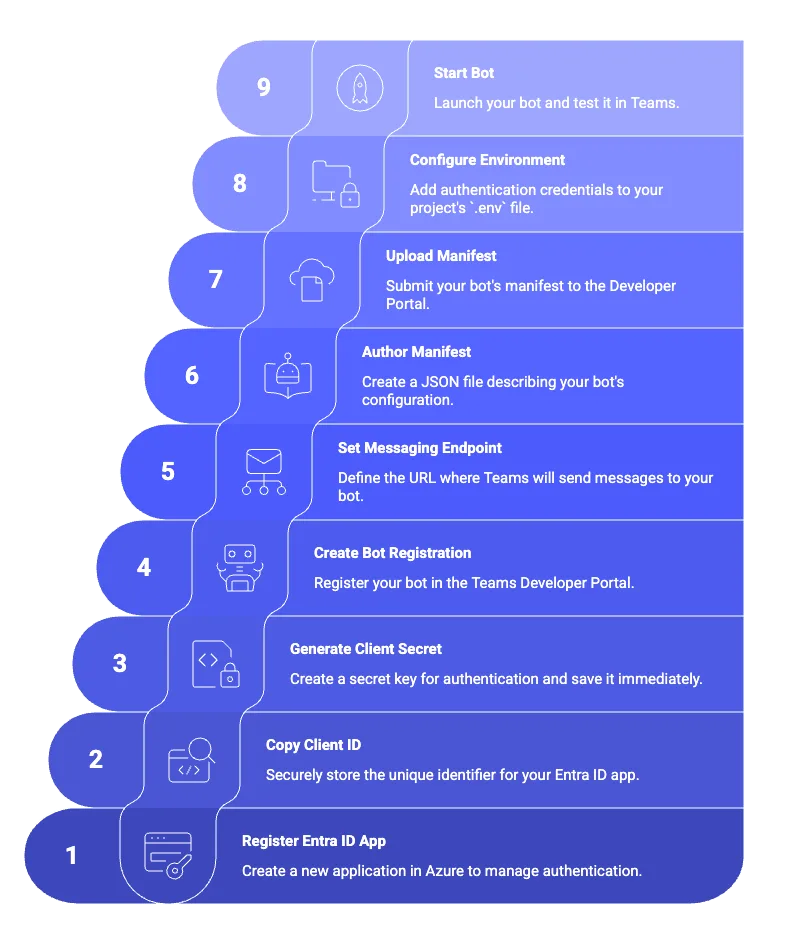
But before you write a single line of that logic, you have to register it with Teams. That takes a number of steps.
How it works today
Getting an agent into Teams requires configuring an identity, generating credentials, authoring a manifest, and wiring it all together. These steps span the Azure portal, Developer Portal, and your editor. Each one is straightforward on its own, but the context-switching between them adds up.
Let your coding agent handle it
The teams-dev agent skill works with AI coding agents like Copilot, Claude Code, and Cursor. Instead of learning the registration steps yourself, tell your coding agent:
- “Help me build a Teams agent that answers FAQs”
- “Get my agent running in Teams”
- “My agent isn’t loading in Teams, can you help?”

The skill uses the CLI under the hood to handle the full infrastructure workflow, from sign in to a working agent in Teams, and troubleshooting when something breaks. Beyond infrastructure, it also helps your coding agent write application logic following best practices from the Teams SDK documentation.
Under the hood: The Teams CLI
For developers who want direct control, the skill is powered by the next iteration of our CLI. Install it and sign in:
npm install -g @microsoft/teams.cli@preview
teams login
Create is now just one command
teams app create –name “My Bot“ –endpoint https://my-bot.example.com/api/messages –env .env
teams app create does the heavy lifting (registration, credentials, manifest, and more) so you can start building immediately. All the steps from above happen behind the scenes.

Now you can focus on your agent’s logic without worrying about app registration concepts. See the CLI docs for all available flags.
Easy installation
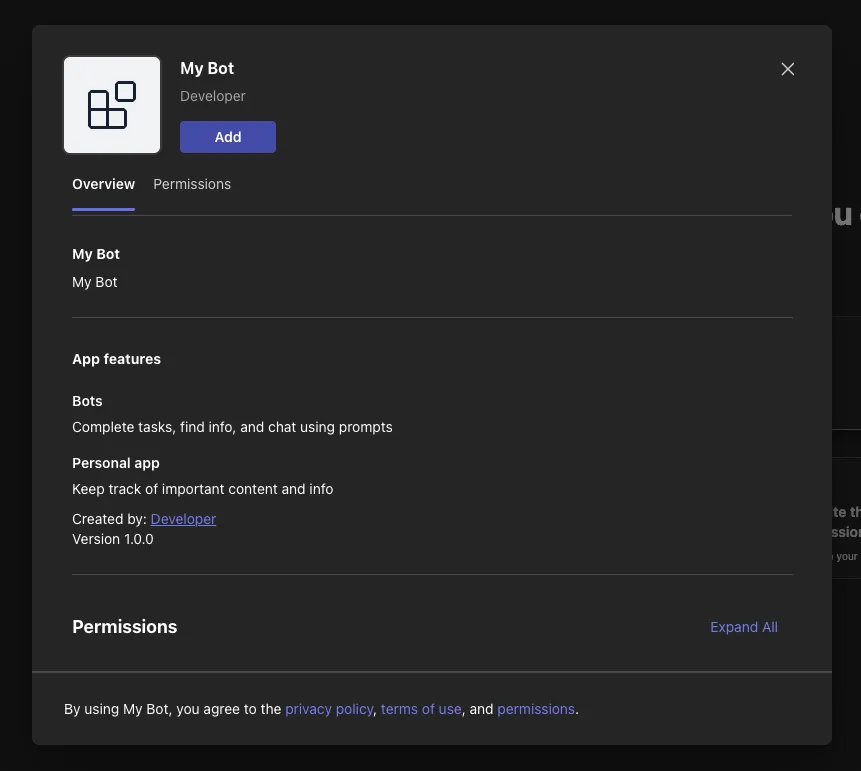
Traditionally, getting an agent into Teams means building an app package, managing a manifest, and sideloading it. With the CLI, app create gives you an installation link. Open it and Teams handles the install flow without a manual zip/package upload.
The CLI also includes a teams app doctor command that checks your agent’s registration, credentials, endpoint, and manifest so when something breaks, you know exactly what to fix.
For CI pipelines and custom tooling, every CLI command supports --json output for programmatic consumption.
Get started
Install the teams-dev agent skill (Copilot, Claude Code, Cursor):
/plugin marketplace add microsoft/teams-sdk
/plugin install teams-sdk@teams-skills
Install the CLI:
npm install -g @microsoft/teams.cli@preview


Subject: URGENT Formal Proposal Project The Light for Global Identity Sovereignty
Dear Microsoft Leadership,
I am Lekbir El Marouani writing to formally address a critical architectural failure in current identity recovery workflows. The existing system operates in a state of systemic blindness where the recovery mechanism itself becomes a weapon for attackers. As documented in VULN-056593, VULN-056738, VULN-169872, 105534, and CRM 0022118606, the system cannot distinguish between a legitimate user and a thief when a device is compromised. This creates a circular dependency loop that directly undermines the security Microsoft promises to its users.
I am proposing a decisive solution called Project The...