


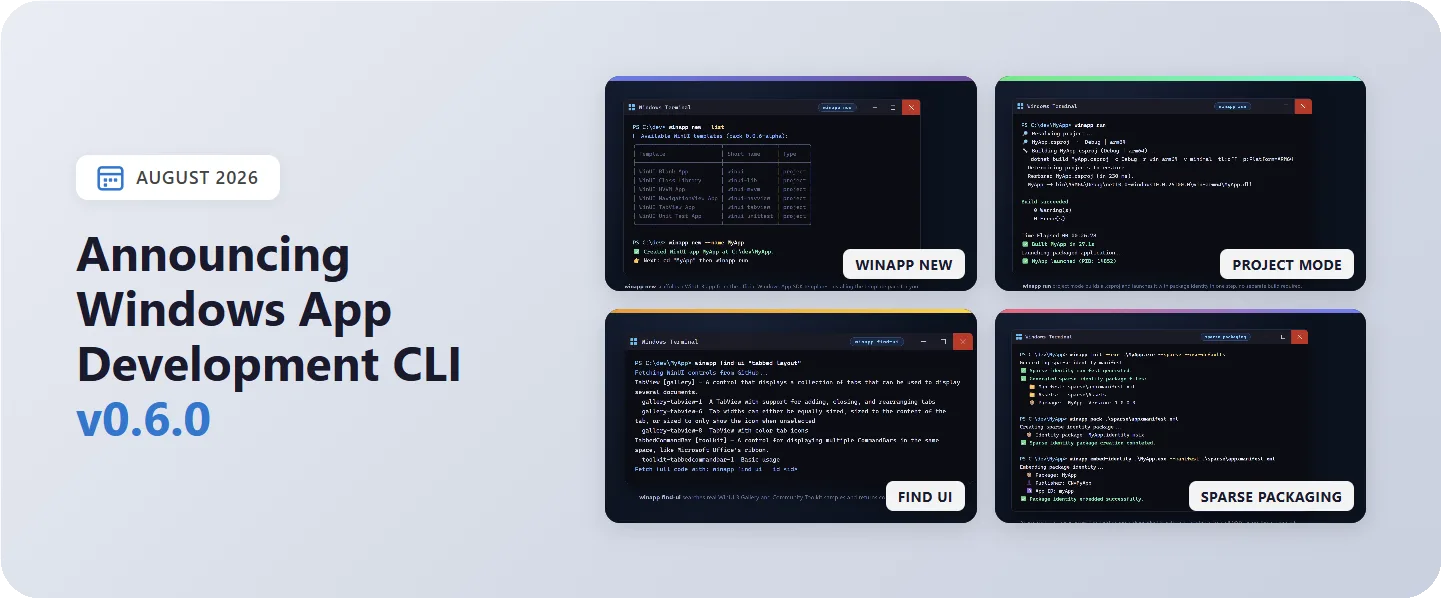
Windows App Development CLI v0.6.0 has just shipped and contains a ton of new features. Much of the changes in this release focus on getting from zero to a running app faster: scaffold a fresh WinUI project with a single command, search real WinUI controls and samples without leaving the terminal, and run your app straight from a .csproj with no manual build step first. It also adds cloud-based artifact signing, sparse-package workflows, and agent-friendly UI recordings. Grab it with winget install Microsoft.WinAppCLI, or head to the repo for npm and other install options.
Here’s a tour of the highlights.
✨ Scaffold a New App with winapp new
The new winapp new command creates a WinUI 3 app from the official Windows App SDK dotnet new templates. It installs (and offers to update) the template pack for you, so you don’t have to hunt for the right NuGet or workload first. It’s interactive by default, allowing you to select a template and name your app, and falls back to sensible defaults in CI and other non-interactive shells.
# See every template available in your installed pack
 winapp new --list

 # Create a blank WinUI 3 app (the default template)
 winapp new --name MyApp

 # Start from a richer template, such as a NavigationView or MVVM app
 winapp new --name MyApp --template winui-navview
 winapp new --name MyApp --template winui-mvvm
Templates include a blank app (winui), winui-navview, winui-tabview, an MVVM starter (winui-mvvm), a class library (winui-lib), and a packaged unit-test app (winui-unittest). The list is read live from the pack you have, so --list always reflects your version. For reproducible scaffolding across machines, pin the pack with --template-version 1.2.3, or take the newest with --template-version latest.
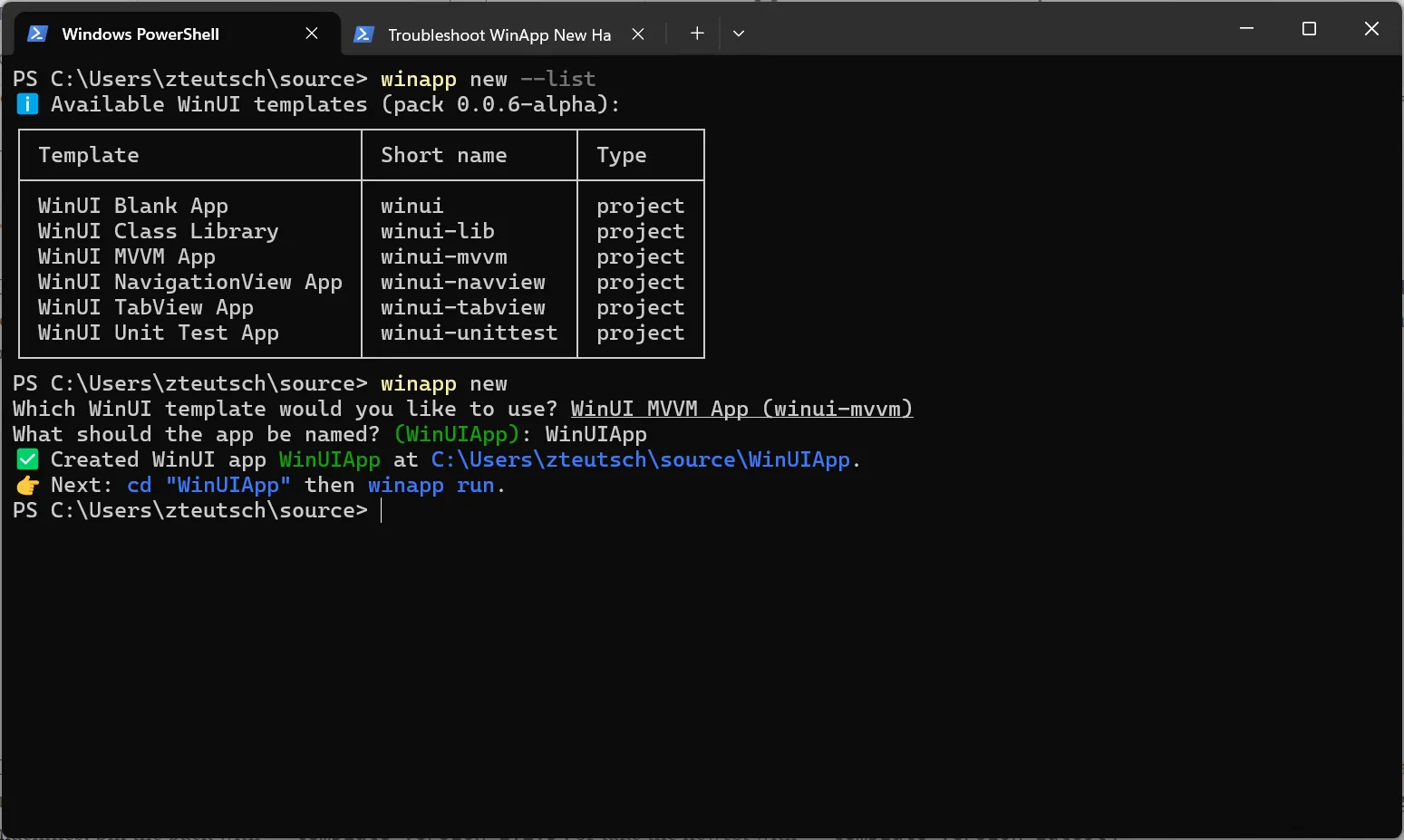
Where winapp init adds packaging and identity assets to an existing project, winapp new is the entry point for creating a new one.
🔎 Find Real WinUI Code with winapp find-ui
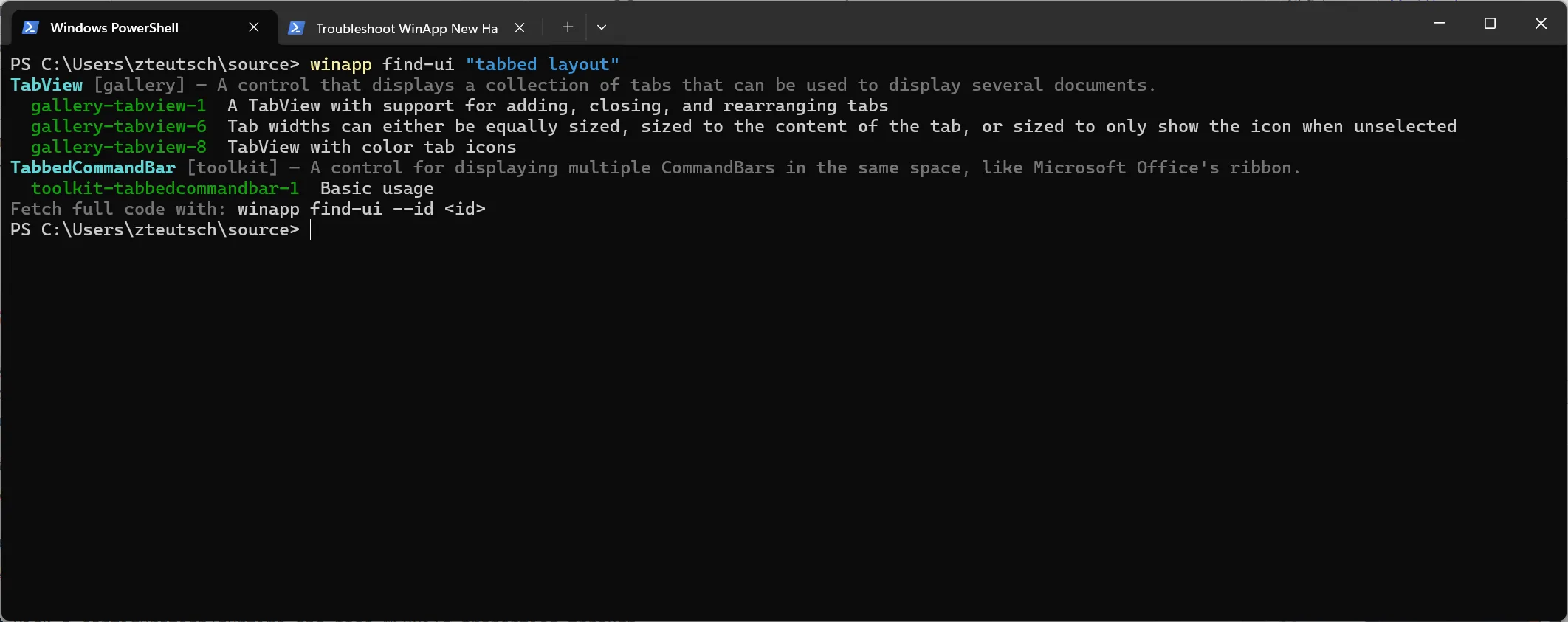
Sometimes you know the control you want but not how to wire it up. winapp find-ui searches real, working WinUI samples from the WinUI 3 Gallery and the Windows Community Toolkit, and hands you copy-pasteable XAML and C#. It’s designed to be great for AI agents and humans.
# Search by intent, returning matching controls with scenario ids
winapp find-ui "tabbed layout"

# Narrow to a single source
winapp find-ui "settings card" --source toolkit

# Pull the full XAML + C# for a specific scenario
winapp find-ui --id gallery-tabview-1
The workflow is two steps: search compactly to find the right control and its scenario ids, then fetch the complete code with --id. The corpus is cached per-user after the first run (refreshed at most weekly, or on demand with --refresh). A third source, the C#-only ReactorGallery, is opt-in via --source reactor for MVU/Reactor projects.
🚀 Run Straight from a .csproj
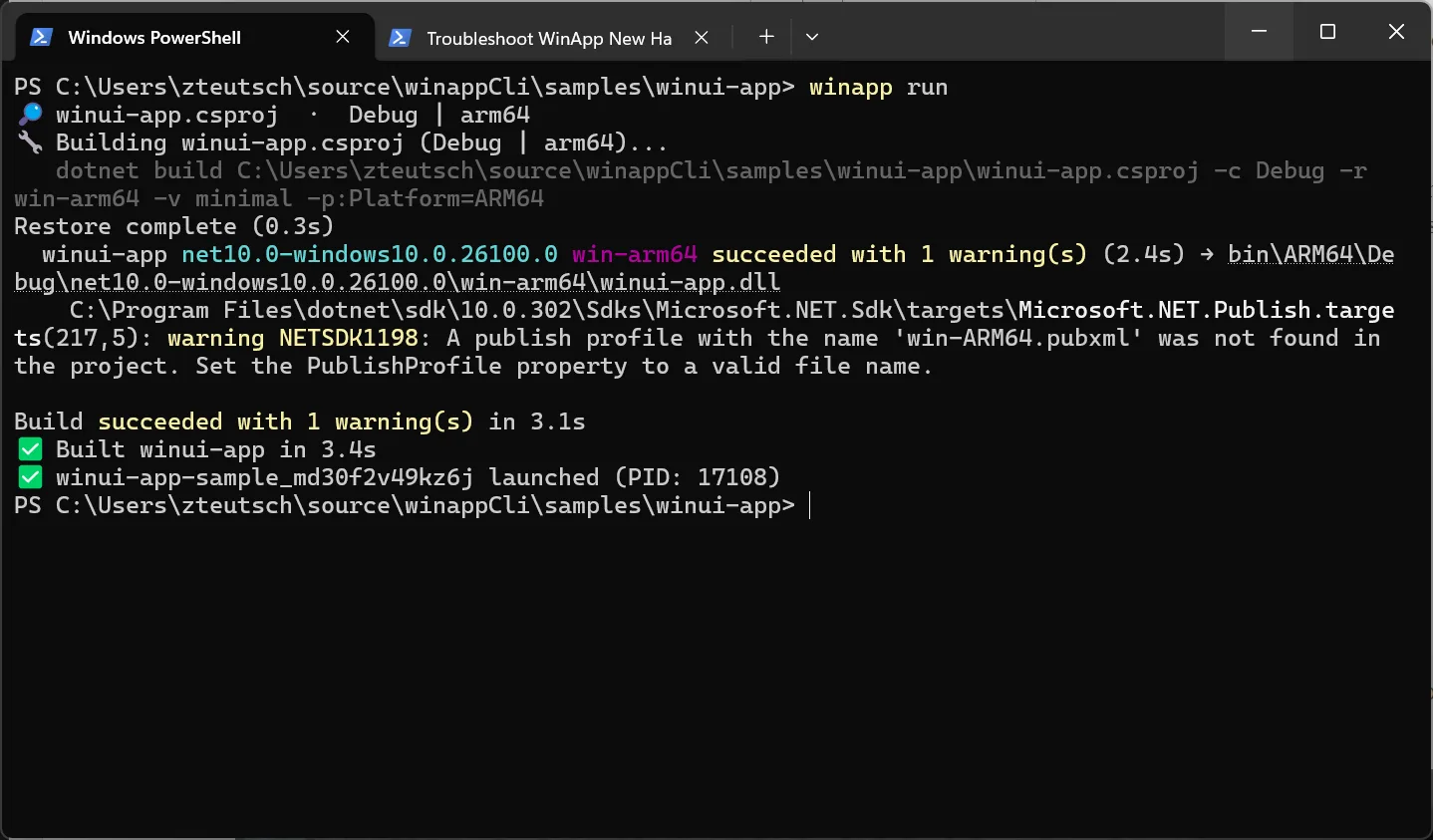
winapp run now has a project mode. Point it at a .csproj, a .sln/.slnx, or a directory containing one, and it builds the project and launches it with package identity. There’s no separate dotnet build step and no digging for the right output folder. It works for both packaged and unpackaged WinUI apps, and the mode is chosen automatically from your input.
# Build and run the project in the current directory (like dotnet run)
winapp run

# Or point at a specific project
winapp run .\src\MyApp\MyApp.csproj

# Pick a configuration/runtime and pass MSBuild properties through
winapp run . -c Release -r win-arm64 -p WindowsPackageType=None
Project mode maps familiar options straight to MSBuild: -c/--configuration, -r/--runtime, -f/--framework, --arch, --no-build, --no-restore, and -p/--property. The existing folder mode is unchanged: pass a build-output folder and it registers a loose-layout package exactly as before. (Run with --verbose if you ever want to see which mode was chosen and why.)
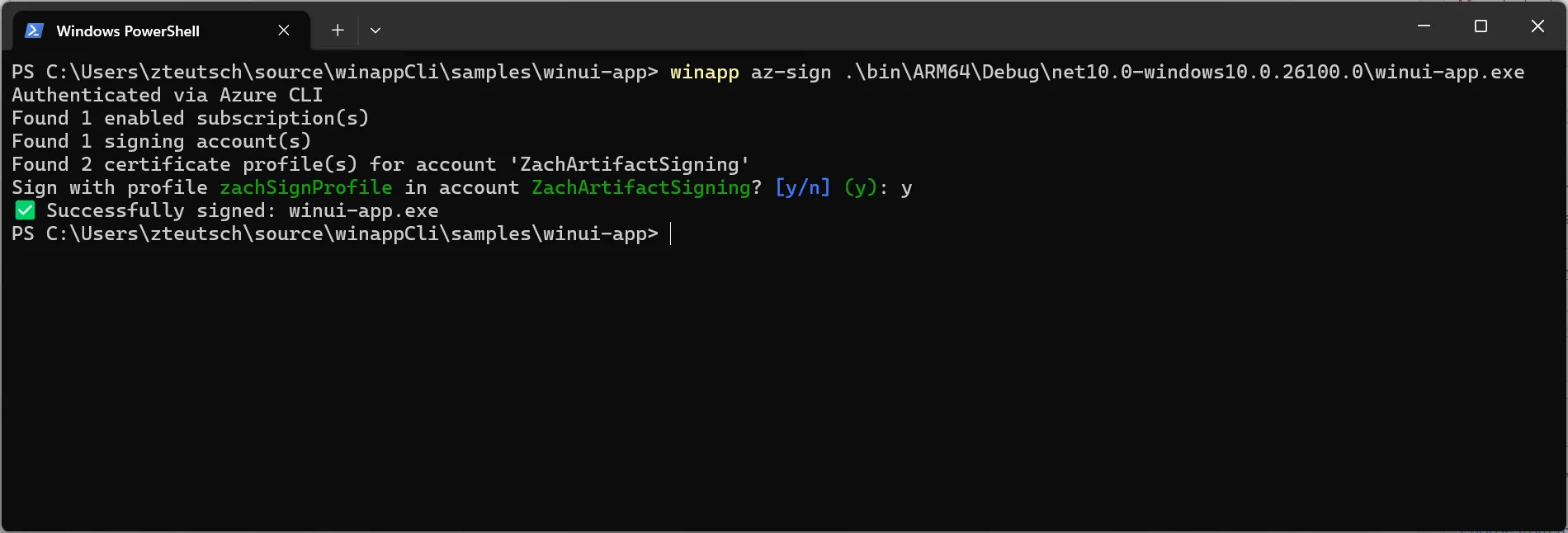
🔏 Cloud Signing with winapp az-sign
The new winapp az-sign command code-signs an exe, MSIX, or MSIX bundle using Azure Trusted Signing, a cloud-managed signing identity, so no private key (PFX) ever lives on the local machine. It uses Azure’s standard credential chain, which makes it a natural fit for CI: an azure/login session, OIDC, or a managed identity are all honored automatically.
# Interactive: discover and select subscription, account, and profile
winapp az-sign .\app.msix

# Fully specified, no prompting (ideal for CI/CD)
winapp az-sign .\app.msix --subscription <sub-id> --resource-group <rg> --account <account> --profile <profile>

# Reuse an existing metadata.json (skips resource discovery)
winapp az-sign .\app.msix --metadata-file .\metadata.json
Passing all four discovery flags (--subscription, --resource-group, --account, --profile) lets az-sign validate resources with direct reads instead of listing them, so a least-privilege CI principal scoped to just that certificate profile is enough.
📦 Sparse Packaging Support
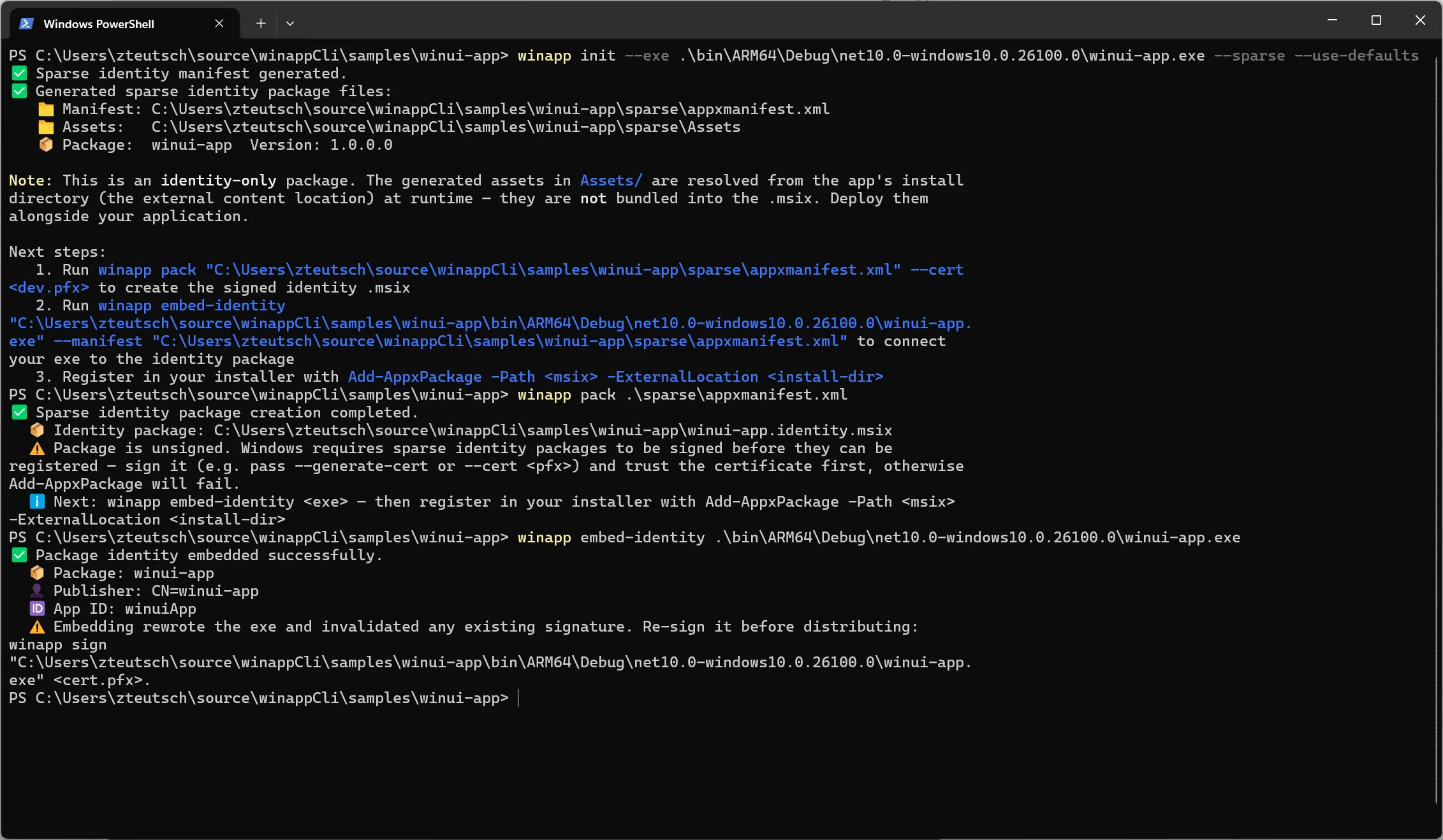
You can now give package identity to an existing desktop app, so it can use notifications, background tasks, or other identity-gated APIs, without converting it to a full MSIX. v0.6.0 adds an end-to-end sparse packaging workflow across three commands.
# 1. Generate an identity-only sparse manifest for an existing exe (no SDK install)
winapp init --exe .\bin\Release\net8.0-windows\MyApp.exe --sparse --use-defaults

# 2. Pack the sparse manifest into an identity-only .msix
winapp pack .\sparse\appxmanifest.xml

# 3. Link the exe to its sparse identity package
winapp embed-identity .\bin\Release\net8.0-windows\MyApp.exe
winapp init --sparse writes an identity-only appxmanifest.xml (plus placeholder assets) and skips all SDK/package installation, since sparse identity packages have no SDK dependencies. winapp pack now accepts that manifest directly to build the identity .msix, and winapp embed-identity connects the exe to it. See the Sparse Packaging Guide for the full walkthrough.
⚡ Other Notable Changes
- Agent-readable UI recordings:
winapp ui record --framesnow emits a sidecar bundle alongside the MP4: timestamped JPEG frames, aframes.ndjsonindex, and amanifest.json, so agents can reason over a recording frame by frame. - Native WinUI 3 from Node.js: A new sample shows driving a native WinUI 3
ApplicationandWindowfrom Node.js. - Unified plugin & new skills: The GitHub Copilot and Claude Code plugins are now a single shared plugin, and a new
winapp-mauiskill covers the MAUI resizetizer manifest dependency.
🐛 Bug Fixes
- Fixed MSIX bundle version generation
- Backfilled MS Learn documentation fixes and added a validation gate to keep docs in sync
- Mapped the remaining
winapp runoptions to MSBuild properties in project mode - Only show the folder-mode discovery breadcrumb at debug verbosity
- Fixed a flaky tree-kill test by retrying the PID file read
🔒 Security & Infrastructure
- Pinned all GitHub Actions to full-length commit SHAs and adopted the CodeQL security-extended suite
- Extended Dependabot coverage to NuGet and npm
- Used
-EncodedCommandfor the elevated Developer Mode script
🖥️ Get started today
That’s v0.6.0: faster project setup, real sample code on tap, one-step run from source, and cloud signing to round it out. It’s in public preview today, and we build these releases around the feedback we get. Tell us what’s working (and what isn’t) by filing issues on our GitHub repository, where you’ll also find the docs and guides.
Install via WinGet:
winget install microsoft.winappcliInstall via npm:
npm install --save-dev @microsoft/winappcliHappy building!


I am a newbie for WinUI development. The examples and clear instructions are extremely useful. Please continue writing more blogs.
One request … you gave us the commands to find the WinUI code using the find-ui option. Can you please give the instructions for importing the ui code after finding it?
Thank you!