


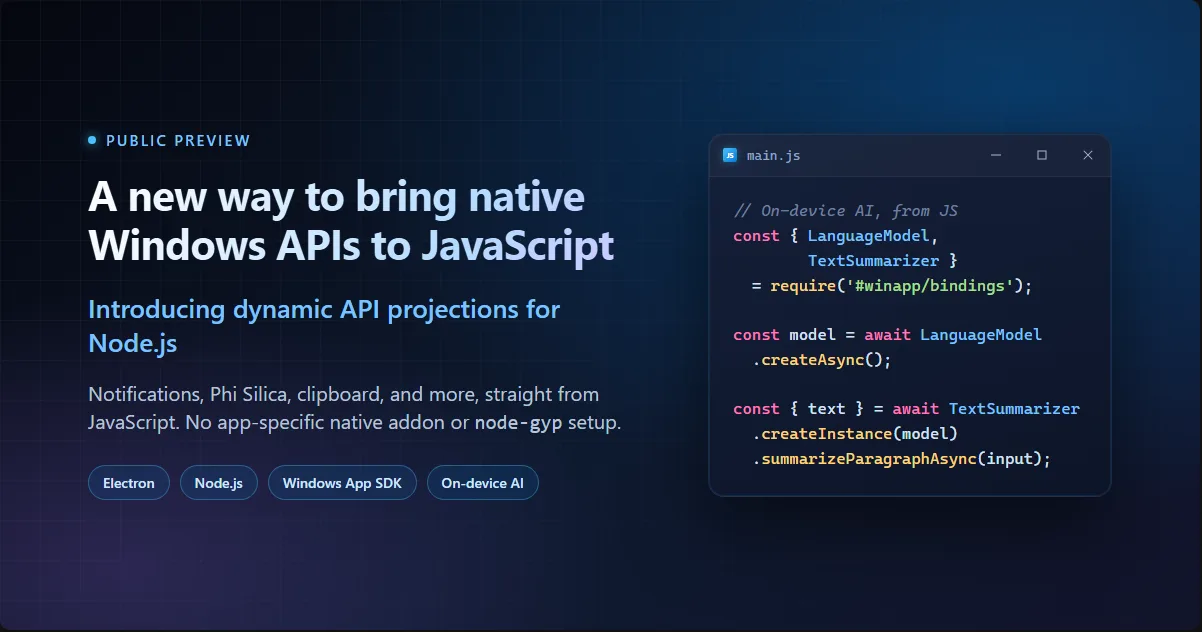
Electron and Node.js make it straightforward to build Windows desktop apps in JavaScript. Calling Windows Runtime APIs has been less straightforward: features such as on-device AI often required a C++ or C# bridge, manual translation of WinRT types and asynchronous behavior, and wrapper code for every exposed API. That meant another language and toolchain to build, test, and keep compatible with Electron.
We’re making a dynamic Windows Runtime API (WinRT) projection for Node.js available in public preview. It lets an Electron app or plain Node.js process call supported Windows Runtime APIs directly from JavaScript or TypeScript. Start with one npm package; the tooling generates JavaScript wrappers and TypeScript declarations for the Windows features you choose. No app-specific native addon, node-gyp setup, or C++ wrapper is required.
What makes this projection different
The Windows Runtime already has static language projections for C++/WinRT, C#/WinRT, windows-rs, and PyWinRT. This projection brings the same model to the Node.js runtime but generates JavaScript instead of a native binding for each API. A shared runtime dispatches the calls, and compatible APIs can be added by rerunning generation against their metadata.
- Generated JavaScript wrappers, not per-class native addons. Codegen produces
.jswrappers and.d.tsdeclarations for supported Windows Runtime API patterns. - One shared prebuilt runtime.
@microsoft/dynwinrt, installed from npm, dispatches all the calls at execution time. - Regenerate, don’t rebuild. When compatible Windows API metadata changes, rerun codegen instead of rebuilding or waiting for a hand-authored wrapper.
What you can build with the projection
The generator reads Windows metadata (.winmd) rather than relying on a fixed API catalog. Supported non-UI APIs include:
- On-device AI: text generation, summarization, rewriting, text-to-table, image description, text recognition, image scaling, object extraction and removal, plus Windows ML model and execution provider catalogs
- App and content APIs: notifications, file and folder pickers, storage, and image decoding, plus rich clipboard content
- System and device APIs: networking, sensors, globalization, and cryptography
The same metadata-driven workflow can project other compatible Windows Runtime APIs, including APIs from custom WinRT components.
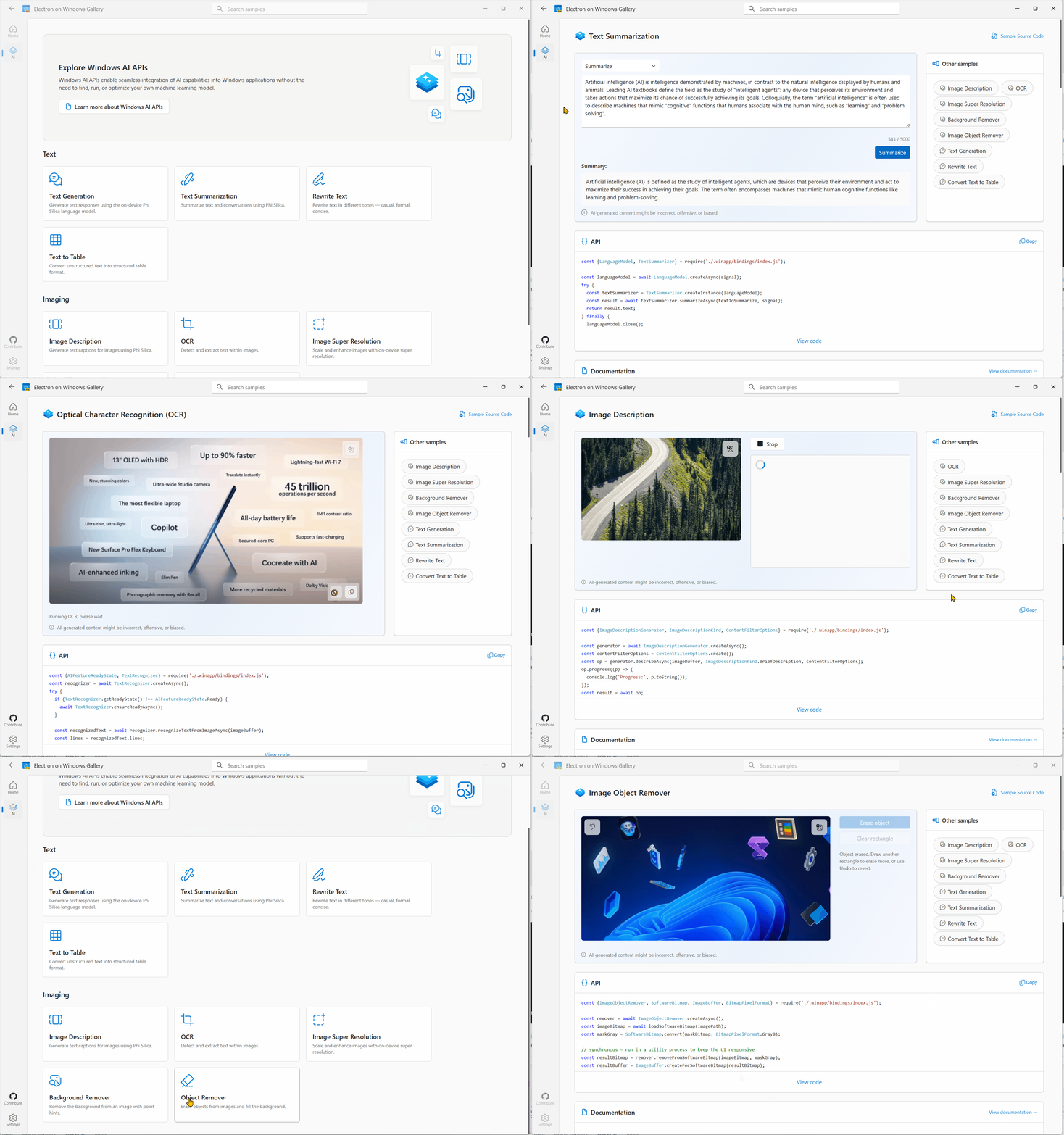
The open-source Electron on Windows Gallery uses these JavaScript projections for its AI scenarios. Each interactive sample includes its JavaScript source, API documentation, and setup guidance.
How the pieces fit together
The projection is delivered through three npm packages. You install only @microsoft/winappcli; it coordinates the other two and keeps their versions aligned:
@microsoft/winappclisets up the manifest and SDK metadata, runs projection generation, and handles debug package identity.@microsoft/dynwinrt-codegenreads that.winmdmetadata and emits JavaScript wrappers with matching TypeScript declarations (.js+.d.ts).@microsoft/dynwinrtis the shared, prebuilt x64 and arm64 runtime that dispatches those Windows API calls when your app runs.
Together, these packages turn Windows metadata into JavaScript APIs that an app can import and call.
Two examples in Electron
Both examples use JavaScript only:
- Native notifications with
AppNotificationBuilder/AppNotificationManager - Phi Silica on-device AI with
LanguageModel/TextSummarizer(Copilot+ PCs)
Project setup
If you’re creating a new Electron app, start with the WinApp CLI Electron setup guide. It covers project creation, prerequisites, and the full WinApp CLI workflow.
For an existing Electron app, install the CLI and initialize the project:
npm install --save-dev @microsoft/winappcli
npx winapp init . --use-defaults --add-js-bindings
winapp init creates the manifest, sets up the SDKs, adds @microsoft/dynwinrt and @microsoft/dynwinrt-codegen to package.json, and generates JavaScript wrappers and TypeScript declarations under .winapp/bindings/. It also writes a winapp.jsBindings configuration block for adding namespaces or .winmd files, including metadata from custom WinRT components.
Setup adds #winapp/bindings and #winapp/bindings/* to the package.json#imports map for the generated CommonJS, ES module, and TypeScript declaration entry points. This keeps imports independent of the source file’s location. See the file picker guide for a detailed configuration example.
Both examples require package identity. To use them during development, give the Electron executable a temporary identity:
npx winapp node add-electron-debug-identity
Run this command again whenever the manifest, Electron executable path, or identity fields change. For APIs that don’t require package identity, skip this command and start Electron normally with npm start. See the debug identity guide for more detail.
Show a rich Windows notification
Electron’s built-in notification API covers basic toasts. Windows App SDK notifications add progress bars, actions, inputs, and scenarios. This main-process example shows a progress notification:
const {
  AppNotificationBuilder,
  AppNotificationManager,
  AppNotificationProgressBar,
} = require('#winapp/bindings');

const progress = AppNotificationProgressBar
  .create()
  .setTitle('Processing with Windows AI')
  .setStatus('Running locally')
  .setValue(0.65)
  .setValueStringOverride('65%');

AppNotificationManager.default_.show(
  AppNotificationBuilder
    .create()
    .addText('Windows AI task running')
    .addText('This notification uses a native Windows progress bar.')
    .addProgressBar(progress)
    .buildNotification()
);
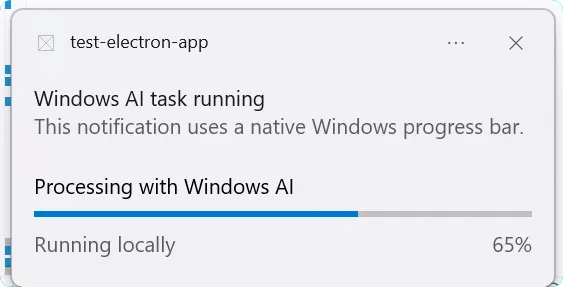
Run the app, and Windows shows the same native toast a C# or C++ app would produce, including the progress bar:
See the Show a notification from JavaScript guide for a full walkthrough.
Run Phi Silica on-device AI
The same bindings can call Phi Silica, a local language model available on supported Windows devices. This example requires a Copilot+ PC.
const {
  AIFeatureReadyState, LanguageModel, TextSummarizer,
} = require('#winapp/bindings');

async function summarize() {
  const readyState = LanguageModel.getReadyState();
  if (readyState !== AIFeatureReadyState.Ready &&
      readyState !== AIFeatureReadyState.NotReady) {
    console.log('Phi Silica is not available on this device.');
    return;
  }
  if (readyState === AIFeatureReadyState.NotReady) {
    await LanguageModel.ensureReadyAsync();
  }

  const model = await LanguageModel.createAsync();
  try {
    const op = TextSummarizer
      .createInstance(model)
      .summarizeParagraphAsync('Some long paragraph...');

    // Stream partial output as the model generates it
    op.progress((partial) => {
      process.stdout.write(partial);
    });

    const result = await op;
    console.log('\nDone:', result.text);
  } finally {
    model.close();
  }
}

summarize().catch(console.error);
Phi Silica requires the following restricted capability inside the existing <Capabilities> element in Package.appxmanifest:
<rescap:Capability Name="systemAIModels" />After changing the manifest, refresh debug identity:
npx winapp node add-electron-debug-identityWhen this code runs in the Electron main process, progress callbacks write partial output to the terminal before the final Done: line:

See the Call Phi Silica from JavaScript guide for a full walkthrough.
Add Windows SDK and custom APIs
By default, the WinApp CLI generates the supported Windows App SDK API surface; UI-only packages such as Microsoft.WindowsAppSDK.WinUI and Microsoft.Web.WebView2 are excluded. To include Windows SDK APIs, list the entry-point classes in package.json. For example, add the Windows Clipboard API:
{
  "winapp": {
    "jsBindings": {
      "additionalWinmds": [
        {
          "namespace": "Windows.ApplicationModel.DataTransfer",
          "classes": ["Clipboard", "HtmlFormatHelper"]
        }
      ]
    }
  }
}
Regenerate the bindings:
npx winapp node generate-bindingsCodegen resolves dependent types transitively, so only the entry-point classes need to be listed.
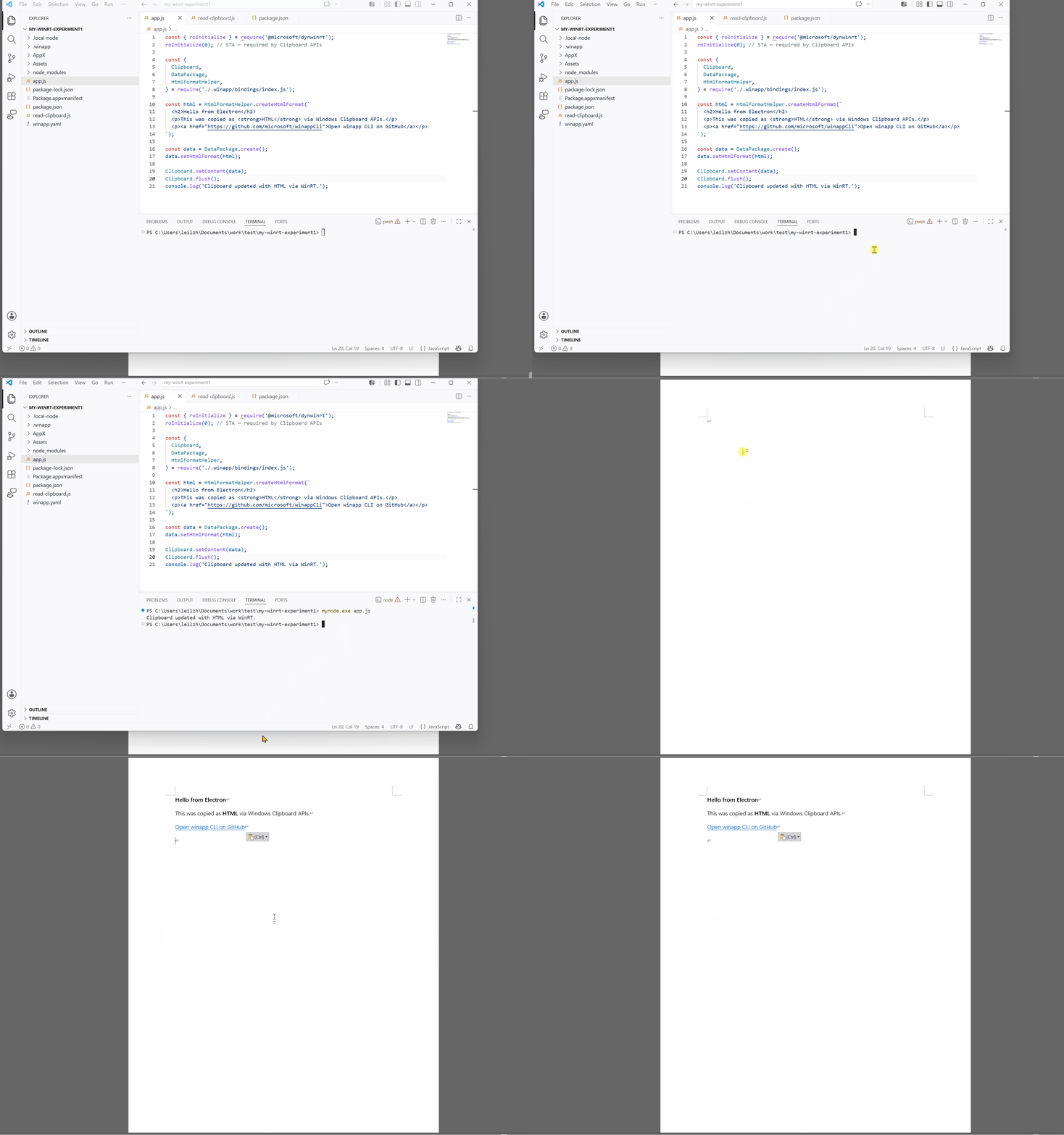
The generated bindings can now place rich HTML on the Windows clipboard for apps such as Word, Outlook, or Teams:
const {
  Clipboard,
  DataPackage,
  HtmlFormatHelper,
} = require('#winapp/bindings');

const html = HtmlFormatHelper.createHtmlFormat(`
  <h2>Hello from Electron</h2>
  <p>This was copied as <strong>HTML</strong> via Windows Clipboard APIs.</p>
  <p><a href="https://github.com/microsoft/winappCli">Open WinApp CLI on GitHub</a></p>
`);

const data = DataPackage.create();
data.setHtmlFormat(html);

Clipboard.setContent(data);
Clipboard.flush();
HtmlFormatHelper.createHtmlFormat wraps your markup with the CF_HTML header Windows expects, so any HTML-aware target renders it as rich text.
For a third-party WinRT component, or a package not included by default, add a winmdPath entry to winapp.jsBindings.additionalWinmds:
{
  "winapp": {
    "jsBindings": {
      "additionalWinmds": [
        {
          "winmdPath": "path/to/Foo.winmd",
          "namespace": "Foo.Bar",
          "classes": ["Baz"]
        }
      ]
    }
  }
}
This step generates only the JavaScript wrappers and TypeScript declarations. At runtime, the component binaries must also be deployed and any required activation configured, often in Package.appxmanifest.
Use the projection with plain Node.js
The projection also works in a plain Node.js process. To try a Windows API without packaging an MSIX, create a project and point the WinApp CLI at the existing node.exe:
mkdir my-winrt-experiment; cd my-winrt-experiment
npm init -y
npm install --save-dev @microsoft/winappcli
npx winapp init . --use-defaults --add-js-bindings

# winapp run needs an .exe inside the project. Alias .local-node to your Node install.
New-Item -ItemType Junction -Path .\.local-node -Target (Split-Path (Get-Command node).Source)
This example also uses Phi Silica, so add the same systemAIModels capability to Package.appxmanifest. Then create app.js with a short TextRewriter call:
const { roInitialize } = require('@microsoft/dynwinrt');
roInitialize(1); // MTA

const {
  AIFeatureReadyState,
  LanguageModel,
  TextRewriter,
  TextRewriteTone,
} = require('#winapp/bindings');

async function main() {
  const readyState = LanguageModel.getReadyState();
  if (readyState !== AIFeatureReadyState.Ready &&
      readyState !== AIFeatureReadyState.NotReady) {
    console.log('Phi Silica is not available on this device.');
    return;
  }
  if (readyState === AIFeatureReadyState.NotReady) {
    await LanguageModel.ensureReadyAsync();
  }

  const model = await LanguageModel.createAsync();
  try {
    const rewriter = TextRewriter.createInstance(model);
    const result = await rewriter.rewriteAsync(
      'WinApp CLI makes it easier to use Windows APIs from JavaScript.',
      TextRewriteTone.Formal
    );
    console.log(result.text);
  } finally {
    model.close();
  }
}

main().catch((error) => {
  console.error(error);
  process.exitCode = 1;
});
Run the script once under package identity:
npx winapp run . --exe .local-node\node.exe --with-alias --args "app.js" --unregister-on-exitwinapp run registers the loose-layout package, launches .local-node\node.exe app.js with package identity and the Windows App SDK runtime graph, and unregisters it on exit. --with-alias routes the launch through the execution alias so stdout and stderr remain attached to the terminal.
For repeated runs with a persistent execution alias (mynode.exe app.js from any terminal), see the Plain Node.js dev-mode guide.
How the projection works
dynwinrt-codegen runs as part of winapp init, restore, and generate-bindings, converting .winmd metadata into JavaScript wrappers and TypeScript declarations. It does not generate native code per class. At runtime, @microsoft/dynwinrt invokes the underlying COM vtables and adapts WinRT conventions to JavaScript: strings and HRESULT failures become JavaScript values and errors, asynchronous operations are awaitable with cancellation and progress support, and collections, structs, enums, and event delegates are projected into JavaScript shapes.
The projection primarily targets data-style Windows Runtime APIs such as AI, storage, notifications, networking, and similar system capabilities. WebView2 is not part of the generated projection surface.
For the full design, see dynwinrt/design.md.
Feedback and resources
This is a public preview. If an API maps awkwardly into JavaScript, a TypeScript declaration looks wrong, or a scenario is missing, please file an issue. That feedback will help set priorities.
Where to file issues
The WinApp CLI and the underlying projection live in two different repos. File feedback in whichever fits your issue:
- CLI setup, configuration, identity, docs, and samples:
microsoft/winappCli - Runtime, code generator, type mapping, and generated TypeScript declarations:
microsoft/dynwinrt
WinApp CLI
- Repo and full command reference: microsoft/winappCli
- Install: @microsoft/winappcli on npm
- Electron getting-started guides: setup · file picker · notificationPhi Silica · WinML
- Debug identity for Electron: Setup guide → Understanding Debug Identity
dynwinrt (the projection itself)
- Repo, design notes, and benchmarks: microsoft/dynwinrt


This is a very welcome addition to the JavaScript ecosystem. I wonder if this project could benefit from node:ffi that is under development.
Does it make Electron/Node.js based windows application less crappy in a way that they don’t consume enormous amount of RAM and CPU? It’s ridicules when you compare “mordern” apps with those that were 20 years ago. New Outlook consumes 700MB, Teams 1500MB. Please take care that those apps consume 300mb max.