

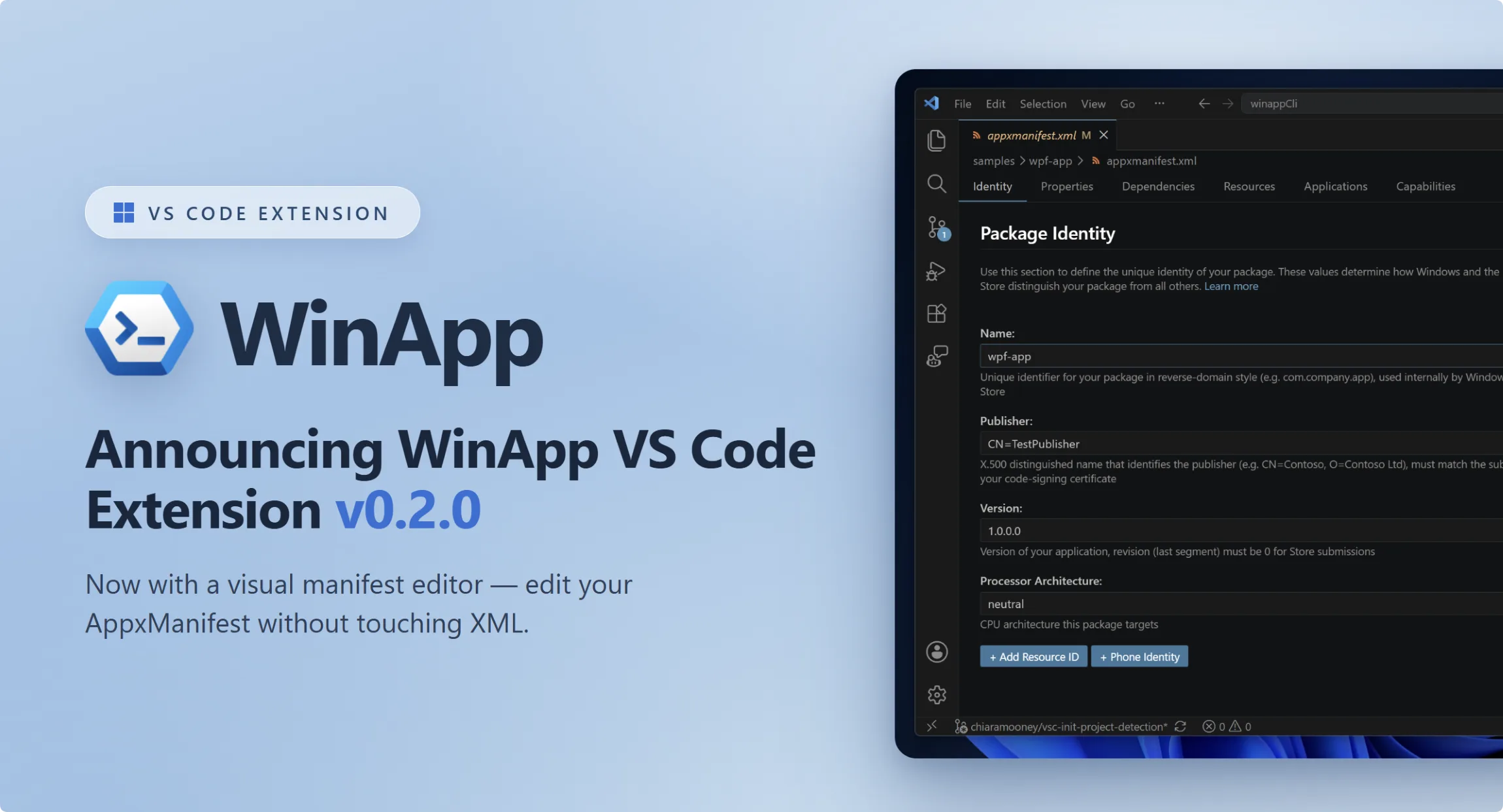
The WinApp VS Code extension exists to make Windows app development feel at home in VS Code. It brings the Windows App Development CLI right into the editor, so you can initialize, run, debug, package, and sign Windows apps built with .NET, WPF, WinUI, C++, Electron, Rust, Tauri, or Flutter, all without switching tools.
Get it now: Install the WinApp extension from the VS Code Marketplace.
We’re excited to announce the release of v0.2. This release includes a new editor that supports editing a manifest file without touching raw XML and support for running WinApp commands in multi-app workspaces.
A Visual Editor for AppxManifest
Your AppxManifest.xml (or .appxmanifest) declares the identity, capabilities, dependencies, and activation of your app. But editing manifest files can be confusing. Editing the XML means memorizing elements, properties, namespaces, and a long list of format rules for publisher names, versions, GUIDs, and more. Worse, the raw XML won’t alert you when something is wrong, so you often don’t find out your manifest has a syntax error until you try to package your app and the build fails.
With v0.2, the extension now includes a visual editor for manifest files. Instead of raw XML, you can edit your manifest files with a clean, form-based, easy-to-use UI:
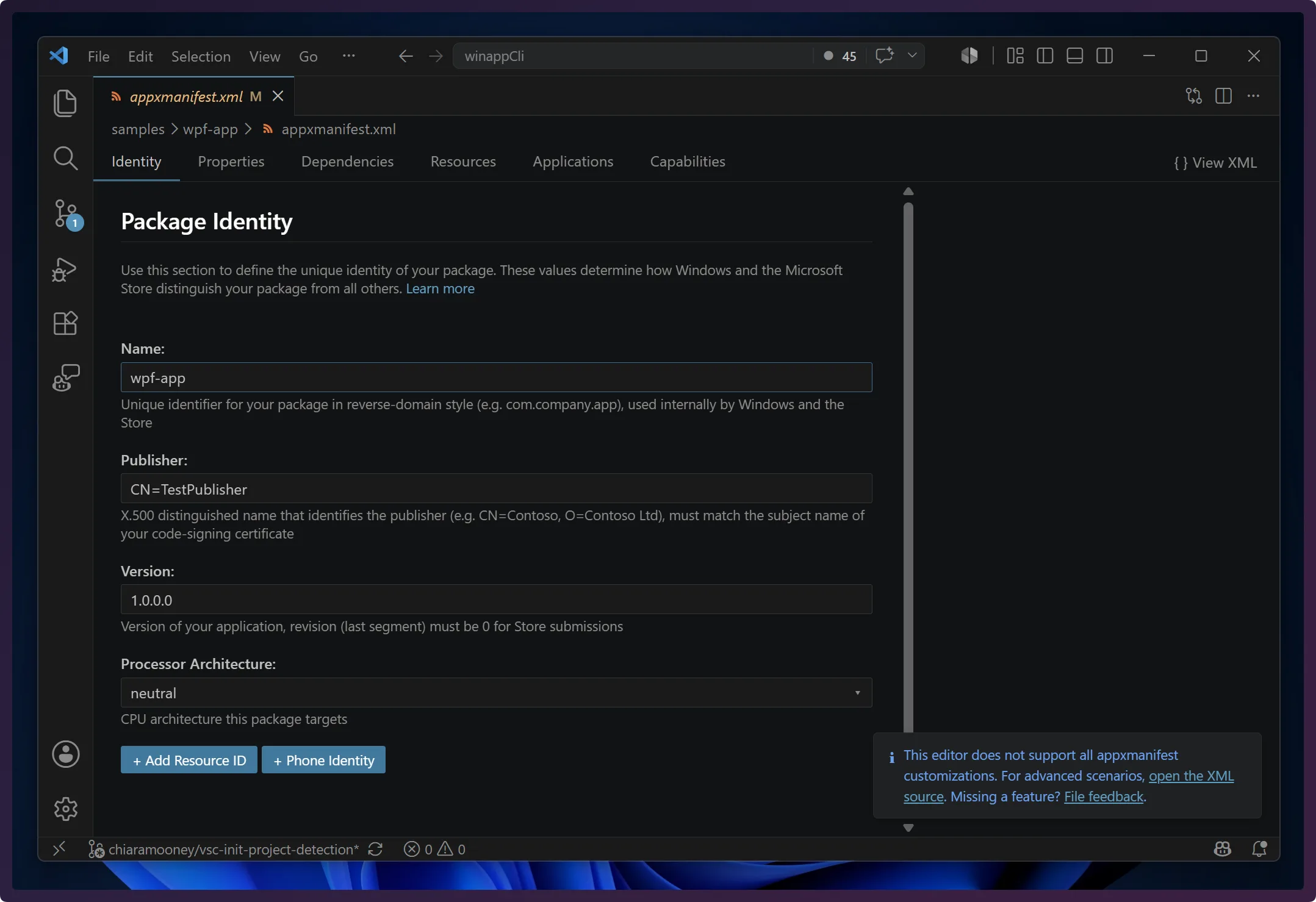
| Tab | What you can edit |
| Identity | Package name, publisher, version, processor architecture, optional phone identity, and resource ID |
| Properties | Display name, publisher display name, description, and store logo path |
| Dependencies | Target device families (min/max versions), package and main-package dependencies, driver constraints, OS dependencies, host runtime dependencies, and external dependencies |
| Resources | BCP-47 language declarations (e.g. en-us, fr-fr) |
| Capabilities | General, restricted, device, and custom capabilities (Internet Client, Run Full Trust, Microphone, and more) |
| Applications | Executable path, entry point, trust level, runtime behavior, visual elements (logos, splash screen, tiles), and extensions |
And it’s not just a prettier form. It’s a smarter one:
- Real-time validation: Inline errors catch missing required fields and format mistakes (i.e. publisher distinguished names, version numbers) before they become build failures.
- Asset generation built in: A Regenerate Assets button calls the WinApp CLI to auto-generate every required icon size from a single source image.
- Extension management: Add or remove extensions with templates for Protocol Activation, COM Server, and more.
- Reorderable lists: Reorder dependencies and resources to control the order they appear in the XML.
- Format-preserving edits: Changes are applied surgically to the underlying XML text, so your whitespace, comments, and attribute ordering stay exactly as you left them.
How to open it: When you open an AppxManifest.xml or .appxmanifest file, VS Code offers the visual editor alongside the default text editor. You can switch between the two at any time. Just right-click the file and choose Open With…, so the raw XML is always one click away when you need it.
Workspace and Multi-Project Support
In v0.1, the extension ran all WinApp commands from the current directory open in VS Code. Most developers typically open the root of their repository in VS Code. This meant that if your app lived in a subfolder, you had to reopen VS Code inside the app directory just to run a WinApp command, then reopen it again at the root to see your diffs. That back-and-forth added friction to an otherwise smooth workflow.
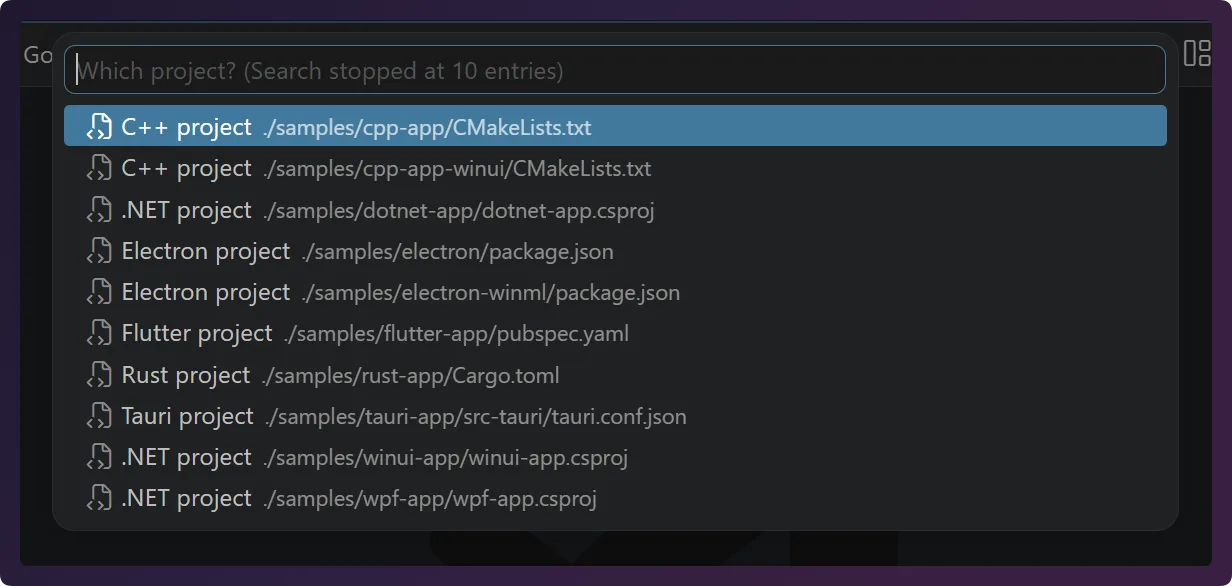
v0.2 removes that friction by making WinApp commands workspace-aware. Now you can keep your repository root open and let the WinApp commands find your app for you. When you run a command, it automatically searches the workspace for compatible projects. If it finds one, it targets that project directly. If it finds several, it shows a QuickPick so you can choose which one to run against. And if a recognized project happens to be at the root, the command simply runs there without prompting.
If you’d rather not use the automatic search, you can tell the extension exactly which projects you care about. When you have a fixed set of app directories you always run commands against, declare them in your VS Code settings, and WinApp will surface only those directories. With a single entry, commands target it automatically; with several, you get a QuickPick limited to your chosen projects.
// .vscode/settings.json
{
  "winapp.appDirectories": [
  "apps/my-app",
  "apps/shell"
  ]
}
Smarter project detection in Initialize Project
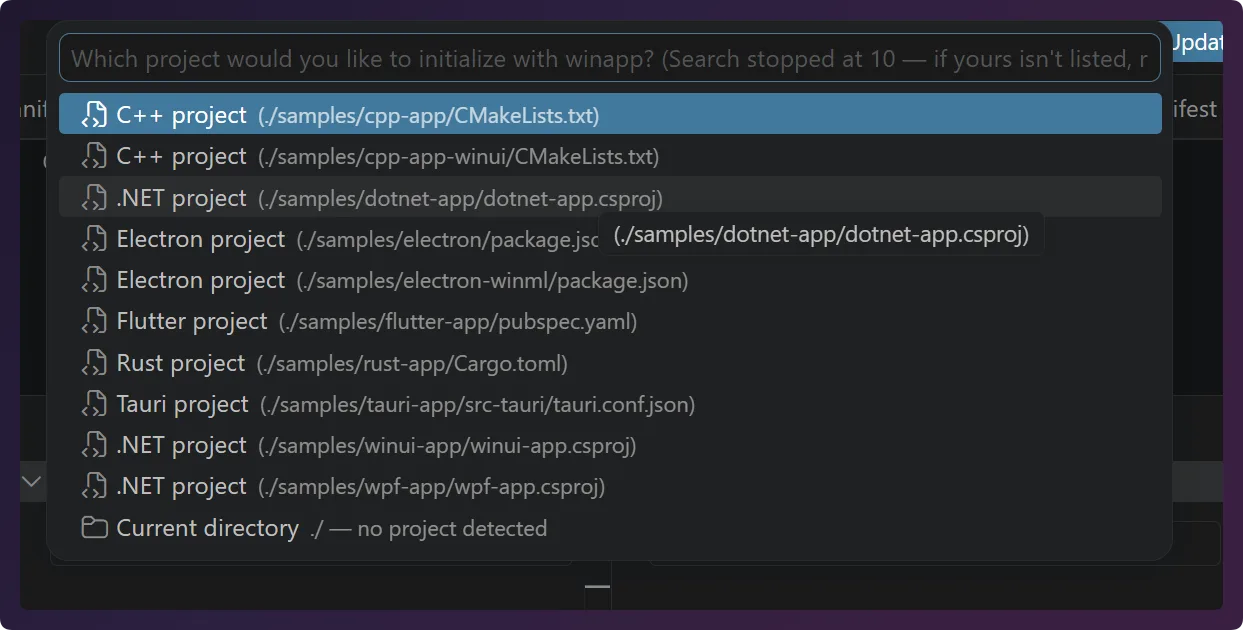
The WinApp: Initialize Project command benefits from the same project detection. When you run it, the extension searches for valid app projects in your workspace. If a recognized app project is at the workspace root, it proceeds right away. Otherwise, it searches the workspace and lets you pick which one to initialize. If no projects are found, it’ll offer to initialize in the current directory. From there, the init command will continue as expected and ask for your SDK channel (stable, preview, experimental, or none) and run winapp init to set up the manifest, SDK packages, and configuration for your chosen project.
A New Home: WinAppVSCE
Alongside these features, the extension’s source code is moving to a new repository.
Previously the extension lived inside the microsoft/WinAppCli repo alongside the CLI itself. Starting with v0.2, the VS Code extension has its own dedicated home at microsoft/WinAppVSCE.
Going forward, please file extension issues and feature requests in the new repository:
- 🐛 Found a bug in the extension? File a bug in WinAppVSCE.
- 💡 Have a feature idea for the extension? Open a feature request in WinAppVSCE.
- ⚙️ Issue with the underlying CLI behavior? Continue filing those in WinAppCli.
Get Started
The WinApp VS Code extension is available in public preview on the Visual Studio Code Marketplace.
Install from VS Code:
- Open VS Code
- Go to the Extensions view (
Ctrl+Shift+X) - Search for WinApp
- Click Install
Or from the command line:
code --install-extension Microsoft-WinAppCLI.winapp
Requirements:
- Windows 10 or later
- Visual Studio Code 1.109.0 or later
- For debugging, the debugger extension that matches your app’s language (C# Dev Kit, C/C++, or built-in Node.js)
We Want Your Feedback
This is still a public preview, and your feedback directly shapes what we build next. Whether the visual editor is missing a field you need or you have an idea to make the workflow smoother, we want to hear it.
- 🐛 File a bug
- 💡 Open a feature request
- 👀 Browse open extension issues to upvote and comment on what matters to you
Happy coding!


0 comments
Be the first to start the discussion.