


Today, we’re excited to announce we’re expanding the availability of Auto SR to Intel Core Ultra Series 3-based Copilot+ PCs. This builds off our previous expansion of Automatic Super Resolution (Auto SR) to support more gaming devices allowing more players to leverage Auto SR as a tool in their toolkit to better optimize games for improved experience.
Download the Auto Super Resolution Package – Microsoft Apps to get started.
Auto SR is designed to help games that struggle to hit playable frame rates at higher resolutions by allowing the game to render at a lower resolution, then using NPU-based upscaling to reach a higher effective resolution. By rendering at a lower resolution and then using AI to upscale the image, Auto SR can deliver smoother frame rates while maintaining visuals consistent with the developer’s original artistic vision. Here’s an example of what that looks like and what gamers get out of it.
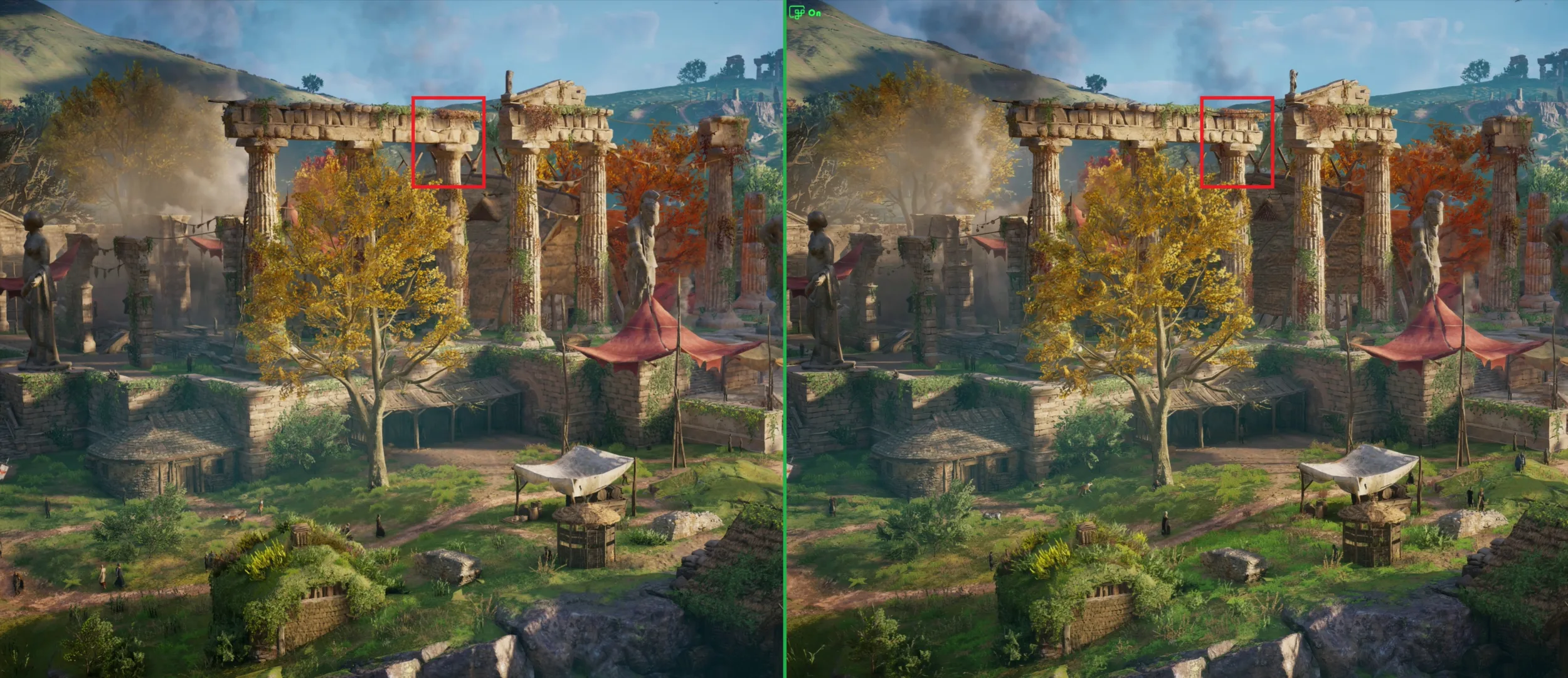 Screenshots and FPS numbers from Assassin’s Creed Valhalla Benchmark Averages on Intel Arc B390 GPU
Left image: Native 1600p resolution with High in-game graphics settings averaging 45 FPS
Right image: 1050p resolution scaled up to 1600p with AutoSR with Ultra High in-game graphic settings averaging 52 FPS
In this example, we are providing gamers with 3 clear benefits simultaneously:
- Higher playable in-game graphics settings that render more detail (Ultra High instead of High)
- Higher FPS unlocked with a lower input resolution (+7FPS or +15% on a higher in-game graphics setting)
- Availability on wider range of games without requiring studio or driver support
Players have full control and can choose to crank up their in-game graphics settings higher than their hardware would normally allow (while maintaining a similar frame rate as the lower graphics setting) or simply enjoy the higher fps from the upscaling. Depending on player preferences, they have the option to optimize for frame rates or for further enhancing visual fidelity. In our example and some other cases, gamers might even see improvements to both.
Like other upscaling technologies, frame rate improvements depend on your active settings, but it often enables less powerful devices to render higher resolutions closer to our current 60 FPS cap. We are also exploring the feasibility to further extend these benefits up to 90-120 fps gaming scenarios in the future. If your game already runs smoothly, Auto SR lets you turn up the resolution or graphics settings to get even better visuals while maintaining FPS. Conversely, if performance drops, it serves as an easy optimization tool—helping players get the best possible balance between visuals and frame rates, this guidance can help gamers get the most of it.
With flexibility comes variability; what can influence Auto SR performance?
- Input resolution – AutoSR is trained against specific target input resolution. For best results, generally recommended settings are 800p for Copilot+ PCs & on Intel Core Ultra Series 3 devices we introduce support for input resolutions up to 1080p
- Display mode & Resolution Config – Game resolution needs to be set to Auto SR’s supported input range, *some games do not support direct resolution adjustment and may require display mode adjustment instead
- Post-processing – Disabling in-game post-processing such as film grain often produces cleaner Auto SR output since the model can interpret cinematic effects as scene details
- UI composition – UI elements are also upscaled, text & fine UI detail appear ‘fainter’
- Device Power Profile – NPU draws power from GPU/CPU limits which vary by device and can in some cases result in a slight frame drop when using Auto SR even with the GPU doing less work per frame
- Full details on our support page
Game-integrated resolution upscaling like Intel XeSS Super Resolution (XeSS-SR) remain the preferred choice when studios support them. When XeSS or other upscalers are enabled, we recommend disabling Auto SR. Since Auto SR is built into Windows, it can broadly apply high-quality super resolution to existing games without needing game-integrated super resolution, making it accessible to thousands of existing games without any developer integration required. Auto SR does the heavy lifting in the many cases where game-integrated super resolution isn’t available.
Not to worry, players do not need to understand graphics settings, rendering techniques, or specific technologies to achieve smoother gameplay, better image quality, and improved device efficiency.
What Should I Play Using Auto SR
Once you are set up, try Auto SR with your favorite DirectX games (DX10 or later) or one of these: Assassin’s Creed: Shadows, Assassin’s Creed: Valhalla, Assetto Corsa, Avowed, Control, DOOM: The Dark Ages, Far Cry 6, Frostpunk 2, Grounded 2, Psychonauts 2, Rise of the Tomb Raider, The Outer Worlds 2, Tom Clancy’s Rainbow Six Siege.
Texture-heavy games at higher resolutions and graphics settings are where you’ll see the biggest difference since that is where super resolution is needed most. Auto SR is most useful when a game is GPU-constrained and players want a better balance of image quality, performance, and battery life especially on low-powered devices.
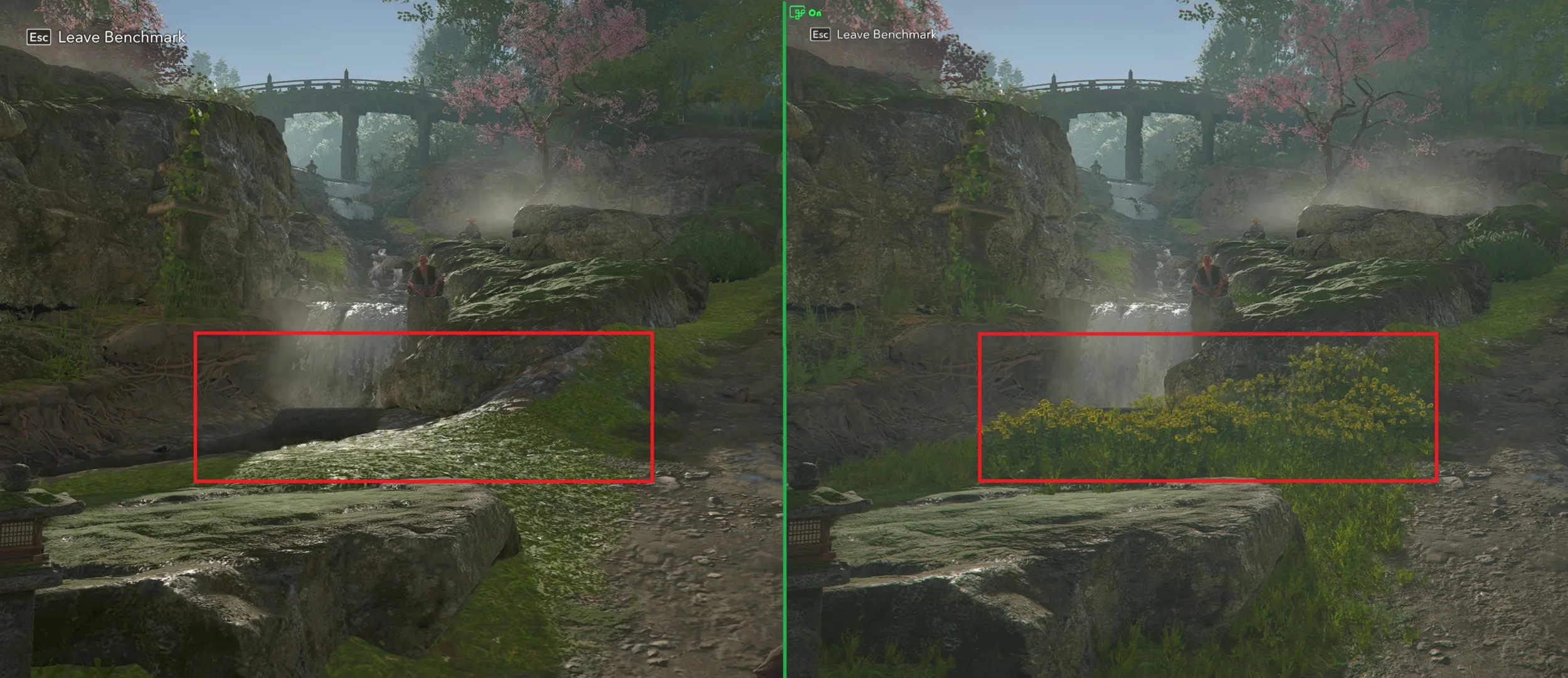
Screenshots and FPS numbers from Assassin’s Creed Shadows Benchmark Averages on Intel Arc B390 GPU
Left image: Native 1600p resolution with Very Low in-game graphics settings averaging ~31 FPS
Right image: 1050p resolution scaled up to 1600p with AutoSR with Ultra High in-game graphics settings averaging ~29 FPS
Auto SR unlocks higher visual fidelity that was previously out of reach for lower-spec hardware. In this example, Ultra High settings allows additional detail (such as the flower bed and tall grass) to be rendered by the game. Gamers can stop to smell the roses they previously wouldn’t have been able to see thanks to Auto SR.
Auto SR continues to be a tool that puts players in control, letting them use it to their preference. We remain focused on improving its capabilities, but your feedback is very important to us to help make that control easier to discover and use.
Help shape Auto SR
How is it working in your games? How does the setup and control feel?
→ Tell us at autosr@microsoft.com
Issues: Report via Feedback Hub > Game Performance > add “Auto SR” in the title
We are continuing to explore other scenarios we can enable Auto SR on to expand high-quality super resolution coverage and continue to improve visual fidelity and performance for a better gaming experience.



0 comments
Be the first to start the discussion.