

We’re excited to announce the general availability of Change Partition Key in Azure Cosmos DB for NoSQL, now with online copy support. You can repartition containers directly in the Azure portal with near-zero downtime and without stopping writes to the source container.
Why Partition Key Choice Matters
In Azure Cosmos DB, the partition key is one of the most important design choices you make. It affects how data is distributed across physical partitions, how queries are routed, and how well your application performs at scale.
But applications change over time. A partition key that worked well at launch can become a bottleneck as access patterns shift, data grows, or new features are introduced. Common examples include:
- Hot partitions – A partition key that once distributed traffic evenly now drives most requests to a small number of logical partitions.
- Cross-partition queries – New query patterns may fan out across partitions, increasing RU consumption and latency.
- Logical partition size limits – Unexpected growth can push a logical partition toward the 20-GB limit.
- Schema evolution – A new data model may require different access patterns and a different partitioning strategy.
Until now, changing a partition key required a manual migration at the application level: create a new container, write custom migration code, manage cutover, and plan for downtime. For many teams, that complexity meant living with a partition key that no longer fit their workload.
How it works
The Change Partition Key feature uses Azure Cosmos DB’s intra-account container copy infrastructure. The process has three main steps:
- Start the change partition key job – Select the source container and the destination container with the new partition key, then start the job.
- Monitor progress – Track job status in the Azure portal. In online mode, ongoing writes to the source container are continuously replicated to the destination.
- Cut over – After the destination catches up, switch your application to the new container. You can optionally delete the source container.
Getting Started
Prerequisites
- An Azure Cosmos DB for NoSQL account
- The source container you want to repartition
- Access to the Azure portal
Step-by-Step Walkthrough
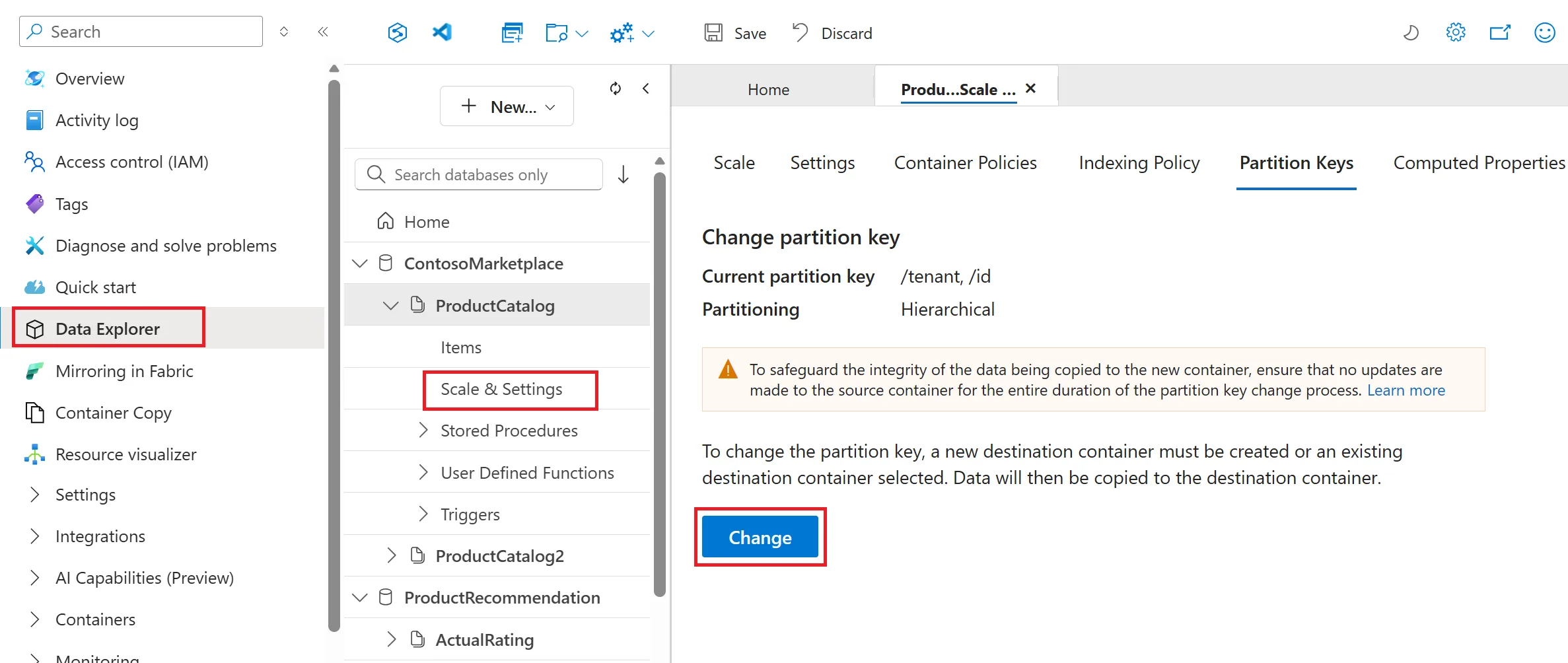
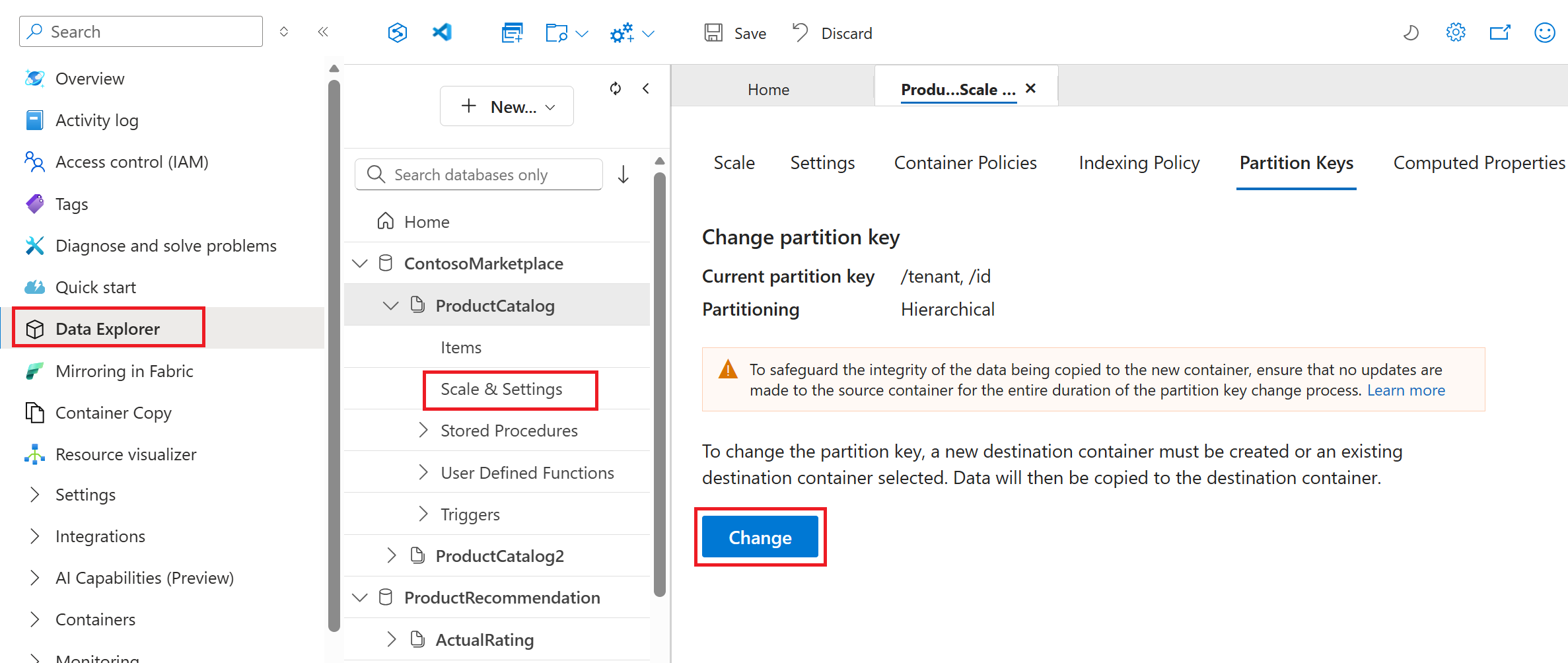
- In the Azure portal, open your Azure Cosmos DB account and go to Data Explorer. Select the container whose partition key you want to change, then open the Partition Keys tab under Scale & Settings.
- Select Change to create the partition key job.
- Choose either online or offline mode to copy data from the source container to the destination container.
- Create a new container with the desired partition key, or select an existing container in the same database, and then start the job.
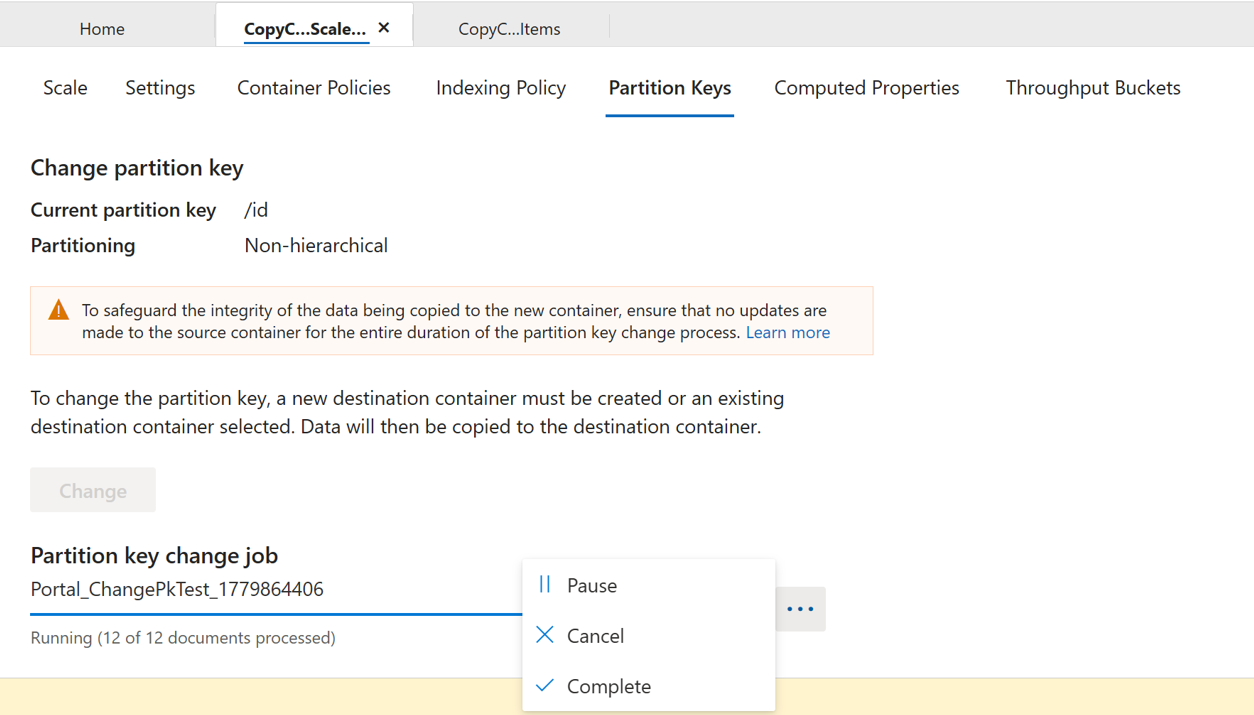
- Track job progress directly in the portal, including the number of documents copied.
- For an online copy job, complete these additional steps:
- Stop writes to the source container when the processed document count is close to the total number of documents.
- Select Complete to finish the job and flush any remaining changes.

- After the copy job finishes, update your application to connect to the new container.
Best Practices and Considerations
- Test in a non-production environment first to confirm that the new partition key distributes data evenly.
- Monitor RU consumption during the copy because it uses your provisioned throughput. If needed, temporarily scale up capacity.
- In online mode, plan a brief downtime window to flush remaining changes before switching applications to the destination container.
- After cutover, verify that key queries now run as point reads or single-partition queries.
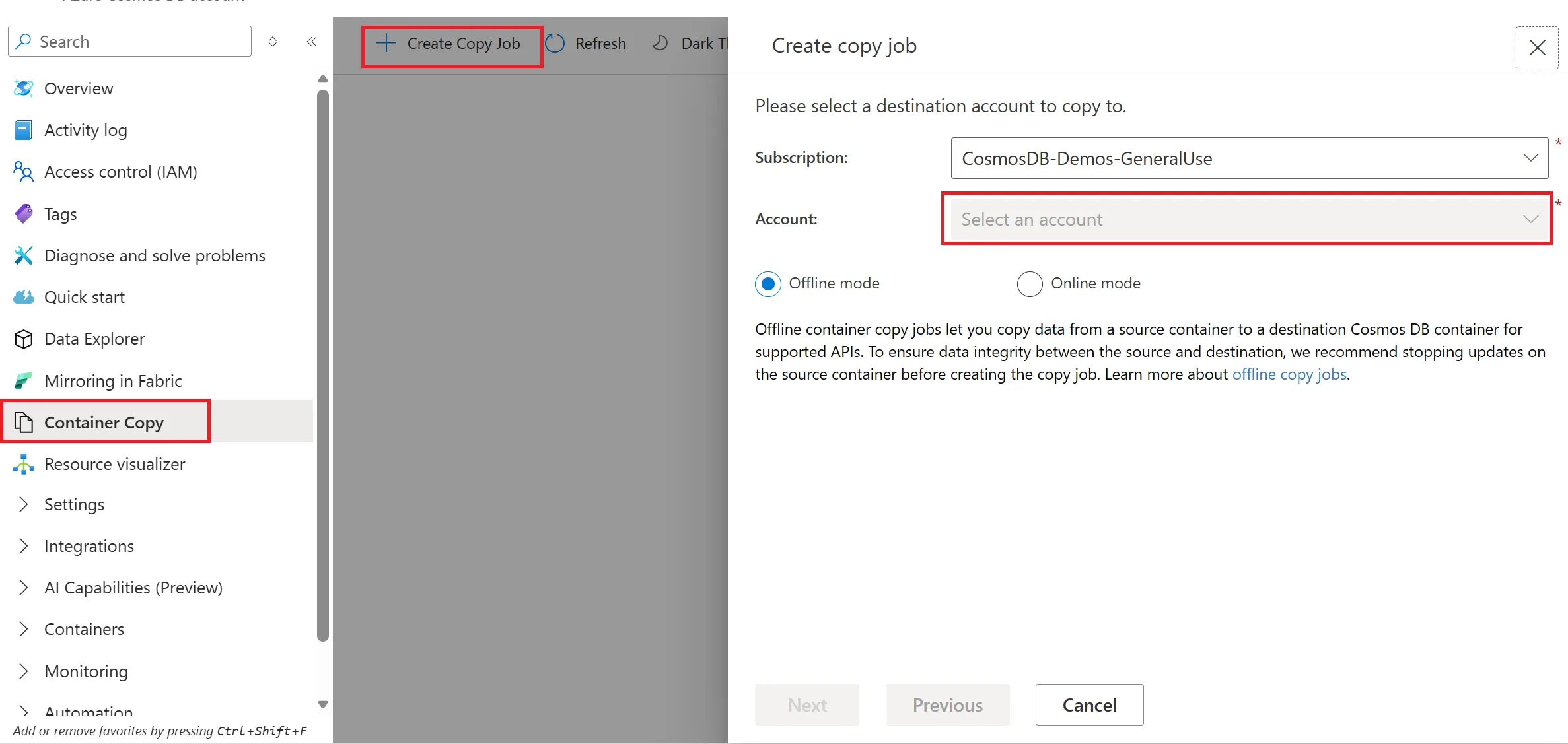
- You can also use container copy jobs for cross-account partition key changes by selecting another account from the container copy tab in the Azure portal.

Resources
- Documentation: Change partition key
- Documentation: Container copy jobs
- Documentation: Hierarchical partition keys
- Best practices: Choosing a partition key
- Feedback: Azure Cosmos DB Ideas
About Azure Cosmos DB
Azure Cosmos DB is a fully managed and serverless NoSQL and vector database for modern app development, including AI applications. With its SLA-backed speed and availability as well as instant dynamic scalability, it is ideal for real-time NoSQL and MongoDB applications that require high performance and distributed computing over massive volumes of NoSQL and vector data.
To stay in the loop on Azure Cosmos DB updates, follow us on X, YouTube, and LinkedIn. Join the discussion with other developers on the #nosql channel on the Microsoft Open Source Discord.


0 comments