

Developers love the Aspire dashboard for collecting and visualizing telemetry from their apps. Structured logs help explain what happened, traces show how a request moved between services, and metrics reveal changes over time. Alongside telemetry, the dashboard displays resources, their configuration and health, and console output.
Previously, the dashboard stored data in memory, so stopping it meant losing that data. Because the dashboard starts and stops along with your AppHost, restarting your app also cleared the evidence you might still need to debug it.
Aspire 13.6 adds persistence to the dashboard. You can restart your app, return to an earlier run, and inspect its saved data using the same pages and filters you already know. The change also lets us raise telemetry limits and reduce memory usage.
This post looks at the new experience and the engineering behind it:
- SQLite storage
- Dapper queries
- Keeping the dashboard responsive under load on a busy development machine
Benefits
Revisit a previous run
Imagine your app fails to start correctly. You change its configuration and restart. Everything now looks healthy, but you want to check the original failure to understand what happened.
The dashboard now has a run selector in its header. Open it to switch from Live run to an earlier run of the same application:
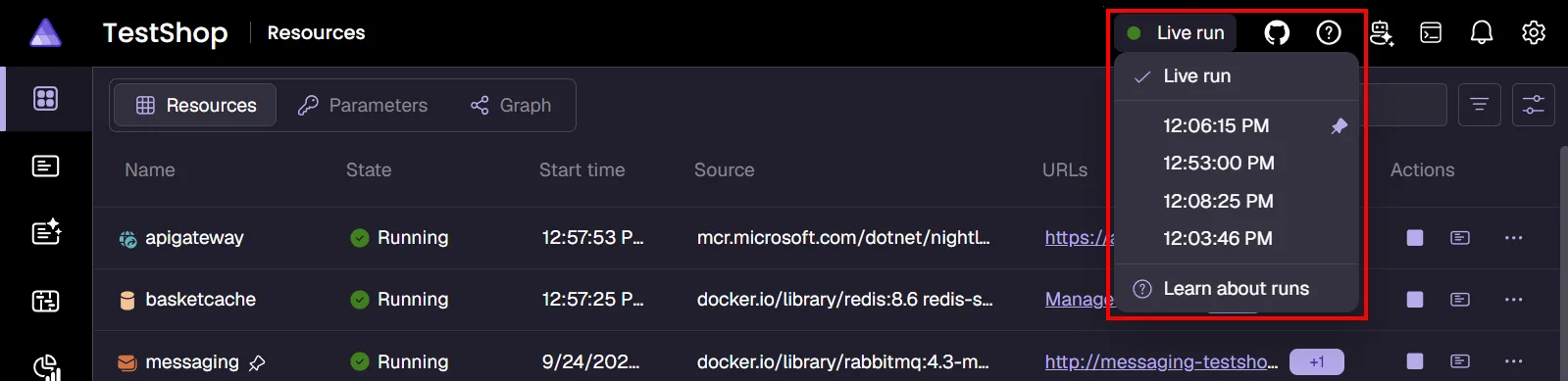
This behavior is enabled by default when an AppHost launches the dashboard. Each time the dashboard starts, it creates a new run with its own SQLite database. Selecting an earlier run lets you inspect its saved resource state, logs, traces, and metrics. You don’t need to reproduce the failure just to see its telemetry again.
See dashboard runs for the full walkthrough.
Higher telemetry limits
Keeping telemetry in memory required conservative limits. A busy app can produce a lot of logs, and the dashboard shares your machine with an editor, agents, builds, containers, and the app you’re developing.
Storing that history in SQLite instead of keeping it all in memory lets us raise default telemetry limits:
| Data type | Previous default | Aspire 13.6 default |
|---|---|---|
| Console log entries | 10,000 | 100,000 |
| Structured logs | 10,000 | 100,000 |
| Traces | 10,000 | 100,000 |
You can increase these limits further through configuration. Our testing during development showed that the dashboard remained usable and responsive with millions of rows of telemetry.
Reduced memory usage
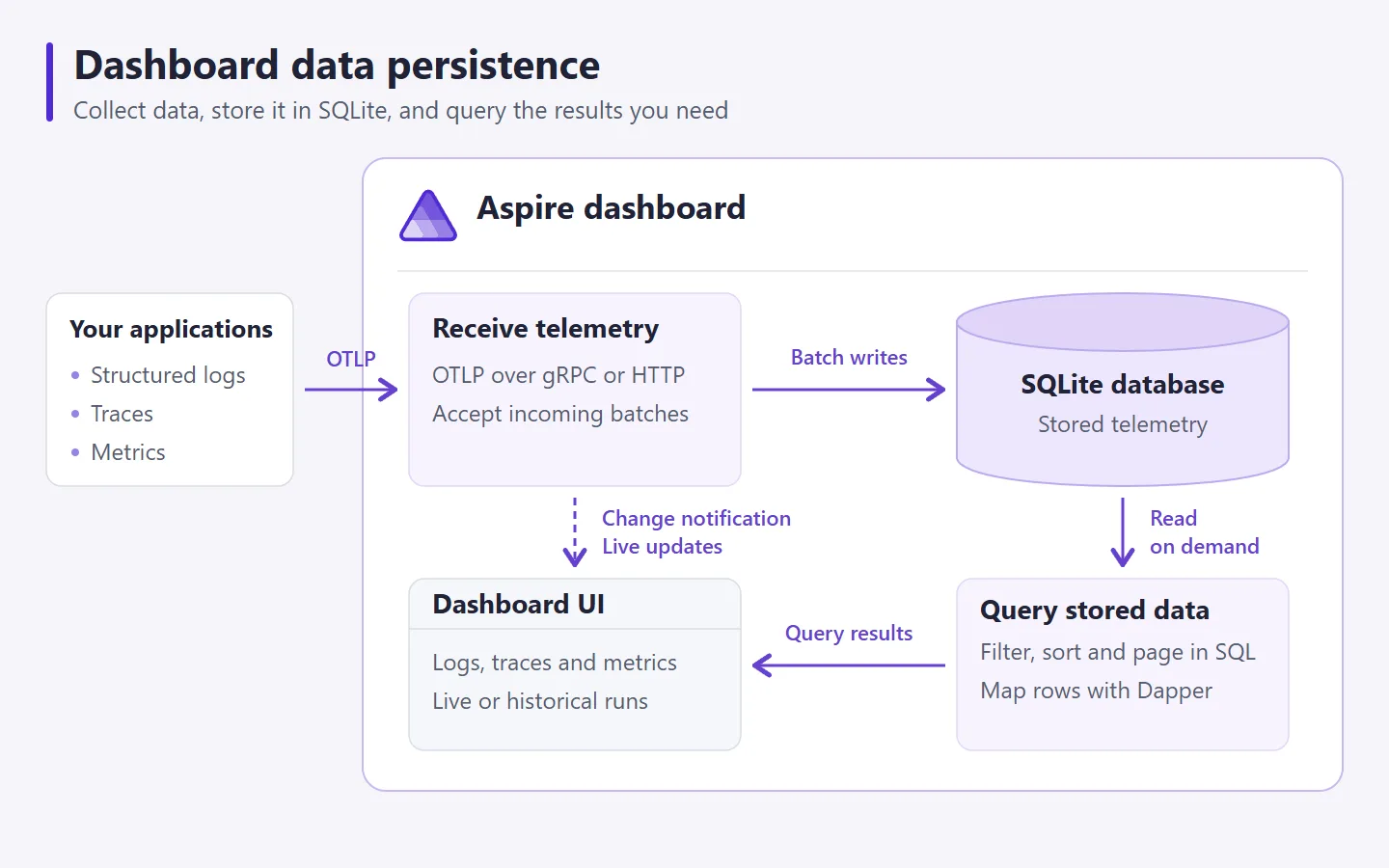
SQLite lets the dashboard retrieve telemetry as needed instead of keeping the entire history as .NET objects.
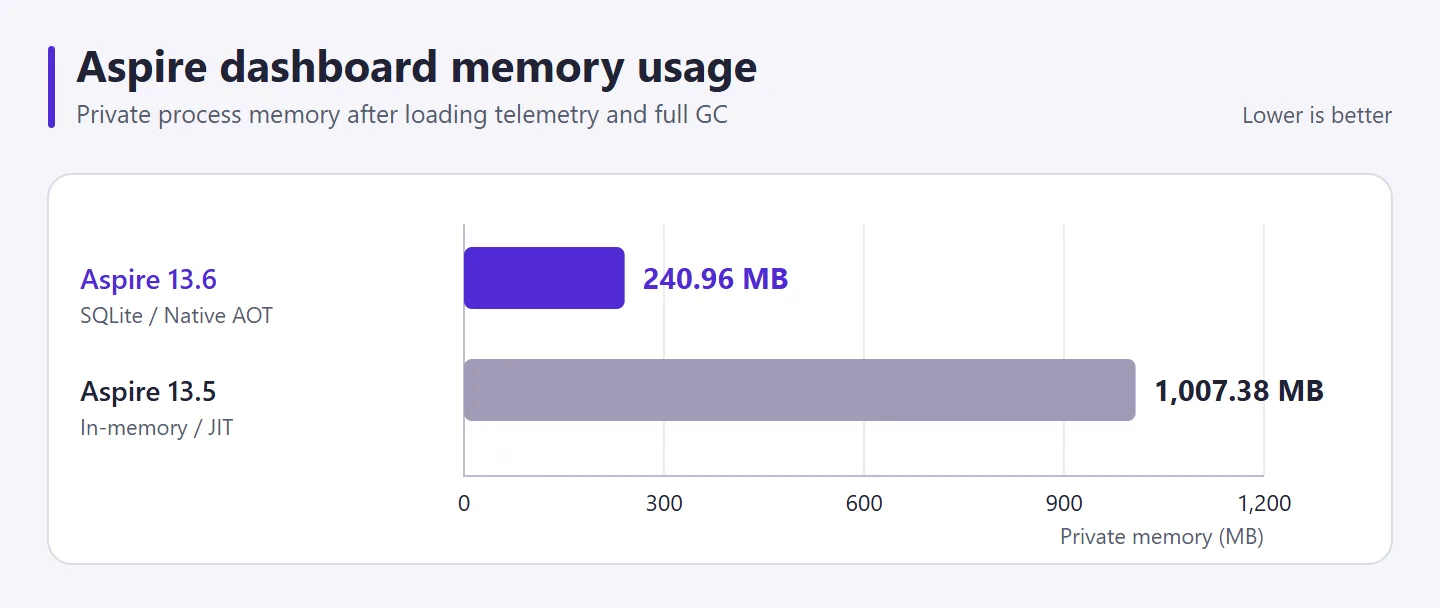
In a benchmark that loaded the same large volume of logs, traces, and metrics into both versions, private memory usage fell from 1,007 MB in Aspire 13.5 to 241 MB in Aspire 13.6, a 76% reduction.
SQLite and Dapper under the hood
Persistence needed to fit the dashboard’s role as a development tool. We didn’t want to ask developers to install and manage another database server just to inspect their applications. We also needed to keep filtering and paging responsive as the amount of stored telemetry grew.
SQLite fits that workload well. It’s a fast, embedded database that runs inside the dashboard process. There is no separate server to configure or network connection between the dashboard and its database. The dashboard ships the dependencies it needs.
High-performance SQL
We use Dapper to execute tuned SQL and map query results to .NET objects.
We considered Entity Framework Core, but for this data layer we wanted direct control over the SQL and how Dapper materializes results. A dashboard query might filter by resource, severity, text, and attributes, count the matches, and then retrieve one page in a particular order. Those queries are central to the experience, and we wanted to tune them directly.
For example, the structured-log query filters, counts, sorts, and pages results in SQLite before materializing the requested logs. Looking at a page of results doesn’t require loading all retained logs and filtering them in .NET.
Dapper.AOT also generates query and mapping code at build time instead of relying on runtime code generation. We use that support in the Native AOT dashboard in Aspire 13.6.
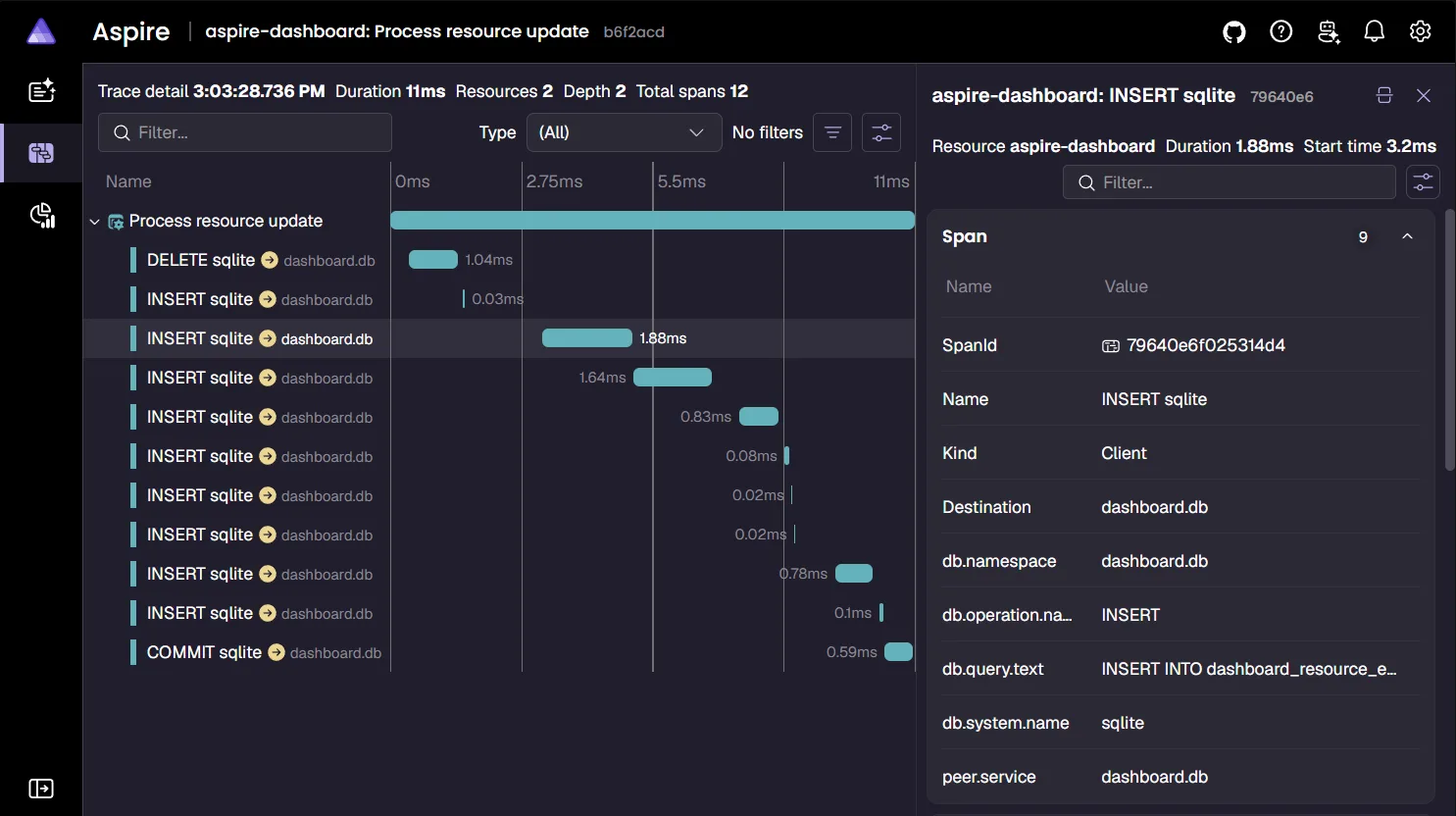
Fun fact: we used the Aspire dashboard to profile its own SQL queries during development.
Protecting persisted data
Resource configuration and telemetry can contain secrets. Saving them to disk means we need to think about who can read that disk, not just who can sign in to the dashboard.
By default, persistent data lives under the dashboard directory in the
current user’s .aspire directory. Setting ASPIRE_HOME changes that base
location, and the dashboard also supports an explicit data-directory setting.
Keeping the default under the user profile avoids writing sensitive data
into a source directory you might commit or share.
See the guidance on protecting persisted data for more information.
Configure standalone persistence
The dashboard is also useful without an AppHost, including for applications written in other languages. Persistence has three modes to support those different workflows:
| Mode | What the dashboard does on restart | Run selector |
|---|---|---|
None |
Creates a new temporary database; doesn’t retain previous data | No |
Run |
Creates a new database and retains previous runs | Yes |
Resume |
Reopens the same application database | No |
An AppHost sets the mode to Run automatically. The standalone dashboard
defaults to None, so keeping its data is an explicit choice. For a standalone
dashboard that retains its history across restarts, use:
aspire dashboard run --application-name my-app --persistence ResumeKeep data outside a container
A popular way to use the Aspire dashboard is to run its standalone container. A database inside a disposable container doesn’t help when that container is removed. The solution is to mount persistent storage and configure the dashboard inside the container to use it.
The standalone container guide shows the volume mount and container setup. See dashboard configuration for the corresponding configuration keys and defaults.
Try it in Aspire 13.6
Aspire dashboard data persistence is available now!
Upgrade your Aspire CLI and AppHost packages to 13.6
to get dashboard run history by default. For standalone use, choose Run or
Resume as described above.


0 comments
Be the first to start the discussion.