


Visual Studio 2026 is here!
If you haven’t heard the news yet, we’re excited to share with you that Visual Studio 2026 is now generally available! This new version can better assist you with several performance improvements, a redesigned user experience, and a major leap in AI-driven development. Read more about it here and get started with VS 2026 today!
Below updates are all available in Visual Studio 2026 only.
GitHub Cloud Agent Preview is now available in Visual Studio
The Cloud Agent is now in preview and ready to help you offload repetitive or time-consuming work. Enable it via the Copilot badge dropdown → Settings & Options → Coding Agent (Preview).
Note: You’ll need to restart Visual Studio after enabling. Requires: A solution connected to a GitHub repo.
Once enabled, you can delegate tasks directly from Visual Studio—UI cleanups, refactors, doc updates, multi-file edits, and anything you want Copilot to draft so you can review later.
We’re actively improving this experience, and your feedback is essential. Soon, you’ll see direct PR links inside Visual Studio, so you can review agent-generated changes without breaking your flow.
We’re excited to help you work faster by letting the Cloud Agent handle the tedious parts while you stay focused on building and debugging the core of your project.
Copilot Actions in your Context Menu
We are excited to announce that you can now interact with Copilot directly from your context menu in Visual Studio! With just one click, you can now get Copilot’s assistance with no typing required. Whether you are looking to quickly generate comments or explanations of a class, Copilot is right there when you need it.
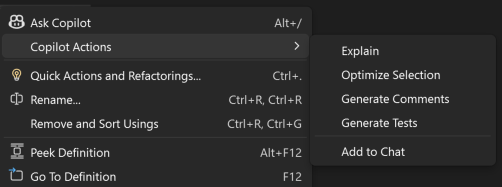
Note that “Optimize Selection” requires you to select code to trigger. Copilot will analyze the selected code and its surrounding context, offering targeted suggestions directly in the editor. Copilot will suggest improvements in performance, maintainability, reliability, and architecture.
Copilot Intent Detection for All-In-One Search
Have you ever forgotten the name of a file while coding, and thus couldn’t search or find it easily? The new Did You Mean feature is here to help! When you search using All-In-One Search and Copilot detects a better match than the top result – perhaps because of a typo or a fuzzy memory – it will suggest what you might have meant.
When you type a search term, Copilot analyzes your input and suggests a more relevant term if it finds one that more closely matches your intent. This feature helps with whether the search results are empty or when the top result isn’t what you intended.
Thank you for reading till the end! We will skip the December blog post as we are approaching the end of year and holiday season. See you soon in the January update blog post!


I am missing the debugging short cut keys, viz F10 F11 etc. I am using Python and it is nice to debug code. The Borland F7 F8 keys would be cool.
Hi Vincent, if you are experiencing a bug or want new features added, please go to the top right corner of Visual Studio and click “Send Feedback”. 🙂 The feedback ticket will be routed to the correct team and taken care of from there!
Hi Simona,
I did leave this comment below in reply to a response by Rhea - but this is a genuine concern, and as a senior representative of a company heavily invested in Azure Devops, this is a serious issue:
We are a Devops house, because we are full invested in .NET, VS 2026 and Azure as our platform of choice – so we naturally use Azure Devops as this is the way the Microsoft have steered us, and it is the most natural place for full integrating with the Azure and .NET platforms. So I have questions for you that really...
Hi Chris, thanks for your question. I consulted the Azure DevOps team and here is what I learned:
At this time, there is no plan to bring the coding agent directly to Azure DevOps repositories. The recommendation is for customers who want to take advantage of agentic coding workflows to host their repositories on GitHub.
For more detail, you can refer to the following blog posts:
Azure DevOps with GitHub Repositories - Your path to Agentic AI - Azure DevOps Blog
Azure DevOps and GitHub Repositories — Next Steps in the Path to Agentic AI - Azure DevOps Blog
“Note: The Cloud Agent requires your solution to be connected to a GitHub repository.”
Is there any work being done to enable this for Azure Dev Ops backed repos?
Or is that a “hard no”, “never going to happen”?
Thanks for the question! Right now, our Cloud Agent integration is focused on GitHub. However, if Azure DevOps is important to your organization, we’d love to hear from you 🙂 please consider filing a feature request (https://developercommunity.visualstudio.com/VisualStudio?scope=follow&sort=votes) so we can better understand the demand.
Hi Rhea,
Your response here concerns me a great deal.
We are a Devops house, because we are full invested in .NET, VS 2026 and Azure as our platform of choice - so we naturally use Azure Devops as this is the way the Microsoft have steered us, and it is the most natural place for full integrating with the Azure and .NET platforms. So I have questions for you that really matter to us, and I suspect other businesses in the same situation:
1. Is the above not understood by Microsoft? Do they consider Devops to be a minor, secondary consideration...
Sure “nice” that clicking the Release Notes in VS Installer for 18.1.0 takes you to a 404 page! Embarrassed for you, that’s an important thing to forget.
Why aren’t all LTSC toolchains, such as v14.40-17.10, available with VS 2026?
Hi team, I noticed that models like “GPT-5-Codex/ GPT-5.1/ Gemini 3 Pro” are not yet supported in Visual Studio github copilot. Are there any plans to add support for these models in the near future?
Why? Claude 4.5 is so much more accurate. (Well at least compared to GPT5, haven’t tried Gemini 3)
Hello! We’re actively working on bring those models to Visual Studio. You can track the progress by following this feedback ticket: Visual Studio 2026 doesn’t support models – Developer Community.
It’s a great day to code.. now testing the new VS 2026 😀