


The August update gives you more control over two parts of development that can get complicated quickly: choosing the right level of AI assistance and managing work across Git branches and repositories. You can now tune model thinking effort for the task in front of you, share custom agents across your organization, and see your Copilot usage without breaking your flow.
Git workflows get a meaningful upgrade too. Worktrees let you keep multiple branches active at once, while first-class submodule support brings common management tasks directly into Visual Studio. Grab the Visual Studio 2026 Stable Channel update and dig into what is below.
Adjust model thinking effort to match your task
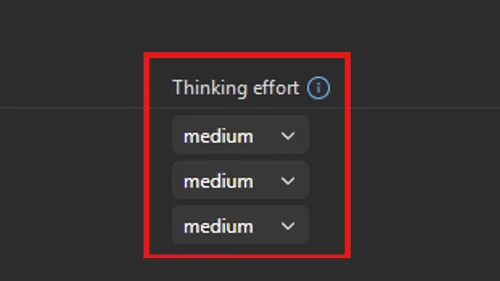
Not every question needs the same amount of reasoning. For supported models, you can now set thinking effort to Low, Medium, or High, balancing response depth, speed, and token usage around the work you are doing. Use Low for straightforward questions and code suggestions, Medium for everyday development, and High when you are working through a tricky algorithm, architecture decision, or hard-to-debug problem. You can adjust the setting from the Model picker or the expanded Language Models view.
Organization-level custom agents
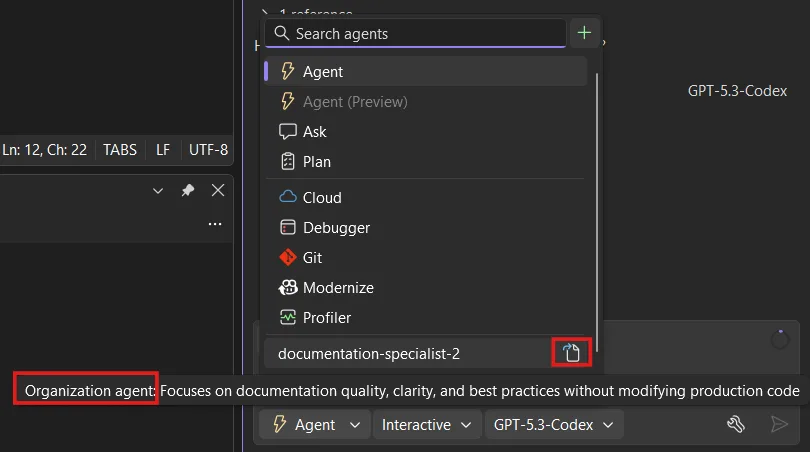
Teams can now share custom agents across repositories instead of configuring the same specialized help one project at a time. GitHub organization and enterprise owners can publish agents for everyone in the organization, helping Copilot follow shared workflows and expectations more consistently. Visual Studio automatically detects organization-level agents when you work in an eligible repository and adds them to the agent picker. Hover over an agent to see its description and organization source, or select the definition button to open its definition file. This functionality requires a GitHub organization.
Access your Copilot usage
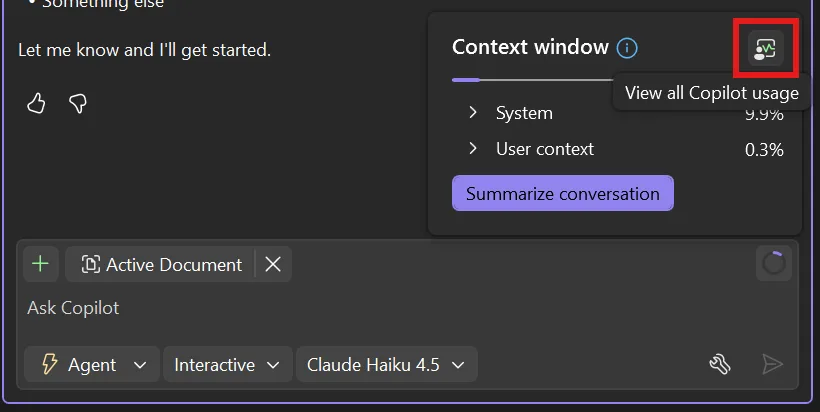
Curious how much of your Copilot plan you have used? Open the context window from the prompt box, then select View all Copilot usage to jump to your full plan details. Usage notifications are easier to act on too, so you will know when you are close to your limit and what options you have to keep working. It is a small change that puts useful information closer to the moment you need it.
Worktrees: work on multiple branches at once
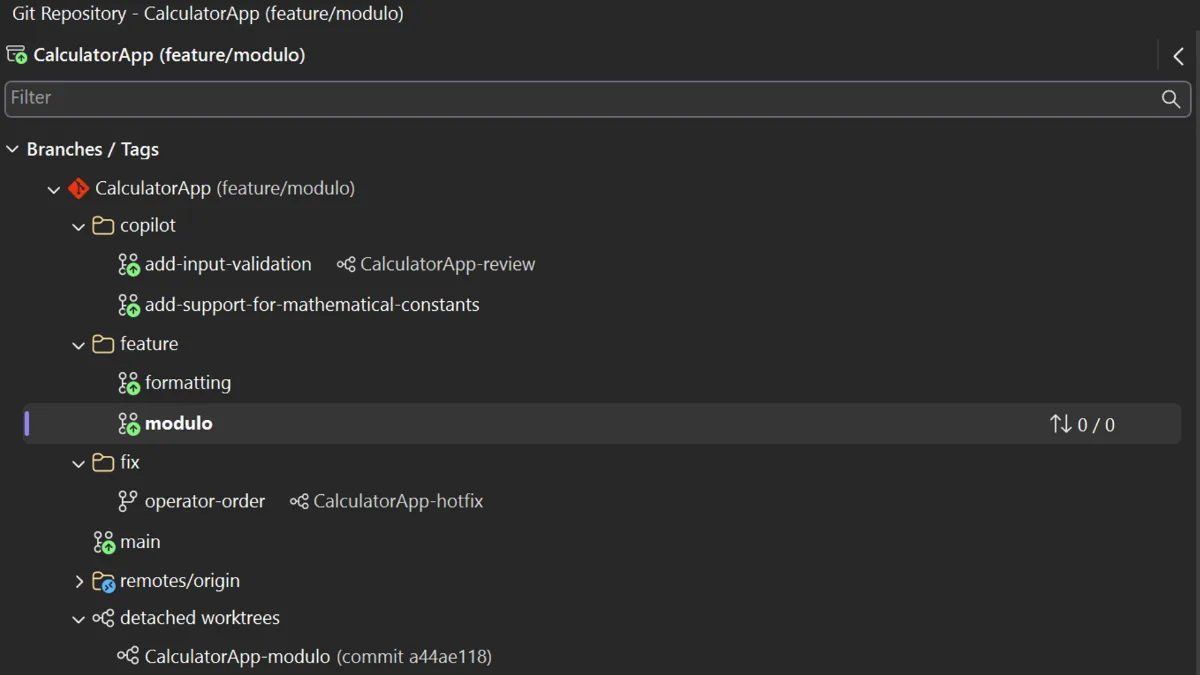
Ever stashed half-finished work just to investigate another branch? Git worktree support gives each branch its own working directory, so your current changes stay in place while you switch to another task. In the Git Repository window, right-click a branch and select New Worktree From. You can create the worktree from a new or existing branch, or start from a commit in the history graph. Open it in the current window or a new Visual Studio instance when you want both branches side by side. When the extra working directory is no longer needed, right-click it and select Delete Worktree.

Your worktrees appear alongside branches in the Git Repository window, branch picker, and repository picker.
Git submodule support
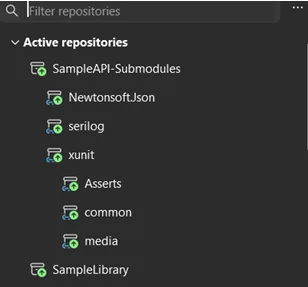
One of our most requested Git improvements is here. Visual Studio now gives submodules a dedicated section in the Git Repository window, better visibility in Git Changes, and a repository picker that clearly shows the parent-child hierarchy. From the Submodules section, you can add, update, and delete submodules. Visual Studio discovers them automatically when you open a solution or folder and keeps them out of the general local repositories list, reducing clutter.
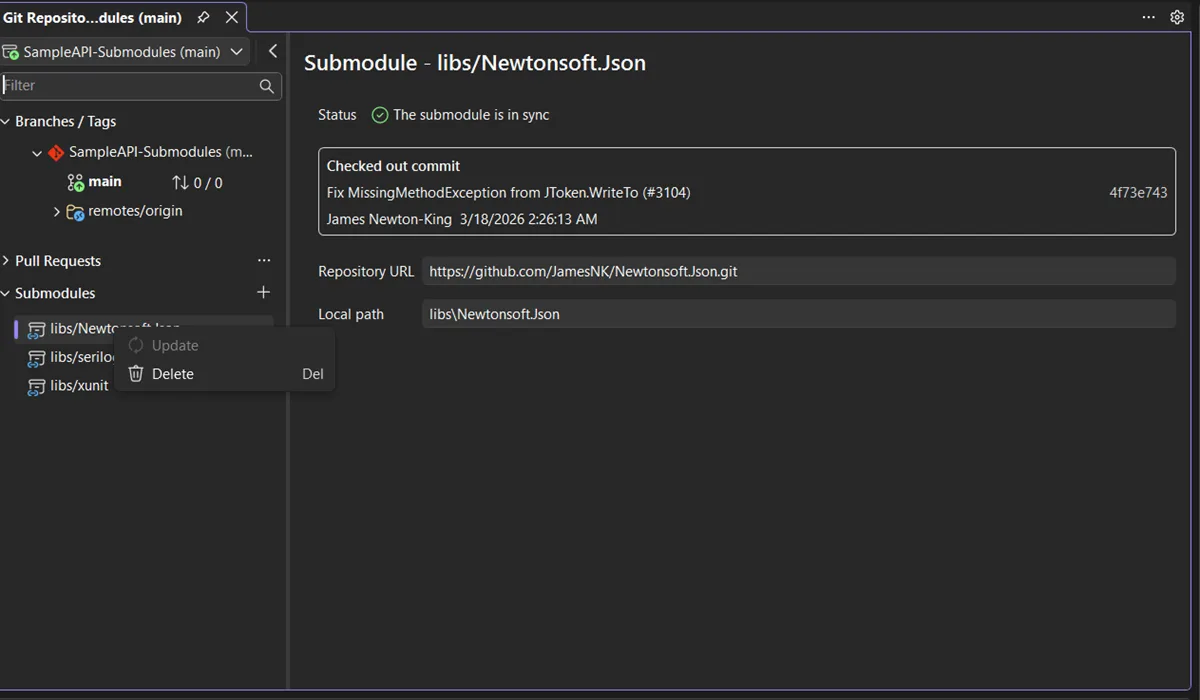
Submodules are read-only by default. To make changes inside them, go to Tools > Options > Source Control > Git, find Automatically activate multiple repositories, and select Yes, include submodules. This is the first milestone for the experience, with more improvements planned.
From our entire team, thank you for choosing Visual Studio! For the latest updates, resources, and news, check out the
Visual Studio Hub and stay in touch. Happy coding! The Visual Studio team



0 comments