


You’re a .NET developer with a busy morning, and an Azure DevOps ticket drops: “Login endpoint 500s under load.” You’ve got to fix it, review a teammate’s feature branch, and keep your repo clean – all before lunch. Visual Studio’s Git tools turn this everyday Git workflow of creating topic branches, stashing changes, committing, and handling PRs into a smooth, fast process.
Let’s walk through your morning, showing how Visual Studio keeps Git friction out of your way.
9:00 AM: Spin up a topic branch for your bug fix
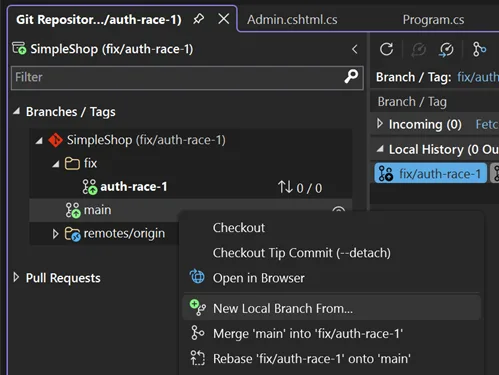
Your repo’s open in VS (View → Git Repository), and you’re on main, fresh from last night’s CI run. To keep your bug-fix isolated, you right-click main in the Git Repository Window, select New Local Branch From, and name it fix/auth-race-1, linking it to your DevOps ticket. You’re switched to the new branch instantly, and the 2026 Git status bar shows your branch and sync status, so you’re never lost.
You update AuthService.cs with an async lock to fix the race condition.
A Slack ping from the PM interrupts: they need you to review a feature branch for a demo. Time to pause your work without losing it.
9:30 AM: Stash changes to juggle tasks
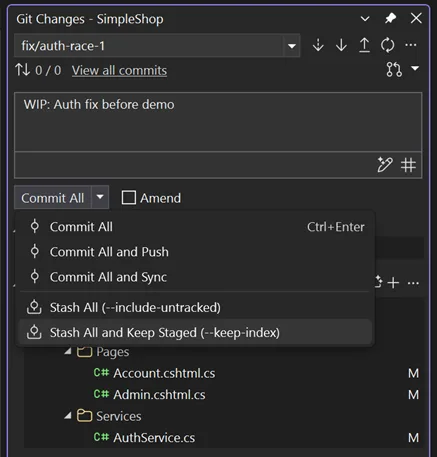
You’re mid-fix with unsaved changes, not ready to commit. In the Git Changes Window (View → Git Changes), you select your modified files, click Stash All, and add a note: “WIP: Auth fix before demo.” Visual Studio shelves everything, leaving your directory clean.
Branch switching in Visual Studio is a lot faster now thanks to optimized solution load and indexing. You polish the feature and push it to remote, all while your bug fix stays safely stashed.
With the feature review done, you’re ready to return to your bug fix and polish it before committing.
10:15 AM: Pop stash and review code
You switch back to fix/auth-race-1, and Visual Studio’s fast branch switching keeps you moving. To restore your work, go to Git Changes Window, hit the Stash tab, right-click, and select Pop Stash. Your changes come back seamlessly.
Before committing, you want to catch any slip-ups. In Git Changes Window, click the Copilot Code Review button. Copilot scans your diff and leaves a few comments in the editor. You apply the suggestions with one click.
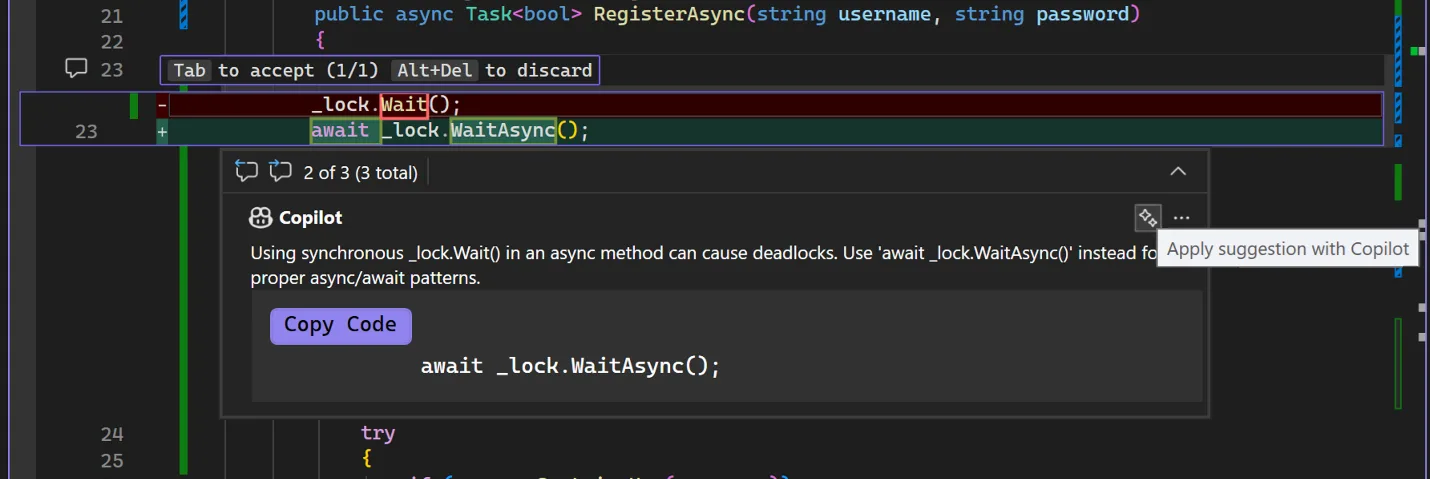
For extra confidence, open Copilot Chat (View → Copilot Chat), type “#changes Check security,” and get: “Add rate limiting for brute-force protection.” You tweak the code, catching more issues early, which makes your eventual PR cleaner.
With your code polished, you’re ready to commit your changes.
10:45 AM: Time to commit
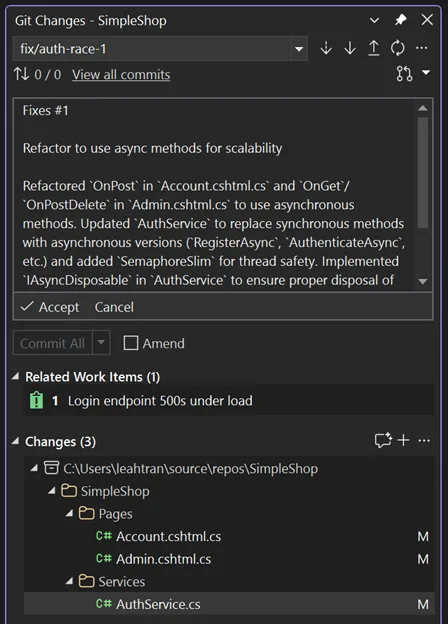
Your code’s solid, so it’s time to commit. In the Git Changes Window, click the Generate Commit Message button. It’s formatted to your team’s standard (learn how to set that up in an earlier blog post), tied to DevOps, and saves you a minute. Push your changes with a click, keeping your history clean and team friendly.
Now it’s time to share this with your team.
11:15 AM: Create PR and review inline
Your work is now ready for a review! Upon pushing, you get a banner in the Git Changes window and click the link to create a pull request. (Alternatively, you can also go to Git Repository Window and right-click fix/auth-race-1 → Create Pull Request.) In the PR creation UI, select your lead, Sarah, and another teammate, Mike, as reviewers by clicking the Add Reviewers field and choosing their names from the dropdown. Since there’s just one commit, VS automatically pulls Copilot’s commit message into the Azure DevOps PR description. You could also generate a PR description to ensure it matches your team’s standards. Click Create, and it’s up for review.
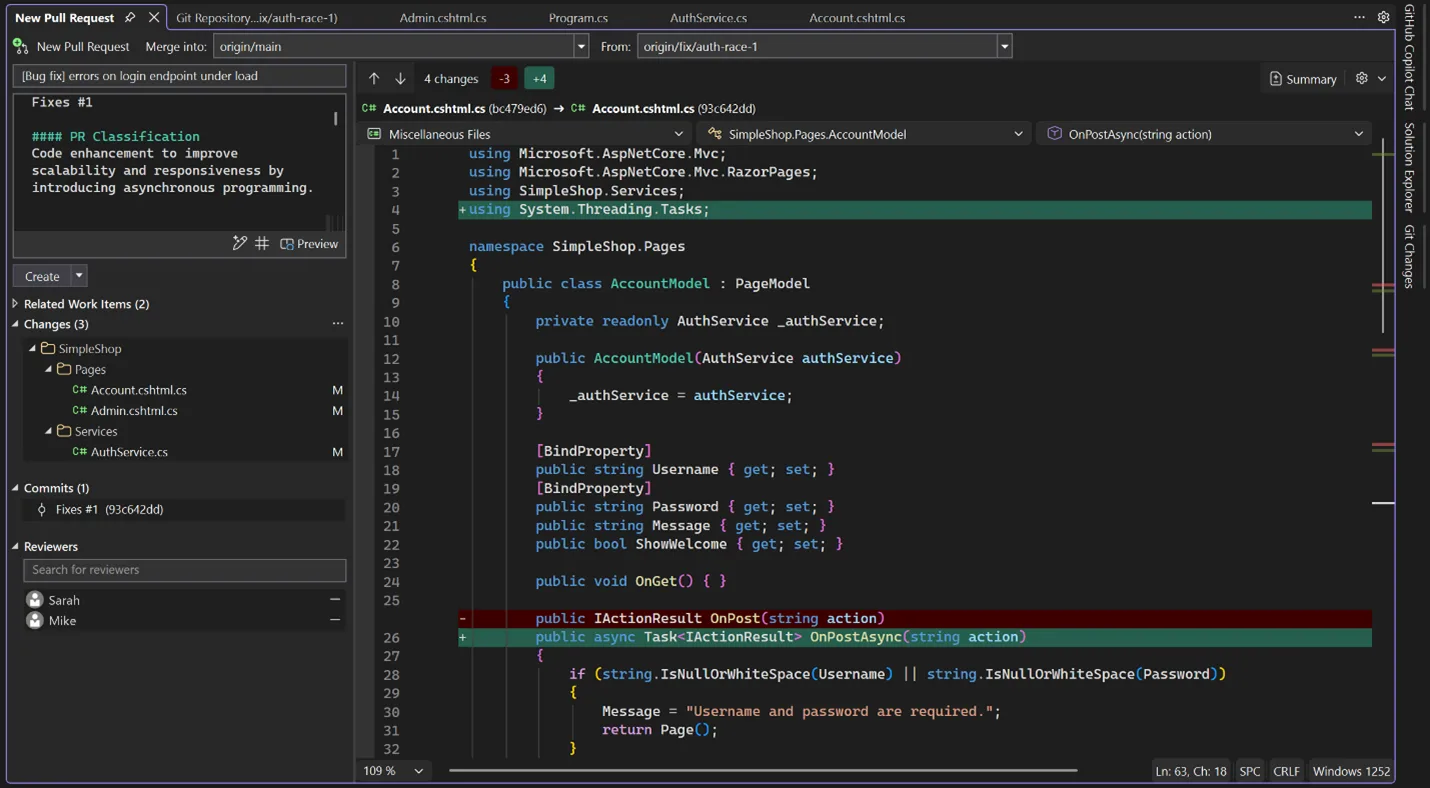
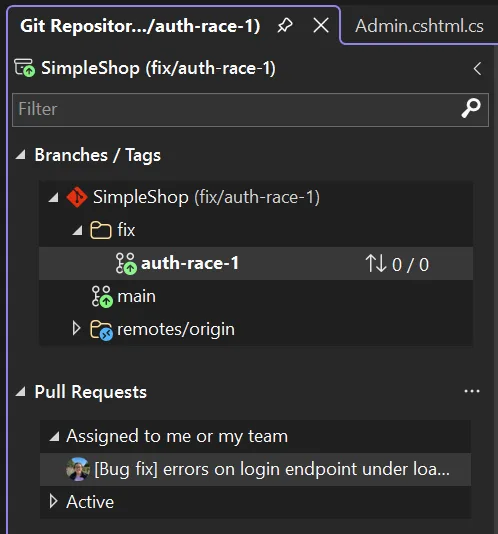
Sarah can easily review the PR right in Visual Studio, finding it assigned to her in the Git Repository Window.
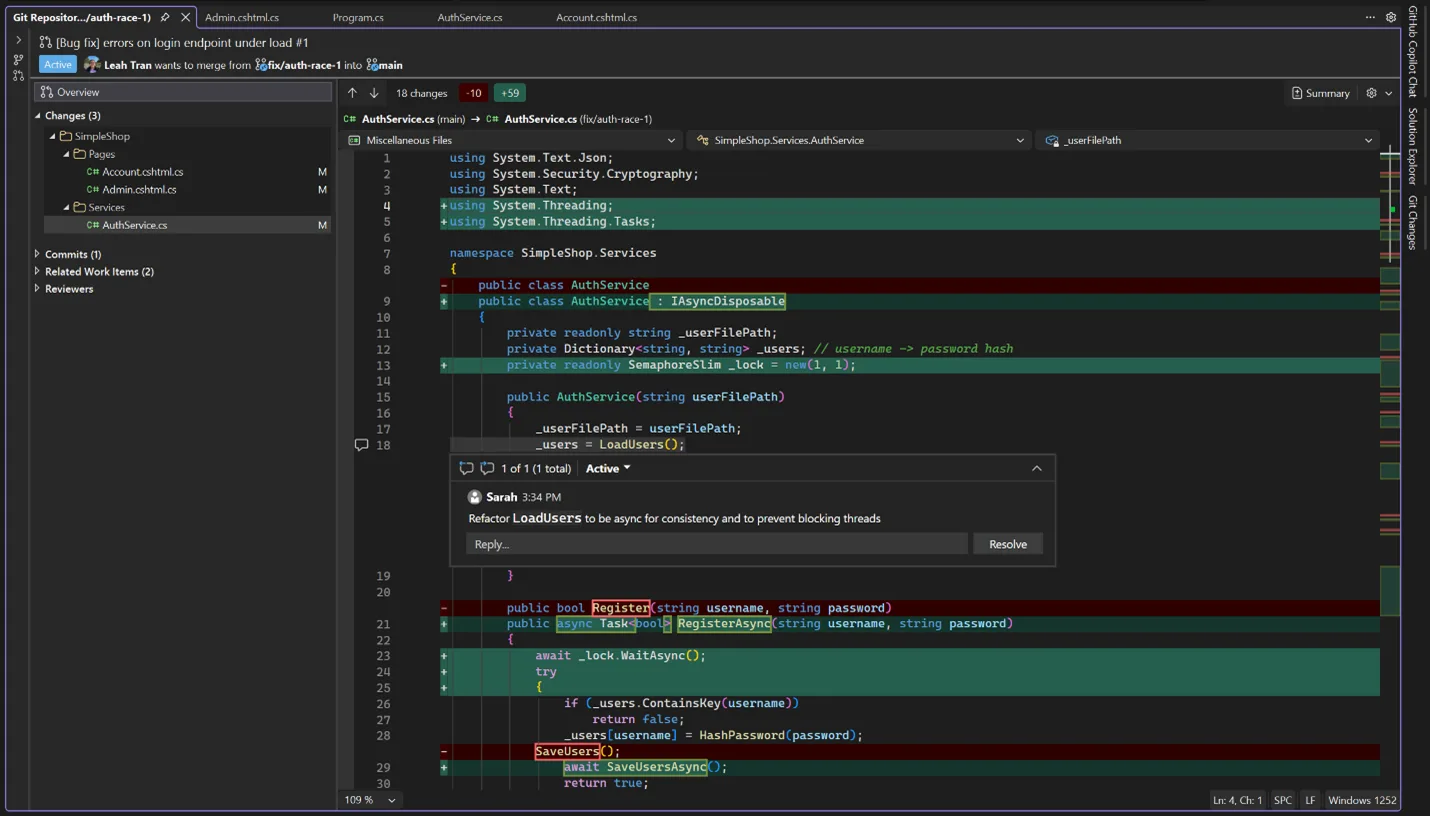
She opens the PR and adds comments directly inside Visual Studio. The Markdown renders right in the diff, threaded and clear. No browser tabs needed!
You reply inline, make updates, and push your new changes. Visual Studio syncs the diff instantly. Reviews feel less cluttered, and Sarah and Mike approve. You merge to main and delete the branch to keep the repo clean.
Wrap-up: Git that flows
Visual Studio’s Git tools – fast branch switches, visual diffs, Copilot commits, AI reviews, inline comments – save you time in your daily grind. Branching, stashing, and PRs are smoother than ever before, letting you focus on code. The AI review before committing catches mistakes early, setting your PRs up for success.
To see these features in action, watch this Visual Studio Toolbox episode with Leslie Richardson and Leah Tran.
Try it out and let us know what other Git topics you want to know more about in the comments below.
Happy coding!



Be amazing if it could use a “git worktree” — and any .env files, settings, etc. that aren’t “git tracked” are populated over in that worktree location. Far more “isolated” and less prone to pollution if there is well known to the Developer what is being brought over for configuration vs. what is secretly behind the scends and often hidden by the IDE.
After I have reviewed a PR, how can I approved it or reject it or wait for author? And also, how can I add a required reviewer?
As I have replied below this, we use VS 2026 Enterprise 18.1.1 but in Git Repository view there isn’t the Pull Requests list, even if in devops browser I can see the PR assigned to me.
There is some specific permission or configuration to view PR list or something else?
I understood that was a problem in our azure devops repo, because I succeded to create a PR in another repo.
Some improvements could be:
– chance to choose if the revisor is required or optional
– chance to change the PR state in accept or reject or wait for author directly from VS
– chance to view the PR assigned to me and it being notified about new assignment or similar
Too bad creating PRs in Visual Studio is not available for Git repos from Azure DevOps Server (on-prem).
It is available for Azure DevOps. I create some every week, in fact.
When working with a git repo cloned from our on-prem Azure DevOps Server, then it’s not available. At least to me and Copilot and ChatGPT both say it’s not available for Azure DevOps Server.
VS doesn’t recognize that the solution is in a repo when working in a worktree. The git ui in side panel becomes completely useless.
I use the “bare” flag for initial checkout.
VS doesn’t support worktrees yet. Vote for it here.
I would love it if Microsoft/Visual Studio showed some love to other workflows. Personally, I find Gerrit-style patchsets to be far preferable to pull requests. Unless I’ve missed something, VS Pro is basically useless at interactive rebases and the like.
The patchset is a kind of editing with force push. That is available. Also the amend of last commit is available both message and code. What is missing is if you’re required to change multiple commit history changes. So vote for this https://developercommunity.visualstudio.com/t/Add-support-for-interactive-Git-rebase/580517?q=rebase&fTime=allTime&ftype=idea
Do you mean also something else?
Thanks! I upvoted that one years ago, but it's good to have the link here for others!
FWIW, it's not a force push with Gerrit - they're individual commits with refs for a particular branch, and the revisions of a patch are linked by their ChangeId in the commit message. The commits don't appear on a remote branch until they're reviewed and accepted/submitted. AFAIK, VS 2026 doesn't support pushing changes to Gerrit/Critique.
Considering the workflow of implementing a feature as a Gerrit user, I often notice that there might be some bugs/tech debt that affect completion of the task. So, I...
When do we get git worktree support? It’s so much nicer than using git stash when working with large projects.
Umm... VS has been supporting worktrees for very long time.
There's no GUI support for creating a worktree, but a CLI command is simple enough to not bother with that.
I suggest to configure "Git Bash" as one of tools in External Tools as: Command: C:\Program Files\Git\git-bash.exe, Initial directory: $(SolutionDir)
BEWARE that if you click the command too early while VS is opening a directory, the initial directory will be set to C:\Windows\System32.
What's much needed is automatic opening of submodules as a multi-repo. Then you would not need to open multiple VS and multiple Bash windows for submodules.
Also, to keep a separate Bash command history per repository, put the following in ~/.profile:
if test -d .vs then export HISTFILE=$(pwd)/.vs/.bash_history fiGo vote for it here: https://developercommunity.visualstudio.com/t/Git-worktree-support-in-the-Visual-Studi/10708556
What is needed to get the Pull Requests section to appear in the Git Repository Window? I only see Branches / Tags in my VS 2026. Is it not supported in Azure DevOps repos?
Go to Tools > Options > Preview Features and check the one named View pull requests for a Git repository.
I also don’t have any UI for it. The only preview feature I have that mentions pull requests is “Pull request comments”, which is checked (and doesn’t seem to actually do anything).
VS18.1.1, Win11, on-prem devops server, logged in to VS as the same user as ADO. Uh… I can’t think of anything else obviously relevant, but I can provide more if needed.
E: Oh, I _didn’t_ install Git through the VS installer because I already had it installed.
the same here. VS 2026 Enteprise Version: 18.1.1
I can see only Branches / Tags
I see no such setting. Only “Pull Request Comments”. I’m running VS 2026 18.1.0. Is it on an Insider build?
Life is so much easier when you spell git stash as git worktree
Upvote this ticket: https://developercommunity.visualstudio.com/t/Git-worktree-support-in-the-Visual-Studi/10708556
This works well except when you have merge conflicts. Right now, it’s not possible to resolve merge conflicts directly in Visual Studio; you have to use the (incredibly terrible) UI in Azure DevOps (or GitHub).
I’m resolving merge conflicts in VS all day long. What are you talking about?
You can solve merge conflicts directly in Visual Studio. Check out the docs on how to do it here: https://learn.microsoft.com/en-us/visualstudio/version-control/git-resolve-conflicts?view=visualstudio
As Andreas pointed out, yes, it is possible, but it's very difficult to use.
Also, there's another pain point, in our case, with automatic PRs.
As an example: I have a branch release/2024 and a branch release/2025. Some automatic tool creates a PR on Azure DevOps from release/2024 to release/2025.
If there are merge conflicts, they are usually resolved directly via the browser. However, it's not possible to be sure of the final result of the merge, until we run the CI pipeline.
So, in the case of complex merges, we have to rely on a third branch, with a flow like this:
1....
Yes you can, but seriously, it’s a terrible experience. Most of merge conflicts could be solved automatically with a little bit of better contextual understanding and AI.
Now if only diffs would start to understand context so that we don’t need conflict resolution anymore. The standard git diff is sooooo outdated, don’t tell me that we can’t do better.
A simple method insert that starts with the same xml doc comment throws the diff totally off and makes it hard to read the diff.
We’re looking into it. We actually built prototypes in the past using our machine learning models (IntelliCode), but we couldn’t get the success rate high enough to add value consistently. Now with AI it is something we are revisiting. It would be so helpful if we didn’t have to manually deal with merge conflicts anymore.
Often, merge conflicts are a result of word-diff on an affected line, or adjacent line. In these cases, VS could suggest the merge result by doing word-diff merge rather than usual line-diff merge.
Oh, and I would appreciate very much if: 1) F9 (next conflict) would not also set a breakpoint in the merge window, and 2) .editorconfig properly worked for the merge result.