


A bug investigation often starts with a few notes: what you tried, which input reproduced the problem, and what you want to check next. You might not be ready to choose a filename or add those notes to a project. You still want them there when you return.
In Visual Studio 2026 version 18.11, you can create a standalone Markdown file from New File and use the opt-in Hot Exit preview feature to resume that unfinished note after closing and reopening Visual Studio. Start the note while the details are fresh, then return to it next session.
Start the note without adding a project item
- Press Ctrl + N to open New File.
- Select Markdown File.
- Select Open and start writing.
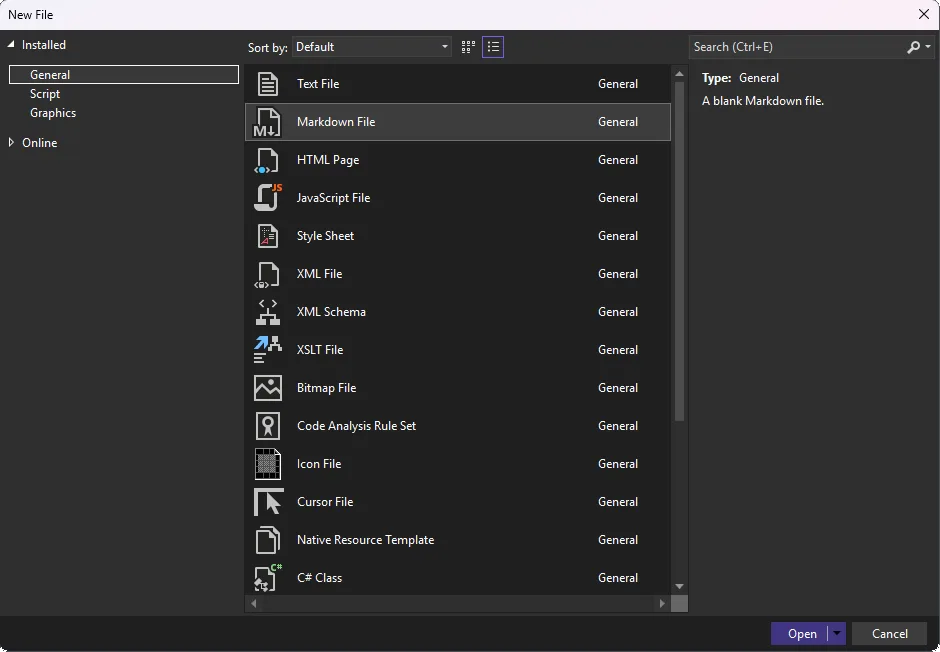
This is separate from Add New Item, which creates a project item. The original feedback specifically asked for a Markdown template in New File, including when working without an open solution.
The Markdown editor itself isn’t new in this release. You can use it to turn your notes into headings, lists, and fenced code blocks, then check the rendered result. The Markdown preview guide explains its editing and preview controls.
Resume the same unfinished note
Hot Exit is off by default. To enable it, go to Tools > Options, expanding All Settings > Projects and Solutions > General, and selecting Reopen unsaved documents on solution load or empty environment.
With Hot Exit enabled, closing Visual Studio preserves session state. When you reopen Visual Studio, it restores open documents and unsaved edits, including new files you haven’t saved yet. Your note can remain unfinished without forcing you to choose a permanent home for it before you close the IDE.

Hot Exit also preserves changes to previously saved files, your tab and window layout, and undo functionality for saved files. For those saved files, you can continue using Ctrl + Z after restoring the session.
This is session preservation, not the same thing as deliberately saving a document to disk or committing it to source control. Save the note when you want to share it or keep it as part of the repository. The useful choice here is that a temporary note doesn’t have to become a project artifact merely to survive a normal close and reopen.
The Hot Exit request calls out exploratory work and temporary files as reasons to preserve unsaved documents. Keep the preview option off if you prefer your current close-and-save workflow.
Try the combination with a disposable investigation note: write down the next thing to check, close Visual Studio with Hot Exit enabled, and reopen it to continue the note.


0 comments
Be the first to start the discussion.