


Introducing the Python Environments Extension for VS Code
Python development in VS Code now has a unified, streamlined workflow for managing environments, interpreters, and packages. The Python Environments extension brings consistency and clarity to a part of Python development that has historically been fragmented across tools like venv, conda, pyenv, poetry, and pipenv. After a year in preview—refined through community feedback and real-world usage—the extension is being rolled out for general availability. Users can expect to have all environment workflows automatically switched to using the environments extension in the next few weeks or can opt in immediately with the setting python.useEnvsExtension. The extension works alongside the Python extension and requires no setup—open a Python file and your environments are discovered automatically.
A Unified Environment Experience
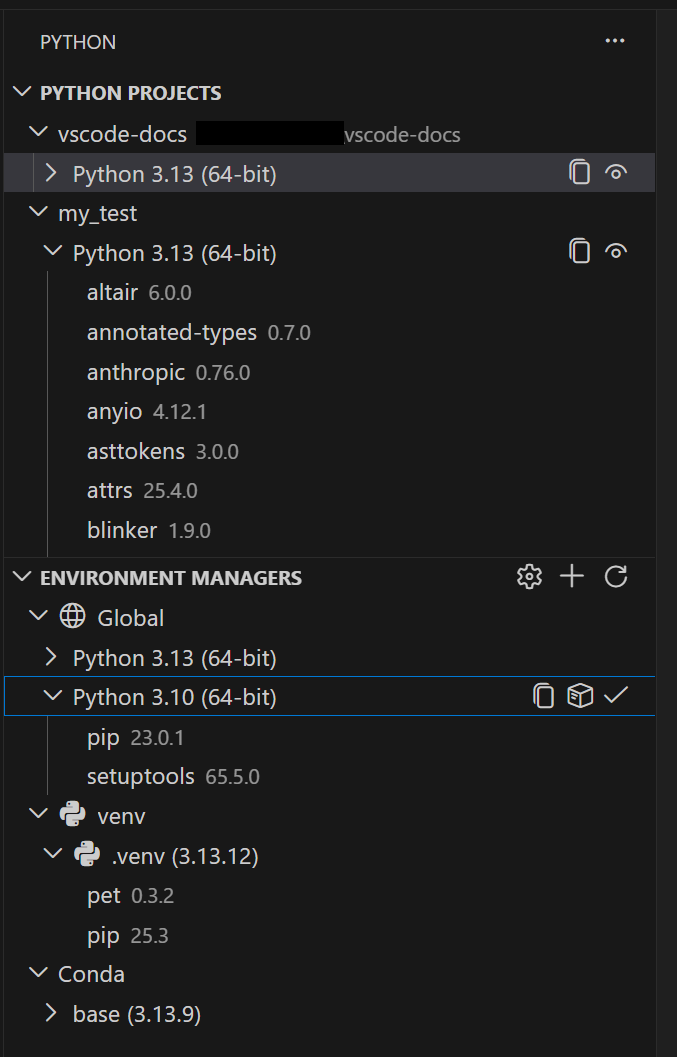
The extension automatically discovers environments from all major managers:
- venv
- conda
- pyenv
- poetry
- pipenv
- System Python installs
Discovery is powered by PET (Python Environment Tool), a fast Rust-based scanner that finds environments reliably across platforms by checking your PATH, known installation locations, and configurable search paths. PET already powers environment discovery in the Python extension today, so this is the same proven engine—now with a dedicated UI built around it. You can create, delete, switch, and manage environments from a single UI—regardless of which tool created them.
For most users, everything just works out of the box. If you have environments in non-standard locations, you can configure workspace-level search paths with glob patterns or set global search paths for shared directories outside your workspace.
Faster Environment Creation with uv
If uv is installed, the extension uses it automatically for creating venv environments and installing packages—significantly faster than standard tools, especially in large projects. This is enabled by default via the python-envs.alwaysUseUv setting.
Quick Create and Custom Create
Getting a new environment up and running is now just a click away. Quick Create (the + button in the Environment Managers view) builds an environment using your default manager, the latest Python version, and any workspace dependencies it finds in requirements.txt or pyproject.toml. You get a working environment in seconds.
When you need more control, Custom Create (via Python: Create Environment in the Command Palette) lets you choose your environment manager, Python version, environment name, and which dependency files to install from. Both venv and conda support creating environments directly from VS Code; for other managers like pyenv, poetry, and pipenv, the extension discovers environments you create with their respective CLI tools.
Python Projects: Environments That Match Your Code Structure
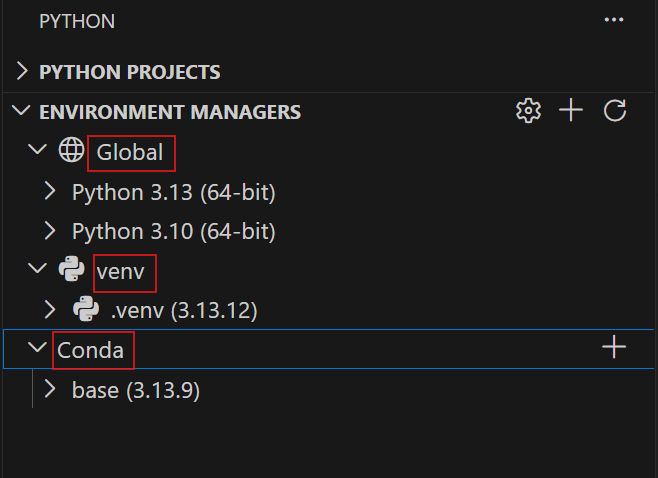
Python Projects let you map environments to specific folders or files. This solves common problems in monorepos, multi-service workspaces, mixed script/package repositories, and multi-version testing scenarios.
Adding a project is straightforward: right-click a folder in the Explorer and select Add as Python Project, or use Auto Find to discover folders with pyproject.toml or setup.py. Once a folder is a project, you can assign it its own environment—and that environment is used automatically for running, debugging, testing, and terminal activation within that folder.
Portable by design
When you assign an environment to a project, the extension stores the environment manager type—not hardcoded interpreter paths. This means your .vscode/settings.json is portable across machines, operating systems, and teammates. No more fixing broken paths after cloning a repo. Teammates can commit the settings, clone the workspace, run Quick Create, and be up and running immediately.
Scaffold new projects from templates
The Python Envs: Create New Project from Template command scaffolds a new project with the right structure. Choose between a Package template (with pyproject.toml, package directory, and tests) or a Script template (a standalone .py file with inline dependency metadata using PEP 723).
Multi-Project Testing
The Python extension now uses the Python Environments API to support multi-project testing. Each project gets its own test root, its own interpreter, and its own test discovery settings. This prevents cross-contamination between services and ensures each project uses the correct environment. For details, see the Multi-Project Testing guide.
Smarter Terminal Activation
The extension introduces a new terminal activation model with three modes, controlled by the python-envs.terminal.autoActivationType setting:
shellStartup— Activates your environment using VS Code terminal integration, so it’s ready before the first command runs. This is especially important if you use GitHub Copilot to run terminal commands, and will become the default in a future release.command— Runs the activation command visibly in the terminal after it opens (currently the default).off— No automatic activation, for users who prefer manual control.
You can also open a terminal with any environment activated by right-clicking an environment in the Environment Managers view and selecting Open in Terminal.
Predictable Interpreter Selection
Interpreter selection now follows a simple, deterministic priority order:
- A project’s configured environment manager
- The workspace’s default environment manager (only if you’ve explicitly set it)
python.defaultInterpreterPath(legacy)- Auto-discovery (
.venv→ system Python)
Only settings you explicitly configure are used. Defaults never override your choices. And importantly, opening a workspace never writes to your settings—the extension only modifies settings.json when you make an explicit change like selecting an interpreter or creating an environment.
Built-In Package Management
You can manage packages directly from the Environment Managers view—search and install packages, uninstall packages, or install from requirements.txt, pyproject.toml, or environment.yml. The extension automatically uses the correct package manager for each environment type (pip for venv, conda for conda environments, or uv pip when uv is enabled).
.env File Support
For developers who use environment variables during development, the extension supports .env files. Set python.terminal.useEnvFile to true and your variables are injected into terminals when they’re created—great for development credentials and configuration that shouldn’t live in source control. Configuring the path to the environment file with python.envFilePath is supported with the previous setting turned on.
Extensible by Design
The Python Environments extension isn’t just for the built-in managers. Its API is designed so that any environment or package manager can build an extension that plugs directly into the Python sidebar, appearing alongside venv, conda, and the rest. The community is already building on this—check out the Pixi Extension as an example of what’s possible.
Known Limitations
There are a couple of areas where integration is still catching up. We want to be upfront so you know what to expect. For the full list, see known issues in the documentation. If you run into an issue, report a bug — your VS Code version, Python extension version, and steps to reproduce help us resolve issues faster. If you need to get back to a stable state quickly, you can disable the extension without affecting the core Python extension.
What’s Next
This is just the beginning. The Python Environments extension lays the foundation for a more integrated, intelligent Python development experience in VS Code. Try the extension, share your feedback, and help us shape the future of Python tooling in VS Code.
Try out these new improvements by downloading the Python Environments extension from the Marketplace, or install them directly from the extensions view in Visual Studio Code (Ctrl + Shift + X or ⌘ + ⇧ + X). You can learn more about Python support in Visual Studio Code in the documentation. If you run into any problems or have suggestions, please file an issue on the Python VS Code GitHub page.


hi i,m billal
Metachef1