


Overheard in a recent conversation:
Enterprise Administrator: “The ***redacted*** application is awesome, but it really should be an MSIX package.”
Microsoft Developer: “Ummm, it already is.”
That sparked another question: How can you tell if an application is packaged or unpackaged?
Turns out there’s a few simple ways to check.
The key difference between packaged and unpackaged processes is whether they have package identity. Task Manager provides a convenient way to quickly see this:
- Run
taskmgr.exe - On the left, select Details
- Right-click a column heading and select Select columns
- Select Package name
- Select OK
The list of processes now shows Package name:
- If the process is unpackaged, this field is blank.
- If the process is packaged, this field shows the package’s Display Name1
For example:
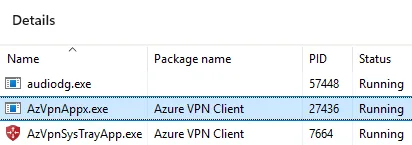
In this example, AzVpnAppx.exe is a packaged process with the display name Azure VPN Client, whereas audiodg.exe has no Package name, so it’s unpackaged.
We also see AzVpnSysTrayApp.exe is a packaged process with the same display name as AzVpnAppx.exe. Display names are localized strings meant for human consumption, and thus aren’t guaranteed to be unique. They can be whatever the developer chooses to show.
1 If Task Manager can’t resolve the package’s localized display name, the Package name column may instead show an ms-resource: value based on the DisplayName declared in AppxManifest.xml. Windows uses this resource reference to find the appropriate localized string rather than displaying the resource reference to the user.
0 comments
Be the first to start the discussion.