




Windows App Development CLI v0.2 is here! This release is driven largely by community feedback and packs in native .NET project support, manifest placeholders that eliminate hardcoded executable names, Microsoft Store Developer CLI integration, a revamped help experience, and more. Get the update by running winget install Microsoft.WinAppCLI or check the repo for other install options.
Let’s dive in!
🟣 First-class .NET project support
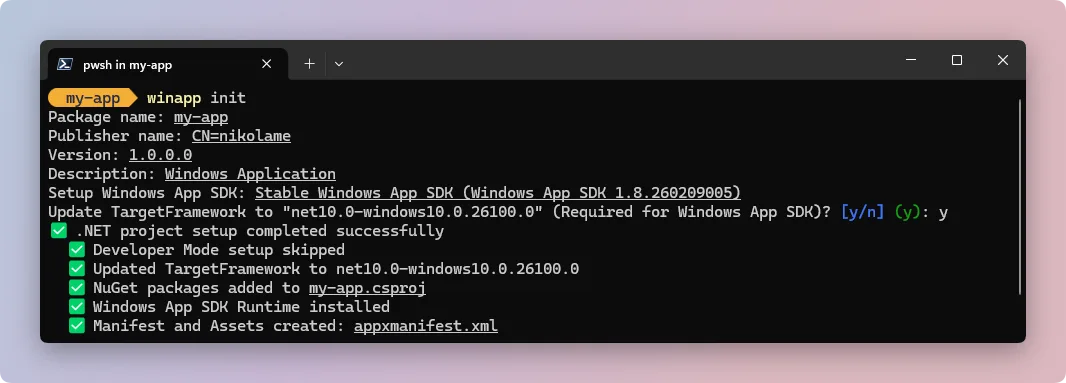
This was one of our most requested features. .NET projects (WinUI, WPF, WinForms, console apps) now work natively with winapp CLI. No more winapp.yaml for .NET. Just run winapp init in a folder with a .csproj and the tool takes care of the rest.
Here’s what happens under the hood:
- Your TargetFramework is validated and updated to target the right Windows SDK version
- NuGet references (WindowsAppSDK, Microsoft.Windows.SDK.BuildTools, and related build tools) are added directly to your .csproj
- An xml and Assets folder are generated automatically
# Detects .csproj, configures NuGet references, generates appxmanifest.xml
winapp init
From there, getting a package identity for local debugging is just one command:
> winapp create-debug-identity app.exe
> app.exe
Pro tip: wire this up as an MSBuild target so it runs automatically after every Debug build. The .NET guide walks through the full setup, including WPF and WinForms.
📄 Manifest placeholders
No more hardcoding executable names in your AppxManifest.xml! You can now use Visual Studio-style placeholders ($targetnametoken$ and $targetentrypoint$) and the values get resolved automatically at packaging time.
<!-- Before: hardcoded -->
<Application Id="App" Executable="MyApp.exe">

<!-- After: portable! -->
<Application Id="App" Executable="$targetnametoken$.exe">
If there’s a single .exe in the package folder, winapp CLI picks it up automatically. Need to be explicit? Use the --executable flag. This is a game-changer if you share a manifest across multiple build configs, IDEs, or CI environments.
💪 winapp store: Microsoft Store Developer CLI integration
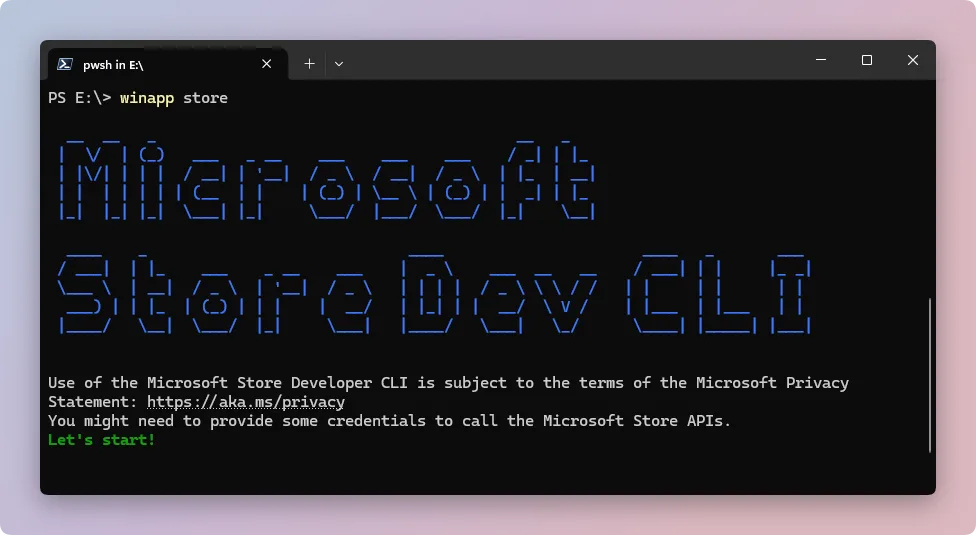
Meet the new store subcommand! It proxies commands to the Microsoft Store Developer CLI (msstore), and winapp CLI downloads and manages the binary on first use. No separate install needed.
winapp store <command> [arguments]This follows the same auto-download pattern as the existing tool command. Run winapp store -- --help to see everything that’s available.
🤩 Improved help output and cleaner error messages
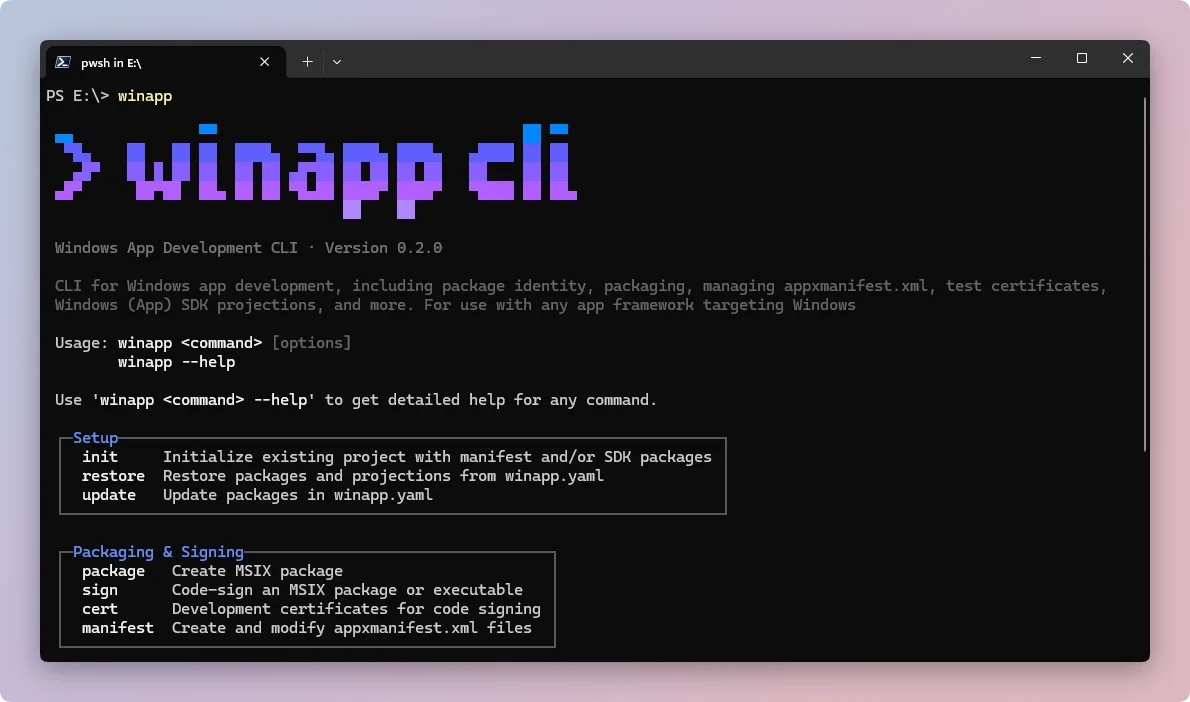
We’ve revamped the winapp --help experience. Commands are now grouped into categories with short descriptions, making it way easier to find what you need at a glance. No more scrolling through a wall of flat text.
Error messages got some love too. Previously, the tool was wrapping errors in layers of “Error:” and “Failed to X:” prefixes, sometimes printing the same message twice. That’s all cleaned up now: errors are printed once, without the noise, and you’ll see a helpful –verbose for more details hint when something goes wrong.
⚡ Other notable changes
- New
winapp create-external-catalogcommand: Introduces a new command to create an external catalog, streamlining asset management for developers. create-debug-identity --keep-identity: When you run create-debug-identity, winapp CLI appends .debug to your package identity so it doesn’t collide with a production install. If you want to register with the exact identity from your manifest instead (for example, to match a Store-provisioned identity during development), pass –keep-identity.winapp packno longer touches your source folder: The pack command used to write generated files (manifest copies, PRI files, etc.) right into your input folder. Now it uses a temporary directory, so your source stays clean.winapp packnow properly includes all asset variants in the resources.pri file and asset discovery has been added when qualified MRT names (e.g., “Logo.scale-100.png”) are specified in the manifest. This enables proper display of unplated icons in the Windows taskbar and ensures all scaled/themed variants are bundled even when the manifest references a specific qualified asset.- Identity name validation fix: Package names with underscores or spaces are now automatically sanitized to produce a valid MSIX identity ([-.A-Za-z0-9]+). No more mysterious create-debug-identity failures.
manifest update-assetsimprovements: The command now updates all assets referenced in your manifest, not just the defaults.- flutter sample: Per popular demand, there’s now a full Flutter guide and sample project showing how to add Windows App SDK APIs, debug with identity, and package a Flutter Windows app with the Windows App Development CLI, from setup to MSIX.
⛓️💥 Breaking changes
A few things to be aware of if you’re upgrading:
- winapp init no longer generates a certificate: init used to create a dev signing cert automatically. That’s been removed. Run winapp cert generate explicitly when you need to sign with a dev certificate. The –no-cert flag is also gone since there’s nothing to skip. If your scripts relied on init producing a cert, add a winapp cert generate step.
- winapp now uses the NuGet global cache for packages: when downloading NuGet packages, winapp used to store them in the
%userprofile%/.winapp/packagesfolder which caused duplicate packages to be downloaded if the user already had those packages in their NuGet cache. With this release, winapp uses the NuGet global cache for all packages. If your code depends on the packages being in the global .winapp folder, you will need to update it. - .NET projects skip winapp.yaml: When winapp init detects a .csproj, it configures NuGet packages in the project file directly instead of creating a winapp.yaml. This is the right behavior for .NET, but if you had a hybrid workflow, check the .NET guide for details.
Get started today
The Windows App Development CLI is available now in public preview. Visit our GitHub repository for documentation, guides and to file issues.
We would love to hear your feedback!
To get started:
Install via WinGet:
winget install microsoft.winappcliInstall via npm:
npm install --save-dev @microsoft/winappcliCheck out our .NET, C++/CMAKE, Electron, Rust or Flutter guides for getting started quickly.
Happy coding!


0 comments