


Your healthcare app needs “La médica” not “El médico.” Your legal documents need precise terminology, not generic translations. When domain-specific language matters, generic LLM translation falls short.
Azure Translator’s adaptive translation lets you teach the model your terminology with just a handful of examples—no model training required. In this walkthrough, you’ll create an adaptive dataset, compare baseline vs. adapted translations side-by-side, and see exactly how much difference domain context makes.
What you build
The playground experience can help you evaluate several aspects of translation behavior:
- How an LLM deployment translates a given language pair, including fluency characteristics
- Whether a small number of reference translations may influence terminology, style, or tone
- Whether an adaptive dataset can help guide domain context and support more consistent terminology usage across new text, depending on inputs
Basic workflow
- Open the Azure Translator Text translation model experience in Microsoft Foundry (Build > Models > AI Services > Azure Translator – Text translation).
- Choose the source language, target language, and LLM deployment.
- Translate a test sentence without adaptation and save the baseline result.
- Add reference translation pairs or create an adaptive dataset from domain examples.
- Translate the same sentence again and compare the output.
- Apply the selected approach in your application using
referenceTextPairsoradaptiveDatasetIdin the Translate API.
Prerequisites
You need:
- Microsoft Foundry project with access to Azure Translator Text translation
- A Translator resource to programmatically use supported Text translation APIs
- An LLM deployment available in the Translator model selection experience
- A small set of high‑quality source and target sentence pairs for your domain
You can use the languages API (with
scope=models) to confirm available models programmatically.import requests
url = "https://api.cognitive.microsofttranslator.com/languages"
params = {
"api-version": "2026-06-06",
"scope": "models",
}
response = requests.get(url, params=params)
response.raise_for_status()
print(response.json())Prepare the adaptive examples
Adaptive translation is generally more effective when examples are clean, aligned, and similar to the text you plan to translate. In many cases, a small number of high‑quality examples can be more useful than a larger set of low‑quality examples.
Example (English → Spanish):
| Source | Target |
|---|---|
| The doctor is available next Monday. | La médica estará disponible el próximo lunes. |
| Do you want to schedule an appointment? | ¿Desea programar una cita? |
| Please confirm your preferred clinic location. | Confirme la ubicación de la clínica que prefiere. |
| Your care team will review the request. | Su equipo de atención revisará la solicitud. |
| Contact support if you need to reschedule. | Comuníquese con soporte si necesita reprogramar la cita. |
Dataset guidelines
When creating an adaptive dataset (for example, up to 10,000 segment pairs are supported), consider the following practices:
- Use one source sentence and one target sentence per row
- Source or target over 250 characters are not supported
- Keep source and target meaning aligned
- Remove duplicate, outdated, or low‑confidence translations
- Maintain consistent terminology across examples
- Separate datasets by language pair and domain when writing style differs
Create an adaptive dataset in the playground
In your Microsoft Foundry project, open the Translator playground and select the adaptive LLM translation experience.
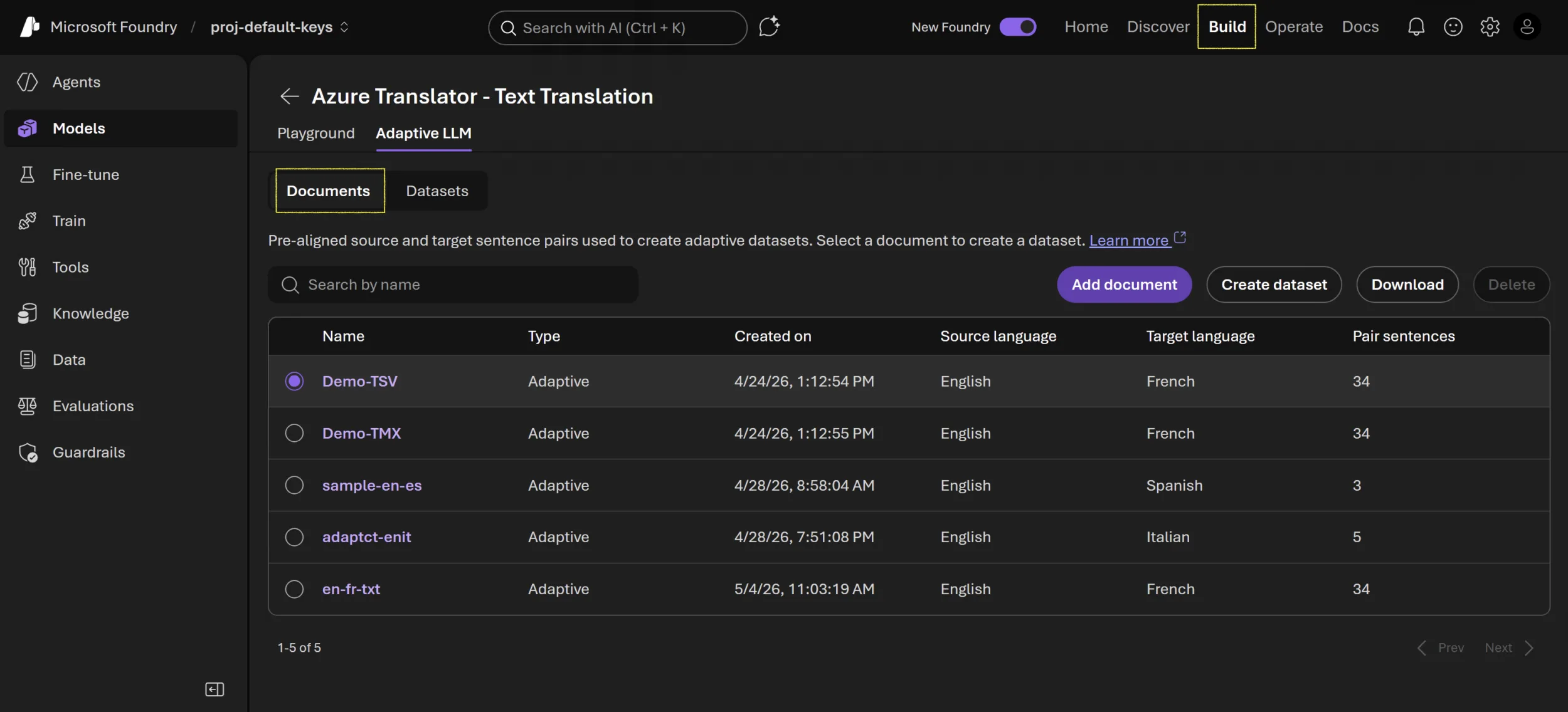
Then:
- Select Documents
- Select Add document
- Choose source and target languages
- Upload a
.TSVor.TMXfile - Create a dataset
- Assign a descriptive dataset name (for example,
en-es-healthcare) - Test the dataset in the playground
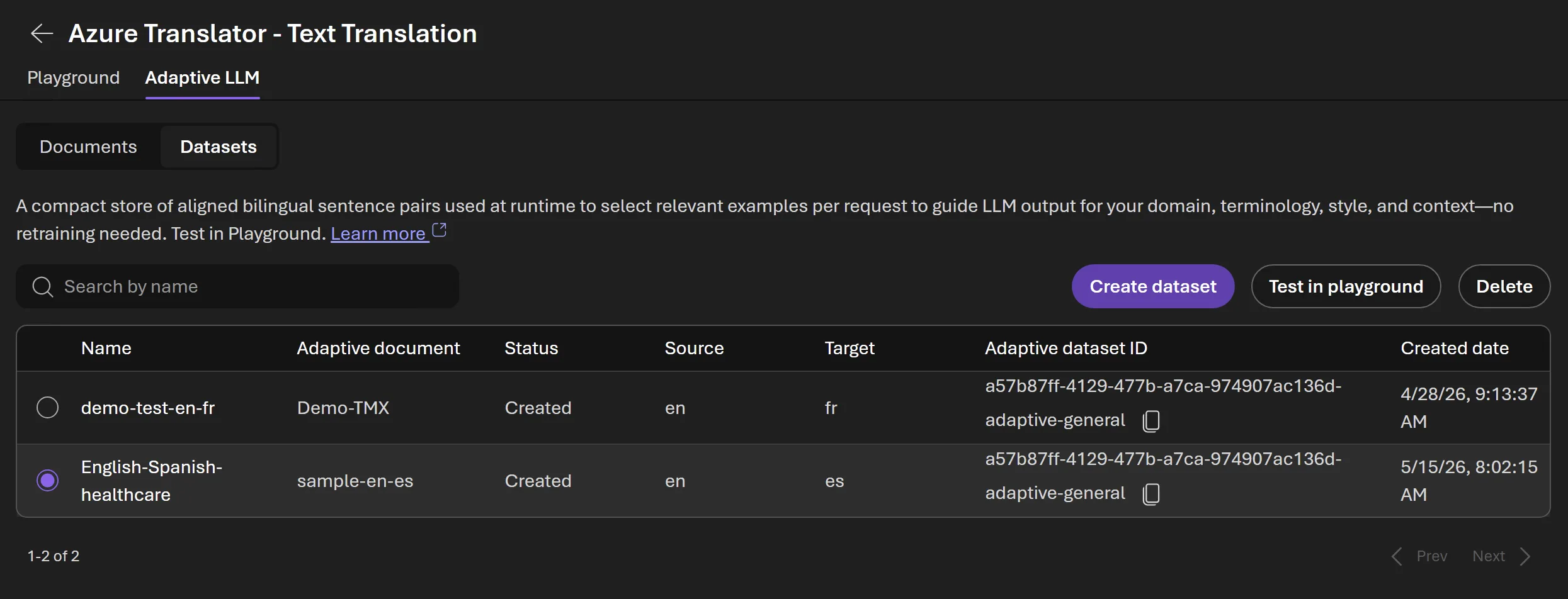
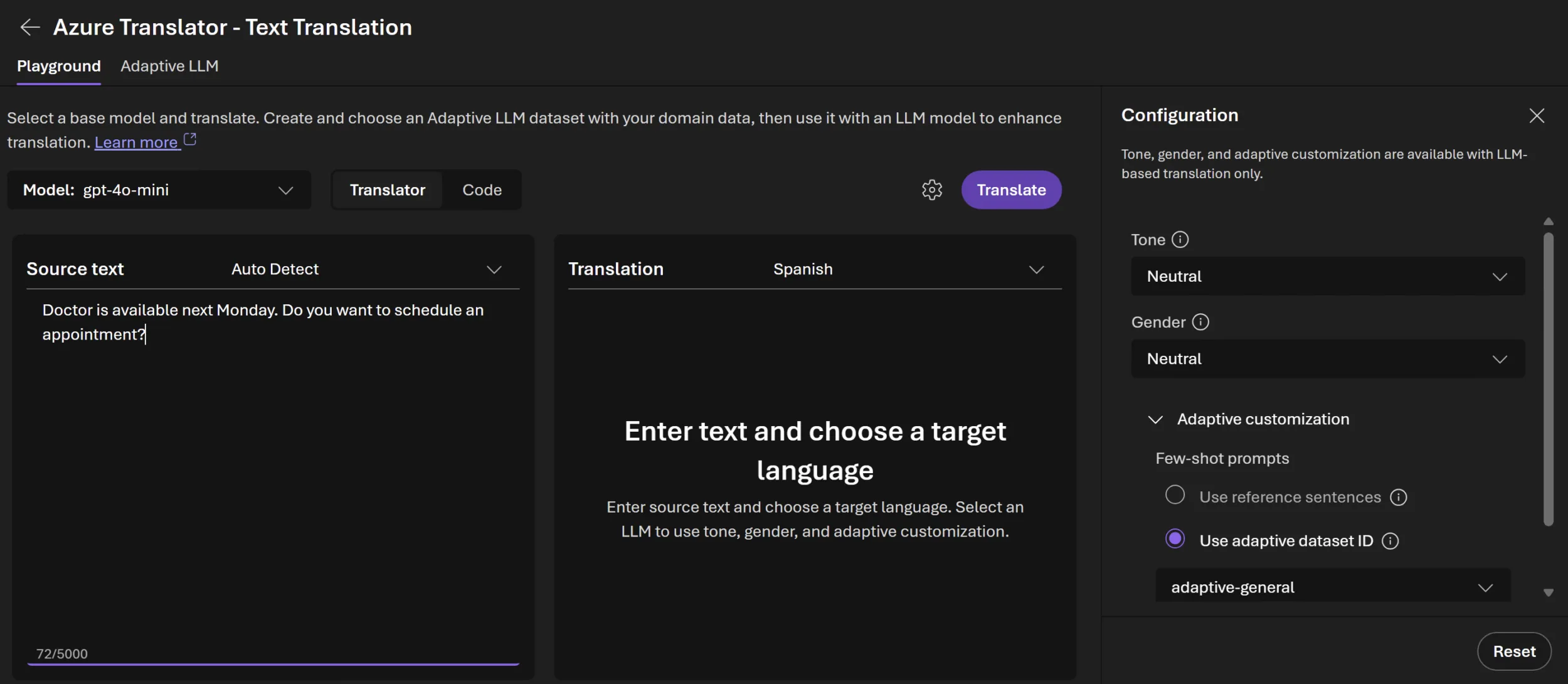
Practical test pattern
1. Run a baseline translation
Before adding adaptation, translate representative sentences using the selected LLM deployment. This baseline helps you understand default model behavior.
Evaluate results for:
- Terminology
- Tone and style
- Fluency
- Alignment with expected phrasing
2. Test few‑shot translation with reference pairs
As a quick way to experiment, add up to five reference translation pairs:
- Enable Adaptive customization > Use reference sentences
- Add high‑quality reference pairs
- Run translation and compare with the baseline
This approach allows you to observe how reference examples may influence subsequent outputs.
3. Test translation using an adaptive dataset
An adaptive dataset may be more appropriate when you have a reusable set of domain examples:
- Enable Use adaptive dataset ID
- Select the dataset
- Run translation and compare outputs
In this approach, the service uses the dataset ID to reference relevant examples during translation requests.
You can use a single adaptive dataset ID across supported language pairs where applicable.
4. Compare results
Use a structured comparison approach:
| Test type | Output | What to check |
|---|---|---|
| Baseline LLM | No adaptation | Fluency, correctness, default terminology |
| Reference pairs | Direct examples | Alignment with provided examples |
| Adaptive dataset | Dataset‑based | Terminology usage across new text |
For each output, evaluate:
- Adequacy – Does the translation preserve meaning?
- Fluency – Does the text read naturally?
- Terminology – Are domain terms applied appropriately?
- Style – Does the tone match expectations?
- Consistency – Are repeated concepts handled similarly?
Move from playground to application code
After validating results in the playground, use the Translate API in your application.
You can send a POST request to the Translator endpoint using your resource credentials and parameters such as
adaptiveDatasetId or referenceTextPairs to apply the same configuration used during evaluation.Tips for reliable experiments
- Keep one variable constant at a time
- Use representative test sentences
- Track dataset, model, and outputs
- Avoid mixing unrelated domains in one dataset
- Maintain a human review loop for high‑impact content
- Monitor cost differences between approaches
Troubleshooting
| Issue | What to check |
|---|---|
| LLM deployment unavailable | Confirm deployment and language support |
| Dataset not applied | Verify dataset ID and relevance |
| Reference examples have limited effect | Use closer, higher‑quality examples |
| Dataset output differs from reference pairs | Dataset selection may vary based on relevance |
| Private endpoint configured | Some features may not be supported |
Summary
The Translator playground provides a convenient way to evaluate adaptive LLM translation before writing application code. Start with a baseline, add high‑quality examples, create an adaptive dataset when reuse is needed, and compare outputs using a consistent evaluation approach. When results meet your requirements, apply the same configuration using the Translate API.
Considerations when using AI‑based translation
AI‑based translation systems can produce useful outputs, but results may vary depending on factors such as language pair, domain context, input quality, and model configuration. Human review is recommended for high‑impact or customer‑facing content, particularly where accuracy, tone, or compliance requirements are important.
Next Steps
Ready to try it?
- Open Microsoft Foundry and navigate to Translator > Text translation to start experimenting in the playground
Want to go deeper?
- Text Translation API Reference (2026-06-06) – Full API documentation for production integration
- Azure Translator Documentation – Complete service overview
See it in action:
- Watch the 5-minute demo showing adaptive translation from dataset creation to API call
Have questions? Post in the Azure AI Community or reach out on Stack Overflow.


0 comments
Be the first to start the discussion.