

MCP (Model Context Protocol) is a standard protocol that enables AI agents to securely connect with apps, data, and systems, supporting easy interoperability and seamless platform expansion. At Ignite, Microsoft Foundry introduced Foundry Tools, which serves as a central hub for discovering, connecting, and managing both public and private MCP tools securely, simplifying integration across more than 1,400 business systems and empowering agents. Microsoft Foundry also upleveled Foundry Agent Service to empower developers to securely build, manage, and connect AI agents with Foundry Tools, enabling seamless integration, automation, and real-time workflows across enterprise platforms.
Aligning with Microsoft Foundry’s MCP and agent vision, we are pleased to share the preview of Foundry MCP Server, a secure, fully cloud-hosted service providing curated MCP tools that allow agents to perform read and write operations on a wide range of Foundry features without directly accessing backend APIs. You can quickly connect to Foundry MCP Server using Visual Studio Code or Visual Studio with GitHub Copilot, or create Foundry agents on Microsoft Foundry and link them with the Foundry MCP Server.
Foundry MCP Server
At Build 2025, we published an experimental MCP server for Microsoft Foundry (formerly known as Azure AI Foundry), showing how agents can use MCP for tasks like model discovery, knowledge-base queries, and evaluation runs on Microsoft Foundry through one interface. At Ignite 2025, our new MCP Server is now in the cloud, simplifies setup, speeds integration, and boosts reliability by removing the need to manage local server uptime, making adoption easier for developers and agents.
Why the New Foundry MCP Server Stands Out
- Open access via public endpoints (https://mcp.ai.azure.com)
- Supports OAuth 2.0 authentication with Entra ID using OBO (on-behalf-of) tokens, providing user-specific permissions. Tenant admins control token retrieval via Azure Policy.
- Built with cloud-scale reliability and security in mind
- Enables conversational workflows, including:
- Exploring and comparing models
- Recommending model upgrades based on capabilities, benchmarks, and deprecation schedules
- Checking quotas and deploying models
- Creating and evaluating agents using user data
- Compatible with:
- Visual Studio Code and Visual Studio with GitHub Copilot
- Ask AI in Microsoft Foundry
- Foundry tools and agent workflow integrations on Microsoft Foundry
Tool Capabilities by Scenario
To help you identify the most relevant features for your needs, the following table presents capabilities organized by scenario.
| Scenario | Capability | What it does |
| 1. Manage Agents (chatbots, copilots, evaluators)
|
Create / update / clone agents: agent_update |
Define model, instructions, tools, temperature, safety config, etc. |
List / inspect agents: agent_get |
Get a single agent or list all agents in a project. | |
Delete agents: agent_delete |
Remove an existing agent by name. | |
| 2. Run Evaluations on Models or Agents
|
Register datasets for evals: evaluation_dataset_create |
Point at a dataset URI (file/folder) and version it. |
List / inspect datasets: evaluation_dataset_get |
Get one dataset by name+version or list all. | |
Start evaluation runs: evaluation_create
|
Run built‑in evaluators (e.g., relevance, safety, QA, metrics) on a dataset. | |
List / inspect evaluation groups and runs: evaluation_get
|
With isRequestForRuns=false: list groups; with true: list/get runs. | |
Create comparison insights across runs: evaluation_comparison_create |
Compare baseline vs multiple treatment runs, compute deltas and significance. | |
Fetch comparison insights: evaluation_comparison_get |
Retrieve a specific comparison insight or list all. | |
| 3. Explore Models and Benchmarks (catalog / selection / switching) | List catalog models: model_catalog_list |
Filter by publisher, license, model name, or free-playground availability. |
Get benchmark overview: model_benchmark_get |
Large dump of benchmark metrics for many models (quality, cost, safety, perf). | |
Get benchmark subset: model_benchmark_subset_get |
Same metrics, but limited to specific model name+version pairs. | |
Similar models by behavior/benchmarks: model_similar_models_get |
Recommend models similar to a given deployment or name+version. | |
Switch recommendations (optimize quality/cost/latency/safety): model_switch_recommendations_get |
Suggest alternative models with better quality, cost, throughput, safety, or latency. | |
Get detailed model info: model_details_get |
Full model metadata plus example code snippets from Foundry. | |
| 4. Deploy and Manage Model Endpoints | Create / update deployments: model_deploy |
Deploy a catalog model as a serving endpoint (name, sku, capacity, scale). |
List / inspect deployments: model_deployment_get |
Get one deployment or list all in the Foundry account. | |
Delete deployments: model_deployment_delete |
Remove a specific deployment. | |
Deprecation info for deployments: model_deprecation_info_get |
See if/when a deployed model is deprecated and migration guidance. | |
| 5. Monitor Usage, Latency, and Quota
|
Deployment-level monitoring metrics: model_monitoring_metrics_get |
Retrieve Requests / Latency / Quota / Usage / SLI metrics for one deployment. |
Subscription-level quota and usage: model_quota_list |
See available vs used quota for a subscription in a region. |
End-to-End Scenarios (how tools combine)
Let’s see how these tools work together in practical workflows.
Real power of MCP server is realized when multiple tools are dynamically used to help user achieve the goal. Now you can seamlessly explore, clarify, investigate, and take action within a single conversation to execute more interconnected scenarios.
For example, when you are building a new agent from scratch:
- Pick model using benchmarks/recommendations:
model_catalog_list→model_switch_recommendations_get/model_benchmark_subset_get
- Deploy it (if needed):
model_deploy - Create agent:
agent_update - Evaluate quality and safety:
evaluation_dataset_create→evaluation_create→evaluation_get
- Compare against older agent:
evaluation_comparison_create→evaluation_comparison_get
And if you are optimizing an existing production deployment:
- Inspect performance and usage:
model_monitoring_metrics_get - Check quota headroom:
model_quota_list - Get better/cheaper alternatives:
model_similar_models_getand/ormodel_switch_recommendations_get - Benchmark candidates more deeply:
model_benchmark_subset_get - Swap deployment:
model_deploy(update), then deprecate old one:model_deployment_delete(if desired).
It is important to note that you are not required to identify the tools or determine the parameters necessary for their use. Your agent, equipped with a language model capable of tool calls, will handle these tasks on your behalf. You may request summaries or additional information in your preferred format.
Getting Started
Visual Studio Code
If you want to use Visual Studio Code with GitHub Copilot and Foundry MCP Server, open VS Code, enable GitHub Copilot with agent mode, open Chat and choose your model (such as GPT-5.1). Refer to Get started with chat in VS Code.
Now you can add Foundry MCP Server to use with VS Code. Follow Use MCP servers in VS Code or click quick link for VSCode to add it: You can use https://mcp.ai.azure.com as the url, and http as the type. VS Code will generate an entry that looks like this:
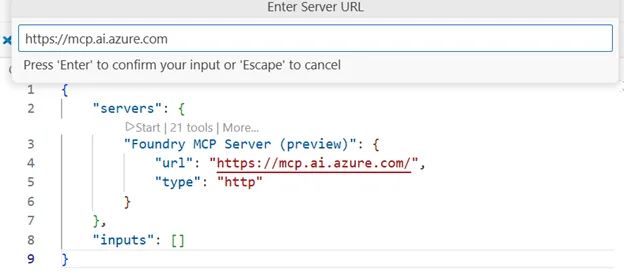
Depending on your VS Code configuration, the MCP Server may start automatically when you start a chat that uses MCP server, but you can also manually start the server by clicking Start icon on your mcp.json file or by pressing Ctrl+Shift+P, MCP: List Servers, choosing the server and starting it.
Now start chatting with GitHub Copilot. MCP Server will require you to authenticate to Azure, if you haven’t done it already.
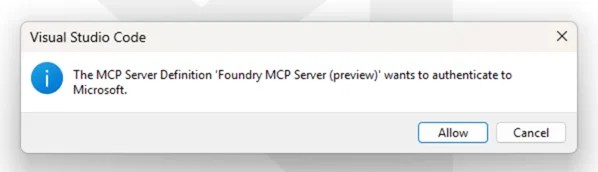

Visual Studio
We also added support for Visual Studio 2026 Insiders. Follow Use MCP Servers – Visual Studio (Windows) | Microsoft Learn or click quick install link for VS to add MCP server entry.

Microsoft Foundry
Or when you want to build an agent on Microsoft Foundry and empower it with Foundry MCP Server, you can visit Tools menu on Microsoft Foundry, find the server, and create a tool connection to the server with one-click.
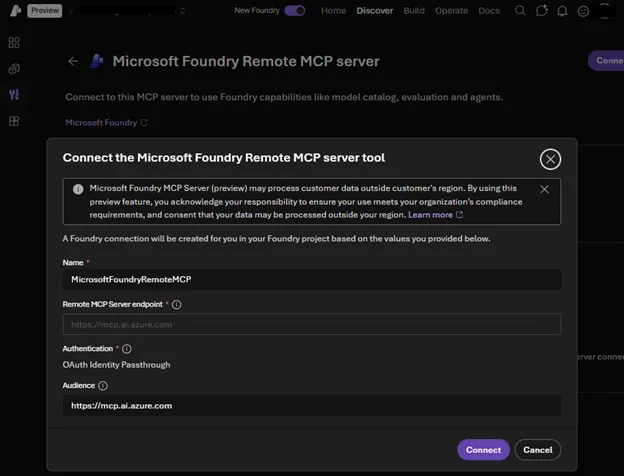
Now you can simply add this tool to your agent and start chatting with your agent.
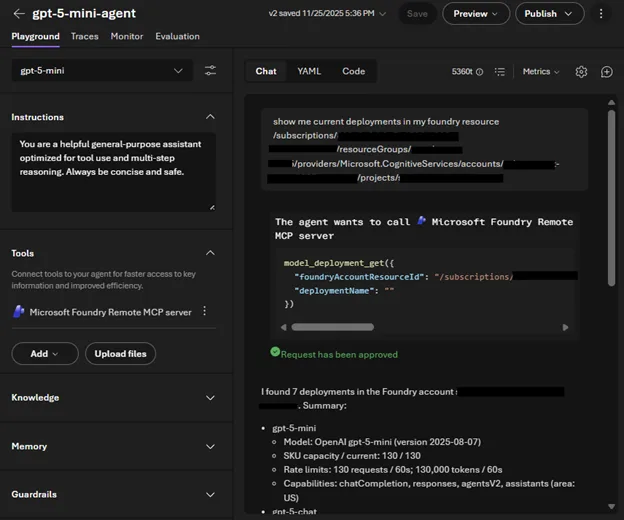
Check out Getting started guideline and sample prompts and give it a try!
Security
Foundry MCP Server requires Entra ID authentication and only accepts Entra tokens scoped to https://mcp.ai.azure.com. All actions run under the signed-in user’s Azure RBAC permissions, ensuring that operations cannot exceed user rights, and every activity is logged for auditing. Tenant admins can enforce access control through Azure Policy Conditional Access for token retrieval, providing oversight of Foundry MCP Server usage.
See Explore Foundry MCP Server best practices and security guidance – Microsoft Foundry | Microsoft Learn for further details.
We look forward to seeing your projects with Foundry MCP Server!


0 comments