

A lot of the information your apps need lives in documents. Invoices, contracts, reports, forms, and slide decks arrive as PDFs, scans, images, and Office files. Getting their content and structure out is the first step for search, automation, data entry, and archiving. It’s also how AI apps get the context they need. Before a model can answer questions about a document, your app has to turn that document into something the model can work with. Until now, each parser or service came with its own SDK and object model. Moving to another tool meant rewriting the code that used the results.
Today we’re introducing a preview of DocumentExtractionClient in Microsoft.Extensions.DocumentExtraction, along with a set of starter providers in the .NET AI Community Toolkit. Whichever provider you choose, the flow is the same. You load a document, pick a provider, and extract its contents into a common structure. Providers include a PDF parser that runs in process, a vision model behind any IChatClient, and cloud services like Azure Content Understanding.
In this post, you’ll learn what document extraction is, where DocumentExtractionClient fits among the .NET AI building blocks, and how to extract your first document, swap providers, and add middleware. Then you’ll feed the results into a data ingestion pipeline with Microsoft.Extensions.DataIngestion, the foundation for context engineering, agentic workflows, and retrieval-augmented generation (RAG). Every sample is a single C# file you can run with dotnet run. They’re all in the document extraction samples repo.
What is document extraction?
Document extraction turns a file, such as a PDF, a scanned image, or an Office document, into structured content. A document shows text on a page, but the file often doesn’t say what that text is. A heading, a table cell, and a page number can all look like ordinary characters. Extraction recovers that structure, including:
- Headings and paragraphs, so you know how the document is organized.
- Tables, as a grid of cells, including merged header cells.
- Figures, with their position and any description the provider can produce.
- Sources, the page and region each element came from, so you can cite it or highlight it later.
Getting there is harder than it sounds. Office files and many PDFs store their text digitally, so you can read it directly. Scans and photos are only pictures of pages, so they need optical character recognition (OCR). Tables have merged header cells, pages have running headers and footers, and multi-column layouts confuse a naive reading order. Different tools solve different parts of the problem. Each one returns its results in a different shape.
Structure matters wherever you use the content, especially in AI apps. Models answer better when you give them the right context, and the right context depends on structure. When you chunk a document at its headings, each chunk covers one topic. When you flatten a table into a list of words, the model can no longer tell which number belongs to which row.
Introducing DocumentExtractionClient
DocumentExtractionClient gives you one API for document extraction in .NET, regardless of which tool does the work. Its main method, ExtractAsync, takes a stream and returns an ExtractionDocument. That’s a tree of sections that contain text, tables, and images. Each element has sources that point back to where it came from. Providers implement this abstraction, so your code works with the same result type whether a PDF parser, a vision model, or a cloud service read the document.
If you’ve used IChatClient or IEmbeddingGenerator from Microsoft.Extensions.AI, the pattern will feel familiar, with a common abstraction, interchangeable providers, and middleware you can layer on top.
Where it fits
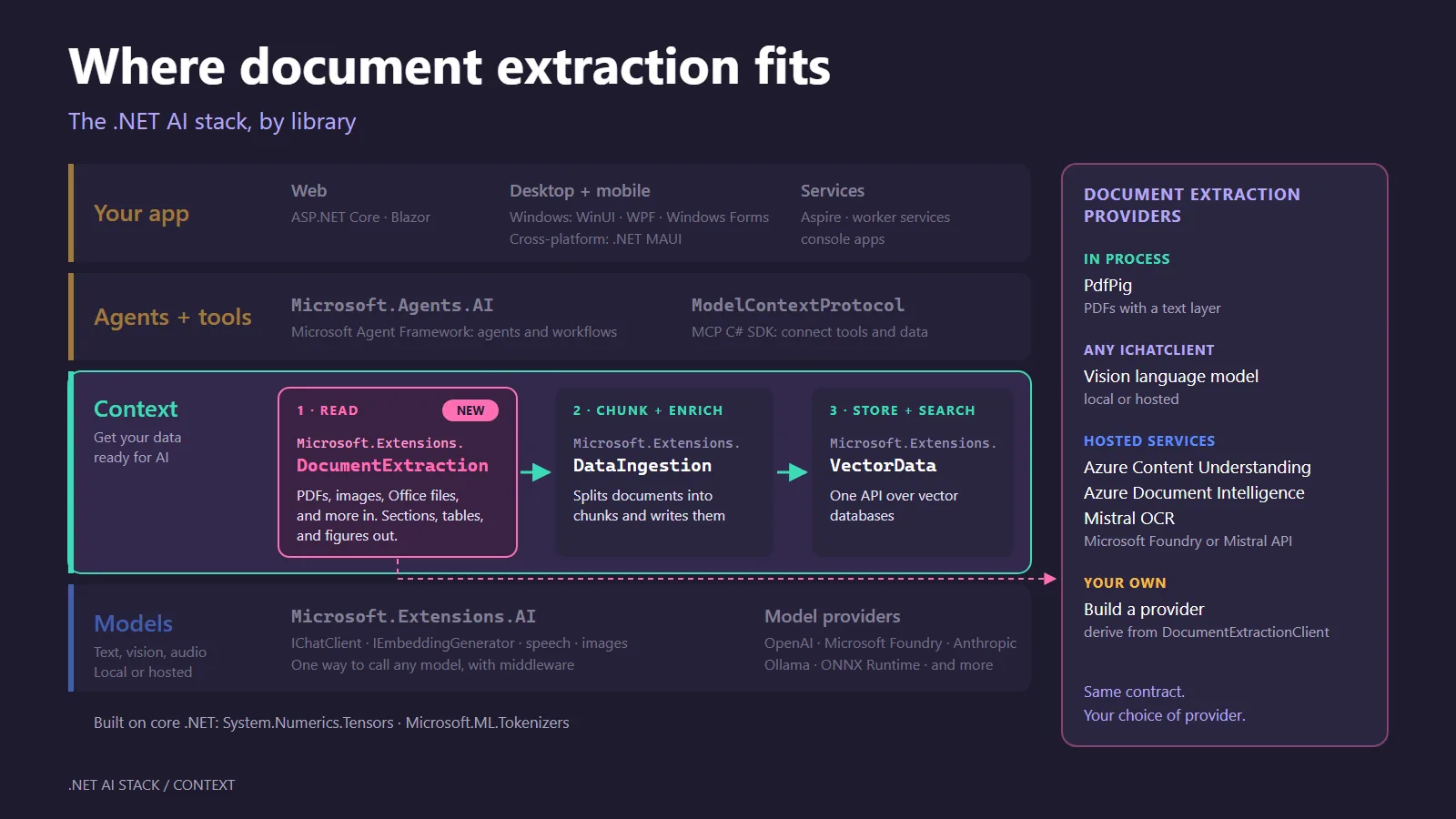
The .NET AI stack is a set of libraries, organized in layers:
- Your app: web, desktop, mobile, and service apps built with .NET.
- Agents and tools: agents that reason and call tools.
Microsoft.Agents.AI: Microsoft Agent Framework, for agents and workflows.ModelContextProtocol: the MCP C# SDK, to connect tools and data.
- Context: the data your app and agents work with. Document extraction is the read step of this layer.
Microsoft.Extensions.DocumentExtraction: turns files into structured documents.Microsoft.Extensions.DataIngestion: chunks and enriches them.Microsoft.Extensions.VectorData: stores them so you can search them.
- Models: models that work with text, images, or audio, whether they run locally or in the cloud.
Microsoft.Extensions.AI: one way to call any model, with middleware.
Think of these libraries as building blocks. You compose the ones you need to build rich AI experiences, add capabilities as your app grows, and swap in a different provider or implementation without rewriting the rest of your app. You don’t need the whole stack, either. Document extraction works on its own, with or without AI.
Pick a provider
To help you get started, the .NET AI Community Toolkit includes a set of starter providers. Like DocumentExtractionClient, they’re in preview. PdfPig runs in process. The vision language model runs wherever your IChatClient does, locally or hosted. The rest are hosted services.

| Provider | Package | Runs | Good for |
|---|---|---|---|
| PdfPig | CommunityToolkit.DocumentExtraction.PdfPig |
In process | PDFs that already have a text layer |
| Vision language model | CommunityToolkit.DocumentExtraction.VisionLanguageModel |
Any IChatClient that accepts images, local or hosted |
Scans and images, when you can review the output |
| Azure Content Understanding | CommunityToolkit.DocumentExtraction.AzureContentUnderstanding |
Azure | OCR, layout, tables, and figures, plus analyzers you can customize |
| Azure AI Document Intelligence | CommunityToolkit.DocumentExtraction.AzureDocumentIntelligence |
Azure | OCR, layout, tables, and page coordinates |
| Mistral OCR | CommunityToolkit.DocumentExtraction.Mistral |
Microsoft Foundry or the Mistral API | Fast OCR to Markdown |
There’s no single best provider, because their capabilities differ. PdfPig is fast, but it reads only PDFs and only the text that’s already in them. A vision model can read scans and images, but you should review its output. A local model can also be slow. Mistral OCR reads PDFs and images. The Azure services also accept formats like Office documents and handle OCR and layout analysis for tables and figures. With any hosted provider, including a hosted vision model, your document leaves your machine. Choose the provider whose capabilities match your documents, and change it later if your needs change.
These providers are a starting point to help bootstrap the ecosystem. If you need a different parser, an internal service, or a model they don’t cover, you can write your own provider. Derive from DocumentExtractionClient and implement ExtractAsync. Your provider works with the same middleware, dependency injection, and data ingestion code as the starter providers. We’d love to see the community build and share providers for more tools and services.
What you’ll need
- .NET 11 SDK. On Windows, you can install it with
winget install Microsoft.DotNet.SDK.11. - Optional: Ollama for the vision model and embedding samples.
- Optional: an Azure subscription and the Azure Developer CLI for the cloud providers.
Don’t want to install anything? Open the samples repo in GitHub Codespaces. The dev container has .NET 11 and an Ollama sidecar with the models already pulled.
The samples use three short intro books I wrote for this post: Tokens, Explained, Tensors in Ten Pages, and Agents Propose, Tools Decide. Each one has headings, running headers and footers, a table with a merged header cell, a figure, and code. That’s enough structure to see how each provider handles a real document. Each book also comes as a scanned copy with no text layer, which you’ll use later in this post.
Extract your first document
Clone the repo:
git clone https://github.com/luisquintanilla/dotnet-document-extraction-samples
cd dotnet-document-extraction-samples
Here’s the first sample, 01-extract.cs. It reads a PDF with PdfPig and prints the outline.
#!/usr/bin/env dotnet
#:package Microsoft.Extensions.DocumentExtraction@11.0.0-preview.1.26560.3
#:package CommunityToolkit.DocumentExtraction.PdfPig@1.0.0-preview
#:property PublishAot=false
#:property NoWarn=$(NoWarn);MEDE0001;EXTEXP0019;CTDE0001

using CommunityToolkit.DocumentExtraction.PdfPig;
using Microsoft.Extensions.AI;
using Microsoft.Extensions.DocumentExtraction;
using Microsoft.Extensions.Documents;
using UglyToad.PdfPig.DocumentLayoutAnalysis.PageSegmenter;

string path = args.Length > 0 ? args[0] : Path.Combine("books", "pdf", "tokens-explained.pdf");

// PdfPig reads the PDF text layer. Docstrum groups words into paragraph-sized blocks,
// and the role callback marks large text as a heading. Both are local heuristics.
using DocumentExtractionClient extractor = new PdfPigDocumentExtractionClient(
    pageSegmenter: DocstrumBoundingBoxes.Instance,
    roleResolver: block => block.TextLines[0].Words[0].Letters[0].PointSize >= 13 ? "heading" : null);

await using var input = File.OpenRead(path);
ExtractionDocument document = await extractor.ExtractAsync(input, Path.GetFileName(path), "application/pdf");

Console.WriteLine($"{document.Identifier}: {document.Sections.Count} sections");
Console.WriteLine();

foreach (var section in document.Sections)
{
    int? page = section.Sources.FirstOrDefault()?.Page.PageNumber;
    Console.WriteLine($"Section (page {page?.ToString() ?? "?"}), {section.Elements.Count} elements");

    foreach (var element in section.Elements)
    {
        string text = element.Content is TextContent t ? t.Text.ReplaceLineEndings(" ") : "";
        if (text.Length > 70) text = text[..67] + "...";

        string kind = element switch
        {
            ExtractionDocumentTextElement { HeadingLevel: { } level } => $"heading {level}",
            ExtractionDocumentTextElement e => e.Role ?? "text",
            ExtractionDocumentTableElement table => $"table {table.Cells.RowCount}x{table.Cells.ColumnCount}",
            ExtractionDocumentImageElement => "image",
            _ => element.GetType().Name,
        };
        Console.WriteLine($"  [{kind}] {text}");
    }
}
Run the app
dotnet run 01-extract.csYou’ll see one section per page. Here’s the start of the output:
tokens-explained.pdf: 5 sections

Section (page 1), 5 elements
  [heading] Tokens, Explained
  [heading] A short introduction to tokenization in .NET By Luis Quintanilla In...
  [text] What a token is, and why models read tokens instead of words The to...
  [text] Before you start. All examples use the Microsoft.ML.Tokenizers NuGe...
  [text] Page 1 of 5
Section (page 2), 14 elements
  [text] Tokens, Explained
  [text] Sample book for document extraction
  [heading] What is a token?
  [text] A language model never sees your text directly. Before the model ru...
  ...
How it works
DocumentExtractionClient is the abstraction every provider derives from, so the rest of your code depends only on it. You call ExtractAsync with a stream, an identifier such as the file name, and a media type, and you get back an ExtractionDocument.
That result is a tree. An ExtractionDocument has Sections, and each section has Elements such as text, tables, and images. Text elements can carry a heading level or a role like pageHeader, and every element can carry Sources that point back to the page it came from.
A PDF text layer records where letters are on the page but not what they mean. So the sample tells PdfPig how to group words into blocks and which text to treat as a heading (anything 13 points or larger). You can see that heuristic misfire in the output above, where the subtitle and byline are tagged as a heading. It’s a reasonable first pass. When you need more structure, you can swap providers.
Swap providers without changing your code
The second sample, 02-swap-providers.cs, picks a provider by name, and everything after that line is the same for every provider:
using DocumentExtractionClient? extractor = Providers.Create(provider, out string? skipped);

// From here down, nothing knows or cares which provider is running.
ExtractionDocument document = await Samples.ExtractFileAsync(extractor, path);
Samples.PrintOutline(document);
Providers.Create lives in common/Providers.cs. Here’s how it creates each provider. The Azure providers sign in with DefaultAzureCredential, so there are no keys in the code.
// Azure Content Understanding
DocumentExtractionClient contentUnderstanding = new ContentUnderstandingClient(new Uri(endpoint), new DefaultAzureCredential())
    .AsDocumentExtractionClient(new() { AnalyzerId = "prebuilt-layout" });

// Azure AI Document Intelligence
DocumentExtractionClient docIntel = new DocumentIntelligenceClient(new Uri(endpoint), new DefaultAzureCredential())
    .AsDocumentExtractionClient(new() { DefaultModel = "prebuilt-layout" });

// Mistral OCR in Microsoft Foundry
DocumentExtractionClient mistral = new MistralDocumentExtractionClient(
    new MistralDocumentExtractionClientOptions
    {
        OcrEndpoint = new Uri(mistralUri),
        DefaultModel = "mistral-ocr-4-0",
        TokenScope = "https://cognitiveservices.azure.com/.default",
    },
    new DefaultAzureCredential());

// A vision language model, using any IChatClient. Here, Ollama.
IChatClient chat = new OllamaApiClient(new Uri("http://localhost:11434"), "qwen3.5:4b");
DocumentExtractionClient vision = new VisionLanguageModelDocumentExtractionClient(
    chat, new() { UseStructuredOutput = true });
The vision model provider takes any IChatClient that accepts images, so you can use a local or a hosted model. This sample uses a local model through Ollama, which accepts images but not PDFs. So Providers.cs renders each PDF page as an image before sending it to the model.
Samples 02 through 04 all read the same page, page 3 of Tokens, Explained (books/pages/tokens-explained-hero.pdf), because it has a bit of everything, including running headers, a heading, a table with merged cells, a figure, and code. Here it is, labeled with the roles that a service like Azure Content Understanding might return for each part:

Now run that page through a few providers:
dotnet run 02-swap-providers.cs -- pdfpig
dotnet run 02-swap-providers.cs -- cu
dotnet run 02-swap-providers.cs -- ollama
Here’s what came back:
PdfPig (local, text layer) took 0.4s
  p1 [text] Tokens, Explained
  p1 [text] Sample book for document extraction
  p1 [heading] Tokenizers in .NET
  p1 [text] The Microsoft.ML.Tokenizers library brings popular model tokenizers...
  p1 [text] Tokenizer
  p1 [text] Algorithm
  p1 [text] .NET type
  ... 23 more lines, one per table cell ...

Azure Content Understanding took 10.2s
  p1 [pageHeader] Tokens, Explained
  p1 [pageHeader] Sample book for document extraction
  p1 [heading] Tokenizers in .NET
  p1 [text] The Microsoft. ML. Tokenizers library brings popular model tokenize...
  p1 [table 6x5]
  p1 [image]
  ...
  p1 [pageNumber] Page 3 of 5

Vision language model (Ollama) took 23.6s
  p1 [text] # Tokens, Explained  Sample book for document extraction  ## Tokeni...
  p1 [table 6x5]
  p1 [image]
The same extraction code produces different results because each provider handles extraction differently. PdfPig was fastest, but it returned the table as loose lines of text. Content Understanding recognized the table, the figure, and the running headers, and labeled each one with a role. The vision model also found the table, and it returned the text as Markdown.
The third sample, 03-compare.cs, runs every provider you’ve configured on the same page and writes a side-by-side report:
pdfpig      0.4s  1 headings, 34 text, 0 tables, 0 images
ollama     26.9s  0 headings, 1 text, 1 tables, 1 images
mistral    10.2s  0 headings, 2 text, 0 tables, 1 images
docintel   13.0s  2 headings, 9 text, 1 tables, 1 images
cu         10.4s  1 headings, 10 text, 1 tables, 1 images
Even the two Azure services differ here. Document Intelligence tagged both headings on the page, while Content Understanding returned the second one as plain text. These timings come from my machine and the cloud services I provisioned, so yours might vary depending on your setup. The shape of the results is what matters, so try a few providers on your own documents before you choose one.
Work with the results
Walk the whole tree
An ExtractionDocument is a tree by design. document.Sections holds the root sections, and a section’s Elements can include nested sections as well as content. How deeply sections nest depends on the provider. PdfPig returns one section per page, while layout-aware providers like Content Understanding and Document Intelligence map the document’s own hierarchy into nested sections. On the sample page, a loop over document.Sections and their Elements reaches only 4 of the 13 content elements that Content Understanding returns.

To reach all of the content, use EnumerateContent(), which walks the tree depth-first in document order and returns every element that isn’t a section:
foreach (var table in document.EnumerateContent().OfType<ExtractionDocumentTableElement>())
{
    Console.WriteLine($"Table: {table.Cells.RowCount} rows x {table.Cells.ColumnCount} columns");
}
Read tables cell by cell
Tables are a grid in which each cell knows its row, its column, and how many rows and columns it spans. A merged cell appears once, at its top-left position. The fourth sample, 04-tables-and-sources.cs, prints every cell:
foreach (var cell in table.Cells)
{
    if (cell is null) continue; // an empty position in the grid

    string span = (cell.RowSpan, cell.ColumnSpan) switch
    {
        (1, 1) => "",
        var (rows, cols) => $" spans {rows}x{cols}",
    };
    string role = cell.Role is null ? "" : $" ({cell.Role})";
    Console.WriteLine($"  [{cell.RowIndex},{cell.ColumnIndex}]{span}{role} {Samples.TextOf(cell.Content)}");
}
Here’s the start of the table from Content Understanding (dotnet run 04-tables-and-sources.cs -- cu). It found the merged header cells and marked them as column headers:
Table: 6 rows x 5 columns
  [0,0] spans 2x1 (columnHeader) Tokenizer
  [0,1] spans 2x1 (columnHeader) Algorithm
  [0,2] spans 2x1 (columnHeader) .NET type
  [0,3] spans 1x2 (columnHeader) Where you'll see it
  [1,3] (columnHeader) Model families
  [1,4] (columnHeader) Typical use
  [2,0] (content) Tiktoken
  [2,1] (content) Optimized BPE
  [2,2] (content) TiktokenTokenizer
  ...
The vision model also got every cell’s text right, but it didn’t report the spans. Differences like that matter when you turn a table back into Markdown for a model to read.
Know where things came from
Each element has Sources. A source points to a page and, when the provider knows it, a polygon around the element on that page:
"Tokenizers in .NET"
  page 1, Inch: (0.79,0.81) (2.95,0.81) (2.95,1.06) (0.79,1.06)
That’s what you need to show a citation or highlight the paragraph an answer came from.
Add logging and middleware
Because every provider is a DocumentExtractionClient, you can wrap any of them with middleware, the same way you do with IChatClient. Register a client in dependency injection, then layer behavior on top:
services.AddKeyedDocumentExtractionClient("documents", sp => new PdfPigDocumentExtractionClient())
    .UseLogging()
    .Use((inner, sp) => new ScannedPdfFallback(inner, sp.GetRequiredKeyedService<DocumentExtractionClient>("ocr")));
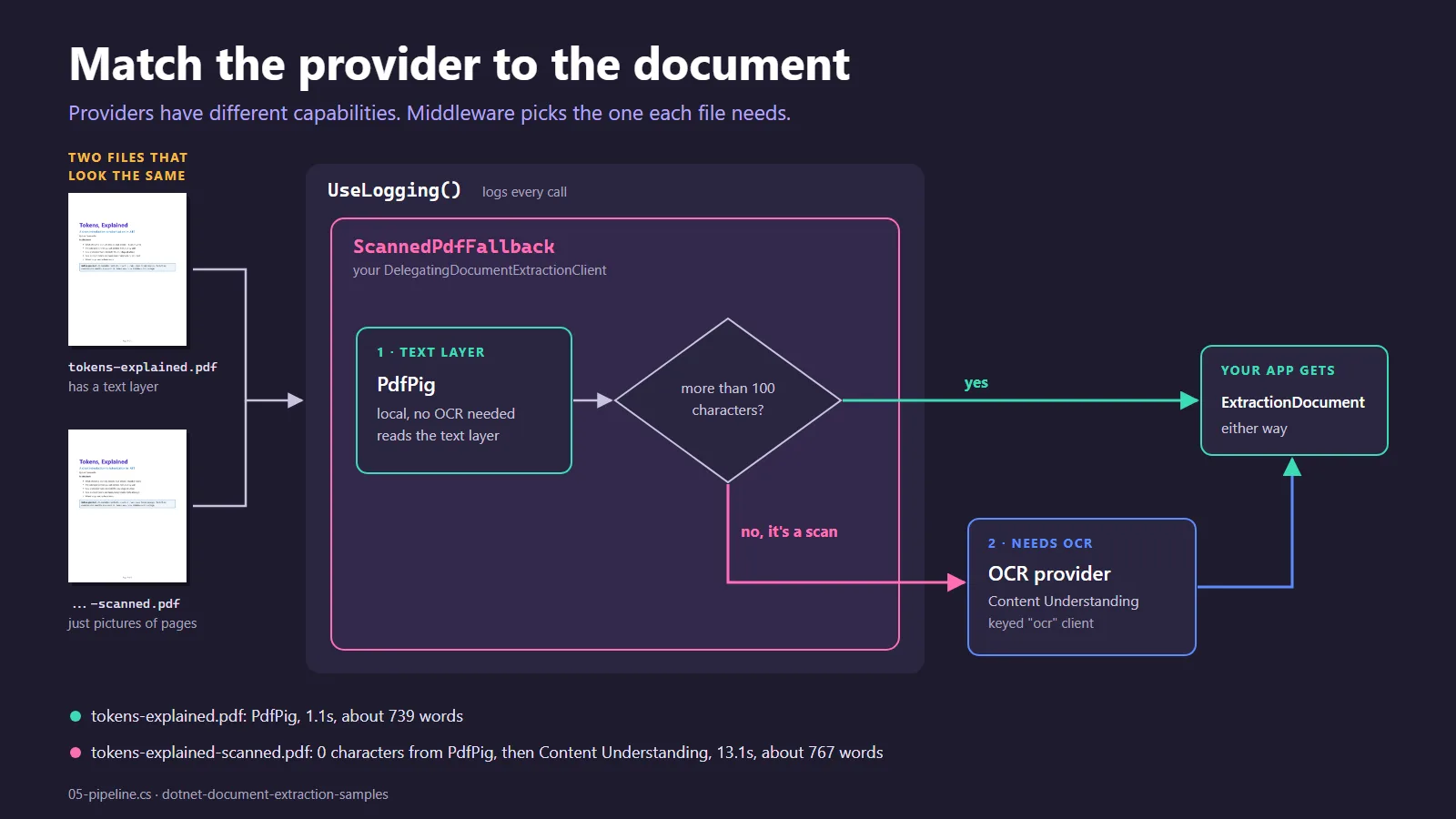
To write your own middleware, derive from DelegatingDocumentExtractionClient and override ExtractAsync. Providers have different capabilities, and documents have different needs. A PDF with a text layer only needs PdfPig, a scan needs OCR, and a page full of tables benefits from layout analysis. The fallback in 05-pipeline.cs tries PdfPig first. If the PDF comes back with almost no text, it treats the file as a scan and sends the same bytes to an OCR provider instead.
sealed class ScannedPdfFallback(DocumentExtractionClient inner, DocumentExtractionClient ocr) : DelegatingDocumentExtractionClient(inner)
{
    public override async Task<ExtractionDocument> ExtractAsync(Stream stream, string identifier, string mediaType,
        DocumentExtractionOptions? options = null, CancellationToken cancellationToken = default)
    {
        // Buffer the input so it can be read twice.
        using var buffer = new MemoryStream();
        await stream.CopyToAsync(buffer, cancellationToken);
        buffer.Position = 0;

        var document = await base.ExtractAsync(buffer, identifier, mediaType, options, cancellationToken);
        int characters = document.EnumerateContent().Sum(e => e.Content is TextContent t ? t.Text.Trim().Length : 0);
        if (characters > 100)
        {
            return document;
        }

        Console.WriteLine($"   No text layer in {identifier} ({characters} characters). Falling back to OCR.");
        buffer.Position = 0;
        return await ocr.ExtractAsync(buffer, identifier, mediaType, options, cancellationToken);
    }
}
Here it is on the regular book and on its scanned copy, with Content Understanding as the OCR provider:
== tokens-explained.pdf
   pdfpig read tokens-explained.pdf in 1.1s
   5 sections, about 739 words

== tokens-explained-scanned.pdf
   pdfpig read tokens-explained-scanned.pdf in 0.0s
   No text layer in tokens-explained-scanned.pdf (0 characters). Falling back to OCR.
   cu read tokens-explained-scanned.pdf in 13.1s
   5 sections, about 767 words
The app asked for a document and got one, without needing to know that the second file was a scan. The same pattern works for any capability. You can route documents with tables to a layout-aware provider or images to a vision model, and the rest of your code stays the same.
Feed a data ingestion pipeline
Last year we introduced data ingestion building blocks for .NET. Microsoft.Extensions.DataIngestion gives you a pipeline that reads documents, splits them into chunks, and writes them to a vector store. Document extraction fits in at the start. What you ingest becomes context you can use in many ways. You can ground answers in a RAG app, engineer the context you give a model, or give an agent knowledge to search with a tool.
The sixth sample, 06-ingest.cs, shows the RAG case. It extracts the three books, chunks them at their headings, embeds the chunks with an embedding model, and searches them:

// Any DocumentExtractionClient works here. This one uses Azure Content Understanding.
DocumentExtractionClient extractor = new ContentUnderstandingClient(new Uri(endpoint), new DefaultAzureCredential())
    .AsDocumentExtractionClient(new() { AnalyzerId = "prebuilt-layout" });

IngestionDocumentReader reader = new ExtractionReader(extractor);

var tokenizer = TiktokenTokenizer.CreateForModel("gpt-4o");
IngestionChunker<string> chunker = new HeaderChunker(new IngestionChunkerOptions(tokenizer)
{
    MaxTokensPerChunk = 256,
    OverlapTokens = 32,
});

IEmbeddingGenerator<string, Embedding<float>> embeddings =
    new OllamaApiClient(new Uri("http://localhost:11434"), "embeddinggemma");
using var store = new InMemoryVectorStore(new() { EmbeddingGenerator = embeddings });
using var writer = new VectorStoreWriter<string>(store, dimensionCount: 768);

using var pipeline = new IngestionPipeline<string>(reader, chunker, writer);
await foreach (var result in pipeline.ProcessAsync(books))
{
    Console.WriteLine($"Ingested {Path.GetFileName(result.DocumentId)}: {(result.Succeeded ? "ok" : result.Exception?.Message)}");
}
The pipeline reads documents through an IngestionDocumentReader, so the sample includes its own reader, ExtractionReader, for convenience. It calls ExtractAsync and maps the resulting ExtractionDocument to the IngestionDocument the pipeline chunks:
sealed class ExtractionReader(DocumentExtractionClient client) : IngestionDocumentReader
{
    public override async Task<IngestionDocument> ReadAsync(Stream source, string identifier, string mediaType,
        CancellationToken cancellationToken = default)
    {
        var extracted = await client.ExtractAsync(source, identifier, mediaType, cancellationToken: cancellationToken);
        var document = new IngestionDocument(identifier);
        // Map each section's headings, paragraphs, and tables to ingestion elements.
        ...
        return document;
    }
}
It walks every nested section, keeps headings as headings, and turns tables into Markdown. It skips running headers and page numbers, which only add noise to chunks. For now, if you’re combining the two in your own apps, you can copy the full reader from the sample. We intend to make composing document extraction and data ingestion simpler in upcoming releases.
Run it with Content Understanding and ask a question:
dotnet run 06-ingest.cs -- cu "How do I count tokens before calling a model?"Ingested agents-propose-tools-decide.pdf: ok
Ingested tensors-in-ten-pages.pdf: ok
Ingested tokens-explained.pdf: ok
Q: How do I count tokens before calling a model?
[0.60] tokens-explained.pdf | Plan your budget
Plan your budget Think of the context window as a budget you split between the parts of your
prompt. ... | Part of the request | Example tokens | | --- | --- | | System prompt | 1,000 | ...
[0.60] tokens-explained.pdf | Three things to remember
Three things to remember . A token is not a word. A token often includes its leading space...
[0.55] tokens-explained.pdf | Counting tokens and staying in budget
Counting tokens and staying in budget Every model has a context window, the maximum number...Each result knows which section it came from, because extraction found the headings and the chunker split there. The top result even includes the budget table as Markdown. Good structure gives you chunks that each cover one topic, with enough context to be useful.
Next steps
We’re excited to see what you build. Here’s where to go next:
- Try out the document extraction samples and run them on your own documents.
- Learn how data ingestion works in .NET.
We want to hear from you. Share your feedback, ideas, and suggestions, and let us know if something doesn’t work as expected. For DocumentExtractionClient itself, open an issue in dotnet/extensions. For a specific provider, open an issue in the .NET AI Community Toolkit.


0 comments
Be the first to start the discussion.