


We’re excited to announce the Azure DevOps service connection, a new way to access Azure DevOps from your pipelines using a Microsoft Entra workload identity (a service principal or managed identity) instead of a Personal Access Token (PAT) or session token. This post walks through what it is, how to set it up, and the many places you can use it, including several capabilities we’ve added based on your feedback.
Why use an Azure DevOps service connection?
Using an Azure DevOps service connection improves the security of your pipelines in several ways:
- PAT-free authentication: Eliminate the need to create, store, and rotate Personal Access Tokens
- Least privilege: Use per-pipeline or even task-level permissions instead of shared build service account permissions
- No persistent secrets: Use Microsoft Entra federated credentials instead of passwords
- Audit trail: All authentication attempts are logged in the Azure DevOps audit log
Because the connection authenticates as a Microsoft Entra identity, you can also use it to reach resources in another Azure DevOps organization that’s joined to the same Entra ID tenant.
Configuring an Azure DevOps service connection
Important pre-requisite The service connection creation experience does not create an identity in Entra or user in Azure DevOps. Both are a pre-requisite to creating the new Azure DevOps service connection. Before you create a service connection, first add a service principal or managed identity as a user in the organization and assign it the permissions it needs.
After you added a service principal or managed identity as a user in the organization and assigned it the permissions, you can create a the new service connection and choose Azure DevOps (preview):

Select the service principal or managed identity you created as the identity to use:
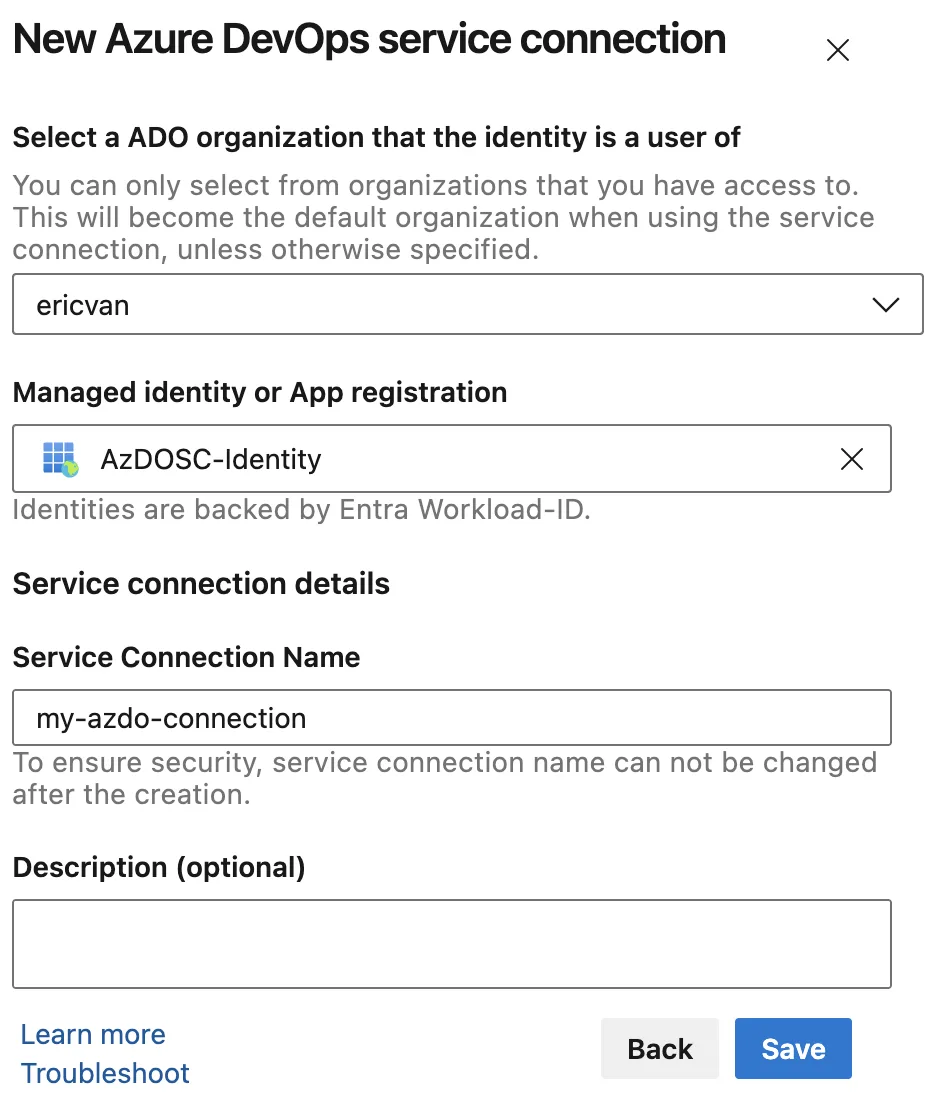
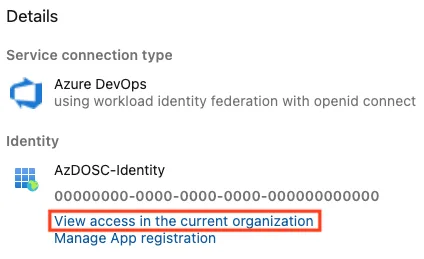
You should assign the identity the permissions to the organization it needs. You can do this by following the View access in the current organization link and e.g. adding it to the Readers group of the current project.
Manual configuration as fallback
In some cases the signed-in user can’t create the federated identity credential (FIC) automatically. For example, when the user lacks Microsoft Graph permissions and sees. For these scenarios the experience will fall back and instruct you how to create the federated credential manually. The configuration UI surfaces the issuer and subject so an administrator with the right permissions can add the federated credential to the identity, then complete the connection.
Using the Azure DevOps service connection
Check out a repository from another organization
resources:
  repositories:
  - repository: external-repo
    type: git
    endpoint: my-azdo-connection
    name: 'external-project/external-repo'
    ref: 'refs/heads/main'

steps:
- checkout: self
- checkout: external-repo
Reference a YAML template from another organization
resources:
  repositories:
    - repository: templates
      type: git
      endpoint: my-azdo-connection
      name: 'external-project/external-repo'
      ref: "refs/heads/main"

steps:
- template: azdosc-template.yml@templates
You can now use runtime parameters to select the service connection used by a repository resource. This makes templates reusable across organizations and environments, the caller supplies the connection name.
parameters:
- name: serviceConnectionName
  type: string
  default: my-azdo-connection

resources:
  repositories:
  - repository: templates
    type: git
    endpoint: ${{ parameters.serviceConnectionName }}
    name: 'external-project/external-repo'
    ref: "refs/heads/main"
Access an artifacts feed
- task: NuGetAuthenticate@1
  inputs:
    nuGetServiceConnections: 'my-azdo-connection'

- task: DotNetCoreCLI@2
  inputs:
    command: 'restore'
    projects: '**/*.csproj'
Call Azure DevOps REST APIs from the Invoke REST API task
The Invoke REST API task (InvokeRESTAPI@1) now accepts an Azure DevOps service connection, so you can call Azure DevOps REST APIs without a custom generic connection and manual token handling. Set connectionType to connectedServiceNameAzureDevOps:
- task: InvokeRESTAPI@1
  inputs:
    connectionType: 'connectedServiceNameAzureDevOps'
    serviceConnection: 'my-azdo-connection'
    method: 'GET'
    urlSuffix: 'external-project/_apis/build/builds?api-version=7.1'
Using the connection in a script
The new AzureCLI@3 task can access Azure DevOps with Microsoft Entra authentication in several ways. In all cases, set connectionType: 'azureDevOps' and assign azureDevOpsServiceConnection to your Azure DevOps service connection:
- task: AzureCLI@3
  inputs:
    connectionType: 'azureDevOps'
    azureDevOpsServiceConnection: 'my-azdo-connection'
This creates a Microsoft Entra authenticated session with the Azure DevOps CLI:
- task: AzureCLI@3
  displayName: Secret-less
  inputs:
    connectionType: 'azureDevOps'
    azureDevOpsServiceConnection: 'my-azdo-connection'
    scriptType: 'pscore'
    scriptLocation: 'inlineScript'
    inlineScript: |
      az devops configure -l

      az devops project list --query "value[].{Name:name, Id:id}" `
                            -o table

      az pipelines pool list --query "[].{Id:id, Name:name}" `
                            -o table

      az rest --method get `
              --url "https://status.dev.azure.com/_apis/status/health?api-version=7.1-preview.1" `
              --resource 499b84ac-1321-427f-aa17-267ca6975798 `
              --query "sort_by(services[?id=='Pipelines'].geographies | [], &name)" `
              -o table
If you have an existing script that uses a PAT or System.AccessToken inline, you can instead obtain a Microsoft Entra access token to access Azure DevOps:
- task: AzureCLI@3
  displayName: Use Entra access token
  inputs:
    connectionType: 'azureDevOps'
    azureDevOpsServiceConnection: 'my-azdo-connection'
    scriptType: 'pscore'
    scriptLocation: 'inlineScript'
    inlineScript: |
      # Get access token for Azure DevOps
      $token = az account get-access-token --resource "499b84ac-1321-427f-aa17-267ca6975798" `
                                           --query "accessToken" `
                                           --output tsv

      # Use token in REST API call
      $headers = @{
        Authorization = "Bearer $token"
        "Content-Type" = "application/json"
      }

      $body = @{
        name = "Test Build"
      } | ConvertTo-Json

      Invoke-RestMethod -Uri "$(System.CollectionUri)$(System.TeamProject)/_apis/build/definitions?api-version=7.1" `
                        -Method POST `
                        -Headers $headers `
                        -Body $body
More information
For more information on configuring the Azure DevOps service connection, see the documentation. We’d love your feedback on the Azure DevOps Developer Community or through Azure DevOps Support.



0 comments
Be the first to start the discussion.