

Getting ready for Code Camp Seattle i decided to do a demo of Build-Deploy-Test using a non domain joined Windows 8 Release Preview machine as my lab management/hyper V Server creating a Windows 7 Standard Environment as my test environment.
Unfortunately everything I did kept getting the error below in the verification step…
“Verify that the machines are accessible using the user name and password provided”
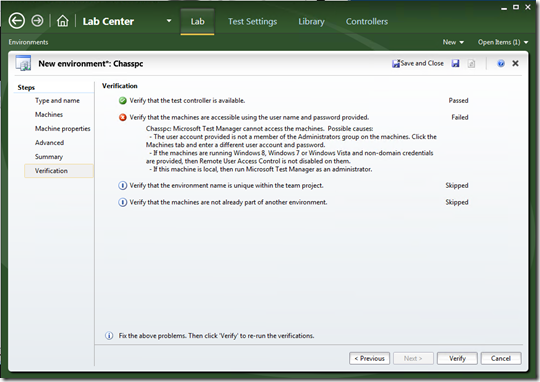
Turns out you MUST turn off something called “Remote User Access Control” in the Standard Environment machine if you are using a non domain joined computer….if you look closely the the error does give you a hint that this could be the problem –but with no visual UI in Windows to toggle this setting (it doesn’t even have a registry key!) let me tell you it was a non trivial task to find the answer!!!!
To disable UAC remote restrictions, follow these steps:
- Click Start, click Run, type regedit, and then press ENTER.
- Locate and then click the following registry subkey: HKEY_LOCAL_MACHINESOFTWAREMicrosoftWindowsCurrentVersionPoliciesSystem
- If the LocalAccountTokenFilterPolicy registry entry does not exist, follow these steps:
- On the Edit menu, point to New, and then click DWORD Value.
- Type LocalAccountTokenFilterPolicy, and then press ENTER.
- Right-click LocalAccountTokenFilterPolicy, and then click Modify.
- In the Value data box, type 1, and then click OK.
- Exit Registry Editor.
For more information on User Account Control and remote restrictions in Windows Vista see:
http://support.microsoft.com/kb/951016



0 comments