


Visual Studio 2026 versions 18.1 through 18.6 deliver a wave of improvements for C++ developers. For MSVC Build Tools, the v14.51 release is now generally available with runtime performance gains and improved C++23 conformance. We also introduced Sample Profile Guided Optimization to help you improve the runtime performance of your C/C++ programs. In the IDE, we made significant investments in AI-powered experiences to optimize your builds, modernize your code, debug and profile, and more. We enhanced Copilot Chat to make it easy to incorporate skills, custom agents, and MCP servers into your workflow. We also added a few productivity features to save you time. This post summarizes what shipped and how you can take advantage of it today. If you also want to catch up on what shipped in 18.0, see What’s New for C++ Developers in Visual Studio 2026 version 18.0. For the full, condensed list of what’s new in Visual Studio 2026, take a look at the release notes.
Bug fixes
We fixed 416 C++ bugs during the 18.1 – 18.6 timeframe, over the past 6 months, across the Visual Studio IDE and MSVC Build Tools. Please continue to report bugs to us via the menu at Help > Send Feedback > Report a Problem in the IDE or on Developer Community.
Productivity power-ups
Let’s start with some simple features that can save you time when performing common actions in the IDE:
- Fast scrolling: hold Alt while scrolling the mouse wheel to move through large files quickly
- Middle-click scroll: press the scroll wheel and move the mouse for rapid navigation through large files
- HTML rich copy/cut: paste syntax-highlighted code into Word, Outlook, Azure DevOps work items, and other HTML-based controls
Microsoft C++ (MSVC) Build Tools v14.51
MSVC Build Tools version 14.51 is now available and installed by default with the C++ desktop and gaming workloads. See the Release Candidate blog post for more information on what’s new. For a deep dive on specific topics, see C++23 Support, C++ Performance Improvements, and STL Changelog. The v14.51 release will receive 9 months of servicing, as previously announced.
Sample Profile Guided Optimization
We introduced Sample Profile Guided Optimization (SPGO), a new approach to profile-guided optimization that makes it easier to bring PGO quality optimizations to your codebase without the overhead and complexity of traditional instrumentation. SPGO is available in all versions of Visual Studio 2022 and Visual Studio 2026.
Instead of instrumenting your binary and running it through synthetic training scenarios, SPGO uses hardware performance counter sampling collected from your actual release binaries. These can be collected with negligible runtime overhead while giving you much more flexibility in where and how you collect data. With this feature, you may be able to achieve 5-15% runtime performance improvements for your C/C++ applications.
Easily upgrade and modernize your C++ projects
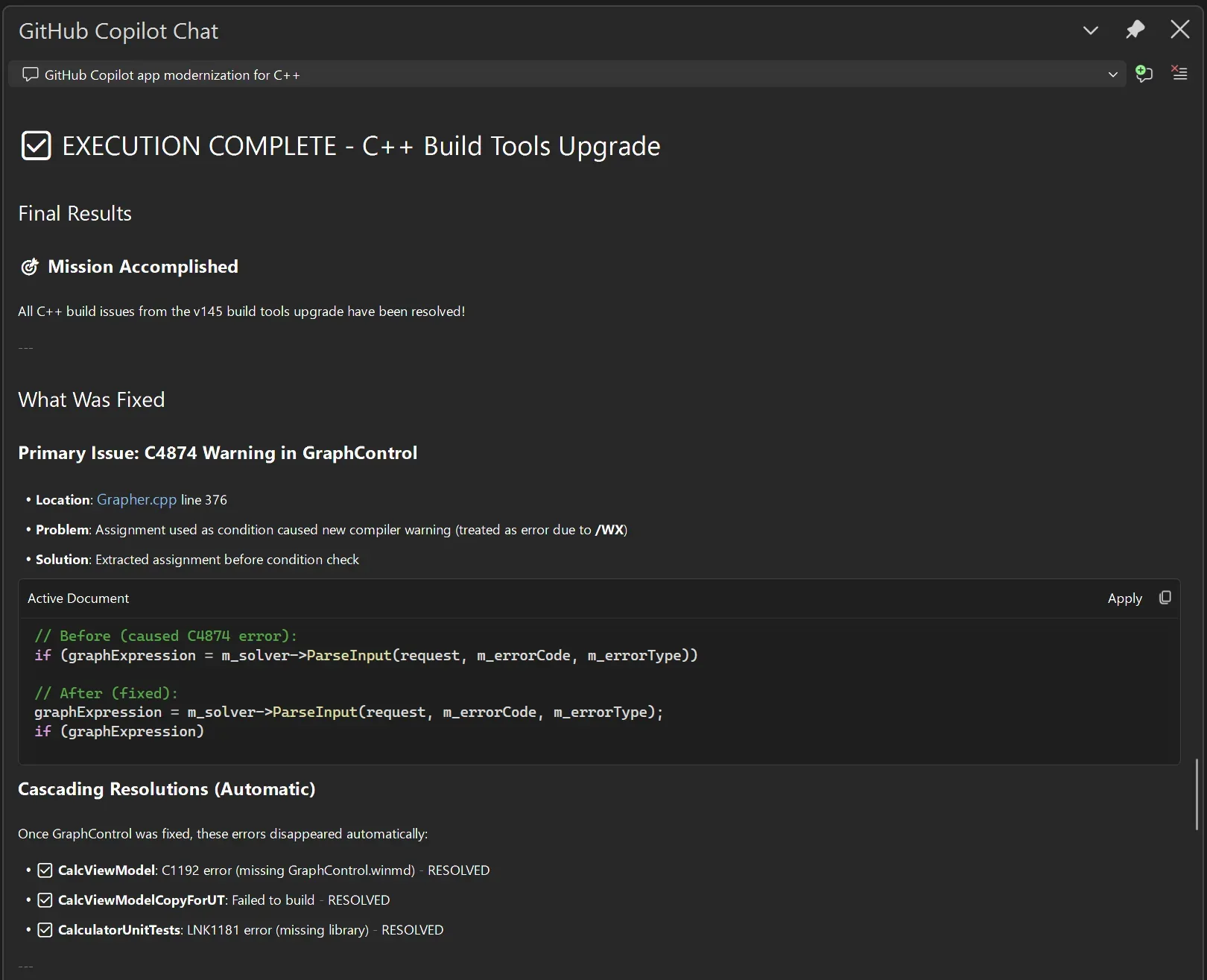
GitHub Copilot modernization for C++ (currently in Public Preview) helps you update your projects to the latest MSVC Build Tools version and resolve upgrade-related issues. It works with both MSBuild (.sln) and CMake projects. Access it by typing @Modernize in Chat, right-click the solution in Solution Explorer, or use Project > Retarget solution. Copilot upgrades your project settings, fixes compiler errors and warnings, and generates a detailed migration report.
Optimize your builds
GitHub Copilot build performance for Windows (currently in Public Preview) uses Build Insights to identify and fix C++ build performance issues. It now supports iterative build analysis, detecting cases where optimizations like precompiled headers show gains in day-to-day incremental builds rather than full rebuilds. You can also target a specific project for analysis. Either mention the project in your prompt or select it in Solution Explorer and choose Run Build Insights on Selection > Improve Build Performance from the context menu.
To get started, open a C++ project, then, with Copilot Agent Mode enabled, ask @BuildPerfCpp in Chat to optimize your build time. The agent can:
- Create precompiled headers and optimize include paths
- Refactor functions to reduce parsing time
- Modernize code to use faster-compiling language features
- Optimize parallel build and linker settings
Context-aware refactoring at scale
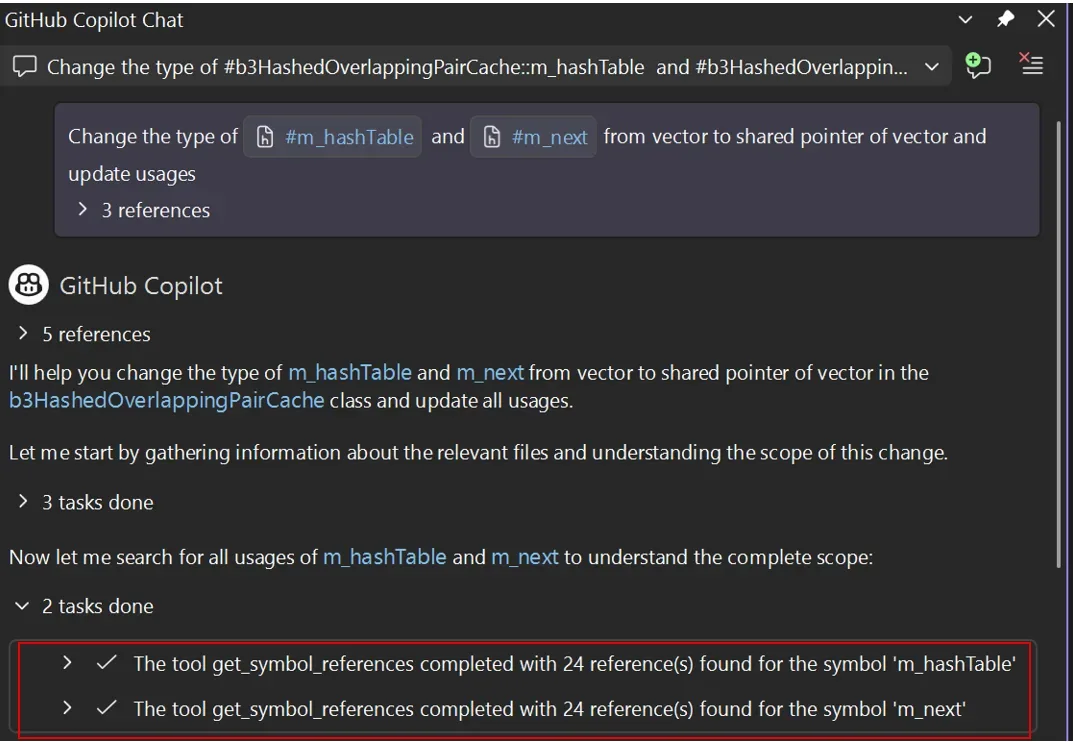
C++ code editing tools for GitHub Copilot (Generally Available) allow you to perform refactoring operations across multiple files with semantic intelligence.
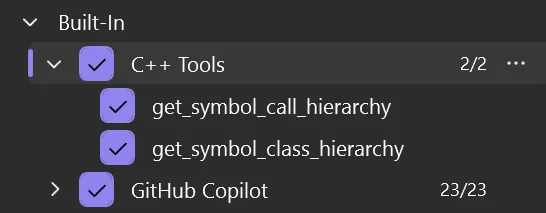
When enabled via the Tools icon in Copilot Chat, Copilot can map out class inheritance hierarchies and follow function call chains. In addition, GitHub Copilot includes many built in tools that also apply to C++ codebases.
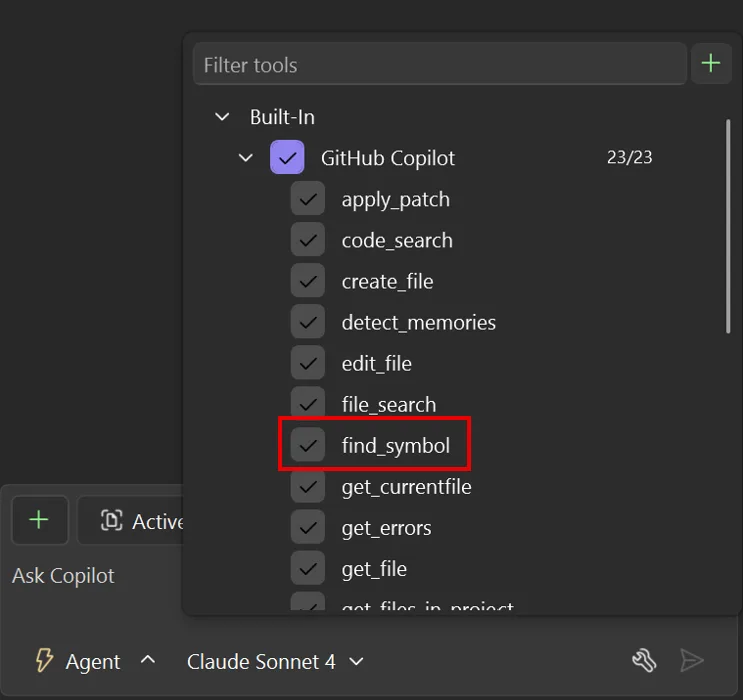
In particular, find_symbol allows you to find all references to symbols across your project and access type information, declarations, and scope metadata.
Using these tools and more, you can work with Copilot using the same semantic intelligence used to power IntelliSense in Visual Studio.
A more sophisticated AI chat experience
Agent skills
Copilot agents now automatically discover and use Agent Skills, reusable instruction sets that teach agents how to handle specific tasks like running a build pipeline, generating boilerplate, or following your team’s coding standards. Define skills as SKILL.md files, which can be present in any of the following locations to be detected by Visual Studio:
Team skills (in your solution/workspace directory):
- your-workspace/.github/skills/skill-name/SKILL.md
- your-workspace/.claude/skills/skill-name/SKILL.md
- your-workspace/.agents/skills/skill-name/SKILL.md
Personal skills (in your user profile):
- %USERPROFILE%/.copilot/skills/skill-name/SKILL.md
- %USERPROFILE%/.claude/skills/skill-name/SKILL.md
- %USERPROFILE%/.agents/skills/skill-name/SKILL.md
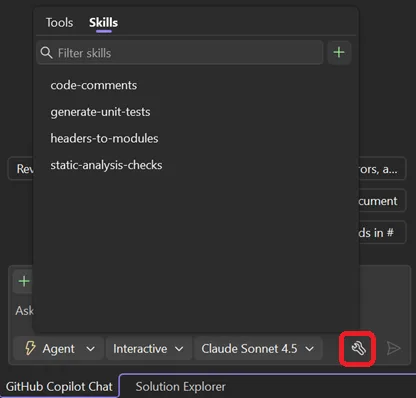
A new Skills panel in the chat window lets you browse, edit, search, and locate all your skills. If you’re looking for skills or agents to try, check out the awesome-copilot repo.
Custom agents
Alongside the built-in agents available in Visual Studio by default, you can now define custom Copilot agents tailored to your workflow. Simply add an .agent.md file under .github/agents in your repo to get started, and you should see it start appearing at the bottom of the agents list in Copilot Chat (below the built-in agents).
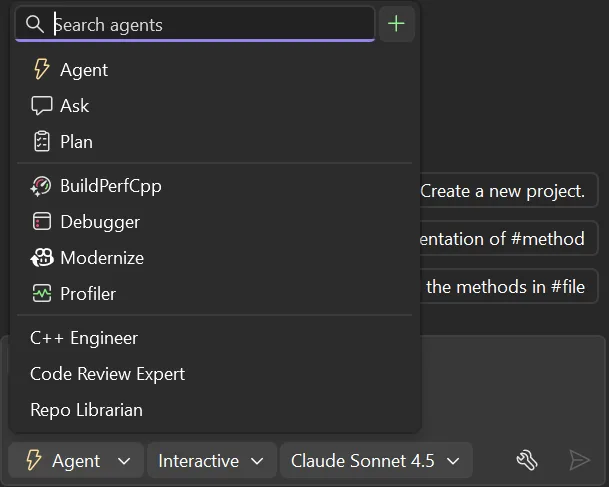
Custom agents have full access to workspace awareness, code understanding, tools, your selected model, and MCP connections. For example, you might create a custom agent that enforces your coding standards during code review, or one that has a detailed understanding of your codebase and architecture.
Plan before you build
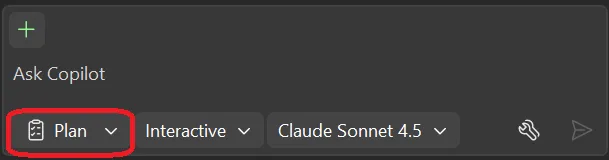
The new Planning chat mode lets you collaborate with Copilot on an implementation plan before making code changes. Copilot uses read-only tools to explore your codebase, asks clarifying questions, and drafts a plan saved as .copilot/plans/plan-{title}.md. When ready, click Implement plan to hand it off to Agent mode. This is especially useful for complex operations, such as large C++ refactoring tasks, where you want to think through things like header dependencies and build impacts before committing.
Cloud agent integration
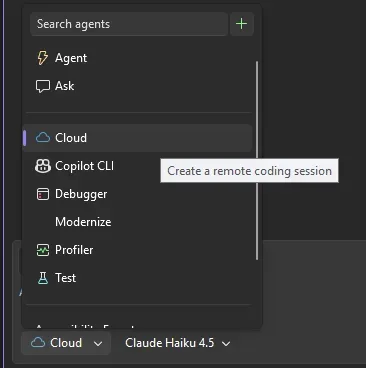
You can start cloud agent sessions directly from Visual Studio. Select Cloud from the agent picker to delegate tasks like multi-file refactors, documentation updates, or tedious edits. The cloud agent creates a GitHub issue, generates a pull request, and notifies you when done.
Multi-file summary diff
When Copilot edits multiple files, you don’t need to review each one separately anymore. Click Open Changes Summary in the Chat working set to review all changes in a single view.
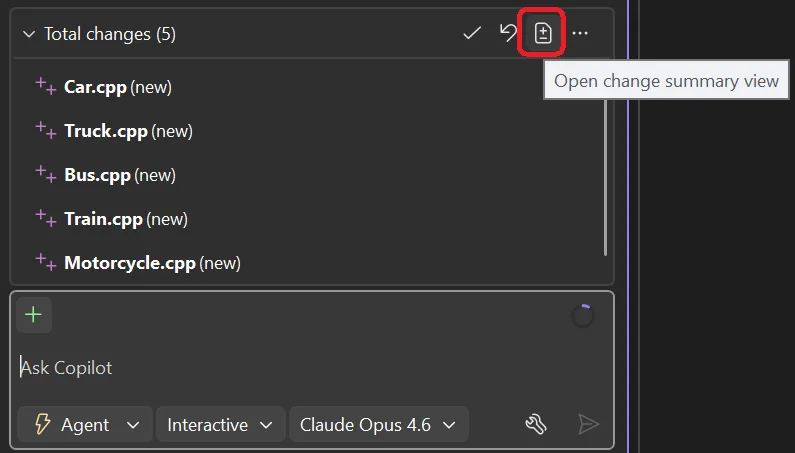
You can accept or undo changes at the all-files, per-file, or per-chunk level. 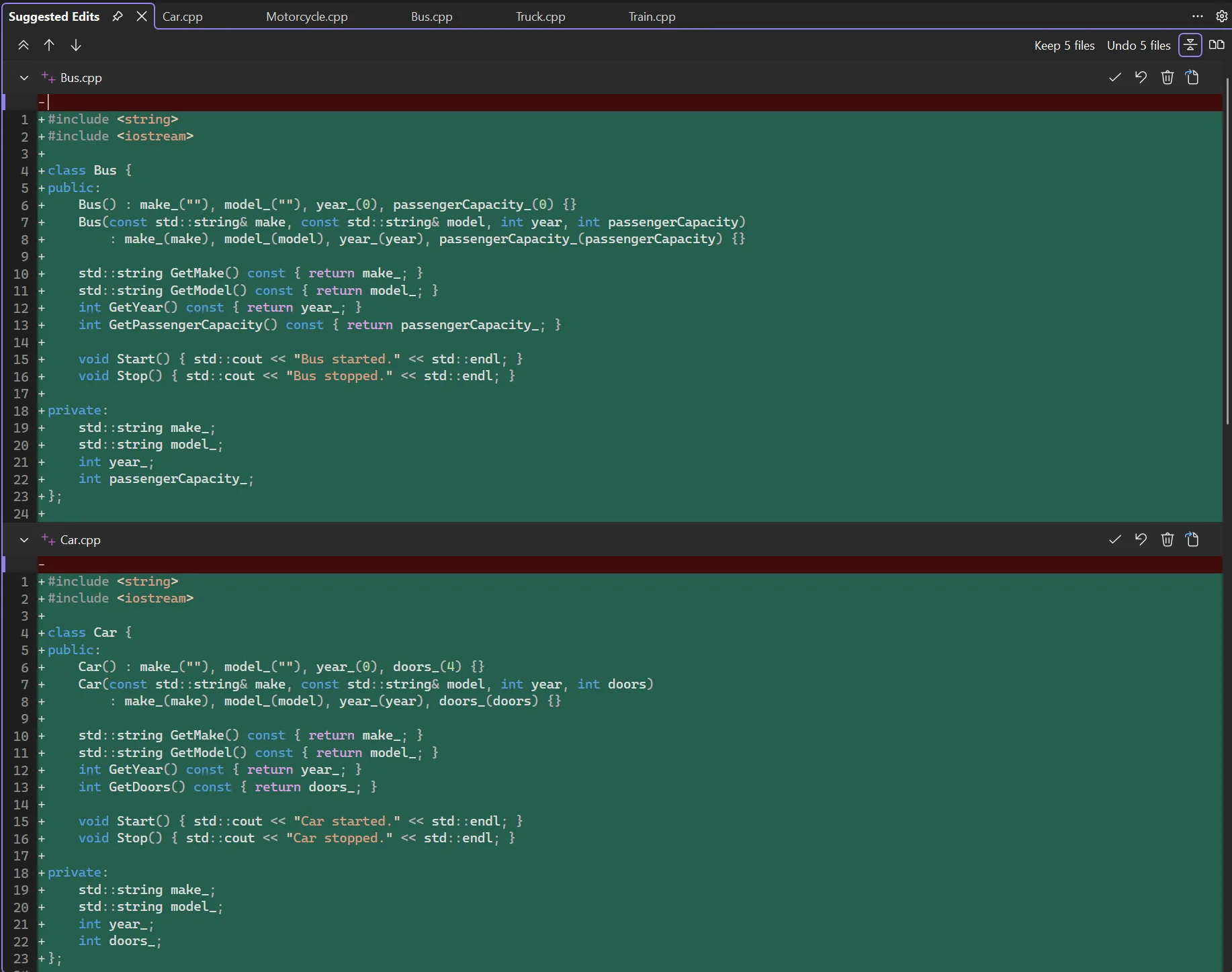
MCP (Model Context Protocol) support
Visual Studio now has comprehensive MCP support, letting Copilot connect to external tools and knowledge sources. For example, you could connect to MCP servers for things like managing build system diagnostics, custom analysis tools, package managers, or documentation wikis.
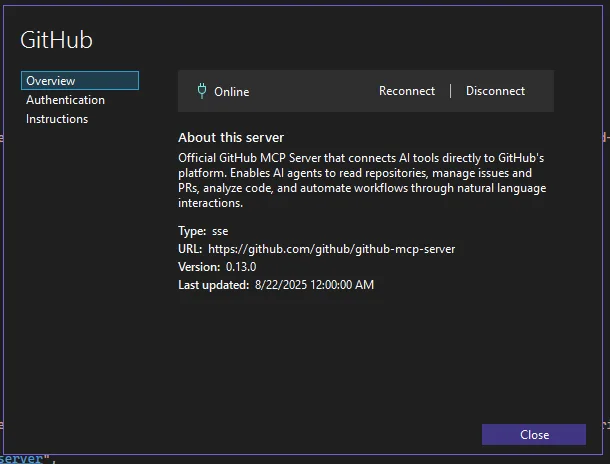
The following MCP features are available in Visual Studio 2026:
- Unified server management UI for configuring, authenticating, and monitoring MCP servers
- Server instructions: view system prompts shipped with MCP servers to understand their tools
- Elicitations and sampling: MCP servers can request additional information during interactions
- Enterprise governance: admins set allowlist policies through GitHub to control permitted servers
Other Copilot features
- Click to accept: You can click into a Copilot autocompletion suggestion to accept it up to your cursor position
- Copilot memories: detects and saves your coding preferences across sessions, teaching Copilot your C++ style
- Custom prompts via / commands, including /generateInstructions and /savePrompt for reusable prompts
- IntelliSense priority: IntelliSense now suppresses Copilot completions while active, reducing distraction
- New chat history panel with titles, message previews, and timestamps
- Preview Markdown from Copilot Chat directly in the VS Markdown editor
- Context window indicator: see how much context Copilot is using and summarize to free space
Debugging and diagnosing code issues
Debugger Agent: agentic issue to resolution
The new Debugger Agent workflow validates bugs against real runtime behavior instead of relying on static analysis.
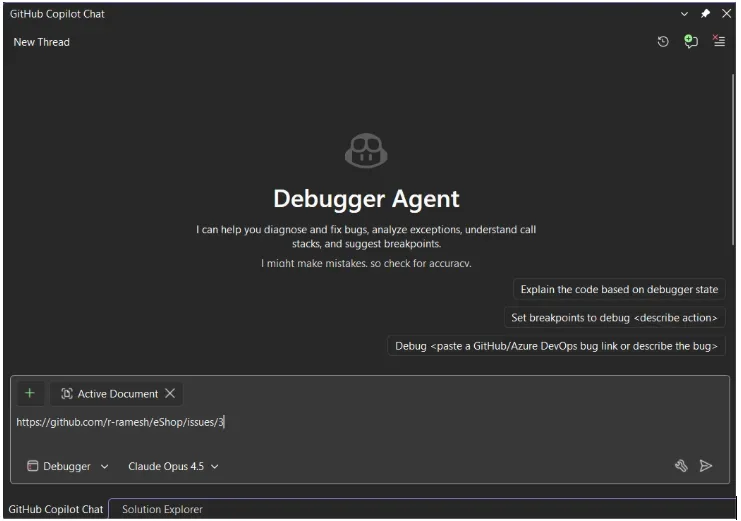
Start from a GitHub or Azure DevOps issue or describe the bug in natural language using Debugger Mode (dropdown in the lower-left corner of Chat). The agent:
- Analyzes the bug description and creates a minimal reproduction scenario
- Generates hypotheses and instruments your app with tracepoints and conditional breakpoints
- Runs the debug session and analyzes live data to isolate the root cause
- Suggests a precise fix at the exact failure point
- Lets you validate the fix in the live environment
Analyze Call Stack with Copilot
A new Analyze Call Stack button in the Call Stack window sends your current debug state to Copilot. It understands both synchronous and asynchronous call stacks, annotates relevant frames, and explains why execution is paused, what the thread is waiting on, and how it got there.
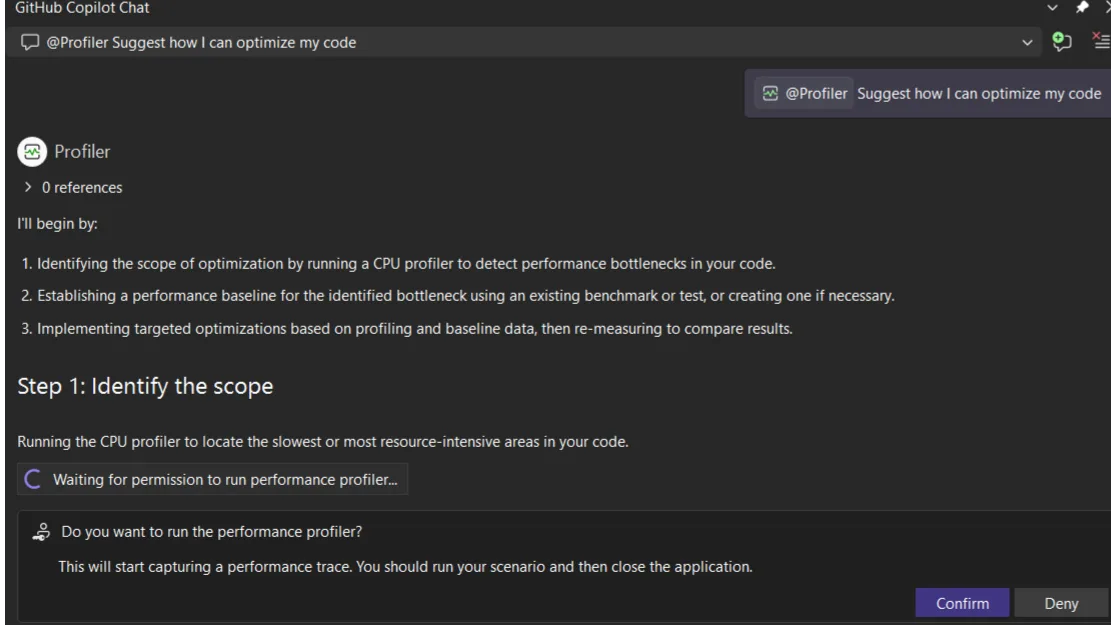
Profiler Agent with C++ unit test support
The Profiler Agent now supports unit test workflows, making it directly applicable to C++ scenarios where dedicated benchmarks are not always practical. The agent discovers relevant unit tests that exercise performance-critical code paths, runs them with profiling, and suggests targeted optimizations in a guided loop. If no suitable tests exist, it creates a lightweight measurement artifact to capture baseline metrics.
Other debugger features
- Smart Watch Suggestions: Copilot suggests context-aware expressions in Watch windows based on your debugging context
- Output Window context: Copilot leverages runtime details from the Output Window for more accurate exception analysis
- Exception analysis with repo context: Exception Analysis now uses GitHub or Azure DevOps repository context to deliver smarter, context-aware debugging insights
Better memory management with Segment Heap
Segment Heap is a modern heap implementation in Windows that delivers stronger protection against common memory vulnerabilities, higher allocation throughput, lower memory fragmentation, better scalability across cores, and more predictable performance under load. This feature is now supported for C++ projects in Visual Studio and is on by default for new C++ projects. Existing MSBuild projects can opt in under Project Properties > Manifest Tool > Input and Output.
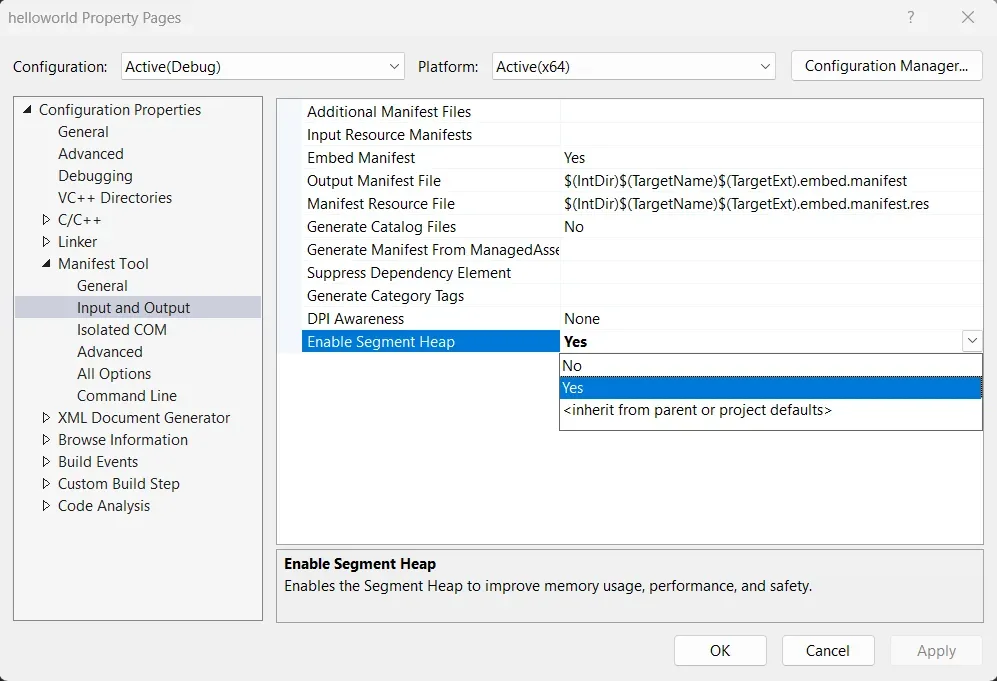
For CMake projects, see the documentation for how to enable Segment Heap.
If your application allocates and frees memory frequently (game engines, parsers, servers), Segment Heap can reduce fragmentation and improve throughput without code changes.
Attach your git commits as context for Copilot
Git users in Visual Studio can now attach a git commit as context to Copilot Chat from Git History, File History, or Annotate (Blame).
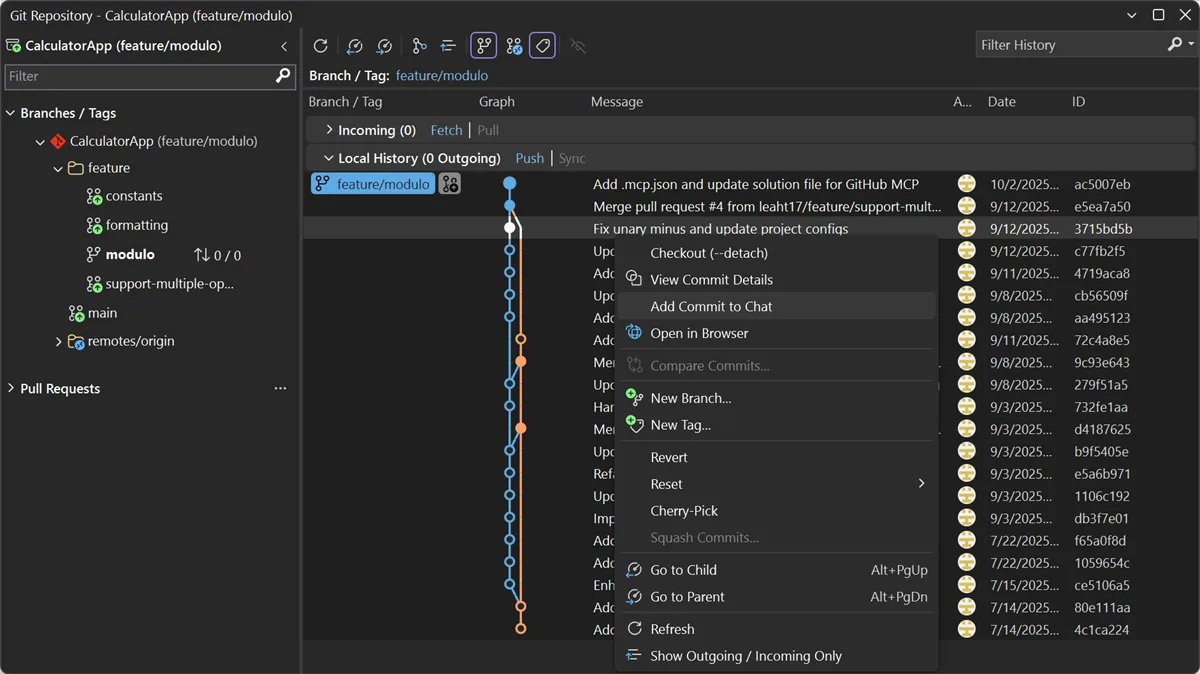
Multi-select is also supported. Ask Copilot to explain the change, spot issues, or write a similar change for another file.
From the 18.0 release, you can also still specify commits in the chat with #commitId.
Try Out Visual Studio 2026
Download Visual Studio 2026 to get all of these features and more. If you are already on VS 2026, update to the latest version through Help > Check for Updates.
We want to hear from you. Report issues and share suggestions through Help > Send Feedback in Visual Studio, visit Developer Community, or leave a comment below.

Please add the Blue theme first to VS2026!