


GitHub Copilot modernization for C++ is out of preview as of Visual Studio 2026 version 18.7. This agent, accessible by typing @Modernize in the Copilot Chat window, can be used to upgrade your projects to use a newer version of the Microsoft C++ (MSVC) Build Tools.
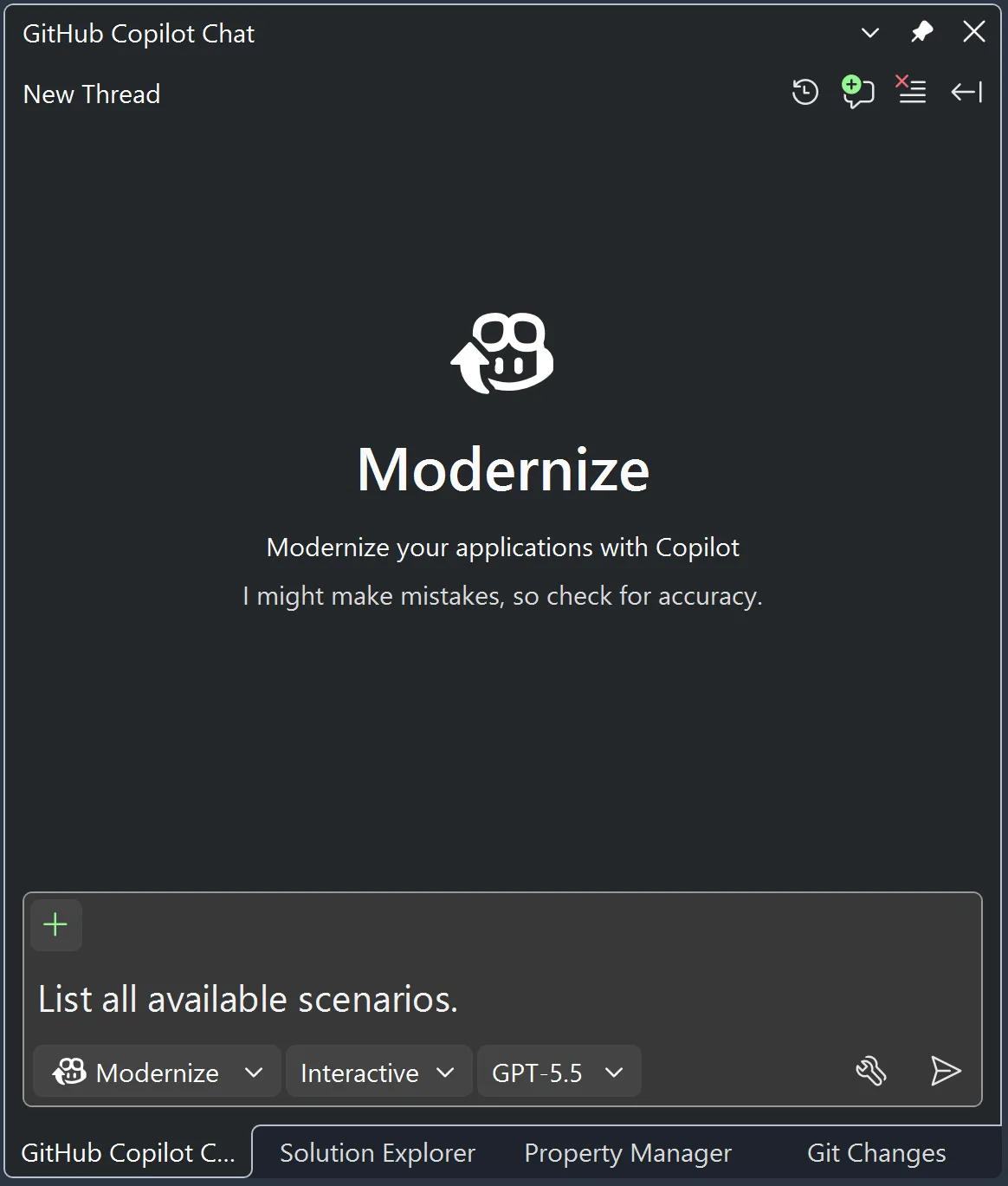
Since opening up the feature for Public Preview earlier in 2026, thousands of users have unblocked their MSVC upgrades using the modernization agent. The release of Visual Studio 2026 version 18.7 brings the stability, polish, and confidence you need to make it part of your regular upgrade workflow.
Here are some comments from real users about the value that they got out of the agent and the time that they saved on their modernization efforts.
Using GitHub Copilot modernization, we updated a 10+ years old project to MSVC 14.50. For this project that has a large number of complex dependencies, we were able to turn a task estimated to take a couple of months into something that was done within a couple of weeks.
— Caio Sabino Silva, Software Engineer, Microsoft Bing team
Using GitHub Copilot modernization was quick and painless. The agent was able to fully automate an upgrade to the latest MSVC Build Tools, properly resolving several build errors. We didn’t need to make compromises, like only upgrading some of the projects or excluding third-party libraries, to finish the upgrade work in the available time.
— Ameer Jalil, Senior Software Engineer, XBOX Platform
What it does
The modernization agent handles the end-to-end process of upgrading your C++ projects to a newer version of MSVC Build Tools. It supports both MSBuild-based projects (.sln, .vcxproj) and CMake-based projects. The agent will update your project settings and resolve any issues caused by the upgrade, such as deprecated CRT functions, stricter C++ conformance, removed experimental namespaces like std::tr1, new or elevated warnings, and linker errors from removed Windows SDK APIs.
The Copilot modernization agent also provides upgrade and migration capabilities for .NET projects, making it your one-stop agent for modernizing both .NET and C++ code.
The agent works in three stages:
- Assessment: Examines your project structure, builds with the new tools, and catalogs all upgrade-related issues.
- Planning: Proposes solutions for in-scope issues, documenting its reasoning so you can adjust the approach before any code changes happen.
- Execution: Breaks the plan into sequential tasks, applies the fixes, and validates along the way.
At every stage, you stay in control. You can adjust the assessment scope, redirect the plan, or stop and resume as needed.
What’s improved since Preview
Based on feedback from Preview participants, we made three significant improvements for GA:
- Better guardrails for scope: The agent is now better at identifying which issues are caused by the upgrade and which are pre-existing. This means the agent focuses on the issues that matter the most to get you through your upgrade.
- Flow modes: You can choose between Automatic mode, where the agent works through all stages without pausing, and Guided mode, where it pauses at each stage boundary for your review. Switch between them at any time.
- Adaptive task management: The agent’s execution stage now handles issues discovered mid-upgrade more gracefully. When a fix reveals a new problem, the agent adjusts its task list rather than continuing with a stale plan.
Prerequisites
- Visual Studio 2026 version 18.7 or later
- A GitHub Copilot subscription (paid or free)
- The GitHub Copilot modernization optional component selected in the Visual Studio Installer
- A C++ codebase using MSBuild (
.sln/.vcxproj) or CMake
For detailed setup steps, see Install GitHub Copilot modernization for C++.
Getting started
There are three ways to launch the modernization agent:
- Right-click in Solution Explorer: Right-click your solution or project and select Modernize from the context menu.
- Copilot Chat: Open the GitHub Copilot Chat window and type
@Modernize. Then tell the agent what you want to upgrade, for example: “Upgrade my projects to use the latest, installed version of the MSVC Build Tools.” - Setup Assistant on project load (MSBuild projects only): If you open a solution that references an MSVC version you don’t have installed, Visual Studio’s Setup Assistant gives you the option to retarget your projects. After retargeting, an infobar message offers to launch the modernization agent directly.
For a full step-by-step example, see the Hilo sample project walkthrough in our documentation. It demonstrates the complete upgrade workflow on a real project that was last updated over a decade ago.
We want your feedback
Update to Visual Studio 2026 version 18.7 and try upgrading your projects to the latest MSVC Build Tools. The modernization agent is ready to help you get there faster.
We want to hear how it works for your projects, and we especially want to know: what other modernization workflows would be most valuable to you? Let us know on Developer Community or leave a comment on this post.


0 comments