

Accurate C++ code intelligence starts with understanding how your project builds. Compiler options, include paths, and preprocessor definitions all affect how the language server interprets your source files. A compilation database, such as compile_commands.json, provides that context, so that tools such as go-to-definition and find-references can resolve symbols accurately.
The Microsoft C++ Language Server now brings automatic configuration for MSBuild-based projects to GitHub Copilot CLI, using the same enterprise-grade C++ and MSBuild tooling we’ve developed and refined over years of investment in Visual Studio. This extends the automatic setup experience familiar to Visual Studio users to the CLI, backed by the same proven tooling.
With this, the language server bundles an MSBuild compile commands extractor and runs it automatically at startup when a compile_commands.json file needs to be generated, providing the necessary build context with less setup on your part.
What’s changed
Previously, configuring an MSBuild-based project from the Copilot CLI required either supplying a compile_commands.json file yourself or having Copilot locate and run a configuration skill to generate one. That discovery and execution step added setup time and consumed tokens before the agent could use semantic code intelligence.
Automatic MSBuild configuration brings the deterministic setup experience familiar to Visual Studio users to the CLI. Compilation database generation is now built into language server startup rather than depending on the agent to initiate it. This provides:
- Fewer manual steps. You no longer need to invoke a separate configuration skill for MSBuild projects.
- More predictable setup with less overhead. Configuration runs automatically during language server startup when needed, rather than relying on Copilot to discover and invoke a separate skill.
- Project-aware code intelligence. The generated compilation database supplies the build context needed to resolve definitions, references, and other symbol relationships.
For example, when investigating unfamiliar code, you can ask Copilot to find a function’s definition and identify its callers. Automatic configuration removes a preparatory step between opening the repository and using those capabilities.
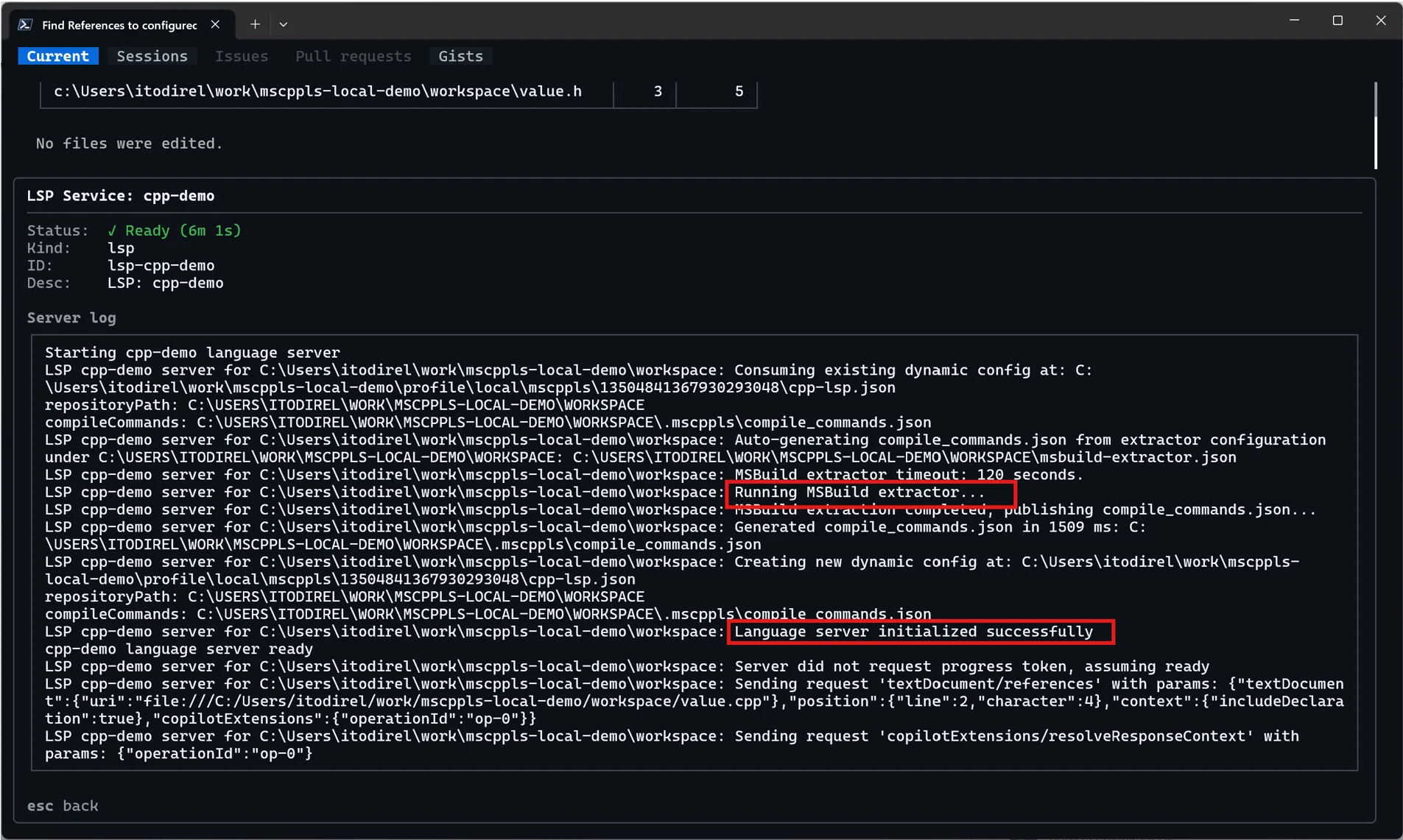
How does it work?
When you open an MSBuild-based C++ project, the server uses the same MSBuild tooling from Visual Studio to read the include paths, preprocessor definitions, and compiler options defined in your .vcxproj and property sheets. It uses these settings to generate a compilation database that describes how each source file is compiled, helping the server resolve includes, evaluate macros, and provide diagnostics that reflect your build configuration.
Compilation database generation runs in the background and the time required depends on your solution’s size and complexity. You can check the compilation progress at any point with:
/lsp logs
This only automates the compilation database. See the quick start for installation and prerequisites, including accepting the EULA.
To configure timeout settings or disable the automatic MSBuild configuration, visit our configuration docs. Changes take effect on the next language-server startup.
What about other build systems?
For other build systems, you can provide your own compile_commands.json or use a skill to generate one:
- CMake: Ask Copilot CLI to “load project” to use the generate-compile-commands skill introduced in the earlier configuration release.
- Custom builds: Follow the guide to create a custom build extractor skill.
Share your feedback
To report a problem or suggest an improvement, open an issue in the GitHub repository


0 comments
Be the first to start the discussion.