

We’re excited to announce the Cursor plugin for Azure Cosmos DB bringing AI-powered database expertise, best practices guidance, and live database connectivity directly into your coding workflow.
Whether you’re designing a new data model, optimizing queries, or building a RAG application with vector search, the Cursor plugin gives your AI assistant deep knowledge of Azure Cosmos DB so you can write better code, faster.
What’s in the Plugin
The Azure Cosmos DB plugin bundles three capabilities:
| Component | What it does | Setup required? |
| Rules | 10 best-practice rule sets that guide the AI when writing Cosmos DB code | None works immediately |
| MCP Server | Live connection to your Cosmos DB account for querying data, discovering schemas, and running vector searches | Requires deployed MCP Toolkit |
| Saved Prompt | A one-click prompt to regenerate rules when upstream guidance updates | None |
Finding and Installing the Plugin
From the Cursor Marketplace
- Open Cursor and go to the Marketplace panel
- Search for “Azure Cosmos DB”
- Click Install
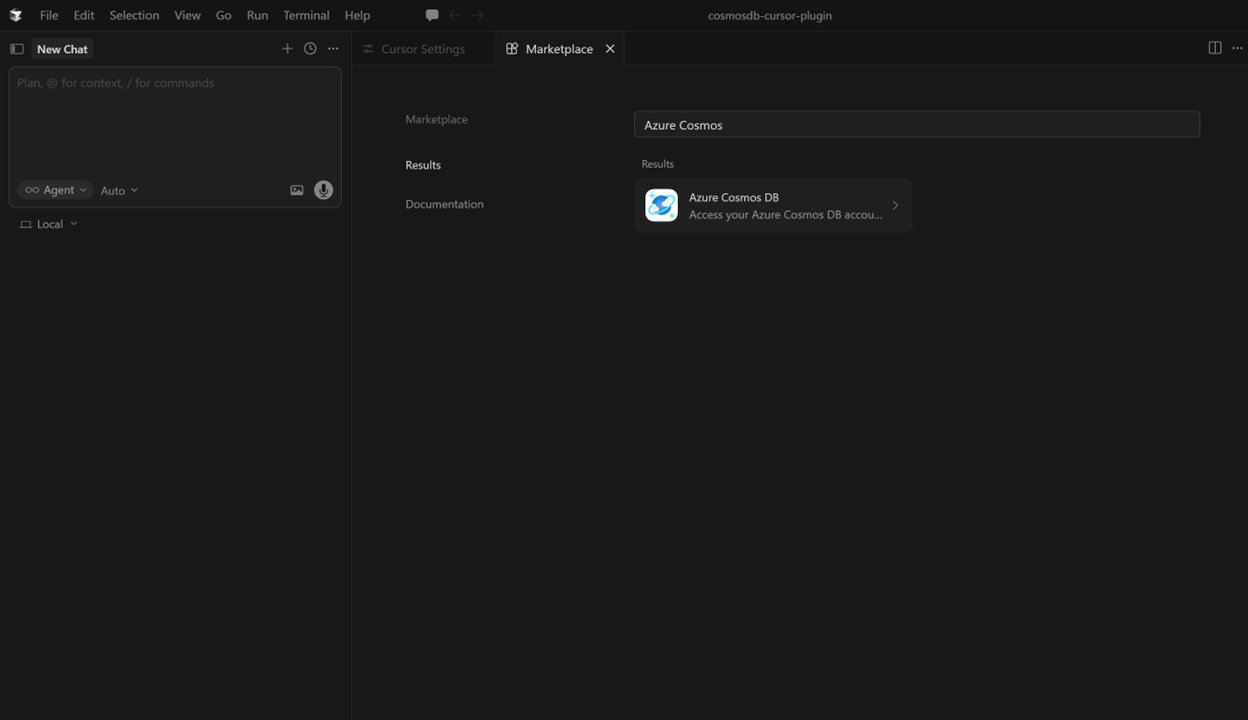
That’s it. The rules are active immediately no configuration needed.
From a Direct Link
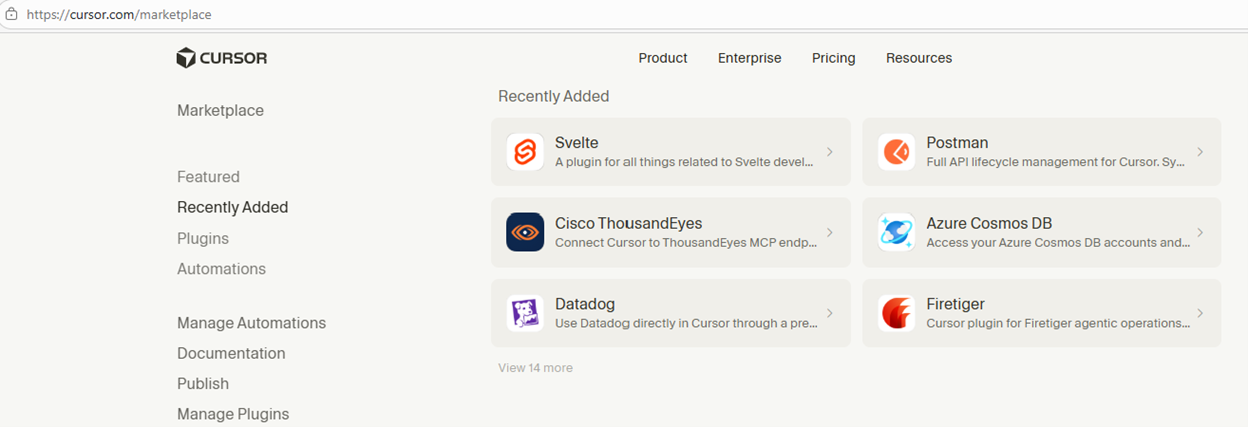
You can also install by visiting cursor.com/marketplace and searching for “Azure Cosmos DB”, or by sharing the plugin link with your team.
For Teams and Enterprise
Admins on Teams or Enterprise plans can add the plugin to a Team Marketplace for centralized distribution:
- Go to Dashboard → Settings → Plugins → Team Marketplaces
- Click Import and paste the plugin repository URL
- Set the plugin as Required (auto-install for everyone) or Optional (developer’s choice)
Using Rules — Zero-Setup Best Practices
The plugin includes 10 curated rule sets covering the most important aspects of working with Azure Cosmos DB. These rules are sourced from the Azure Cosmos DB Agent Kit and encode the same guidance that our engineering team recommends.
What the Rules Cover
- Data Modeling — Document design, embedding vs. referencing, denormalization, type discriminators, size limits, and schema evolution
- Partition Key Design — High-cardinality selection, query alignment, avoiding hot partitions, hierarchical partition keys, and synthetic keys
- Query Optimization — Eliminating cross-partition queries, avoiding full scans, using projections, parameterized queries, and continuation-token pagination
- SDK Best Practices — Singleton client pattern, Direct connection mode, retry handling, diagnostics logging, async patterns, ETags for concurrency, and availability strategies
- Indexing Strategies — Composite indexes for ORDER BY, excluding unused paths, spatial indexes, and choosing the right index type
- Throughput & Scaling — Autoscale vs. provisioned vs. serverless, right-sizing throughput, container vs. database throughput, and burst capacity
- Global Distribution — Multi-region writes, consistency levels, automatic failover, conflict resolution, and zone redundancy
- Monitoring & Diagnostics — Tracking RU consumption, P99 latency, throttling alerts, diagnostic logging, and Azure Monitor integration
- Design Patterns — Change feed materialized views, ranking patterns, multi-tenant architectures, and event sourcing
- Vector Search — Feature enablement, embedding policies, vector index configuration, VectorDistance queries, and repository patterns
How Rules Work in Practice
Once installed, Cursor’s AI agent automatically draws on these rules when you’re working with Cosmos DB code. You don’t need to do anything — just ask questions in chat or let the agent assist while you code.
Try these prompts:
What partition key should I use for a multi-tenant SaaS app?
Review my Cosmos DB data model for this e-commerce application
Optimize this query — it’s consuming too many RUs
Should I embed order items in the order document or store them separately?
The AI will respond with specific, actionable guidance grounded in Cosmos DB best practices — not generic database advice.
Managing Rules
You can control how each rule behaves from Cursor Settings → Rules:
- Always — Rule applies to every conversation
- Agent Decides — The AI activates the rule when it’s relevant (default)
- Manual — Only used when you explicitly invoke it
Using MCP — Live Database Connectivity
The Model Context Protocol (MCP) Toolkit for Azure Cosmos DB connects Cursor to your actual Azure Cosmos DB account, enabling the AI to query real data, explore schemas, and search documents directly from chat.
Available MCP Tools
| Tool | What it does |
| list_databases | List all databases in your Cosmos DB account |
| list_collections | List all containers in a database |
| get_approximate_schema | Sample documents to infer container schema |
| get_recent_documents | Retrieve the N most recent documents |
| find_document_by_id | Look up a specific document by its ID |
| text_search | Search documents where a property contains a phrase |
| vector_search | Run semantic similarity searches using Azure OpenAI embeddings |
Setting Up the MCP Server
The MCP tools require a deployed instance of the Azure Cosmos DB MCP Toolkit. Here’s how to get it running:
Step 1: Deploy the MCP Toolkit
git clone https://github.com/AzureCosmosDB/MCPToolKit.git
cd MCPToolKit
azd up
Or use the Deploy to Azure button in the MCPToolKit README.
Step 2: Set Environment Variables
After deployment, set two environment variables that the plugin uses to connect:
# The URL of your deployed MCP Toolkit (from deployment-info.json)
Note: JWT tokens expire after approximately one hour. Re-run the command above to refresh.
Step 3: Restart Cursor and Verify
After setting the environment variables, restart Cursor. Then open a chat and try:
List all databases in my Cosmos DB account
You should see the AI call the list_databases tool and return your actual database names.
Managing the MCP Server
Toggle the MCP server on or off from Cursor Settings → Features → Model Context Protocol. When disabled, the server won’t load and the tools won’t appear in chat. The rules continue to work independently.
Example MCP Workflows
Once connected, you can have conversations like:
Show me the schema of the users container in the mydb database
Get the latest 10 documents from the orders container
Search for documents where the name contains “Azure”
Find the document with id “user-001” in the users container
The AI will invoke the appropriate MCP tool, retrieve real data from your account, and use it to answer your question — all without leaving the editor.
Rules + MCP Together
The real power comes from combining rules and MCP. When you ask the AI to review a data model, it can:
- Query your actual schema using get_approximate_schema
- Analyze it against best practices using the data-modeling and partition-key rules
- Give you specific recommendations grounded in both your real data and Cosmos DB expertise
For example:
Look at the schema of my orders container and suggest improvements for partition key design and query performance
The AI will fetch your container’s schema via MCP, then apply partition key, query optimization, and indexing rules to provide tailored recommendations.
Getting Started
- Install the plugin from the Cursor Marketplace — search for “Azure Cosmos DB”
- Start using rules immediately — ask Cosmos DB questions in chat
- Optionally deploy the MCP Toolkit for live database connectivity
- Explore the plugin repository for full documentation
Resources
- Plugin Repository
- Azure Cosmos DB MCP Toolkit
- Azure Cosmos DB Agent Kit
- Azure Cosmos DB Documentation
- Cursor Plugin Documentation
We’d love to hear your feedback. Try the plugin and let us know how it works for your Cosmos DB projects file issues or contribute on GitHub.
About Azure Cosmos DB
Azure Cosmos DB is a fully managed and serverless NoSQL and vector database for modern app development, including AI applications. With its SLA-backed speed and availability as well as instant dynamic scalability, it is ideal for real-time NoSQL and MongoDB applications that require high performance and distributed computing over massive volumes of NoSQL and vector data.
To stay in the loop on Azure Cosmos DB updates, follow us on X, YouTube, and LinkedIn. Join the discussion with other developers on the #nosql channel on the Microsoft Open Source Discord.


0 comments
Be the first to start the discussion.