


In the last post we walked through why RBAC broke your app and how to fix it. Your app is now running on a managed identity, keys are off, and everything is green. Then your build pipeline runs, and it needs to seed test data. Suddenly you’re staring at a secret in your CI settings and wondering if you just undid all that work. As we continue this security series, let’s get your pipeline to Cosmos DB with no secret anywhere.
The situation
You did the hard part. Your app uses DefaultAzureCredential, you assigned a data plane role, and you set disableLocalAuth: true. Passwordless, done.
Then you look at your CI/CD pipeline and find this sitting in your repository secrets:
AZURE_CLIENT_SECRET = <a very long string that expires in 6 months>
COSMOS_CONNECTION_STRING = AccountEndpoint=https://...;AccountKey=...
That connection string doesn’t even work anymore — local auth is off. And the client secret is exactly the kind of long-lived credential you just spent a sprint eliminating from your app. It sits in a settings page, it gets copied into a runbook, someone pastes it in a chat, and in six months it expires at 2am during a release.
There is a better answer, and it’s not “store the secret somewhere nicer.” It’s workload identity federation: your pipeline proves who it is with a short-lived OIDC token issued by GitHub or Azure DevOps, and Entra ID trades that token for an Azure access token. No secret is stored anywhere. Nothing expires. Nothing to rotate.
The mental model: three things have to line up
Before touching any YAML, get this picture straight. When your pipeline talks to Cosmos DB, three separate things have to be true:
- Trust — Entra ID has to believe the token your CI platform hands it. That’s the federated credential.
- Control plane authorization — if the pipeline deploys infrastructure (creates the account, databases, containers), it needs an Azure RBAC role like DocumentDB Account Contributor.
- Data plane authorization — if the pipeline reads, writes, or seeds items, it needs a Cosmos DB data plane role assignment.
Most people set up #1, get excited that az login works, and then get blindsided by a 403 because they never did #3. If that sounds familiar, the previous post has the full breakdown of why control plane and data plane are separate systems.
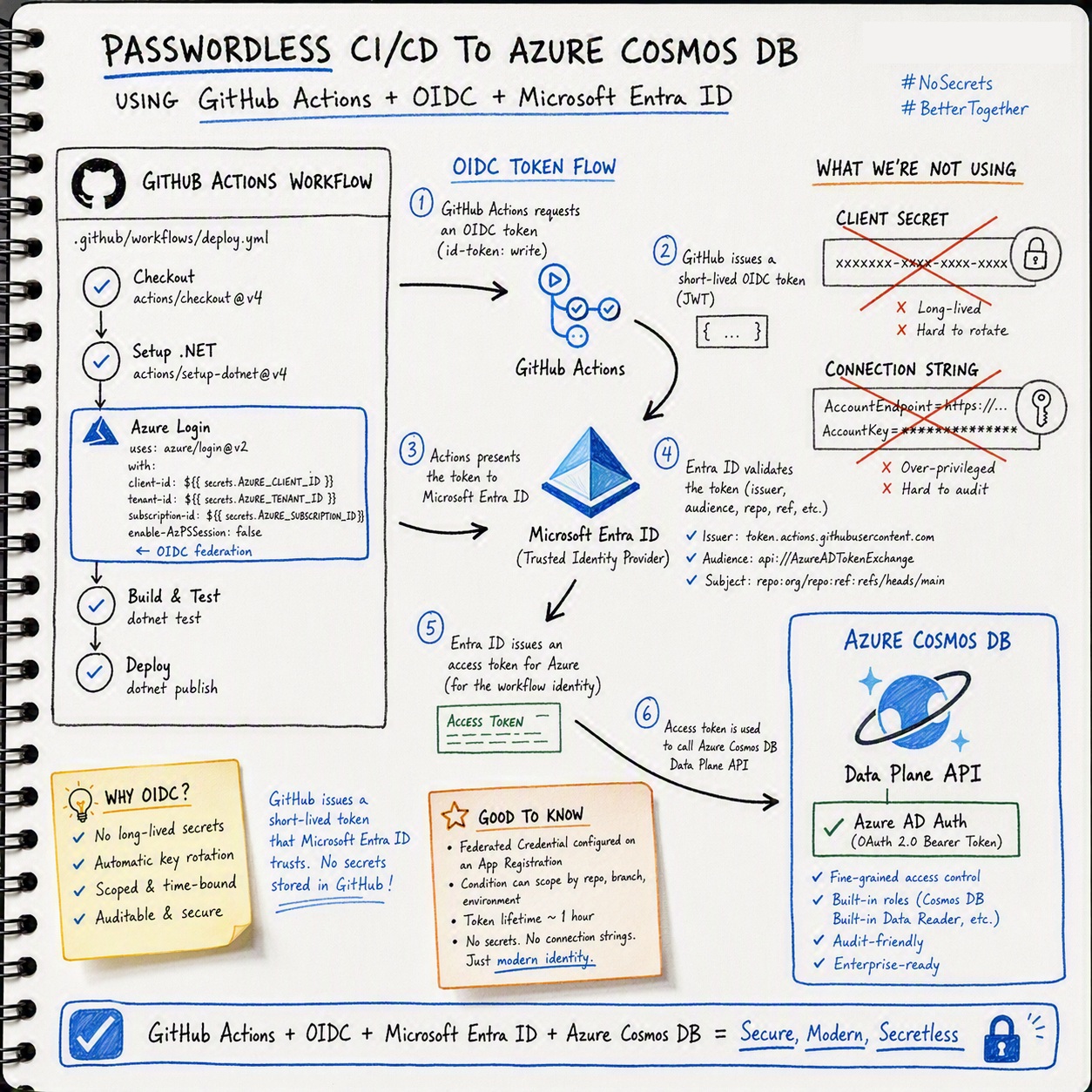
GitHub Actions: the walkthrough
Step 1: Create an identity for the pipeline
You can federate either an app registration or a user-assigned managed identity. I’ll use an app registration here because it’s the most common, but a user-assigned managed identity works the same way and is worth considering if you want the identity to live in a resource group with the rest of your infrastructure.
APP_ID=$(az ad app create --display-name "gh-actions-myrepo" --query appId -o tsv)
az ad sp create --id "$APP_ID"
Step 2: Add the federated credential
This is where you tell Entra ID which workflow is allowed to use this identity. The subject is the important field — it has to match the OIDC token GitHub issues, exactly.
az ad app federated-credential create \
  --id "$APP_ID" \
  --parameters '{
    "name": "github-prod-env",
    "issuer": "https://token.actions.githubusercontent.com",
    "subject": "repo:my-org/my-repo:environment:production",
    "audiences": ["api://AzureADTokenExchange"]
  }'
A few notes on subject, because this is where people miss:
| What you want | Subject |
| A specific branch | repo:my-org/my-repo:ref:refs/heads/main |
| A GitHub environment | repo:my-org/my-repo:environment:production |
| Pull request builds | repo:my-org/my-repo:pull_request |
Prefer scoping the federated credential to a GitHub environment. Branch-based subjects don’t support wildcards, so every new release branch requires another federated credential. Environment-based subjects are easier to manage, support approvals and branch protection, and remain stable as branches come and go. You can assign up to 20 federated credentials to a single identity, so plan their use carefully.
Step 3: Check which subject format your repo uses
This one is new and it will quietly break setups that used to work.
The OIDC spec requires subject claims to be locally unique and never reassigned. The old format used only organization and repository names, which meant a recycled namespace could produce the same subject value under a different owner. To close that hole, repositories created after July 15, 2026 use an immutable default subject format that includes the owner ID and the repository ID.
- Previous format:
repo:sample-org/octo-repo:ref:refs/heads/main
- Immutable format:
repo:sample-org@123456/octo-repo@456789:ref:refs/heads/main
The @ separator is used because @ can’t appear in a GitHub username or repository name. Repositories created before July 15, 2026 keep the previous format unless they opt in, at the organization or repository level, through the OIDC settings UI or REST API.
Two consequences worth internalizing:
- A new repo needs the new format. If you copy a federated credential from an older repo into a repo you created last month, the subject won’t match and the exchange will fail.
- Renames and transfers after July 15, 2026 move the repository to the immutable format. So a rename doesn’t just change the name inside your subject string, it changes the shape of the whole claim. If someone renames the repo, expect to rewrite the credential, not just edit it.
Immutable subject claims aren’t available on GitHub Enterprise Server. And if you customize claims with include_claim_keys, the owner and repo IDs are always included in the repo segment for repositories on the immutable format. You can’t remove them.
The reliable move here is to stop guessing: print the actual subject your workflow produces (see suspect #1) and register that.
Step 4: Grant control plane access (only if the pipeline deploys infra)
az role assignment create \
  --assignee "$APP_ID" \
  --role "DocumentDB Account Contributor" \
  --scope "/subscriptions/$SUB_ID/resourceGroups/$RESOURCE_GROUP"
Skip this entirely if the pipeline only touches data. Not every pipeline needs to manage the account.
Step 5: Grant data plane access (this is the one people forget)
PRINCIPAL_ID=$(az ad sp show –id “$APP_ID” –query id -o tsv)
az cosmosdb sql role assignment create \
  --account-name "$ACCOUNT" \
  --resource-group "$RESOURCE_GROUP" \
  --role-definition-id "00000000-0000-0000-0000-000000000002" \
  --scope "/dbs/orders-test" \
  --principal-id "$PRINCIPAL_ID"
That role definition ID is the built-in Cosmos DB Built-in Data Contributor. If the pipeline only runs read-only smoke tests, use …0001 (Data Reader) instead. And note the scope: I pointed it at the test database, not /. Your CI identity runs unattended on every push — it’s the last identity that should have account-wide write access.
Step 6: Store the identifiers (not secrets)
Add these to your repository or environment variables:
AZURE_CLIENT_ID— the app ID from step 1
AZURE_TENANT_ID
AZURE_SUBSCRIPTION_ID
None of these are secrets. They’re identifiers. They’re useless without a token from your specific repository and environment. Plenty of teams still put them in secrets out of habit, and that’s fine, but understanding that they’re not sensitive is the point of the whole exercise.
Step 7: The workflow
name: Integration tests

on:
  push:
    branches: [main]

permissions:
  id-token: write   # required to request the OIDC token
  contents: read

jobs:
  test:
    runs-on: ubuntu-latest
    environment: production   # must match your federated credential subject

    steps:
      - uses: actions/checkout@v4

      - uses: azure/login@v2
        with:
          client-id: ${{ vars.AZURE_CLIENT_ID }}
          tenant-id: ${{ vars.AZURE_TENANT_ID }}
          subscription-id: ${{ vars.AZURE_SUBSCRIPTION_ID }}

      - name: Run integration tests against Cosmos DB
        env:
          COSMOS_ENDPOINT: https://my-account.documents.azure.com:443/
        run: dotnet test
Notice what’s missing: client-secret. And notice what your test code looks like — exactly the same as your app:
var client = new CosmosClient(
    accountEndpoint: Environment.GetEnvironmentVariable("COSMOS_ENDPOINT"),
    tokenCredential: new DefaultAzureCredential());
azure/login@v2 logs the Azure CLI in on the runner, and DefaultAzureCredential picks that up through its Azure CLI credential. Same code in CI, same code in production, same code on your laptop. That’s the payoff.
Missing permissions: id-token: write is the single most common reason this step fails, and the error message is not obvious about it.
Azure Pipelines: the same idea, fewer steps
Azure DevOps does most of this for you. Create a service connection of type Azure Resource Manager and choose Workload Identity federation (automatic). Azure DevOps creates the app registration and the federated credential for you, with the subject bound to your project and service connection.
Then assign the roles exactly as above — find the service connection’s principal ID in Entra ID, and run the same az cosmosdb sql role assignment create command. Azure DevOps sets up trust; it does not know anything about Cosmos DB data plane roles. That part is still on you.
trigger:
  branches:
    include: [main]
steps:
  - task: AzureCLI@2
    displayName: Run integration tests
    inputs:
      azureSubscription: 'my-workload-identity-connection'
      scriptType: bash
      scriptLocation: inlineScript
      inlineScript: |
        dotnet test
    env:
      COSMOS_ENDPOINT: https://my-account.documents.azure.com:443/
Anything you run inside AzureCLI@2 inherits the CLI login, so DefaultAzureCredential works the same way it does in GitHub Actions. If your test process runs outside that task, it won’t have a credential — see suspect #3 below.
One housekeeping note: if you have older service connections created with a service principal and secret, they still have a secret sitting in Azure DevOps with an expiry date. Converting them to workload identity federation is a supported in-place operation and worth doing.
The five usual suspects
AADSTS70021: No matching federated identity record found
Your subject doesn’t match. This is a string comparison, and it is unforgiving.
It’s worth knowing why this is so easy to get wrong: when you create a federated identity credential with an incorrect subject, it is created successfully, with no error. Entra ID doesn’t validate it against anything, because there’s nothing to validate it against yet. The mistake only surfaces when a real token exchange fails.
So don’t eyeball it. Print the actual subject your workflow produces and compare it character by character to what you registered.
Common mismatches:
- You registered
environment:productionbut the job has noenvironment:key, or hasenvironment: prod.
- You registered
ref:refs/heads/mainand the run was triggered on a tag, which producesref:refs/tags/v1.0.
- The job references an environment, so the subject contains the environment and not the branch. Environment wins.
- The repo was renamed or transferred after July 15, 2026, so it moved to the immutable subject format and your old subject can’t match anymore.
- The repo is new (created after July 15, 2026) and you copied a subject from an older repo that’s still on the legacy format.
- Your environment name contains a colon. Any : in a metadata value is escaped to
%3A, soProduction:V1appears in the subject asProduction%3AV1.
az loginworks, Cosmos DB returns 403
Trust is fine. Authorization isn’t. You almost certainly did the Azure RBAC assignment and skipped the data plane one. Check:
az cosmosdb sql role assignment list \
  --account-name "$ACCOUNT" \
  --resource-group "$RESOURCE_GROUP"
If the pipeline’s principal ID isn’t in that output, that’s your bug. Data plane assignments never show up in az role assignment list or in the portal’s Access control (IAM) blade — they’re a separate system with a separate command.
- The credential works in one step but not another
The OIDC login belongs to the shell session on the runner. If your tests run somewhere that shell can’t reach — inside a Docker container you started, in a separate job, on a different runner — the credential doesn’t follow.
For containers, either pass the token through explicitly or run the container with the relevant environment variables mapped. For separate jobs, each job needs its own azure/login step and its own id-token: write permission. Jobs don’t inherit login state from each other.
- Your Bicep or ARM template still calls listKeys()
This one is sneaky, and it’s specific to Cosmos DB. Plenty of templates end with something like:
output connectionString string = listKeys(cosmosAccount.id, '2024-11-15').primaryMasterKey
Once disableLocalAuth is true, that call fails, and it takes the whole deployment with it — after your infrastructure changes have partially applied. Search your templates for listKeys, listConnectionStrings, and primaryMasterKey, and delete those outputs. Your app doesn’t need them anymore.
- Pull request builds from forks get nothing
A fork’s workflow run doesn’t receive an OIDC token for your repository, by design. If your PR validation needs Cosmos DB, either run those tests only on branches in the repo, or use the Azure Cosmos DB emulator for fork PRs and save the real account for post-merge. Don’t work around it by adding a secret — that’s the exact hole federation is closing.
A fast diagnostic order
When your pipeline fails, work down this list:
- Does the job have
permissions: id-token: write? - Does the
subjecton the federated credential exactly match what this run produces? - Does the pipeline’s principal have a data plane role assignment, not just an Azure RBAC one?
- Does the data plane scope cover the database and container the pipeline actually touches?
- Is the failing step running outside the shell that did the Azure login?
- Is anything in your templates or scripts still asking for a key?
Wrapping up
The instinct when a pipeline needs access is to reach for a secret, because that’s what pipelines have always used. But a CI/CD identity is a great candidate for federation: it runs in a known place, on known events, on behalf of a known repository. That’s exactly the information an OIDC token carries, and exactly what Entra ID can verify without anything being stored.
Set it up once and there’s nothing to rotate, nothing to leak, and nothing to expire at 2am. Your pipeline authenticates the same way your app does, with the same code, and the “who has access to production data” question finally has an answer you can query.
Your turn
- Open your CI settings right now and look for A
ZURE_CLIENT_SECRET,COSMOS_CONNECTION_STRING, or anything with AccountKey in it. Whatever you find, that’s your first migration. - Set up federation on a non-production pipeline first and scope the data plane role to a test database rather than /.
- Grep your Bicep and ARM templates for
listKeysbefore you flipdisableLocalAuth. It’s the step people skip. - Stuck on a subject claim that won’t match, or a
403you can’t explain? Drop your scenario in the comments and I’ll help you dig in.
If this series saved you a debugging session, share it with whoever owns your build pipeline. Their expiring secret will thank you.
About Azure Cosmos DB
Azure Cosmos DB is a fully managed and serverless NoSQL and vector database for modern app development, including AI applications. With its SLA-backed speed and availability as well as instant dynamic scalability, it is ideal for real-time NoSQL and MongoDB applications that require high performance and distributed computing over massive volumes of NoSQL and vector data.
To stay in the loop on Azure Cosmos DB updates, follow us on X, YouTube, and LinkedIn.


0 comments
Be the first to start the discussion.