



At Microsoft Build 2026, we introduced WSL containers, bringing Linux container development directly into Windows through the Windows Subsystem for Linux (WSL). Containers have become a foundational part of modern development – from cloud-native applications and AI workloads to testing and deployment pipelines and WSL containers simplify this experience by providing a built-in, enterprise-ready way to create, run, and manage Linux containers on Windows, without requiring additional third-party tooling.
With a new container CLI for end-to-end container workflows and an API that enables Windows applications to programmatically leverage Linux containers, WSL containers make it easier for developers and organizations to build, test, and run containerized workloads while benefiting from the security, manageability, and integration of the Windows platform.
You can now access the WSL container feature in our latest pre-release of WSL! You can install this release right away by running wsl --update --pre-release, or by downloading and installing it directly from GitHub.
Overview
WSL container adds two new features to WSL: A built in Linux container CLI and an API for Windows applications to run Linux containers as part of their app logic.
WSL container CLI – wslc.exe
When you update to the latest WSL version, you will get a new binary on your path: wslc.exe. You can use this binary to do your full Linux container development workflows, including running, debugging, testing and more!
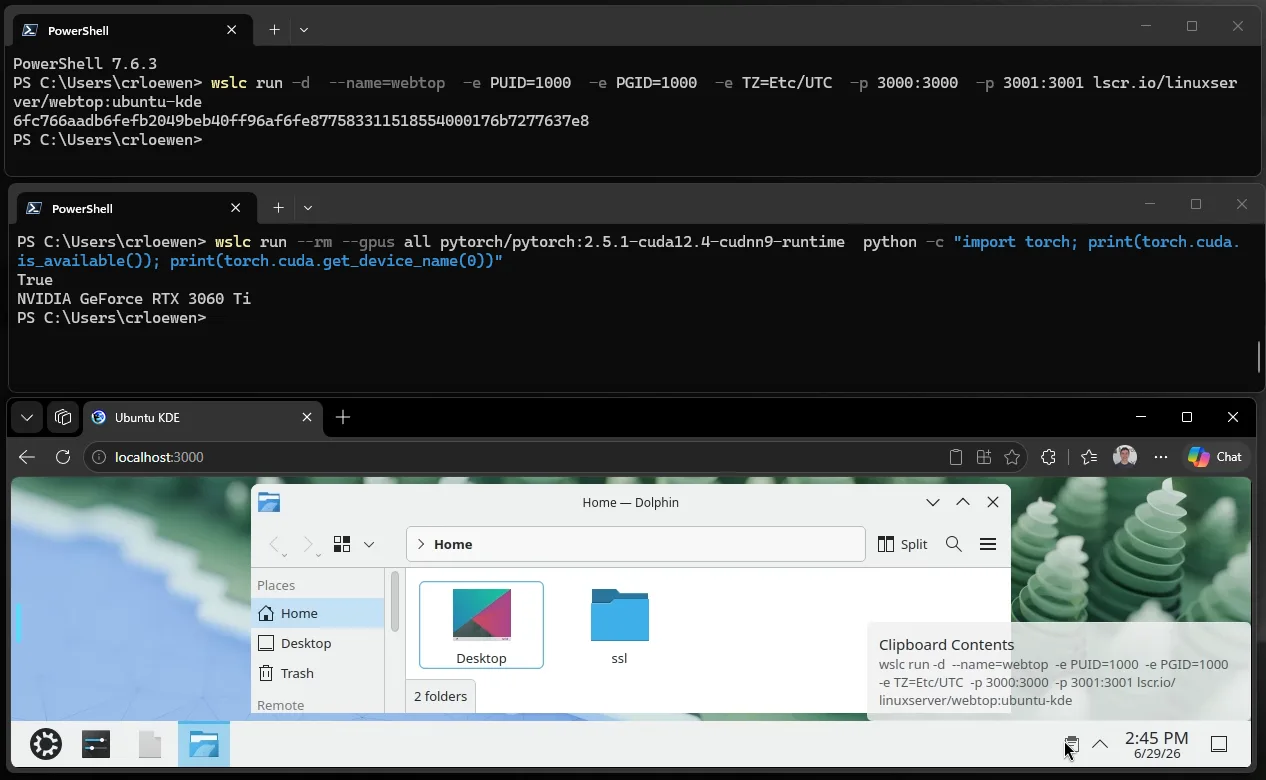
This CLI tool has a familiar format and capabilities, meaning you can use your existing muscle memory when running Linux containers. For example you can run a full Linux desktop in a container and connect to it like so: wslc run -d --name=webtop -e PUID=1000 -e PGID=1000 -e TZ=Etc/UTC -p 3000:3000 -p 3001:3001 lscr.io/linuxserver/webtop:ubuntu-kde, or check your GPU access with a CUDA script: wslc run --rm --gpus all pytorch/pytorch:2.5.1-cuda12.4-cudnn9-runtime python -c "import torch; print(torch.cuda.is_available()); print(torch.cuda.get_device_name(0))". Lastly this also includes a built in alias for container.exe which just runs wslc.exe so you can use the container command or wslc, whichever you prefer.
WSL container API
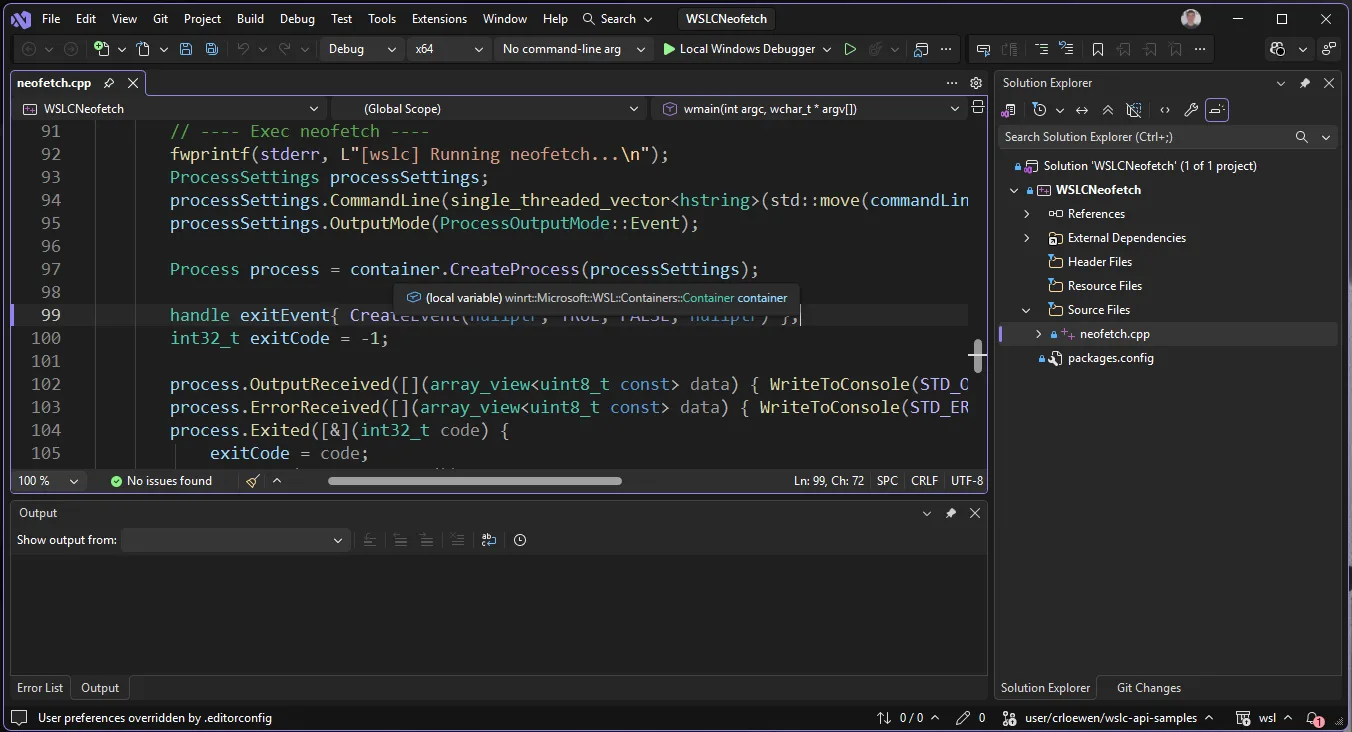
Windows applications can now also directly use containers as part of their application logic. WSL now ships a Nuget package that is available at nuget.org and also on the WSL releases page. This includes support for C, C++ and C#.
Now your native Windows applications can make use of Linux for their production workflows. This can be especially useful for reusing existing Linux specific code, taking cloud applications and running them locally, or containing a Linux process’ access to resources on the host.
This API also integrates with MSBuild and CMake, so you can just add a few lines to your project files and the container build and deploy steps can all be part of your application’s build process – no manual steps required! Git clone and try a sample for yourself or check out the full API reference!
Learn more and see demos
You can view this presentation from BUILD 2026 to learn more about the use cases and see demos of these features in action. Additionally you can visit our docs page to get in depth guides and sample code.
Integration with enterprise tools
We are making sure that WSL’s great integration with enterprise tooling extends to WSL container as well.
Monitor security events in containers with Microsoft Defender for Endpoint (MDE)
WSL’s existing MDE plugin is updated to also be aware of Linux container events, providing you the same coverage whether you are using a WSL distro or containers. Currently this feature is available as part of a private preview which you can sign up for here.
Manage WSL container settings with Intune
We are also adding new management settings for WSL container. You will be able to control whether people can use WSL distros, or containers in your organization, and also specify an allowlist of which container registries can be used to pull new container images. One of our big aims for this area is to help address a top customer ask of: “How can I control which distros/Linux images are allowed in my organization?”, using WSL container and the registry allowlist makes that easier. This is available today using GPO and an ADMX policy and will have official support in Intune dashboards within the next few weeks.
VS code dev containers
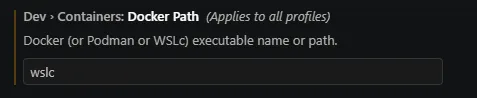
Many enterprises also depend on tools like VS code dev containers, and WSLc support has been added in 0.462.0-pre-release. This is in pre-release right now but will soon be moving to general availability. To set up this functionality open the VS Code dev container settings, find the “Docker Path” setting and change that to be wslc.
Further WSL improvements
As we are building out the WSL container feature, we are also making huge improvements to the underlying technology that powers both WSL and WSL container. This includes:
- A new default file system for WSL container: ‘virtiofs’ that makes Windows file access 2x faster!
- A new default networking mode for WSL container: ‘consomme’ which aims to improve compatibility.
- Compatibility is a tough issue since there are tons of different networking setups between VPNs, proxies and more. This is an experimental networking mode that aims to solve some of these issues. The simple explanation is that Consomme relays Linux network traffic through Windows allowing Linux applications to benefit from the same networking environment, security policies, and enterprise integrations available to Windows applications.
- Improved memory reclaim techniques to gradually and consistently release memory back to the Windows host when it’s not in use in the Linux VM
Since these changes touch mission critical paths like file system access and network, for now they are enabled just in WSL container and we are working towards enabling them in WSL by default in the future. There are also other fantastic Linux container CLI tools on Windows that build ontop of WSL like Docker Desktop, Podman Desktop and Rancher Desktop and these tools will also all benefit from these lower level platform changes so you can have a great selection of performant container tools on Windows that meet your needs.
Feedback and what’s next
This feature is currently only in the pre-release version of WSL as a public preview. Please install it and try it out, and as always you can file your issues and feedback at our GitHub page! We aim to make this feature generally available in the upcoming fall of 2026. Thank you for all the great support, and happy coding!


Is this going to be ported to the server edition too ?
WIll there be any support for docker compose?
This is a top feature ask, and we are investigating the best way to do it. So yes we’re looking into it!
How can i shutdown Vmmemwslc-cli-test ? i´ve tried to use –shutdown but it’s still consuming ram.
wslc.exe system session terminate
PS C:\Users\me> wslc –version
wslc 2.9.3.0
PS C:\Users\me> wslc start hello-world
Catastrophic failure
Error code: E_UNEXPECTED
Tell me please, if I update my WSL with
and then stable release appear, will I able to just update and viola? Or i have to reinstall WLS?
I made a community project to give a TUI dashboard for WSLc which I’ve been enjoying. So far a GUI desktop app is pretty far down our backlog, but this TUI seems to fill the need for me at least! 🙂
https://github.com/craigloewen-msft/lazywslc
You will only need to “wsl.exe –update”. Actually when you do “wsl –update” or “wsl –uninstall” it just installs or uninstalls the WSL engine. Your distros are not touched so you can repeat the process without problem.
Thank you. Just made update to prerelease on surface 7 (ARM). Seems to work without any issues.
I noticed, wslc available in PS and CMD, but in WSL/ubuntu terminal (it available as wslc.exe). I guess i can just make an alias in bashrc, correct?
Docs says ( https://github.com/MicrosoftDocs/WSL/blob/main/WSL/tutorials/wsl-containers.md ) there they use as wslc (not wslc.exe).
P.S. Already uninstalled docker, waiting for GUI as well 🙂
I’m getting:
Thoughts?
I’m pretty sure you wanted to do
start expects an existing container which was previously stopped. Seems that they have changed the error message to a more friendly kind of “not found”.
Thanks. I got a little further. wslc went to pull hello-world from registry-1.docker.io/v2/ but died with “read: connection refused”.
…R
Nothing?
Please file this with logs at github.com/microsoft/wsl
Thank you! 🙂
Nice!
Gonna build a WSL GUI with integrated terminal and JS API for extending gui with other features like APT GUI
That sounds awesome! I’d love to see it become a reality soon. Please don’t forget about accessibility support from the beginning—making the GUI usable with screen readers and keyboard navigation would make a huge difference for many users. Looking forward to seeing your progress!
Looks great 🙂 Thanks for sharing!
Happy Azure Localling 🙂
What’s the purpose of all this? Docker could already be installed to wsl distros (official docker packages NOT docker desktop) and Vs code already can access containers in your local (or remote via ssh) WSL via 3rd party extensions.What’a the point of new cli to manage containers in wsl, when I can open the shell of Wsl and do it with the official docker cli?
A few reasons
1. Docker has licensing restrictions
2. wslc can be used from any terminal host, as it is just an exe on a path.
3. don’t need to specifically open and manage a distro
4. Can programmatically interact with the WSL container API, via c, c++ or c#
Having more options for container environments is a good thing
Normally I’d agree, but Docker is more than just Desktop / Engine, there’s a whole ecosystem and replicating only part of it will be of limited utility. We’ve got extensive config captured in Docker Compose files, without some kind of Compose compatibility this new tool won’t do much for us.
Been looking forward to this! Just installed it and set it up with VS Code Insiders as well.
The days of Docker Desktop are numbered, I hope.