

We’re back with a fresh PowerToys release! This month introduces Power Display for controlling your monitors from the system tray, Grab And Move for quickly moving and resizing windows, and a wave of improvements to Command Palette and the Dock, along with updates across the utility suite. You can grab the update by checking for updates in PowerToys or by heading to the release page. Let’s dive in!
🪟 Introducing Grab And Move – drag and resize windows from anywhere (Preview)
This release introduces Grab And Move, a new utility that lets you drag and resize windows without having to target the title bar or window edges. Hold Alt + Left Click anywhere on a window to drag it, or Alt + Right Click to resize it from wherever your cursor is. For users who already use Alt as a system modifier, you can now choose to use the Win key instead.
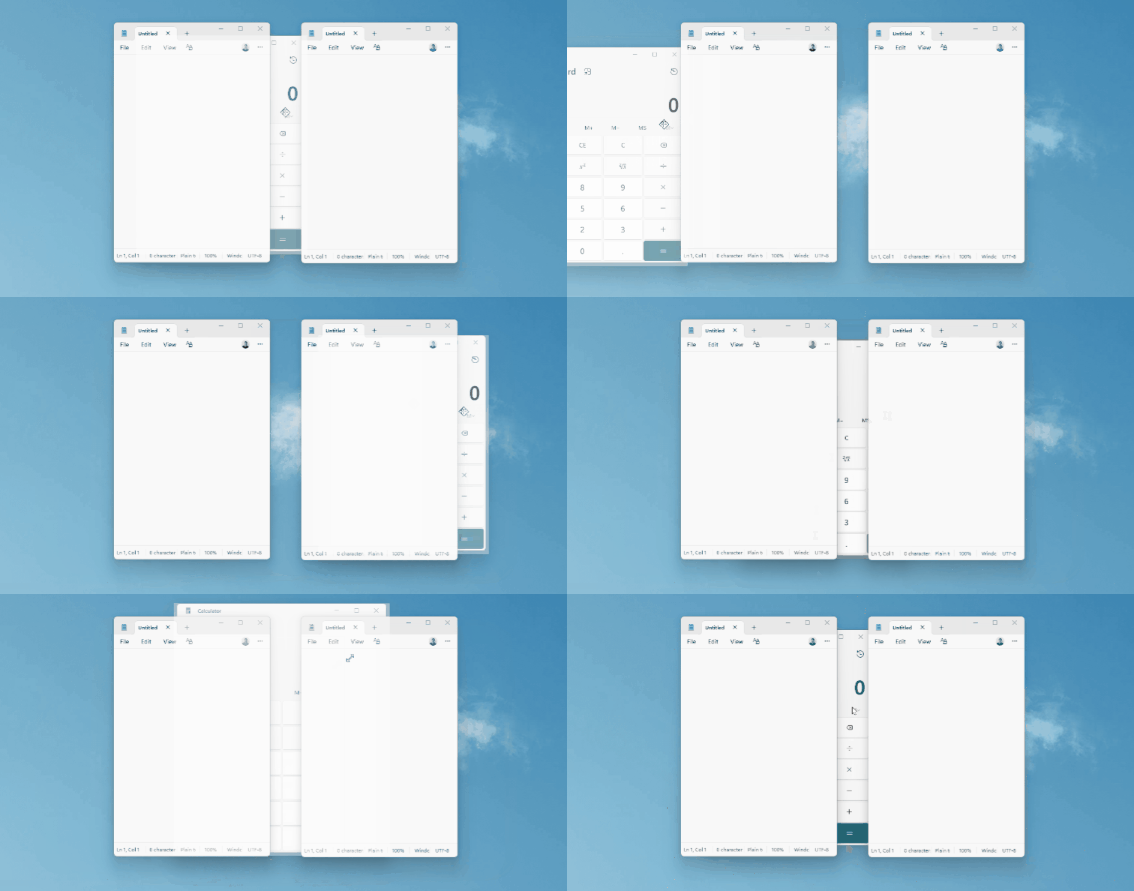
Grab And Move is ideal for large monitors or windows that have moved off-screen, and it integrates with the existing Settings experience including GPO policy support, an OOBE page, and a modifier-agnostic configuration UI.
🖥️ Meet Power Display: control your monitors right from the system tray (Preview)
Meet Power Display, a new utility that lets you control your hardware monitors right from the system tray. Once enabled, you can open the flyout from the tray icon or a configurable shortcut to quickly access your connected monitors. Power Display automatically detects your displays and, if supported, lets you adjust settings like volume, brightness, contrast, and color profile. No more reaching for those hard to find buttons on the back of your screen!
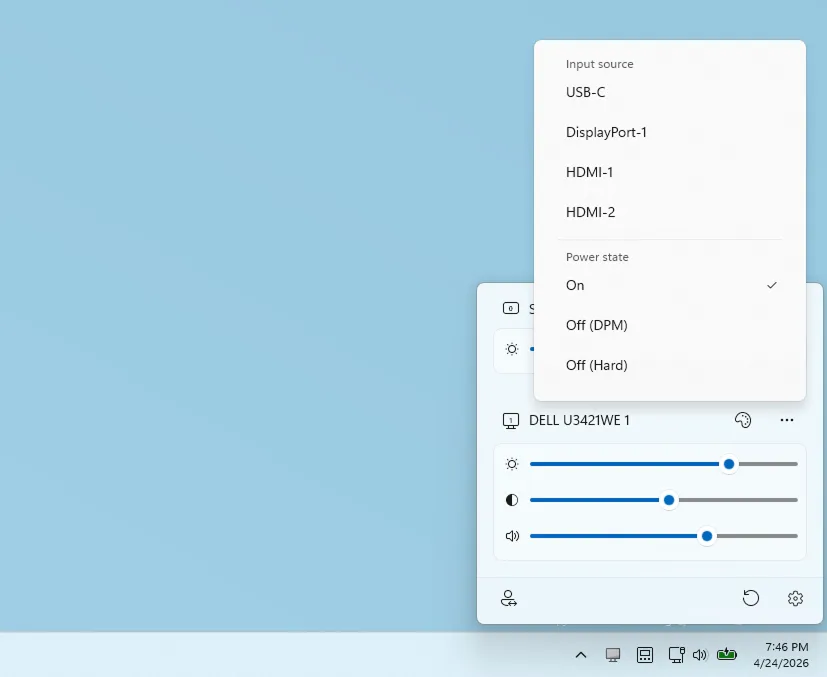
You can also create profiles to quickly switch between different setups with a single click. Profiles can be configured in Settings and will appear directly in the flyout for easy access.
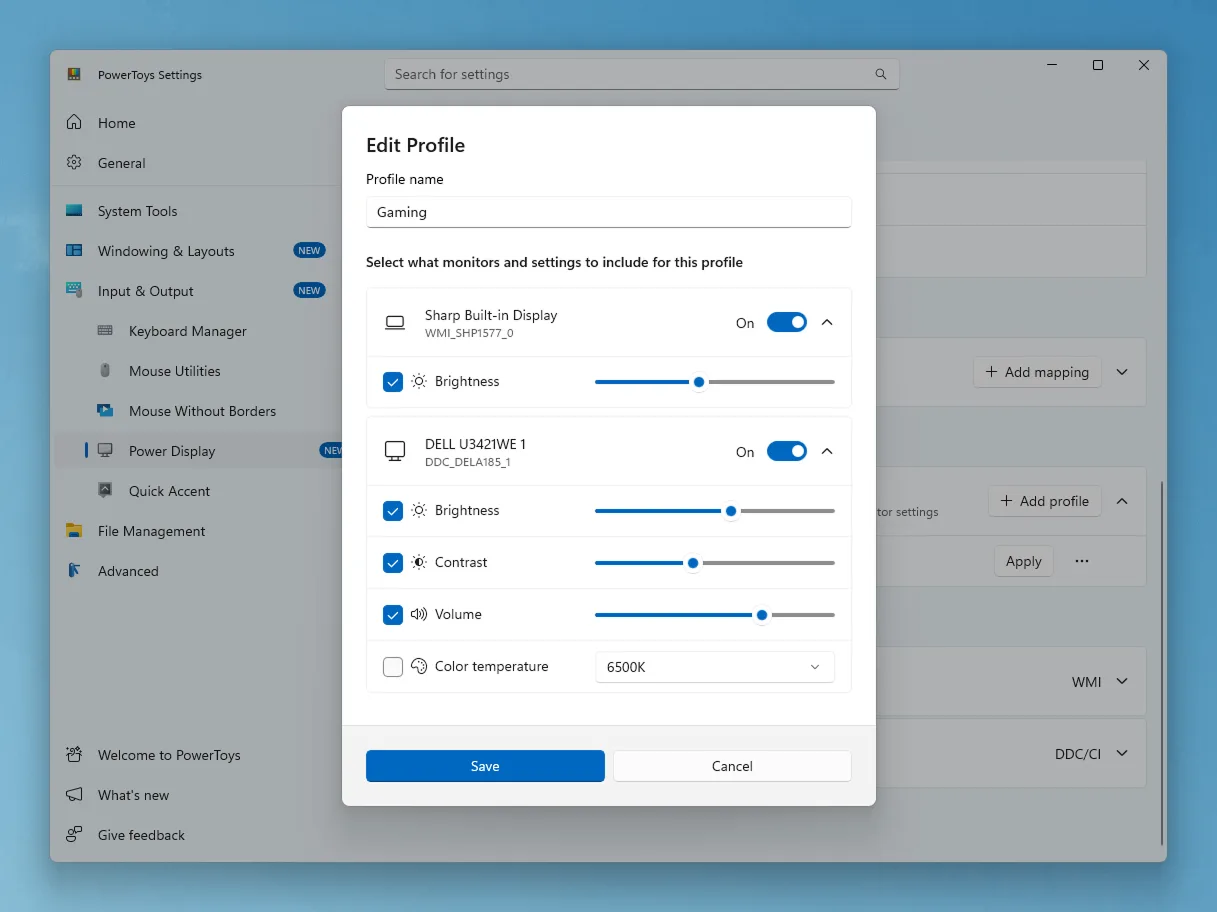
Lastly, Power Display profiles can now be automatically switched with Light Switch. In the Light Switch settings, you can select a profile as an action, making it easy to adjust your monitor settings based on the current light or dark theme.
⚡ Command Palette: Compact Dock, Calculator history, and reliability
This release brings a large set of fixes and improvements to Command Palette and the Dock. Alongside a wide range of performance and stability improvements, this release also introduces new capabilities, including support for plain text and image viewer content types for extensions, making it possible to display raw text and zoomable images directly in the content pane, as well as a persistent calculator history with options to save, reuse, delete, and clear entries, plus a configurable primary action and the ability to replace the query on enter.
We’ve also made several improvements to the Dock experience. You can now choose to keep the Dock always on top of other windows. When the Dock is positioned at the top or bottom of the screen, a new Compact mode is available, offering a more condensed layout that hides the subtitle!

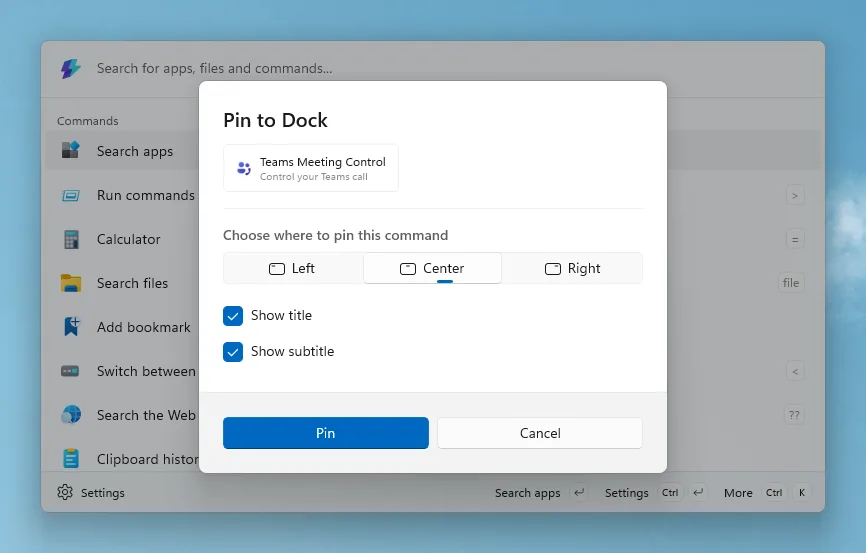
Pinning has also been improved. When you pin a command from Command Palette, a new dialog lets you choose where it appears in the Dock and whether to show or hide the title and subtitle.
This release also fixes two separate typing-crash scenarios, hardens extension loading so one faulty extension no longer takes down the whole list, improves indexer search with filename broadening and Windows Search availability indicators, and adds Windows Terminal profile pinning with per-profile icons.
Massive thanks to @jiripolasek for the sustained Command Palette work across this release!
⌨️ Keyboard Manager improvements
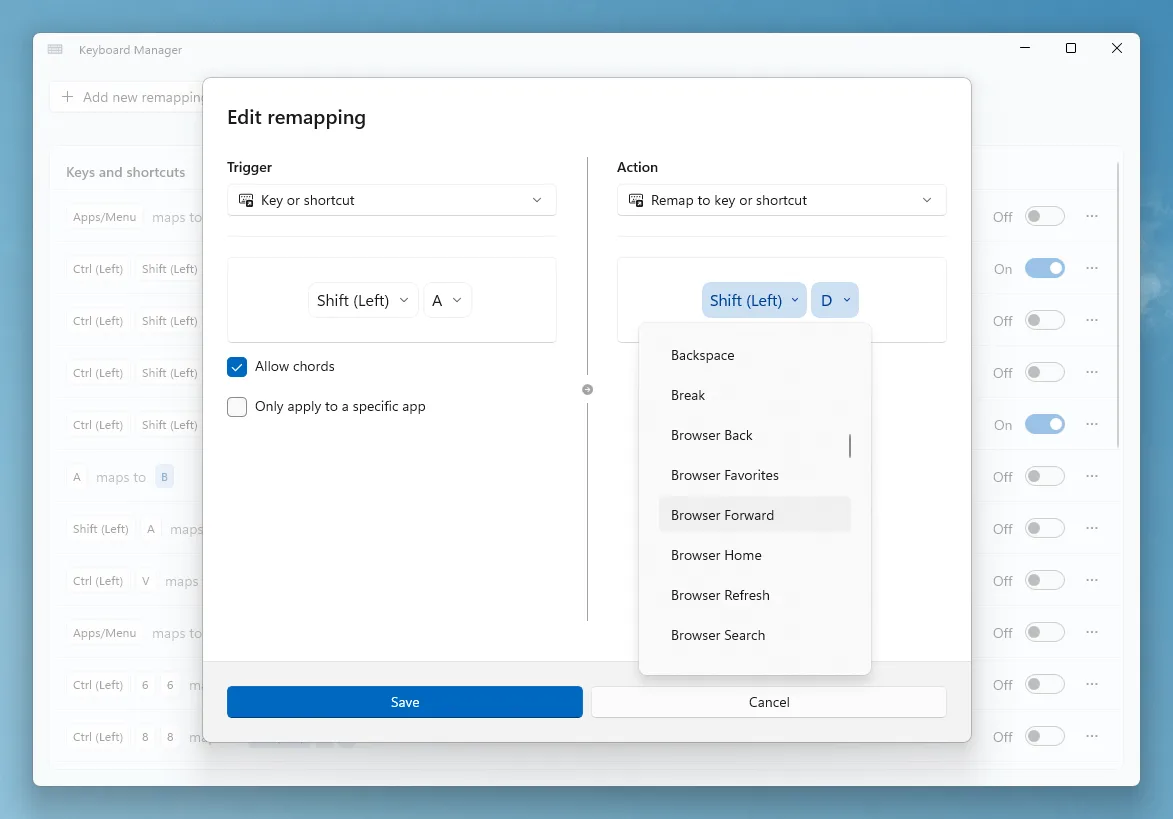
In the last release, we introduced a new Keyboard Manager Editor that makes it easier to create and manage remappings. In this release, we are refining that experience further. You can now manually tweak recorded keys. After recording a remapping, each key becomes a dropdown, allowing you to adjust it or select keys that may not exist on your physical keyboard.
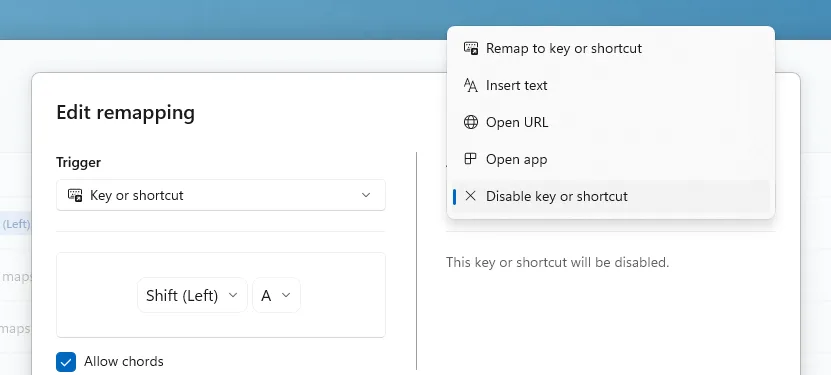
We also added a new action called Disabled, which lets you quickly disable specific keys or shortcuts.
We also fixed an important issue with multi line text replacement, significantly improving reliability in chat apps and plain text editors.
🔍 ZoomIt gets scrolling screenshots
ZoomIt also brings several enhancements to productivity and capture workflows. You can now take scrolling screenshots, making it easier to capture long pages or content that extends beyond the visible screen. We’ve also added text extraction directly when snipping, so you can quickly grab and reuse text without extra steps. In addition, the break timer has been improved with a new screen saver mode, helping you step away and take breaks more effectively.
🧩 Other notable changes
- Image Resizer: The UI has been migrated from WPF to WinUI 3, bringing a more modern look and improved consistency with the rest of PowerToys.
- Advanced Paste: Fixed auto-copy failing on Electron/Chromium apps like Teams and VS Code by releasing held modifier keys before injecting Ctrl+C.
- Settings: Multiple UI and usability improvements across different utilities.
- General: Streamlined default module states so new installations start with a lighter initial experience
- System tray icon: We’ve updated the monochrome PowerToys system tray icon and added a badge that appears when an update is available.
For the full list of changes and fixes, check out the complete release notes on GitHub.
✨ Big thanks to the community
As always, a big thank-you to everyone who contributed — we couldn’t do this release without you! Thanks @jiripolasek, @adelobosko, @oxygen-dioxide, @foxmsft, @RinZ27, @Salehnaz, @squirrelslair, @PesBandi, @daverayment, @raycheung, @jsoref, @Gijsreyn, @Jay-o-Way, and @markrussinovich for your pull requests!
We’re always happy to get your feedback and contributions – whether it’s a bug report, a feature idea, or a pull request. Head over to the PowerToys repo to jump in.
The full release notes can be found here.

HELP! I accidentally turned off my monitor with Power Display and now I can’t turn it back on again!
Can you reach out to me at nielslaute at microsoft dot com? Let’s see if we can help you out.