


Azure Data Studio (ADS) retired on February 6, 2025, and support ended on February 28, 2026. The recommended path forward is Visual Studio Code with the MSSQL extension. If you used ADS daily, this guide gets you productive quickly in VS Code. The focus is on importing your existing setup, restoring familiar shortcuts like F5, and getting SQL Database Projects working so you can build and publish schema changes confidently from the editor.
TL; DR
- Install the MSSQL extension in VS Code
- Use the ADS transition flow to import connections and install the keymap so F5 works as expected
- Install SQL Database Projects plus .NET 8 SDK so build and publish work smoothly
- Publish using the Publish dialog to preview the script before deploying to Azure SQL
Why this matters for Azure SQL developers Running queries is only part of the job. Most teams need repeatable workflows for schema change review, CI validation, and safer deployments. SQL Database Projects supports that style of work with schema as code, build validation, and a guided publish experience inside VS Code.
Step 1: Install the core VS Code SQL tools
- MSSQL extension Your main query, connection, and database workflow in VS Code. Search SQL Server (mssql) in the VS Code Marketplace.
- SQL Database Projects Adds the project system and the build and publish workflow for schema as code. Search SQL Database Projects in the Marketplace.
- .NET 8 SDK SQL Database Projects depends on the .NET SDK to build. Install it from dotnet.microsoft.com before your first build. The extension will prompt you if it needs to be installed but having it ready upfront saves a restart.
Step 2: Import your ADS setup
The mssql extension includes an ADS Migration Toolkit that brings over your saved connections, connection groups, settings, and key bindings in one guided flow. Open the extension and follow the toolkit walkthrough. Restore F5 muscle memory: Install the MSSQL Database Management Keymap extension. It adds ADS-style key bindings including F5 to run a query. Refer to the Customize keyboard shortcuts documentation for the full list.
Step 3: Get SQL Database Projects working end to end
1. Create or open a SQL project: Open an existing SQL project folder in VS Code or create a new one using the SQL Database Projects commands in the editor. 2. Build first: Your first success moment should be a clean build. Building confirms your toolchain is wired correctly before you try to deploy. 3. Publish using the Publish dialog: Right-click your project in the Database Projects panel, select Publish, configure your target, review the generated deployment script, and select Publish to deploy.
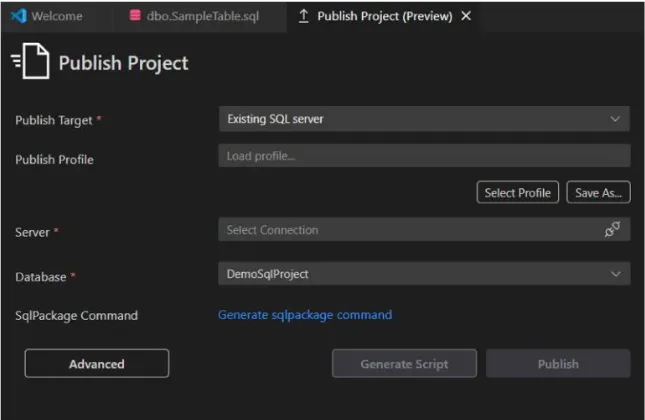
The script preview is the moment that makes this workflow feel safe for serious use. You see exactly what T-SQL will run against your database before it does.
Two things worth double checking:
- .NET SDK not found: If your first build does not complete, confirm the .NET SDK is installed and that VS Code can find it. This is the most common first-time setup step to double-check.
- Target platform mismatch: If publish behavior is different from what you expect, check the project target platform in your .sqlproj settings. Many publish issues come down to project configuration rather than the database itself. Refer to the Publish SQL database projects from Visual Studio Code documentation for details.
Optional: item templates If you are coming from SSDT, item templates in SQL Database Projects generate consistent stubs for tables, stored procedures, views, and other common objects. Right-click your project in the Database Projects panel and select Add Item to get started.
Working with SQL database in Microsoft Fabric The same VS Code setup applies to SQL database in Microsoft Fabric, with one addition: start from the Fabric portal to connect your database to Git before opening the project locally in VS Code. This ensures the project file is configured correctly for Fabric. Refer to the SQL database in Microsoft Fabric source control integration documentation for the full walkthrough.
The mssql extension also includes Schema Compare, which lets you diff your project against a deployed database before pushing changes, and Schema Designer for visual schema editing. For a full list of ADS capabilities and their VS Code equivalents, refer to the What’s happening with Azure Data Studio documentation.
Next steps Try this once with any small database schema:
- Create or open a SQL project
- Build
- Publish with script preview enabled
- Make one schema change, rebuild, and publish again
If you get stuck, drop a comment below and let us know which step you want more detail on: import, shortcuts, build, or publish.
Related Links :
Watch the Data Exposed episode on ADS migration
Watch Publish Dialog and Item Templates for SQL Projects in VS code tutorial


0 comments