

This blog post shows how to expand the capabilities of Azure SRE Agent by giving it access to MCP servers hosted on Azure Connector Namespace. Connector Namespace is a managed MCP hosting platform that removes the operational and management overhead of self-hosting MCP servers. It entered public preview at Microsoft Build in June, with general availability estimated for the end of 2026.
What is Azure SRE Agent?
Azure SRE Agent is an AI-powered service designed to reduce operational toil. Teams can use it to:
- Investigate incidents and identify probable causes.
- Automate health checks, compliance reviews, and other scheduled work.
- Answer questions such as, “What changed before this service became degraded?”
- Propose remediations while allowing teams to require human approval.
An effective investigation rarely depends on one source of information. An alert might originate in Azure Monitor, while deployment history lives in source control, telemetry is stored in another observability platform, and incident records are kept in a service-management tool. Without access to those systems, you must retrieve and transfer the information manually, which adds context switching and slows diagnosis.
MCP servers can give Azure SRE Agent tools to query telemetry, inspect deployments, retrieve database records, and look up incidents. Azure SRE Agent provides native connections for some servers, including GitHub, Datadog, New Relic, and Splunk. Azure Connector Namespace makes it easier to host additional remote MCP servers that you want the agent to use.
Removing remote MCP server hosting burden
Connecting Azure SRE Agent to an existing remote endpoint is straightforward. Hosting that endpoint yourself is not.
You must deploy the server, provide secure HTTPS infrastructure, configure authentication, manage downstream credentials, scale the runtime, monitor its health, recover failed instances, and maintain it over time. These responsibilities are necessary, but the value is in the server’s tools, not in operating another service.
Azure Connector Namespace is a fully managed service for hosting connectors and MCP servers. You select the server you need, and the namespace handles operational and maintenance tasks. The offering is currently in preview. Review the documentation for supported regions and other preview considerations.
The Connector Namespace catalog includes servers for systems such as:
- Databases, including Azure SQL and Azure Cosmos DB.
- Source control and continuous integration and delivery (CI/CD), including GitLab.
- Incident management, including Jira and PagerDuty.
“Bring-your-own” server support is also in development. This capability will let you provide your own server image while Connector Namespace handles hosting and operations.
Deploy a server and connect it to Azure SRE Agent
The following example deploys the SQL MCP server in Connector Namespace and connects it to Azure SRE Agent.
1. Deploy the server
First, install the Azure Developer CLI. Then clone the SQL Server samples repository and open the Azure SQL MCP sample:
git clone https://github.com/microsoft/sql-server-samples.git
cd sql-server-samples/samples/applications/azure-sql-mcp
Sign in to your Azure subscription, and then deploy the server and its related resources:
azd auth login
azd up
During deployment, use the following values when prompted:
| Prompt | Suggested value | Explanation |
|---|---|---|
| Enter a unique environment name | mcp-dev |
This value is added as a prefix to the Azure resources. |
| Select an Azure subscription | Your subscription | Resources are deployed to this subscription. |
Enter a value for connectorNamespaceIdentityType |
UserAssigned |
User assigned identity is recommended as it’s not tied to resource lifecycle |
Enter a value for deployerLoginName |
Your Azure subscription sign-in email | To give your identity access to the MCP server |
| Enter a value for the location | Pick a supported region | Supported regions: West Central US, Central US, East Asia, North Europe |
When deployment finishes, copy the MCP endpoint. It’s similar to the following:
https://<app-name>.<region>.logic.azure.com/api/connectorGateways/<gateway-id>/mcpServerConfigs/sql-mcp/mcpYou can optionally test the deployed server in Visual Studio Code with GitHub Copilot:
- Open the command palette and run MCP: Add Server.
- Select HTTP, enter the MCP endpoint and a server name, and select Local Workspace.
- In
.vscode/mcp.json, select Start above the server name. - Allow Microsoft authentication in the browser and sign in with your Azure subscription account.
2. Configure MCP connector in SRE Agent
Connector Namespace hosts the server but doesn’t create its connection in Azure SRE Agent. Add the endpoint through the existing MCP connector experience:
- Open the Azure SRE Agent portal.
- On the left menu, go to Builder > Connectors, and select + Add connector.
- On the MCP tab, choose MCP server, and then select Next.
- Configure the connector with the following values.
| Field | Value |
|---|---|
| Name | A descriptive name for the server |
| Connection type | Streamable HTTP |
| URI | The hosted server endpoint from Connector Namespace |
| Authentication method | Managed identity |
| Microsoft Entra token scope | https://apihub.azure.com/.default |
Selecting managed identity automatically creates an identity for the connector. Select Next, but grant that identity access to the MCP server before you test the connection.
3. Authorize the managed identity
- In the Azure portal, search for the managed identity by name.
- On the identity’s Overview page, select JSON View, and copy the
tenantIdandprincipalId. The principal ID is also called the object ID. - Open the Connector Namespace portal, and select the deployed namespace.
- In the namespace, select MCP Connectors tab on the left, and then select the SQL MCP server.
- In the MCP server, select Access Policies > Add Access Policy.
- Enter the
tenant IDand `principal ID`, and then select Create.
4. Test and finish the connection
Return to the Azure SRE Agent portal and select Test connection. After the test succeeds, select the server tools that the agent should use, and then select Add connector.
Establishing the connection can take a minute. Select Refresh on the connectors page until the status changes to Connected.
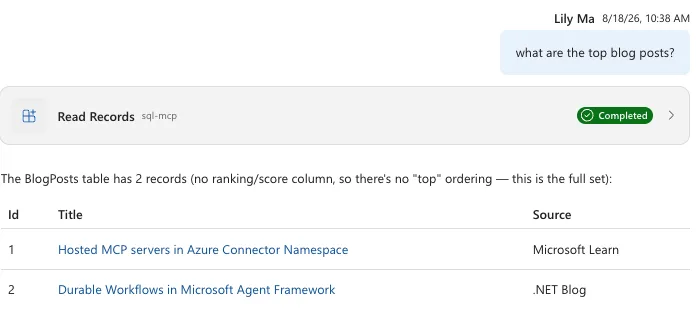
The agent can now use the selected server tools in chat threads. The azd deployment from previous created and seeded a SQL database with sample blog post data, so you can ask:
What are the top blog posts?
Focus on the server, not its infrastructure
MCP servers can give Azure SRE Agent access to the additional systems it needs to investigate incidents and perform operational work effectively. Operating every remote server yourself, however, introduces infrastructure, security, and maintenance responsibilities that distract from that goal.
Connector Namespace removes much of that friction. Your primary question becomes, “Which MCP server do I want to host?” rather than, “How will I deploy, secure, scale, monitor, and maintain it?”
Once deployed, the hosted endpoint can be added to Azure SRE Agent through its existing MCP connection experience. That gives teams a straightforward path to extending the agent with more operational tools, without turning MCP server hosting into another platform they must build and run.
Try Connector Namespace with Azure SRE Agent and share your feedback.


0 comments
Be the first to start the discussion.