


A straight look at what’s behind the keys
We’ve all tried unlearning a keyboard shortcut – it feels like forgetting how to breathe. Muscle memory doesn’t mess around. We wrestle with this every time someone suggest a “quick” shortcut change. It’s not just editing a keybinding but navigating a history that makes Visual Studio so customizable for developers like us.
Picture yourself deep in code, chugging coffee, ready to close a tab. You hit Ctrl+W because Chrome, VS Code, and every other tool uses it. But in Visual Studio? You likely need Ctrl+F4, a combo straight out of the Windows 98 era. Or maybe you try commenting out a line if code with Ctrl+/, a standard elsewhere, but Visual Studio adopted it late. Why? The team isn’t clueless – every shortcut ties to years of workflows we depend on.
Let’s walk through why that history powers Visual Studio and why changing a shortcut like Ctrl+W is such a challenge.
One command, multiple shortcuts
Visual Studio lets you handle the same task with different shortcuts to match your workflow. To close a tab, you can hit Ctrl+F4, a go-to for longtime users. If you come from tools like VS Code or Chrome and prefer Ctrl+W, Visual Studio supports that too. This flexibility rocks – you stick with what you know or adopt newer standards without losing your groove.
But it gets tricky. Many key combos in Visual Studio already do something and reassigning one can disrupt established workflows. For example, Ctrl+W closes tabs in most tools, but in Visual Studio, it selects the current word – a shortcut coders have relied on since the 2000s. If that’s wired into your fingers, changing it could derail you. Visual Studio keeps both shortcuts, letting you use what works while supporting everyone else’s habits.
That ability to support multiple shortcuts is just the start of Visual Studio’s customization, though – it goes deeper with how it tailors the IDE to you.
Developer profiles
When you launch Visual Studio, it doesn’t throw you into a generic setup. It prompts you to choose a developer profile – General, Web, C#, C++, and others. This choice shapes your shortcuts, layout, and entire coding experience to fit how you work. Visual Studio’s history of letting developers carry over habits from other IDEs or editors ensures your shortcuts feel right from the start.
Here’s the catch: the same command can use different shortcuts based on your profile. In the C# profile, you build a solution with F6. In the General profile, you hit Ctrl+Shift+B. It’s not chaos – it stems from years of developers like us telling the team what fits our work.
Profiles aren’t the only way Visual Studio adapts to your coding style, though – there’s another layer that makes switching tools even smoother.
Keyboard schemes
To make jumping between tools less jarring, Visual Studio offers keyboard schemes – like VS Code’s shortcuts or ReSharper’s keymap. It’s like plugging your own keyboard into a shared machine. These schemes build on Visual Studio’s history of supporting diverse coding styles, letting you dive in without starting from scratch.
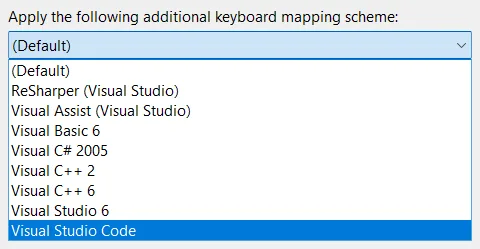
But with all this customization, how do we know what shortcuts you’re actually using and why? That’s where things get murky.
The intent behind the shortcut
When we consider changing a shortcut, we dig into telemetry to see how you use Visual Studio. It reveals which shortcuts you hit, how often, and when. But here’s the tough part: it doesn’t explain why. If you press Ctrl+W, do you select a word, as Visual Studio intends, or expect to close a tab because VS Code or Chrome does that? We see the keypresses, but your intent remains a mystery.
That’s where the art lies. Some of us rely on Ctrl+W for its original role; others follow muscle memory from another tool. Without knowing who’s who, changing a shortcut risk breaking someone’s workflow.
This uncertainty complicates things further when you factor in how Visual Studio organizes shortcuts behind the scenes.
Scopes
Visual Studio’s commanding system has a killer feature: scoped shortcuts. Every shortcut applies to a specific scope, so you can bind the same shortcut to different commands in different contexts. To close a tab with Ctrl+W, we register it in the Global scope. But any scope can override that. For example, Ctrl+W selects the current word in the Text Editor scope. The active scope depends on where your focus is – the editor, Solution Explorer, or another tool window.
To remap Ctrl+W to close tabs, we register it in the Global scope and ensure no other scope overrides it. This setup gives you flexibility but adds complexity when changing shortcuts, as we must account for every scope’s bindings.
And just when you think you’ve got a handle on that, another wrinkle shows up in how some shortcuts are structured.
Sequenced shortcuts
Visual Studio supports sequenced shortcuts, where you press multiple keys to trigger a command. For example, in the Text Editor scope, Ctrl+E, Ctrl+W toggles word wrap. Many sequenced shortcuts start with Ctrl+E, followed by another key. If we bind a command to just Ctrl+E, it fires immediately, cutting off any chance for the second key in the sequence to register. This breaks all those Ctrl+E-based sequences, as Visual Studio stops listening for additional keypresses once it detects Ctrl+E.
This means we must carefully check existing sequences before assigning single-key shortcuts to avoid breaking workflows that rely on multi-key combos.
With all these layers – multiple shortcuts, profiles, schemes, scopes, sequences, and unknown user intent – changing a shortcut becomes a high-stakes juggling act.
The balancing act
Every shortcut in Visual Studio connects to our coding habits – late-night bug hunts, team workflows we’ve refined for years. When we add or change a shortcut, we don’t just pick a new key. We examine the entire keyboard, identify what’s in use, and sometimes shuffle other shortcuts to make room. For instance, if we set Ctrl+W to close tabs to align with modern tools, we might need to reassign “Select Current Word” to avoid leaving anyone stranded. It’s a delicate balance to keep every developer’s flow intact, and that history of customization makes Visual Studio ours.
Ctrl+W in Visual Studio 2026
This walked you through the process we followed to map Ctrl+W to close the current tab in Visual Studio 2026. For C# profile users, we held off on this change to avoid disrupting existing workflows, especially given potential conflicts with sequenced shortcuts. If you’re using the C# profile and want Ctrl+W to close tabs, you can easily set it up yourself in the keybinding settings.
What’s next?
So, what shortcuts do you want to see next? Got a key combo you need or one that’s driving you nuts? Throw it in the comments – the team’s reading, and your input could help steer where Visual Studio goes from here.
Resources
- Keyboard Hero: An extension that teaches you the shortcuts you didn’t use
- Video: How do keyboard shortcuts work?
- Identify and customize keyboard shortcuts in Visual Studio


I’m having an issue with visual studio (almost) constantly remapping a particular key. Any idea what might be the root cause?
I bind Tools.ExternalCommand4 to CTLR+`. By default this is bound to CTRL+\ . I use an azerty keyboard but use the qwerty layout while using visual studio. I have multiple languages configured on Windows. It might be due to some settings being managed by my organization (for which I’ve had to find workarounds already). Pretty much like clockwork I will have to remap the key from the default every time I restart my laptop.
Thank you and team for the continued work on Visual Studio — the recent quality-of-life improvements have made a noticeable difference and are greatly appreciated.
A suggestion related to keyboard shortcuts: it would be helpful if shortcut design took ergonomic keyboards into consideration, especially those with thumb clusters or split layouts. Existing shortcuts favour a trad. keyboard, and that is less so for ergonomic designs, where some combinations become unnecessarily awkward. Support or guidance that reflects these layouts would be a meaningful improvement for users who rely on ergonomic hardware.
What an interesting idea. What if we made a keyboard scheme specifically for ergo keyboards?
I look forward to being able to select an ergo option in Visual Studio. Thank you for giving consideration to ergonomic keyboards; much appreciated.
would love to see a combination of mouse scroll button and keyboard button combinations
Can you give some examples?
We have Shift+Scroll which scrolls the editor horizontally. Then there’s Alt+Scroll which enables speed scrolling (5x speed)
I thought of right-click-down + scroll wheel in Notepad++ switches tabs, which I found unique.
Thank you for being active with the user base, it is very much appreciated.
Oh, and I only just (a week or so ago) learned of ctrl+j in C++ opening intellisense if it has closed after 26 years of Developer Studio/Visual C++/Visual Studio. There are probably a lot I’m not aware of hah.
I’d love to see more support for mouse-based shortcuts. For example, VSCode has middle-click-and-drag for square selections with multiple cursors. Great for refactoring! Visual Studio 2026 supports this, but it requires a keyboard shortcut. It’d be nice to have more customization of shortcuts that involve clicks or are just clicks. How about being able to customize what ctrl+click or alt+click does on a symbol in the editor? Could be powerful! Or maybe a right-click and drag to highlight text and open context menu or copilot in one gesture?
Middle mouse button for square selection is a great idea!
Oh, that would be super handy
I just wish VS would finally offer predefined shortcut sets for non-us keyboard users. Most of the frequently used shortcuts work only well on US keyboard layout. Try to use them on a german, portuguese, french or italian layout. Just impossible. So the first thing every time is redefining shortcuts (VS20276 does not import them correctly from VS2022)
Oh, and please, offer better filtering options in the shortcuts window. Like “Exclude commands from extensions”, “Search in command descriptions too” and “Show only commands from “
Yes!! I couldn’t agree more. We need to make it easier to navigate that list. We’re looking at modernizing that whole section of the settings, but no timeframe yet.
I use the Rewrap extension, which allows me to hit Alt+Q to automatically rewrap a comment block (Emacs users will be familiar with that feature).
However, when a failed unit test is open in Test Explorer, Alt+Q will sometimes(!) jump to “Ask Copilot” in the Test Explorer window instead. This is super annoying, and I can’t change it, because that particular use of Alt+Q does not show up in Visual Studio’s keyboard customization window. Is it possible that this “Test Explorer Ask Copilot” shortcut is hard-coded?
Rewrap is awesome!
Alt+Q is not wired up to Ask Copilot in Test Explorer, but any shortcut starting with Alt is also a Windows accelerator key, so it might navigate you to a menu item somewhere in the IDE.
It would be cool if Rewrap would make the shortcut configurable and run automatically when you invoke the Format Document or Format Selection commands.
How many hardcoded keyboard shortcuts are still present in VS2026?
For example: for many years (VS2012-VS2022) there have been no way of changing the Quick Replace window shortcuts. I’m talking about Alt+C and Alt+W (unfortunately Alt+C collides with one of the national characters in my language and I can’t use it).
ALL shortcuts should be configurable with no exceptions!
I mapped F4 to a mouse button. So I can ALT+F4 and CTRL+F4 (that works as CTRL+W in webbrowsers) every where and at any time 🙂 even in VS 🙂
That’s very clever 🙂
this comment has been deleted.
I’ve been using such a mapping for at least 16-17 years: Alt+F4 mapped to the front and Ctrl+F4 mapped to the rear button on the right hand side of the mouse. I can’t live without it!
Can we have VS mapping scheme in VSCode?
Yes, you can install that keymap from here: https://marketplace.visualstudio.com/items?itemName=ms-vscode.vs-keybindings