


Visual Studio works best when you can see what’s happening and trust the tools you’ve added to your workflow. The June update is built around both. The Copilot Usage window gets a refresh with proactive alerts as you approach your limits, MCP servers now get a trust check before they run anything new, and the GitHub Copilot modernization agent for C++ graduates to general availability for MSVC upgrades.
We’ve also extended next edit suggestions across the entire active file and brought full-color emojis everywhere the editor renders text. Install the June Stable Channel update when you’re ready, then take a look at what’s new below.
Copilot usage tracking and alerts
GitHub Copilot usage is now calculated based on token consumption rather than by request, as part of its usage-based billing model. The refreshed Copilot Usage window in Visual Studio gives you a clearer view of where you stand against that model, with real-time updates as you work. Open it any time from the Copilot badge menu > Copilot Usage.
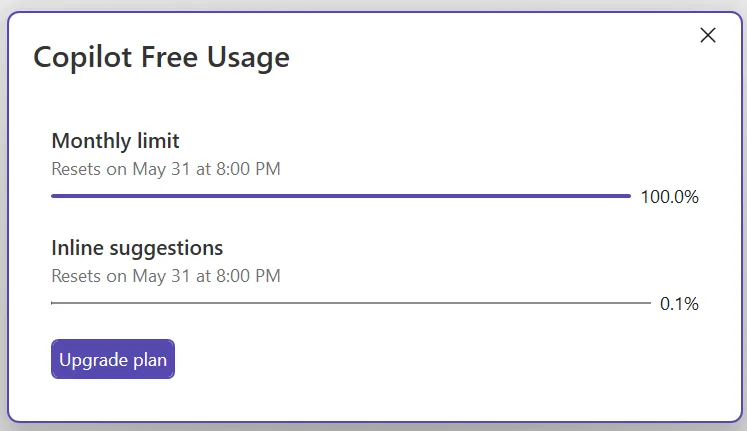
You’ll also see proactive alerts as you approach a limit, when you hit it, and when additional usage (overages) activates. The quota warning threshold is configurable, so you can decide how early you want the heads-up.
This is the start of a broader investment in Copilot usage visibility. Expect more in upcoming releases, and let us know on Developer Community what would help most.
Trust validation for MCP servers
MCP servers extend Copilot’s reach, and as more of your day-to-day workflow runs through them, the question of whether they’ve quietly changed underneath you becomes worth asking. Visual Studio now validates MCP server trust in two places during startup. Before the server process starts, the current configuration is compared against a previously trusted baseline. After it starts, the fingerprint of its tools, prompts, resources, and instructions is compared to the last-trusted fingerprint. If anything has diverged, a trust dialog asks you to review the changes before the server is allowed to run.
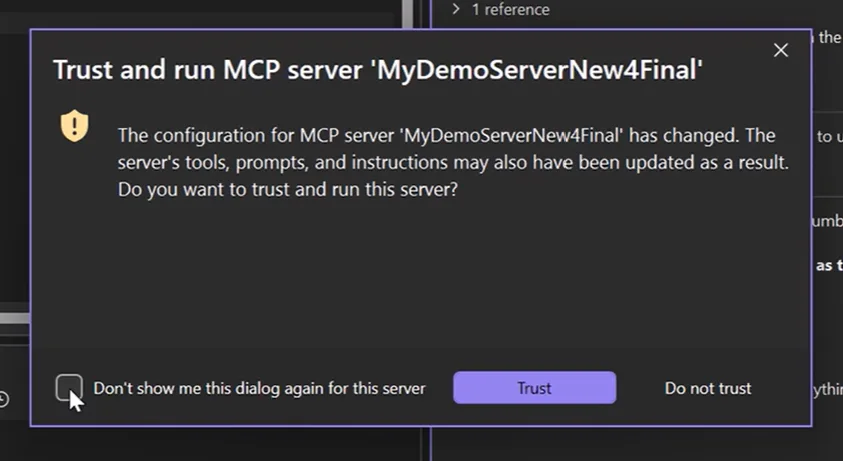
From the dialog you can accept the changes (which updates the baseline), check Don’t show me this dialog again for this server and pick Trust to always trust the server going forward, or pick Do not trust to reject the changes and abort startup. First-time connections are implicitly trusted and seed the initial baseline. Built-in servers, servers under a RegistryOnly policy, and any server you’ve explicitly set to always-trust skip the prompt entirely.
Trust validation is on by default. You can manage it at Tools > Options > GitHub > Copilot > Copilot Chat > Show trust dialog before running tools from an updated MCP server.
GitHub Copilot modernization agent for C++
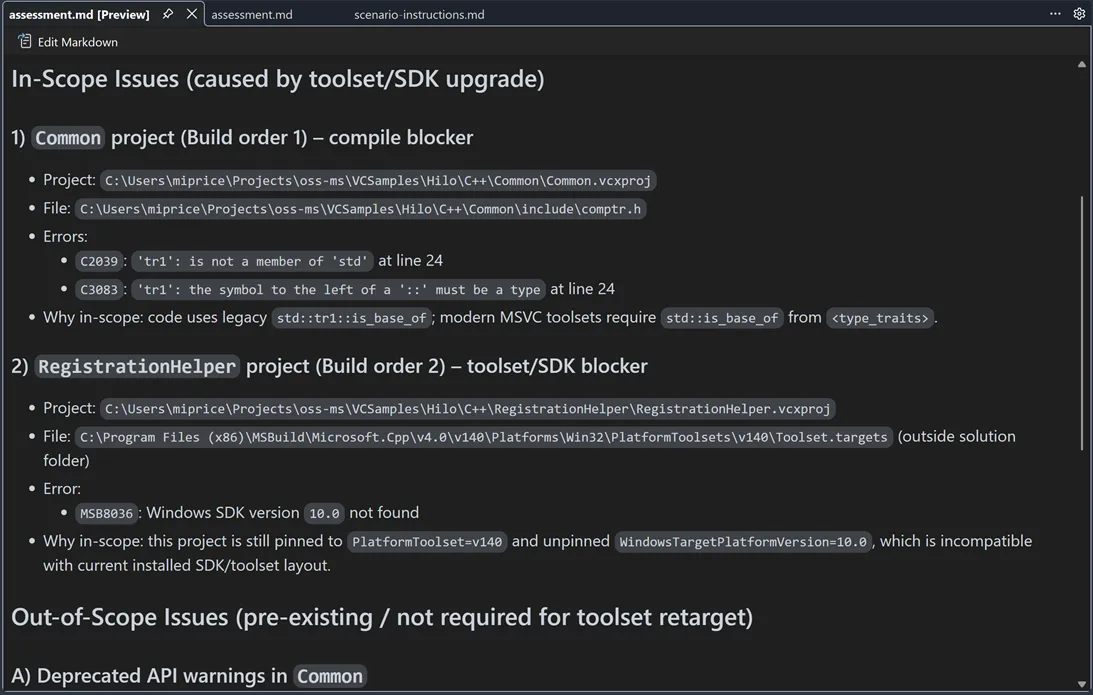
The first C++ scenarios for the GitHub Copilot modernization agent are now generally available. These are the flows that upgrade your C++ projects to the latest version of the Microsoft C++ (MSVC) Build Tools, where the new features, performance improvements, and security updates live.
The agent analyzes your project, identifies compatibility issues, and lays out an upgrade plan. Run it in Automated mode to let it carry out the upgrade end to end, or in Guided mode to review and approve the assessment, plan, and execution steps before each one runs. Right-click a solution or project in Solution Explorer and pick Modernize, or open Copilot Chat and type @Modernize followed by your upgrade request.
Thanks to the developers who put the preview through its paces on real C++ projects — your feedback shaped where this landed. Let us know which C++ modernization scenarios you want next on the C++ Developer Community.
Long-distance next edit suggestions
Make a change in one place, and you usually know there are related edits to make further down the same file. GitHub Copilot’s next edit suggestions (NES) have always anticipated the next change, but until now they were limited to the area immediately around your cursor. That’s often not where the related edits actually are.
Long-distance next edit suggestions extends NES across the full active file. Copilot can predict and propose edits anywhere in the current file, helping you keep related code in sync without manually hopping between sections.
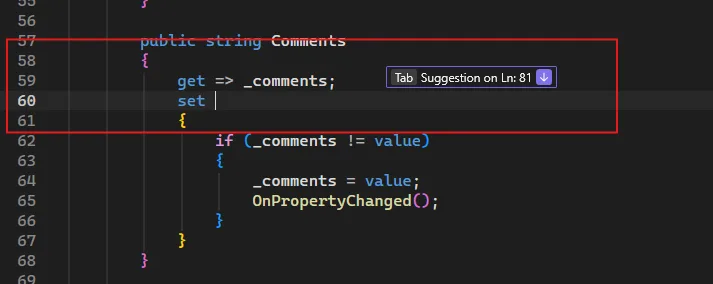
The feature is off by default for now. Turn it on under Tools > Options > Text Editor > Inline Suggestions by checking Enable extended range suggestions. The deep dive on the model training and evaluation behind long-distance NES is worth a read if you want the back story. Give it a try and tell us how it lands.
Color emojis
Emojis are now rendered in full color across Visual Studio. The same emoji you use to flag a bug, mark a section header, or highlight a TODO shows up with its real colors in the editor, in markdown previews, in GitHub Copilot Chat, in build output, and in Solution Explorer.
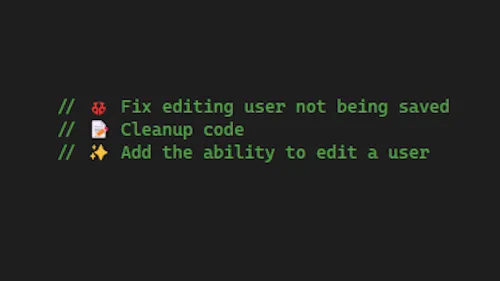
A red ❌ stands out as a warning, and a green ✅ reads as confirmation. The rendering uses modern font technologies, so what you see matches what your teammates see regardless of which Windows version they’re on.
From our entire team, thank you for choosing Visual Studio! For the latest updates, resources, and news, check out the Visual Studio Hub and stay in touch.
Happy coding! The Visual Studio team


0 comments