


Today I will show you how we can tackle one of the most common tasks when working in a development team or managing an open-source project, and that is working with Pull Requests.
While we’re going to be using the GitHub tooling within Visual Studio for this, the approach would be very similar with Azure DevOps.
Getting our PRs
Start by opening the pull requests for your repository. Select Git → GitHub → View Pull Requests. You can also search for the command in the Command Palette with Ctrl+Shift+P.
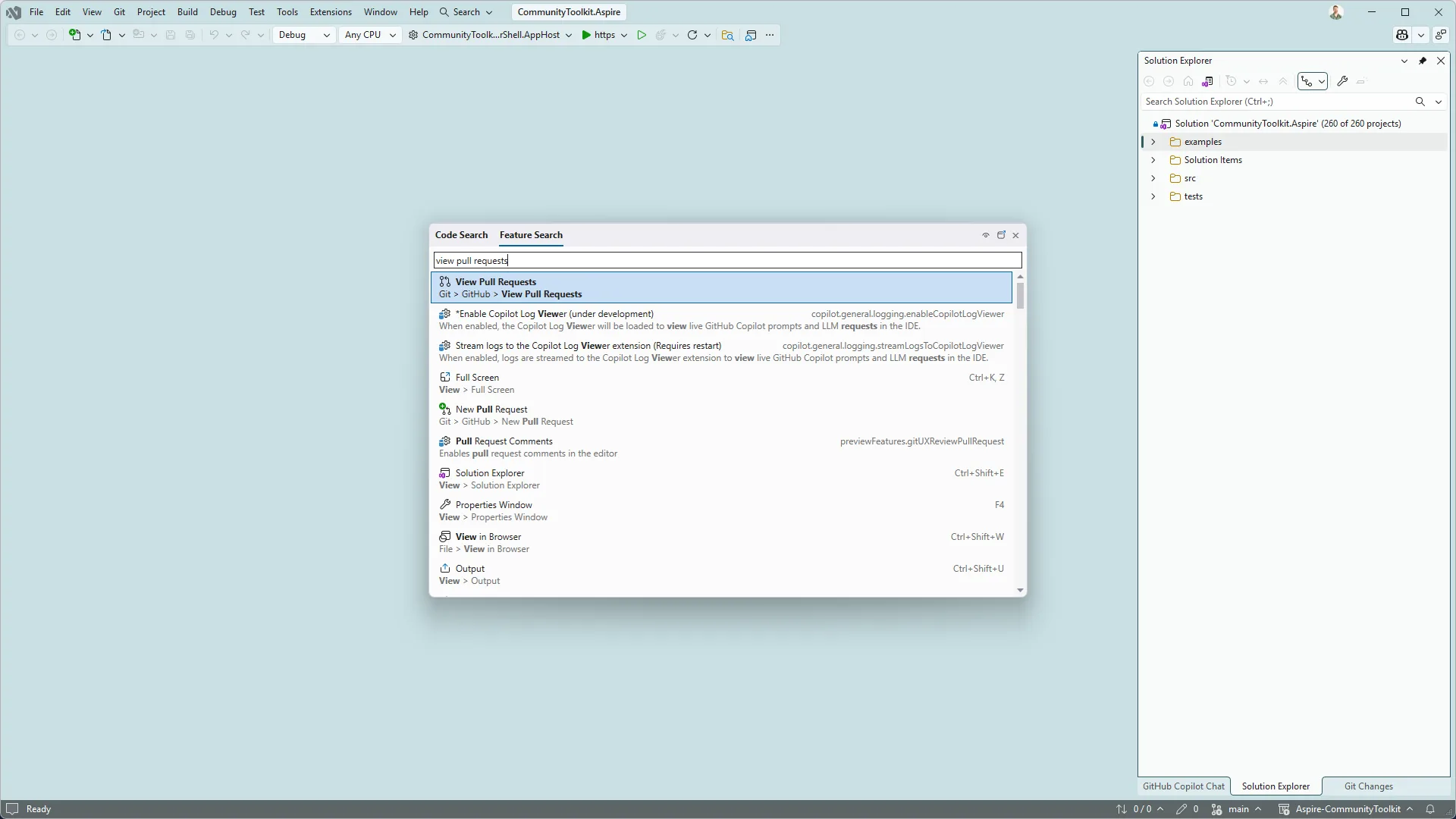
From here, Visual Studio will load all the PRs in the repo and group them to the ones that are assigned to me, all the PRs in the repo, and even the PRs that Copilot has created on my behalf.
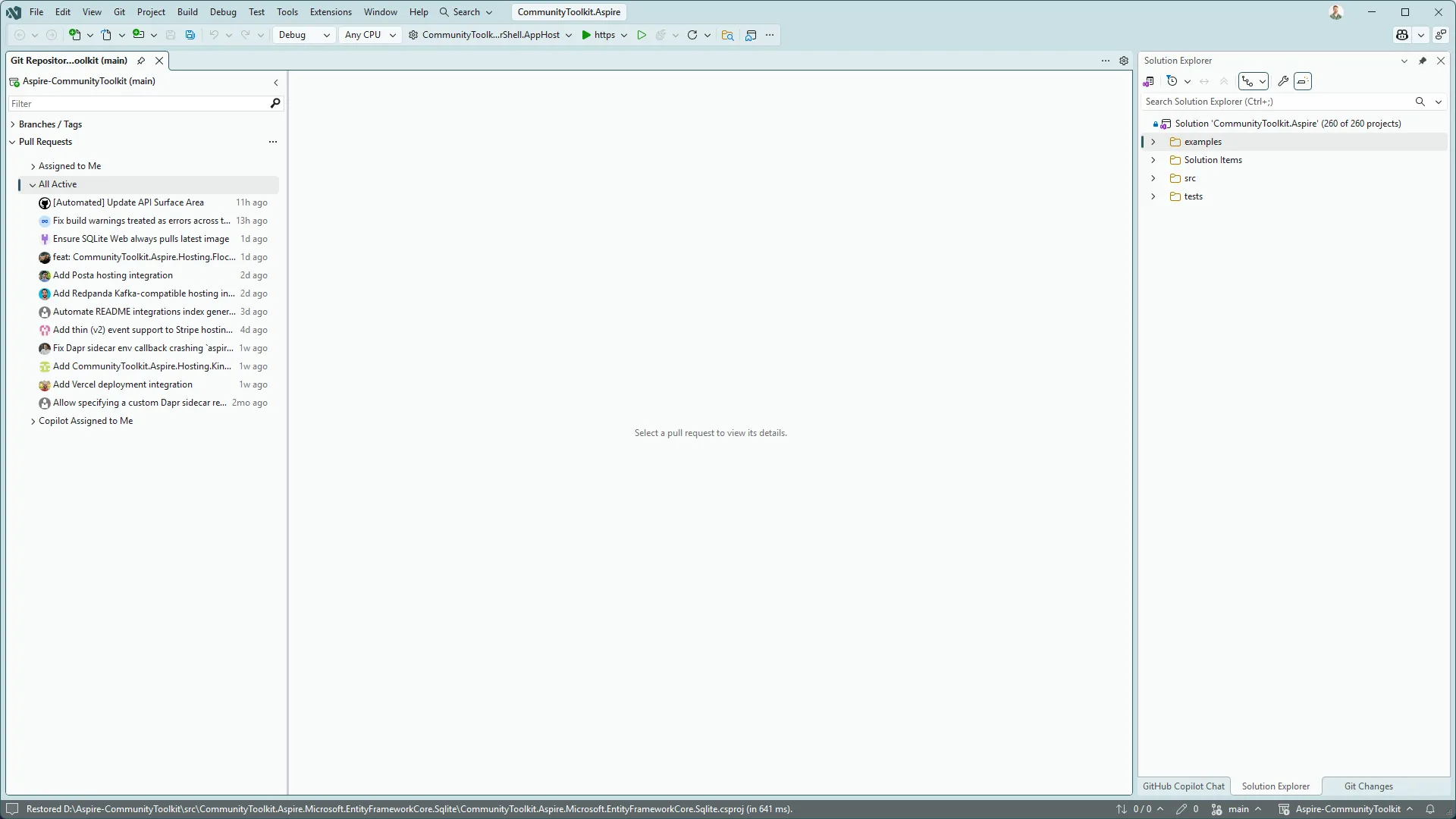
Time to select one of the PRs and start our review.
Working with our PR
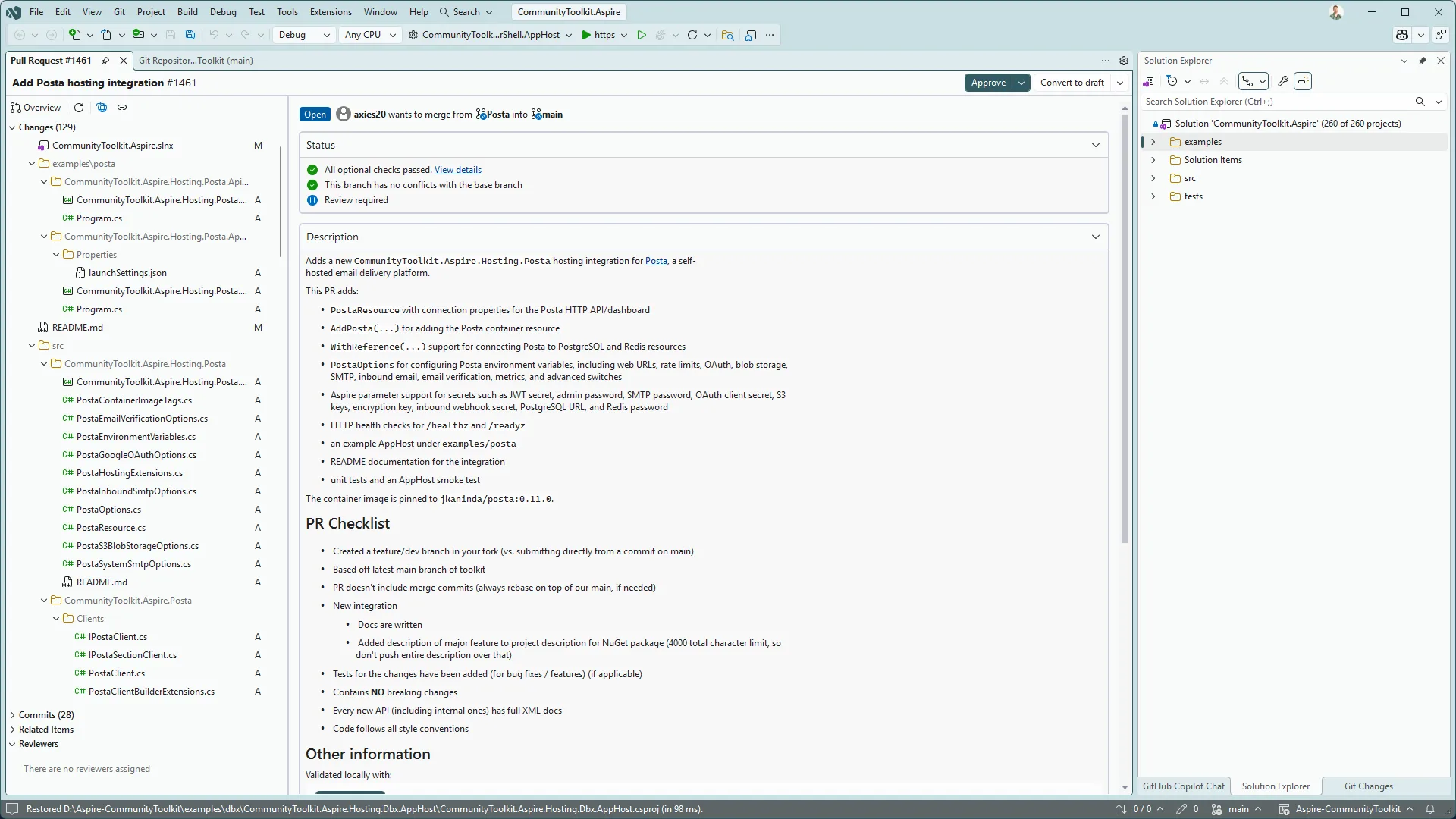
Opening the PR loads it into the main section of the View Pull Requests tab, but I like to click the “Open in New Tab” option as pops it into a new tab and maximises my screen real estate.
In the view of the PR I have a file browser down the lefthand side, while the main window initially provides me with an overview of the PR, I can read the description, see the comments currently on it, as well as add my own comments.
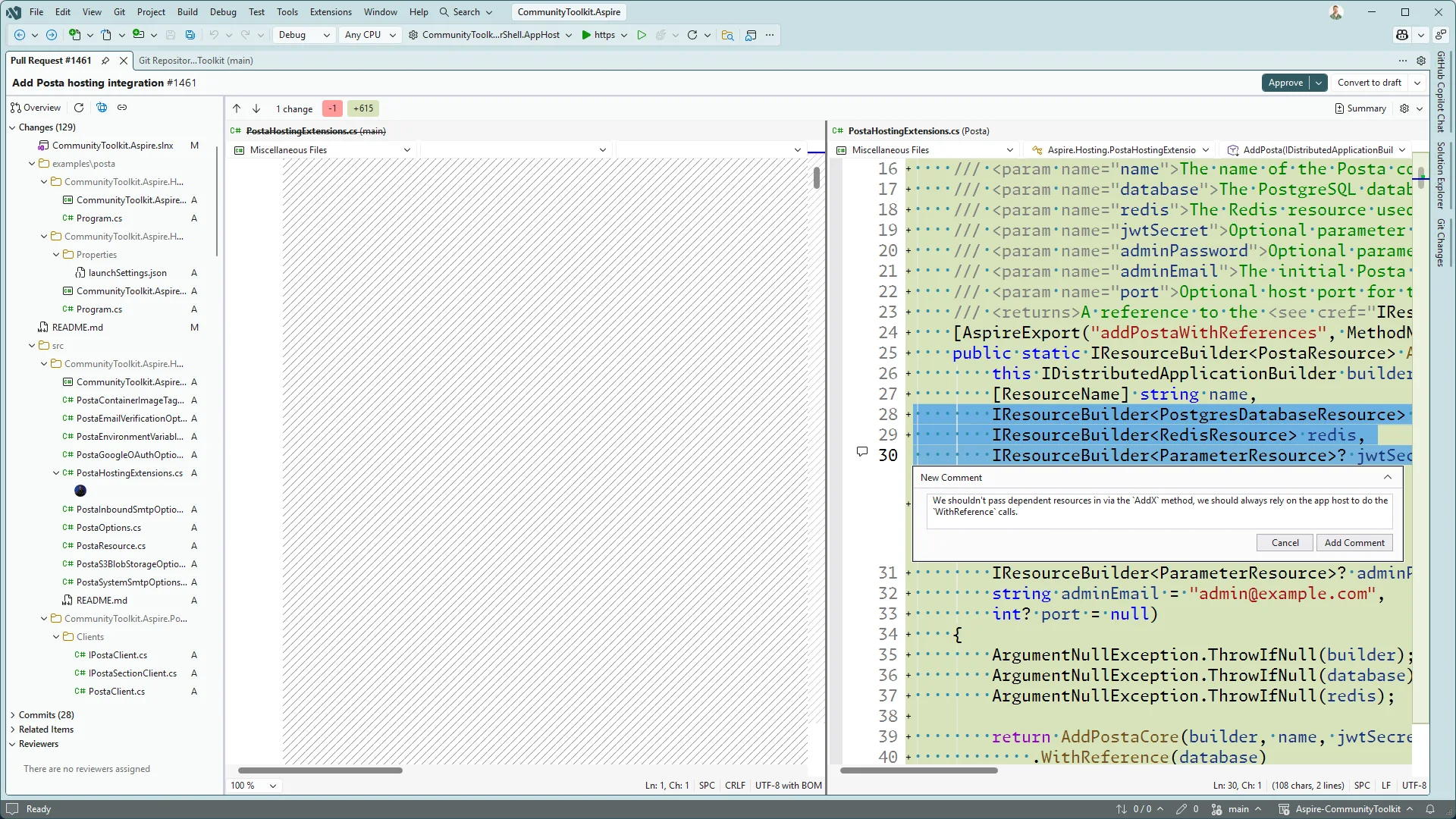
Clicking on the files within our file list will give me a diff view of the file, and because I’m in Visual Studio we get syntax highlighting of the C#, as well as the list of all the types in the file I’m opening.
When viewing a file that has edits to it rather than a new file, you can choose to view the whole file, or a summary which will condense down the file to hide lines between points that are changed. This can be helpful if you’re viewing a long file and want to avoid excessive scrolling.
We can annotate files in the PR by clicking on the gutter next to the line (or lines if we select multiple first), then opening the inline comment window. Visual Studio will buffer our comments until we submit our review.
Approve and Merge
This PR looks good and is ready to merge into the main branch. In Visual Studio, click Approve in the top-right corner to update its status on GitHub.
The adjacent options let you merge the PR or configure auto-merge while waiting for additional checks. These options follow the policies configured for your repository.
Bringing Copilot in
We might want to get Copilot to act as a pair while we’re reviewing the PR, maybe we want a rubber-ducky review of some of the changes or ask it questions about the solution proposed. To do this, right-click on the PR within the list of active pull requests and select Add to Chat, or from a Copilot session, use #pullrequest:<id> – both of these will add it as context to the session you’re in.
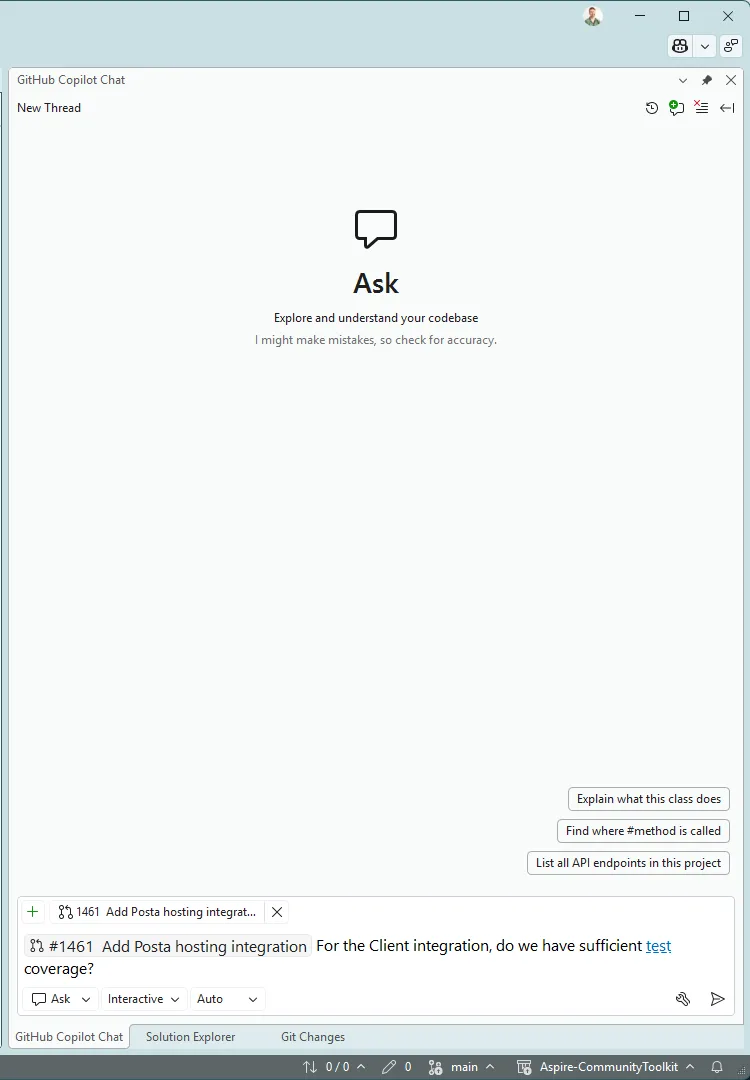
Now you can continue working with Copilot, and it will have the context of that PR available to it as you work.
Wrap-up
Reviewing and actioning pull requests is a daily task for developers, whether they are working on open-source projects, or within their organisation. With Visual Studio, we can perform all of this within the one experience, avoiding the context switching as we jump between tools. This also means that we integration with Visual Studio, such as syntax highlighting and member hierarchy.


Thank you a lot !