


A user asked for per-solution color themes. It already ships, and it goes further than they asked.
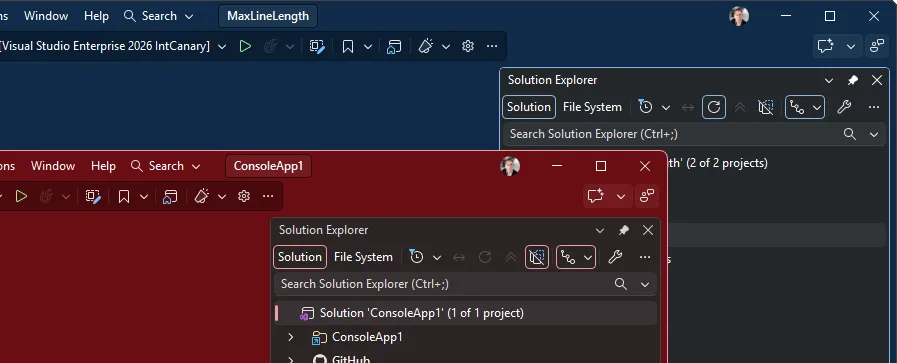
You run several instances of Visual Studio side by side, one per solution, and they all look identical. Same taskbar icon, same alt-tab thumbnail, same chrome. So, you land in the wrong one, start typing, and realize thirty seconds later you just edited the wrong repo. Could each solution get its own color theme?
It can. It already does. And the way it works turns out to be more useful than a personal color preference.
How to do it
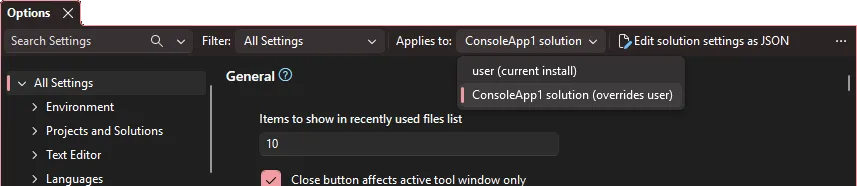
- Open Tools > Options.
- At the top of the window, find the Applies to dropdown and switch it from your user profile to the current solution.
- Change the color theme.
This uses the new settings experience introduced in Visual Studio 2026.
That’s the whole thing. From that point on, every setting you change applies only to the solution that’s open. Close it, reopen it tomorrow, and the theme comes back with it. Open a different solution and you get its color instead.
No restart, no Apply button, no dialog to dismiss. Most setting changes take effect immediately, and the theme is one of them. The window changes color while you’re still looking at it.
Pick colors with real contrast between the solutions you keep open together. Dark for the service, Blue for the client, Light for the sandbox. The goal is telling them apart from your peripheral vision, not having to read the title bar.
Why this works now
The Applies to dropdown isn’t a color feature. It’s the scoping model behind the new settings experience, and the theme just happens to be the most visible thing you can point at it.
In the old Tools > Options, every page owned its own UI, and settings were a flat, global, machine-wide pile. The new experience puts them all in one consistent, searchable surface backed by JSON, and once settings have a real schema, they can have a real scope. “This value, for this solution” becomes something the IDE can express.
So, the color theme is the demo, not the feature. The feature is that settings now have a scope and a file, and a file is something you can put in source control.
The JSON underneath, and why your team cares
Per-solution settings live in a file called settings.VisualStudio.json, in the solution root folder, right next to your .sln or .slnx. That location is the point.
Commit it, and everyone who clones the repo gets the same setup. A new teammate opens the solution on day one and the IDE already looks and behaves the way the team agreed it should, with no onboarding doc that starts with “first, go to Tools > Options and change these nine things.”
Don’t want to impose your taste on everyone? Add it to .gitignore and it stays yours alone. Same feature, same file. One line decides whether it’s a team convention or a personal preference, and you decide it per repo, after the fact, by whether you commit.
If you’d rather work in the raw values than UI, select Edit user settings as JSON from the toolbar. The file opens showing only what you’ve changed from the defaults, not thousands of lines of untouched values. Edit them there directly or copy a single setting to the clipboard to hand to someone else, which beats screenshotting a checkbox into a Teams chat.

One thing to know
Per-solution settings are stored separately from your user settings, so changing the scope doesn’t overwrite the setup you use everywhere else. Switch the Applies to dropdown back to your user profile whenever you want to change the default for all solutions.
That separation also makes experimentation low risk. Give one solution a distinctive theme, see whether it helps, and remove the solution-level value if it doesn’t. Visual Studio falls back to your user setting without requiring you to reconstruct it.
If you want to go further
Long before this shipped, an extension called Solution Colors solved the same problem from a different angle. It’s color only, and it’s more granular: instead of switching the whole theme, it tints specific parts of the IDE per solution, and it can pick a color automatically, so you don’t have to decide anything.
If per-solution themes are enough, use the built-in feature. It’s supported, it syncs, and it’s checkable into source control. If you want finer control over exactly which pixels change color, the extension is still there and still worth a look.
Try it
Open your two most-confusable solutions and give them different themes. Fifteen seconds each, and it pays you back every time you switch windows.
Then, if it’s useful to more than just you, commit settings.VisualStudio.json. Your team gets the same visual cue for free, and the next person who joins never opens the wrong window at all.
If there’s another setting you want scoped per solution, tell us in the comments. The plumbing is there now.


This is nice but like others here, it only goes part way to solving my primary use case where I have several copies of VS open on the same repo but in different workspaces/branches (actually I just clone the repo to folders work1, work2, work3 etc). So being able to key this off a combination of solution name _and_ location would be ideal.
You can use the Solution Colors extension, which provides branch aware colorization. It’s linked to in the blog post.
This solution is not working in my current repo: we have 10 sln files at the same level, to open different subsets of projects (eg: one with the full solution, one for the web app, one for the mobile app, and so on).
I tried opening 2 solutions in that repo, and once I applied the change to one, it got applied to the other one. I suppose this happens because the settings.VisualStudio.json file does not create settings depending on the solution name.
Maybe, as a further improvements, you can change the json to be something like
<code>
Does that mean you can do this for an entire repo? Not documented in the article but it’s cool that it could be used for that.
I’d love to see this setting being able to apply to the entire repo. Not for colors, but more like:
/* Visual Studio Settings File */
{
  "textEditor.advanced.adaptiveFormatting": false,
  "textEditor.codeCleanup.profile": "profile1",
  "projectsAndSolutions.webProjects.use64BitIisExpress": true
}
Our repo has many solutions, so to have a settings file per sln doesn’t make sense. One that the root that applies first would be helpful.
I’ve just tried doing this for the half-dozen solutions I’m currently working with.
I ran away; not quite screaming, but almost.
The number of things that can be individually coloured is vast, but it’s really not obvious what each one is.
What we need is a *simple* way of applying a subtle colour to the title bar / status bar, maybe a few other window elements as a single thing; rather than the only option is to wade through hundreds of different possibilities that may or may not apply to the actual VS view that one is looking at.
I think you may have been looking at the wrong setting then.
From what you describe, I think you are looking at the "Environment > Visual experience > Design colors" sub section, which has a huge grid of key-to-hexvalue pairs, many with non-descriptive names such as "ControlAltFillTertiary" – whatever that is.
But what this article is referring to is the first drop down immediately below the "Visual experience" headline. It is a single dropdown with 13 pre-made color themes such as "Dark" and "Light" but also "Moonlight Glow" or "Spicy Red" (the two colors from the image). See Visual Studio color themes...
Yes, you are right; thank you. It certainly wasn’t obvious; or maybe I was just being dim that day!
I had been expecting to be able to set a highlight colour on say just the status bar, or just the title bar, rather than affecting the whole window, while still being able to retain the primary theme.