


I struggled to get started. For ages, I kept putting off building this website, creating a new programming language for Visual Studio, and coming up with fresh color themes. Each project looked overwhelming, and I couldn’t find the time or motivation to jump in. It all just felt like too much at once.
But when a national holiday gave me a long weekend, I grabbed the chance to try out Copilot in Visual Studio and see how far I could get. To my surprise, I knocked out all three projects way faster and more easily than I expected. I’m sharing what I learned because I hope it inspires you to finally tackle those projects you’ve been putting off.
If you have some free time at the end of 2025, it might be the perfect opportunity to finally kickstart those ideas you’ve been meaning to work on.
Let’s jump into how I kicked off the web development project.
Project 1 – a static website
A few years ago, I wrote a book called The Automated Home with little success. I wrote it mostly for myself and to help other smart home geeks come up with ideas and recipes for their own automations. A book isn’t a good format for that, so I’ve been wanting to turn it into a website for a long time.
I exported the book from .docx to .txt so that I could feed it to Copilot in Visual Studio. Then I created an empty folder to hold the static website and opened it using File -> Open Folder.
And then I went to the chat window and wrote a prompt to Copilot that went like this: “Turn this book into a website that should function like a book of recipes for home automation”.
It chewed on that for a while and a static website was slowly taking shape in front of my eyes. One file at a time added to Solution Explorer and opened in the editor.
The first result was pretty good. It had most of the content right, but the design, menu system, and content organization was suboptimal. My background as a web developer came in handy, because I knew what I wanted and how I wanted it. So, I started to be a lot more specific in my prompting and telling it how I wanted the CSS to look like etc.
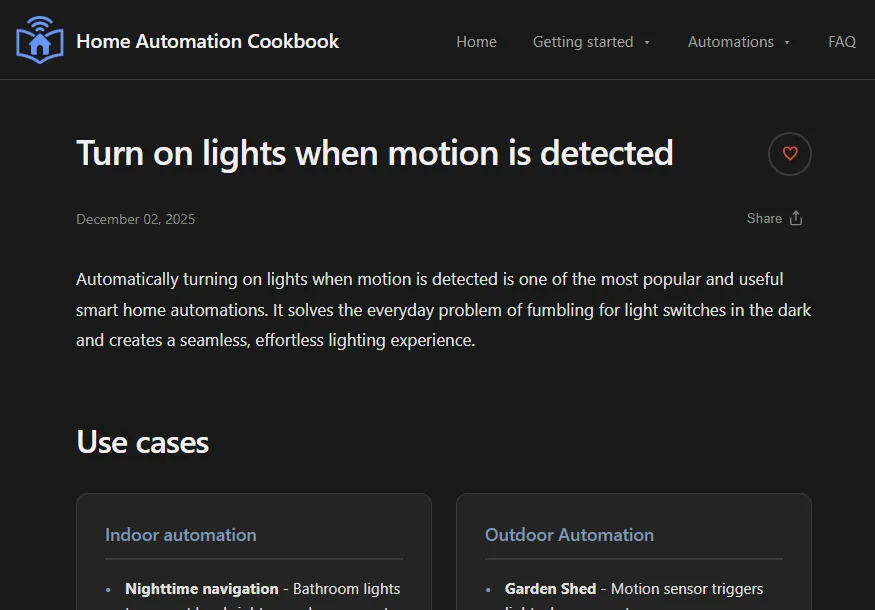
The AI was able to create this website in much less time than I would have been able to manually. Probably around 5x faster. I didn’t write much myself but would prompt the AI whenever I wanted a change. Only for small things would I do the coding manually.
The workflow was amazing, but it did involve quite a bit of waiting for Copilot to finish its tasks. That turned out great, because I was able to spend time with the family and make progress on the website at the same time.
Check it out at https://www.homeautomationcookbook.com
Project 2 – a TOON language service
I write Visual Studio extensions a lot, and this one has made it to the top of my to-do list. Mainly because of the challenge of creating a language parser and tokenizer that would work as a Visual Studio language service. TOON is a simple language, but even so, a language service requires some unique features I couldn’t find in any of the current TOON implementations in C#.
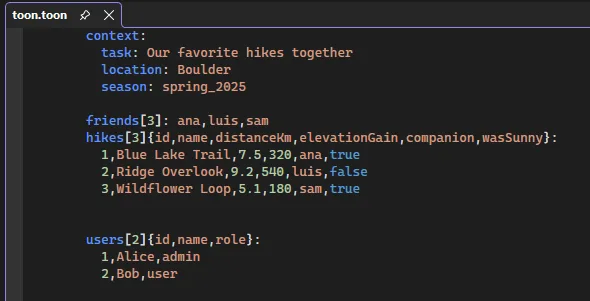
To provide syntax highlighting, syntax validation (squiggles), and other features, a language parser must be very fault tolerant. If you make a syntax error on line 10, you don’t want the rest of the file to lose syntax highlighting or be riddled with syntax violation errors. Most language parsers will simply throw an error if they see a syntax error and stop parsing completely.
My plan was to point the GitHub cloud agent to the TOON language specification and have it create the parser and based on that. I also wanted it to create unit tests based on the specification to validate the implementation was correct.
I created a new .NET 10 Class Library project in Visual Studio 2026 and opened the Copilot chat window. The prompt I gave Copilot was something like “Based on the TOON specification (<url to spec>), create a parser and tokenizer that is suitable for use in a Visual Studio language service”.
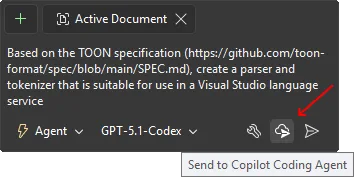
Once I clicked the Cloud Agent button to feed it my prompt, Visual Studio starts gathering the information it needs to come up with a plan. Once it does, it creates an issue on the GitHub repository with the information and then assigns GitHub’s cloud agent to the task.
In about 20 minutes, I received a pull request with the initial implementation by the cloud agent. It was a good first try, but more work was needed to make it work the way I wanted. I used a mix of both regular agent mode and the cloud agent to make further improvements.
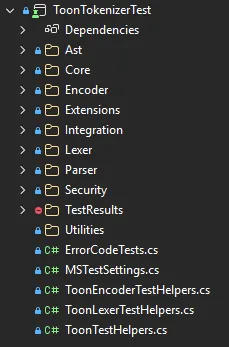
I found that the cloud agent was most helpful when it came to isolated tasks. I could simply prompt it to begin the work in the background, while I did other work in Visual Studio. That way I had two workstreams going on in parallel and I could make headway fast.
Once complete, I asked the agent to make the class library into a NuGet package and set up automated CI/CD using GitHub Actions. I published the Toon Tokenizer package shortly thereafter and could now start working on the Visual Studio extension.
This is my wheelhouse. And once I created a new extension project, I could simply add the NuGet package and go to town. I did this part manually because I really enjoy extension development, so I wanted to do all the driving.
This was a super fun project, and I got to play around with the Profiler Agent to fine tune the parser performance. I also asked the agent to help find any security issues and mitigate them. It was able to find and fix some potential risks. Overall, a fantastic experience that turned out so much better than I could imagine. This was another 5-10x time saver thanks to Copilot.
Check out the Toon extension and parser repository.
Project 3 – new color themes
I’ve wanted to make some new color themes for Visual Studio for a long time. But it’s a type of extension I don’t have much experience with, so I wasn’t sure about how much effort would be required. Often, the unknown amount of time and effort is what makes me procrastinate on projects.
To kick this one off, I decided to use my old Blue Steel theme extension as the base. I wanted to create two solarized themes. The real challenge with this one was to map the color tokens with the right color codes. All I had was screenshots of the themes from the Solarized web page.
It looks like this:
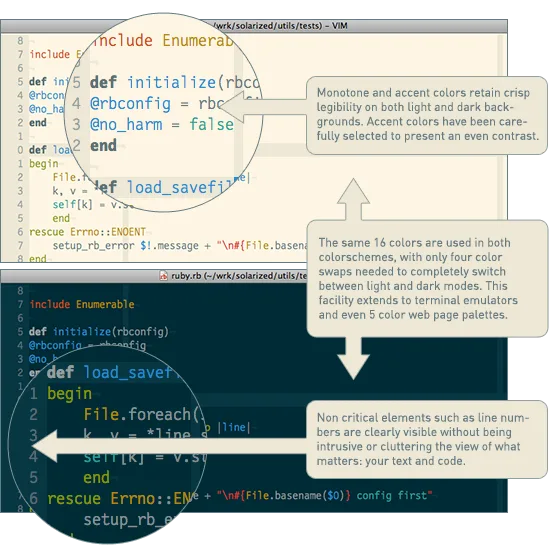
With the screenshots, I asked Copilot to extract the color tokens for both the shell/environment and the code syntax colors and map them to the right color tokens in the VS XML theme file.
Those XML files contain a bunch of categories with color tokens in each.
<Category Name="Shell" GUID="{73708ded-2d56-4aad-b8eb-73b20d3f4bff}">
     <Color Name="AccentFillDefault">
             <Background Type="CT_RAW" Source="FF6C71C4" />
     </Color>
     <Color Name="AccentFillSecondary">
             <Background Type="CT_RAW" Source="E56C71C4" />
     </Color>
     <Color Name="AccentFillTertiary">
             <Background Type="CT_RAW" Source="CC6C71C4" />
     </Color>
     <Color Name="SolidBackgroundFillTertiary">
             <Background Type="CT_RAW" Source="FFEEE8D5" />
     </Color>
     <Color Name="SolidBackgroundFillQuaternary">
             <Background Type="CT_RAW" Source="FFEEE8D5" />
     </Color>
     <Color Name="SurfaceBackgroundFillDefault">
             <Background Type="CT_RAW" Source="FFFDF6E3" />
     </Color>
     <Color Name="TextFillSecondary">
             <Background Type="CT_RAW" Source="FF000000" />
     </Color>
</Category>
Copilot did a fantastic job, but I had to play around with the colors a bit. There was still a bunch of manual finessing needed. But it gave me a jump start that saved me a lot of time.
I ended up adding 6 new color themes to the Blue Steel extension.
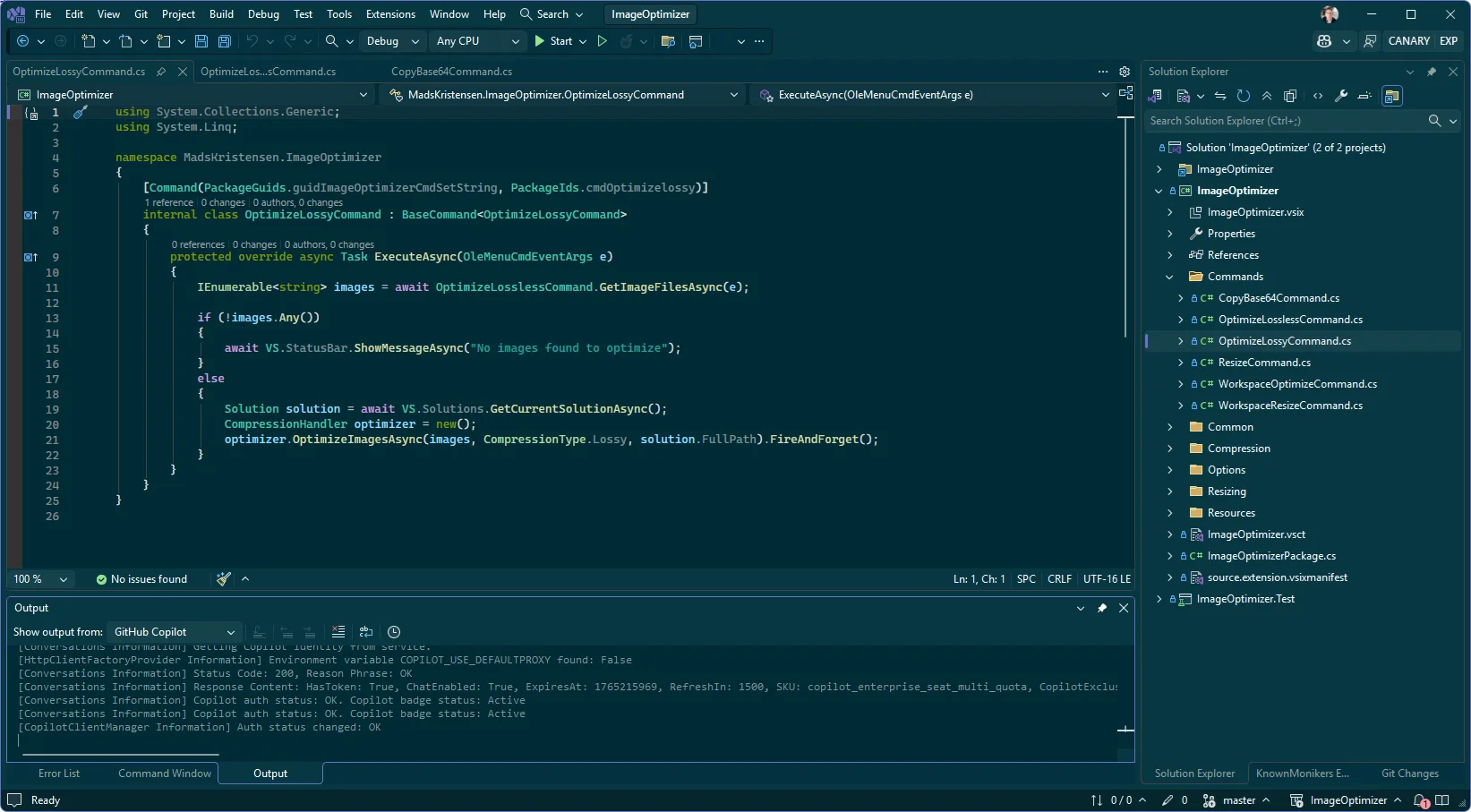
If you’re interested in creating your own color theme(s) for Visual Studio, I suggest you clone the GitHub repo to get started. Make sure to change the GUID in both the .vstheme files and in the .vsixmanifest file to avoid conflicting with the original.
In conclusion
If Copilot hadn’t given me a running start, I probably wouldn’t have even started these projects. It would’ve been way more work. And honestly, it is not nearly as fun or satisfying. Seeing things come together quickly is super motivating and really helps keep you going until you finish.
Agentic development was awesome for a lot of the work that went into these projects, but there were times I just wanted to do things the old-school way. Sometimes I just enjoy doing certain tasks myself, or it’s simply quicker to make some tweaks by hand.
In any event, these were fun to do. And I finally shipped what I’ve been wanting to do for so long.


I totally agree. I’ve put off several personal projects just after estimating the time investment it would take to get to something usable. Now there’s much less anxiety in starting them knowing that I can get to a workable version much faster. It may not work out or I may still lose interest, but at least I didn’t trade a huge amount of time away from family and friends.
I love Visual Studio Enterprise ... amazed by the journey from msdev.exe to devenv.exe, finally native 64 bit :-)
Big thank you to the teams in the backgrounds who made that possible and keep on going!
One wish for MCP server usage:
Could we get a well known client id to register as "authorized client application" on our custom MCP servers hosted in Azure with a custom App Registration?
Visual Studio Code has such a client id: aebc6443-996d-45c2-90f0-388ff96faa56.
That would make secret less authorized MCP server access from within Visual Studio 2026 (2022 would be OK as well) so much easier - pretty...
I feel like this is a symptom of our over-reliance on scrolling Twitter/BlueSky/LinkedIn and Vine/YouTube Shorts/TikTok/Instagram/Snapchat
How is it possible that in your VS2026 the folder icons are completely yellow and not just outlined? (See screenshot in Project 3 chapter)
Is there some option for it?
The Experimental Instance of VS shows the icons like that. Not sure why, but hadn’t honestly noticed until now
I’ve followed Mads Kristensen for years and he’s an excellent developer and a great source of encouragement!
I’m just sad that Microsoft is pushing this agenda that it’s OK to build software with great bugs if it’s done fast. In other words, pay for Microsoft servers and build AI apps with bugs. I want to stress, again, that the author of this blog is an excellent developer and there’s not a single doubt there, it’s the Microsoft pushing their AI servers without boundaries that’s so offensive to any sane developer.
Is there any API that allow a VS extension to enumerate colors used in VS?
TBH I’m very skeptical.
These are all greenfield projects without a real production scope and without any real life requirements such as long term maintenance by other participants.
So it’s impressive to just “generate a bunch of code” – nothing we could have done a few years ago – but is it useful?
You end up doing what I'm doing.
You get a "harsh" persona (like gilfoyle) and ask it to critique a file.
Then you ask the usual persona to address the critiques.
Then you maybe dump in some ideas of your own.
Then you expand/revise the tests by repeating the previous 3 steps on the tests for that file.
Then you repeat the whole thing again.
Probably at least 5 times.
Is it faster?
Probably not.
Is it better code?
I've learned some new language features this way.
And using a persona as a member of the council of rubber ducks definitely helps...
No, but, you will have it shoved down your throat whether you want it or not.
Microslop Visual Studio 2026. How do I disable all the AI spyware?
I have experience the same, too many projects but no time to work on it, until I start using copilot 5 months ago, now I have complete more personal projects that in my whole10 years career
Grandma’s tales on Friday’s nights
During the frosty winters -
Where to look – white, white
Long tales for little ones
Grandma follows Friday’s nights.
About a wandering snowstorm,
The sun’s cut braids -
About a goose pumpkin,
Who flew to the south. ...