

Visual Studio now supports Agent Skills, which are reusable instruction sets that teach Copilot agents how to handle specific tasks like running a build pipeline, generating boilerplate, or following your team’s coding standards. Define a skill once, and the agent applies it automatically whenever it’s relevant.
Creating a skill
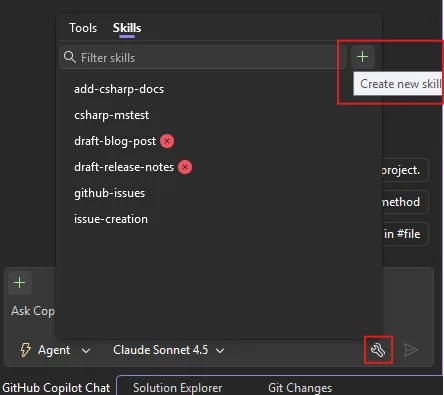
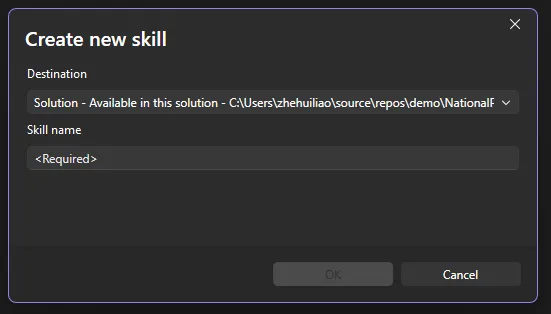
You can create a skill directly from within Visual Studio. Click the tools icon in the bottom-right corner of Copilot Chat to open the skills panel, a dedicated view of every discovered skill. Click the + button in the top-right corner of the panel and follow the guided flow: choose a destination (global or solution-level skill), pick a name, and Visual Studio generates a skill template for you to fill in. Copilot Agent mode can then assist you in filling in the template. Currently this flow is only available in the Insiders channel and will be in Release soon.
You can also create a skill manually:
- Create a skill directory in your repository (
.github/skills/my-skill/) or user profile (~/.copilot/skills/my-skill/). - Add a
SKILL.mdfile following the agentskills.io/specification format. - Optionally include scripts, templates, or examples alongside it.
For example, you could have two skills, github-issues and code-review like this:
.github/
  skills/
    github-issues/
      SKILL.md
      templates/
        bug-report.md
    code-review/
      SKILL.md
      checklist.md
Skills are auto-discovered from these locations:
- Solution skills (shared via your solution):
.github/skills/,.claude/skills/,.agents/skills/ - Global/Personal skills (shared via your user profile and available across solutions):
~/.copilot/skills/,~/.claude/skills/,~/.agents/skills/
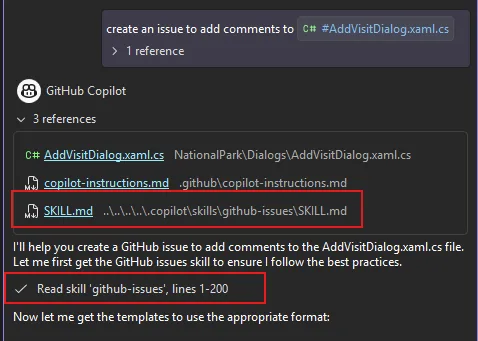
When a skill activates, it appears in the chat window so you always know what’s being applied.
If you are not sure where to start or what skills to create, please check out awesome-copilot for many great community examples!
Managing skills from the skills panel
In addition to creating new skills, you can also manage your skills easily from the skills panel.
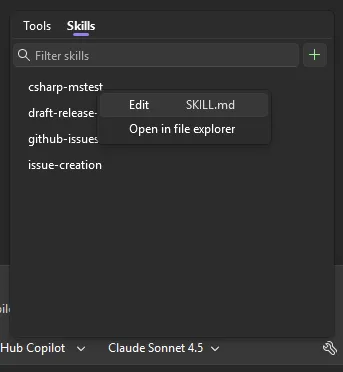
From the panel you can:
- Edit — Open any skill’s
SKILL.mddirectly in the editor via the ⋯ menu. - Open file location — Jump to the skill directory on disk.
- Search — Filter skills by name or keyword.
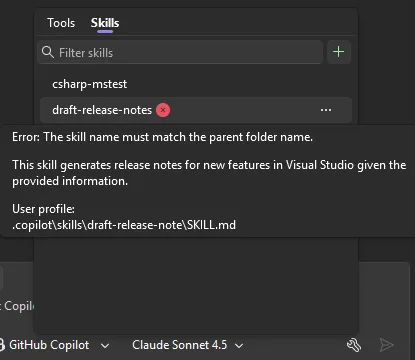
The panel also surfaces diagnostics for any skill configuration errors, so you can quickly spot and fix issues.
Skills vs. Custom Instructions: when to use what
You may already be using custom instructions (.github/copilot-instructions.md) to guide your Copilot’s behavior. Custom instructions are great for broad, always-on guidance, such as things like “use tabs, not spaces” or “prefer async/await over callbacks.” They are automatically applied to every interaction you have with Copilot.
Agent Skills are different. Skills are task-specific and dynamically loaded. The model decides when a skill is relevant and applies it only in matching contexts.
| Custom Instructions | Agent Skills | |
|---|---|---|
| Scope | Always active | Activated per-task |
| Best for | Coding style, conventions, general preferences | Workflows, templates, multi-step procedures |
| Structure | Single markdown file | Directory with SKILL.md + supporting files |
| Examples | “Use PascalCase for public methods” | “When creating a GitHub issue, use this template and include severity, repro steps, and environment info” |
Use custom instructions for rules that should always apply. Use skills for specialized workflows that only matter in certain contexts. Another way to extend your agent’s capabilities is through MCP tools, which let the agent interact with external services and APIs. Skills and MCP tools complement each other well — a skill can describe how to handle a task while an MCP tool provides the capability to execute it.
Please give Agent Skills a try and share your feedback in the comments or on Developer Community.
Happy coding!


0 comments
Be the first to start the discussion.