

Taking an enterprise application from development to production requires confidence that it can scale, stay reliable, and be governed effectively. Recent SharePoint Embedded updates give developers clearer guidance for making those decisions, from understanding limits and managing throttling to choosing the right permissions.
In this blog post, we highlight updates that help you:
- Plan with clearer baselines and limits
- Design apps that stay reliable under load
- Govern with more authentication and authorization tools
- Add Office co-authoring to your apps
Read on to get more details and watch the SharePoint Embedded presentation below to learn more about these updates:
Plan for scale with clearer baselines and limits
We updated the container strategy and metadata strategy to account for a shared tenant-wide site and container ceiling. The documentation now gives architects a clearer planning baseline. Read on to learn more about the latest updates and guidance on container strategy, searchability, and reliability under load.
You can learn more about the different limits and get planning guidance on Microsoft Learn: Understand limits and calling patterns.
Build your container strategy for growth
As you’re designing your architecture, it’s important to develop a scalable strategy for how you create containers. For example, if you’re working with clients, you can plan for scale by creating a container per client. Or if you’re building a line-of-business app, you can plan for scale by creating a container per activity.
Containers in a tenant count towards “sites per organization” in SharePoint limits. The current limit (at the time of publication) is set to 2 million sites and containers per tenant.
We recommend that you confirm current size limits before production launch. If you’re planning a SharePoint Embedded application that will exceed this limit in a specific consuming tenant, contact a Microsoft representative to discuss ways to scale your application.
You can learn more about how you can: Design for container type limits and container limits, as well as Understand container types and containers.
Find what you’re looking for with searchable columns and metadata
Want to find content in your containers by more parameters? We recently increased the limit to 40 searchable columns per container (at the time of publication). You can use searchable columns to search for content within the search index and with KQL.
You can use Microsoft Search in Microsoft Graph when your app needs keyword search across SharePoint Embedded containers or content. Search runs in the context of the signed-in user, so the service trims results to content the user can access. Your app must also have access to the corresponding container type before it can open returned containers or files.
You can also use metadata when your app needs structured fields on files in a SharePoint Embedded container. Metadata is stored as columns on a fileStorageContainer and as field values on the container drive’s items. Start by creating a column on the container before writing field values on files.
Learn more about Search containers and files and how to Store and query container metadata.
Design for reliability under load
When it comes to managing documents at scale, SharePoint Embedded is designed to meet higher throughput and volume requirements than SharePoint Online applications.
SharePoint Embedded enforces an API limit of 12,000 resource units per minute, per app, per tenant. This default limit is up to 9.6 times higher than the limit for a SharePoint tenant with up to 1,000 licenses (1,250 resource units per minute, per app, per tenant). Learn more about API rate limits for SharePoint Embedded and SharePoint Online application throttling. Note: limits shown are at time of publication and can change; verify before production.
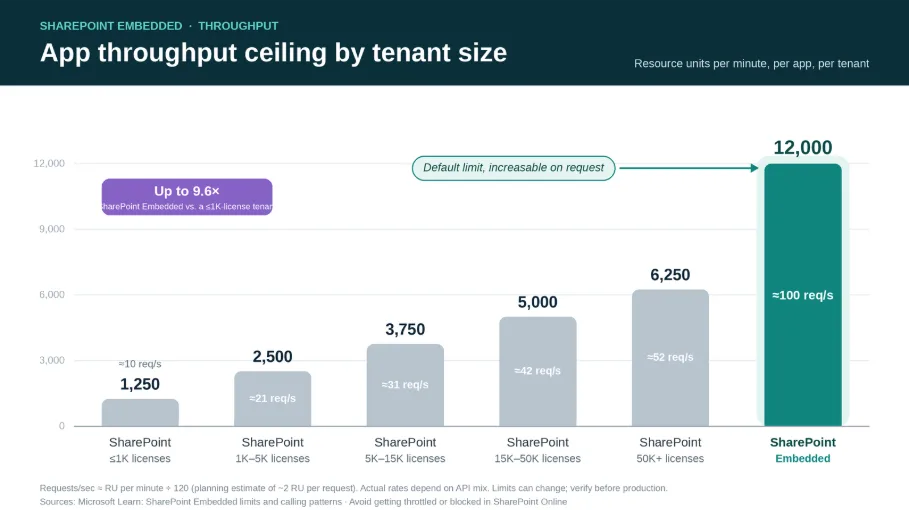
Figure: App throughput ceiling by tenant size comparing limits for a SharePoint Embedded tenant with SharePoint tenants (sized by license count). The requests per second (req/s) calculations assume a planning estimate of ~2 resource units per request. The actual requests per minute depends on the APIs you call and their resource unit cost. Limits can change; verify before production.
When your application nears service limits, throttling can occur. We have new throttling guidance to help you design apps that can stay reliable under load – and to help us maintain platform scalability and stability.
| Limits | Guidance |
| Slow-down signals (429/503) | Treat these as temporary pressure, not failure |
| Wait as asked (Retry-After) | Pause for the time the service specifies |
| Watch capacity (Rate Limit headers) | Use returned headers to gauge remaining headroom |
| Bounded retries | Retry a few times with backoff, then stop |
| Reduce concurrency | Send fewer parallel calls instead of amplifying load |
| Monitor by scope | Track usage per app, tenant, user, and container |
To reduce the likelihood of throttling, you can design for performance by reducing permission-heavy operations and spreading load across several containers. You can also monitor request rates, response codes, and latency.
We suggest you implement retry logic that:
- Detects HTTP 429 and 503
- Reads the Retry-After header
- Waits for the specified duration before retrying
- Reduces concurrency after throttling
- Avoids immediate retry loops
- Avoids request spikes after a wait period
For more guidance, read the Throttling management and Performance considerations articles.
Strengthen governance with authentication and authorization tools
Our guidance is to avoid unnecessary additive permissions. To help developers do that, awe’re moving toward explicit identity support and narrower Graph permissions.
Choose the authentication approach that fits your app
Service principals allow developers to configure authentication according to your application architecture. To provide you with more authentication options, SharePoint Embedded now supports Microsoft Entra service principal types, including Entra ID and Microsoft 365 security groups.
Applications start with an Entra ID app registration and use Graph to interact with containers and their content. Applications can operate on behalf of a signed-in user through delegated access or without a user through app-only access. Microsoft recommends delegated access whenever possible because actions can be associated with the individual user, improving security and accountability.
Learn more about service principals and how to Grant admin consent and permissions.
Gain greater control over app access
SharePoint Embedded applications use Microsoft Graph to access containers and content. To help you follow least-privilege access principles, SharePoint Embedded supports more targeted Microsoft Graph permissions.
For example, you can use the FileStorageContainer.Selected permission, instead of the broader Files.Read.All permission, for operations like preview file. This gives you control over the content your application can access.
Learn more about Plan authentication and permissions.
Add Office co-authoring to your app
If your app stores files and users ask to edit documents, you don’t need to build a collaboration engine. SharePoint Embedded lets your app launch Word, Excel, and PowerPoint files for real-time co-authoring, backed by the same Office service Microsoft 365 uses.
Your app gets a full collaboration stack:
- Real-time co-authoring in Office for the web and Office desktop clients.
- AutoSave for Word, Excel, and PowerPoint files.
- Automatic version history, so users compare and restore earlier versions.
- Sharing through shareable links, plus @mentions in comments for licensed users.
- Scoped access levels (depending on tenant/admin configuration): Anyone, People in your organization, Specific people, and People with existing access.
You can give users the ability to open files in Office for the web (in a new browser tab or window) or in Office desktop clients. You can also embed a read-only preview when you need inline, in-app viewing.
When your users have content that’s not supported by the viewer, you can configure the new container type setting: UrlTemplate, to redirect users to a specific URL or to return users to your application. For example, you can redirect users to a download action.
Learn more about how to Add Office co-authoring without building it or how to Open Office files from your app.
Start building your enterprise-grade app
Bring your app to life in a coding agent with the SharePoint Embedded MCP server (preview) to provision and manage resources through natural language. For example, you can describe what you want, like “create a container type for my app”, and the AI client calls the server’s tools to do it. Supported clients include GitHub Copilot in Visual Studio Code or CLI, Claude Desktop, Cursor, and Azure AI Foundry.
For a guided view, use the SharePoint Embedded Visual Studio Code extension. You can use it to create a container type, configure the owning app and billing, register the container type, create containers, and load a sample app from a guided view in the editor.
Not sure where to start? Visit our updated documentation hub, which is easier for both humans and AI agents to read. You can use it as a grounding source for favorite agentic tool or coding agent. It’s built around the tasks you need to evaluate, build, operate, and govern SharePoint Embedded.
- Plan: Architecture, billing, security, limits
- Build: Quickstart, Model Context Protocol (MCP), auth, containers, files
- Publish: Customer onboarding and billing
- Administer: Install and manage applications
- Govern: Security and compliance controls


0 comments
Be the first to start the discussion.