


GitHub Copilot is now a first-class, native option in JetBrains AI Assistant agent picker(read more). You can select it directly from the chat interface, no extra configuration needed, and immediately put Copilot to work on real coding tasks without ever leaving AI Assistant.
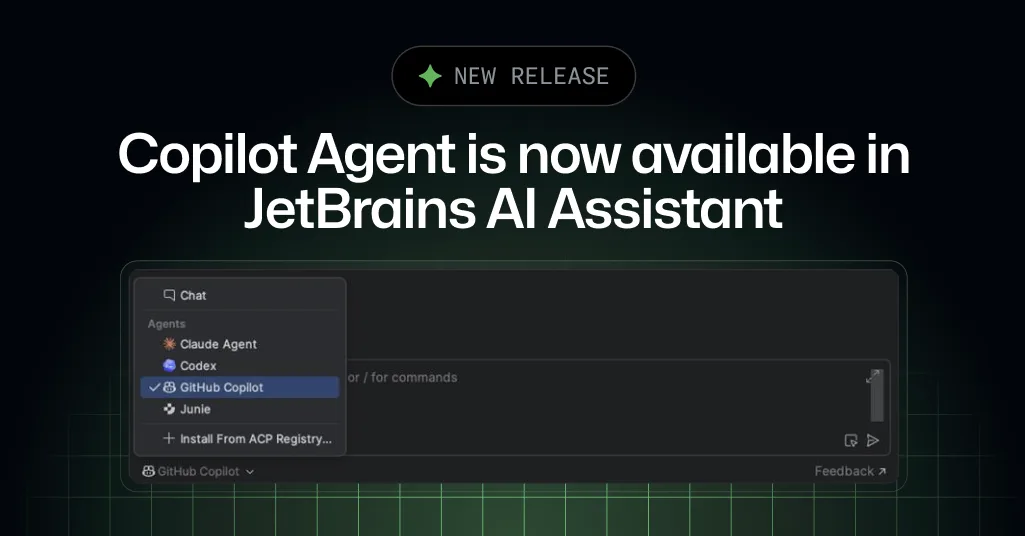
Millions of developers already rely on the GitHub Copilot plugin as their AI pair programmer inside JetBrains IDEs. Copilot has long been reachable through JetBrains AI Assistant via the Agent Client Protocol (ACP), but today we are taking that integration a significant step further.
✨ What's new at a glance
Open the Chat Panel in JetBrains AI Assistant -> Select GitHub Copilot from the AI Assistant agent picker -> Hand off coding tasks and iterate in real timeThis is not a separate window or a plugin toggle. Inside the AI Assistant chat panel you now have a unified place to choose which AI agent drives your conversation, and GitHub Copilot is one of those agents by default.
What Is the Agent Client Protocol (ACP)?
The Agent Client Protocol (ACP) is an open standard co-developed by Zed and JetBrains, with active backing from the developer community. Think of it as a well-defined contract: any AI service that speaks to ACP can register itself with AI Assistant, expose its capabilities, and receive chat messages in a structured way without requiring a fully custom JetBrains plugin.
ACP handles the negotiation between AI Assistant and an agent: capability discovery, message routing, model selection hints, and streaming responses. Because the protocol is open, third-party AI providers can build lightweight ACP-compatible servers and become available inside the IDE.
The ACP Registry
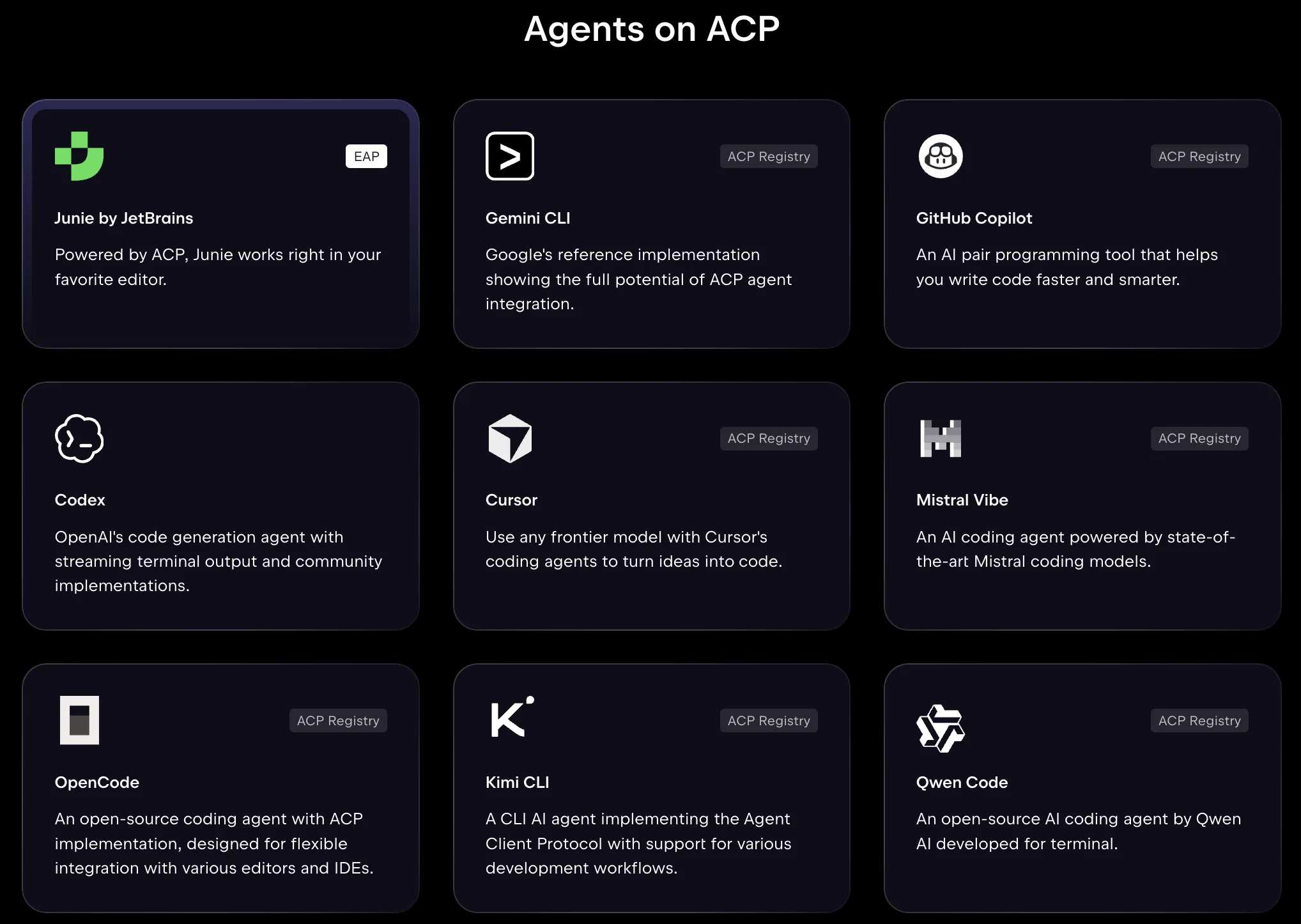
The ACP Registry is the catalogue of agents that AI Assistant knows about. When the IDE starts, it consults the registry to discover which agents are available in the current environment. Agents can be registered locally. For example, by an installed JetBrains plugin that ships an ACP server or made available through remote endpoints.
GitHub Copilot’s ACP entry is now part of the default registry. This means that if you have a valid Copilot subscription and the required credentials in place, Copilot appears in your agent list automatically, you do not need to manually add or configure an endpoint.
The Default Agent Picker
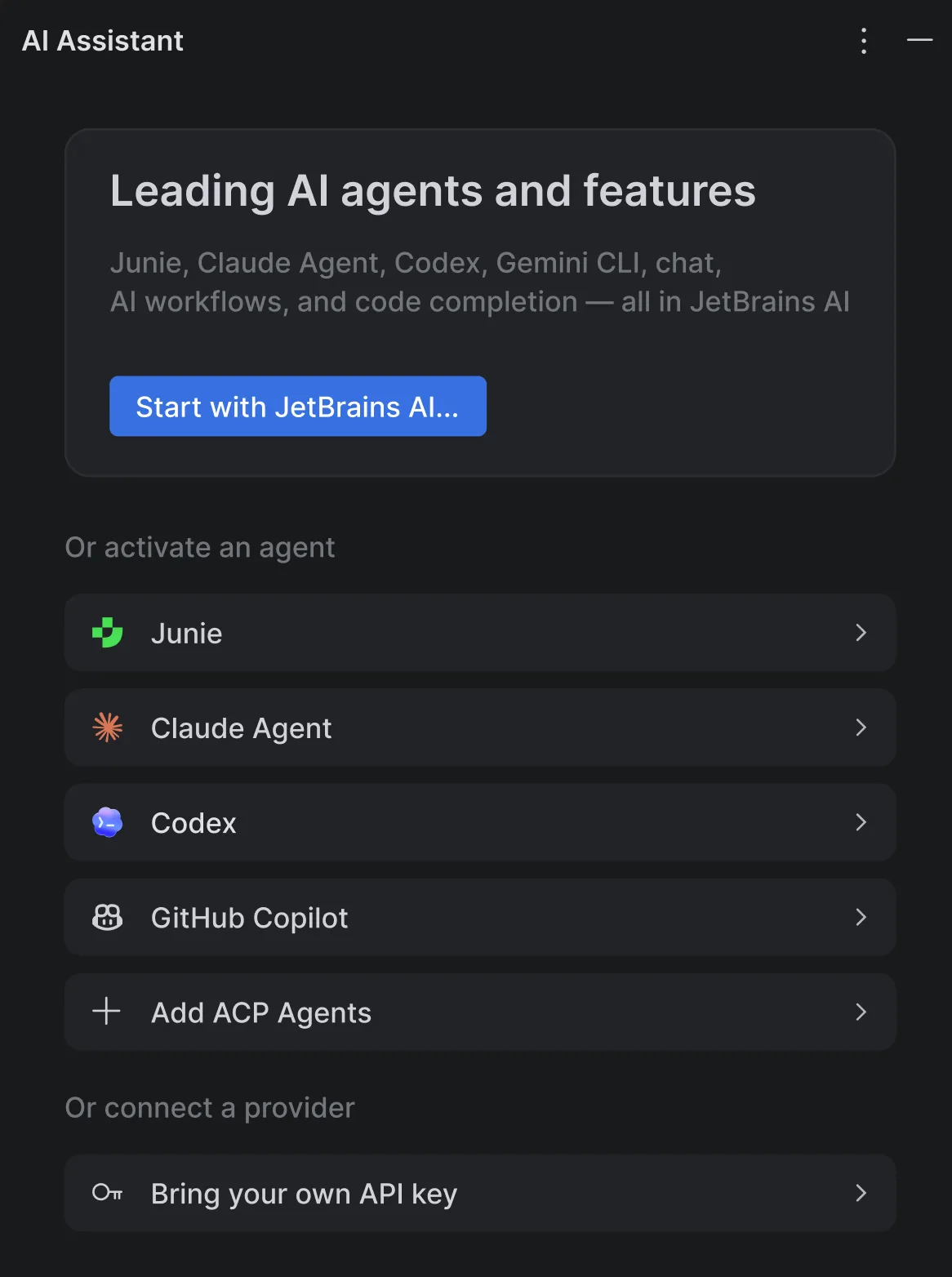
The agent picker is the dropdown at the bottom of the AI Assistant chat panel. It lists every agent currently registered in your environment. Selecting an agent sets it as the active driver for the conversation: subsequent messages are routed to that agent, and its capabilities, available models, reasoning modes, and supported tools are surfaced accordingly.
Three Ways to Use Copilot – Which One Is Right for You?
GitHub Copilot is accessible through three distinct entry points in a JetBrains development environment. They are complementary, not competitive, but understanding what each one offers helps you get the most out of every workflow.
Copilot Agent in JetBrains AI Assistant: Quick Access to GitHub Copilot
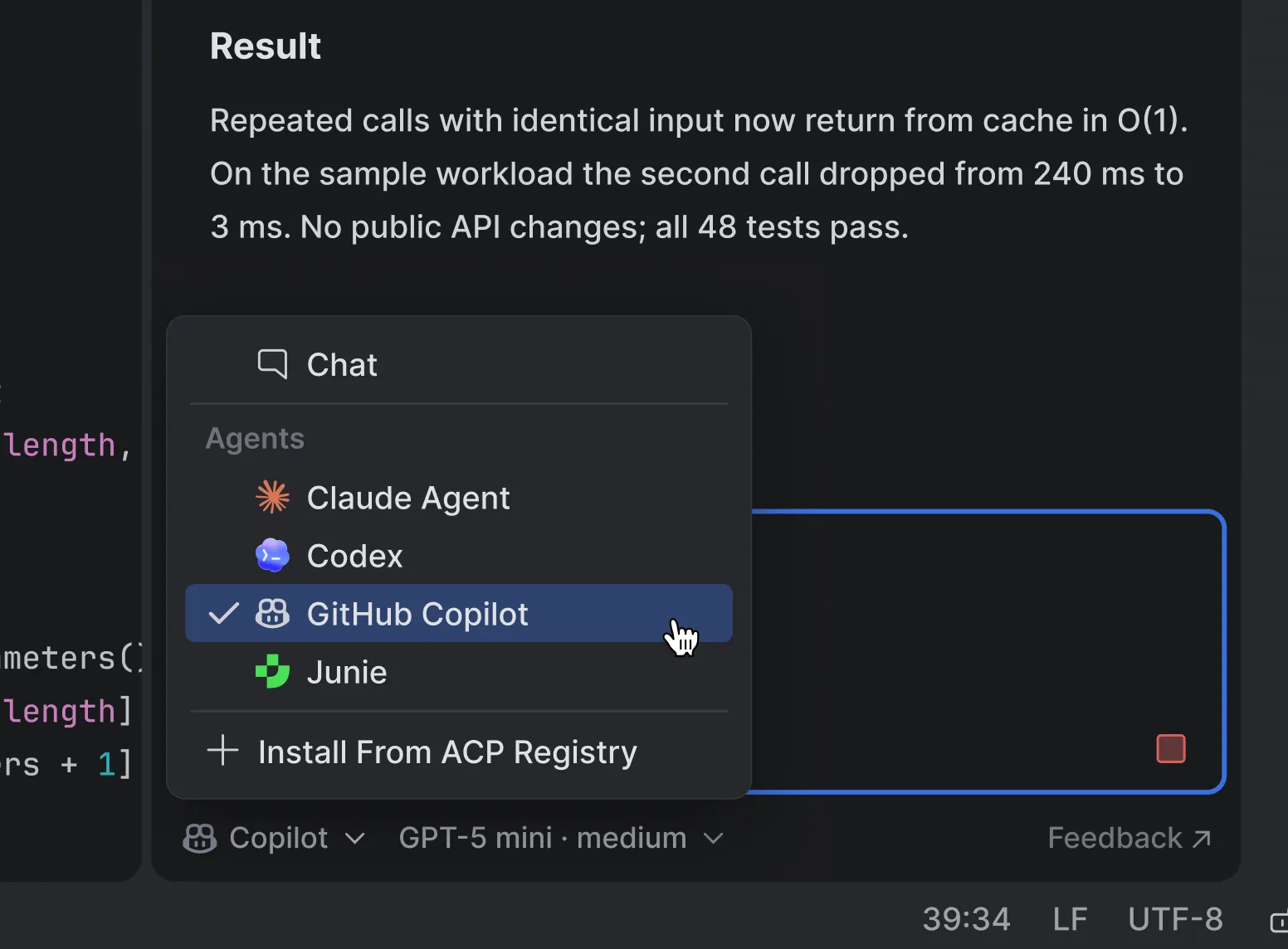
Co-built with JetBrains, the Copilot agent is integrated directly into the JetBrains AI Assistant, powered by ACP. It is purpose-built for developers who want to work entirely within the JetBrains chat panel without managing extra extensions.
- Co-built with JetBrains: A deeply integrated collaboration that brings the best of GitHub Copilot into the native JetBrains ecosystem, ensuring a seamless, high-performance developer experience.
- Zero Update: The Copilot agent is bundled directly with AI Assistant and kept current automatically. No separate plugin to install, update, or maintain. When Copilot ships a new update, JetBrains support comes along with it.
- Powered by ACP: Copilot connects as a registered ACP agent, following the same protocol as any other agent in the picker.
- Chat-centric workflow: ideal for multi-step reasoning tasks: describe a goal, let Copilot plan and propose changes, and iterate conversationally.
- Model selection in chat: switch Copilot models or adjust reasoning depth without leaving the chat panel.
GitHub Copilot Plugin: the Full Experience
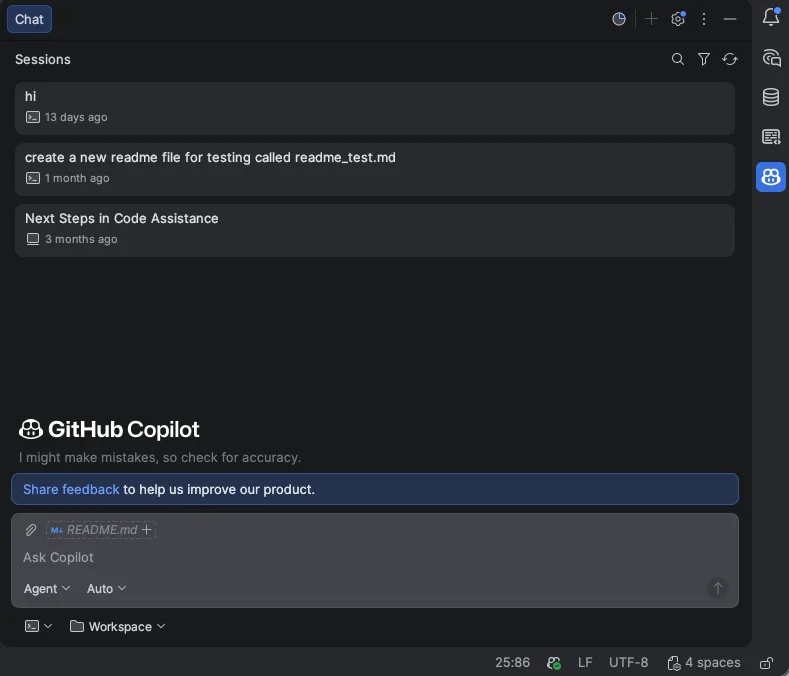
GitHub Copilot plugin for JetBrains IDEs provides you the full experience of GitHub Copilot. It integrates deeply into the editor at every level:
- Code completion and NES (Next Edit Suggestions): Copilot suggests completions as you type and proactively predicts your next intended edit.
- Multiple agent harnesses: The plugin ships its own agent experience and also partnering with other Agent providers, giving you multiple ways of interaction modes.
- In-IDE workflow: Inline chat, code review, and commit message generation are unified in the editor. You can explain/refactor/document/generate code, review changes for bugs and logic issues, and auto-generate clear commit messages from staged changes.
Copilot CLI: Fast Terminal Workflows
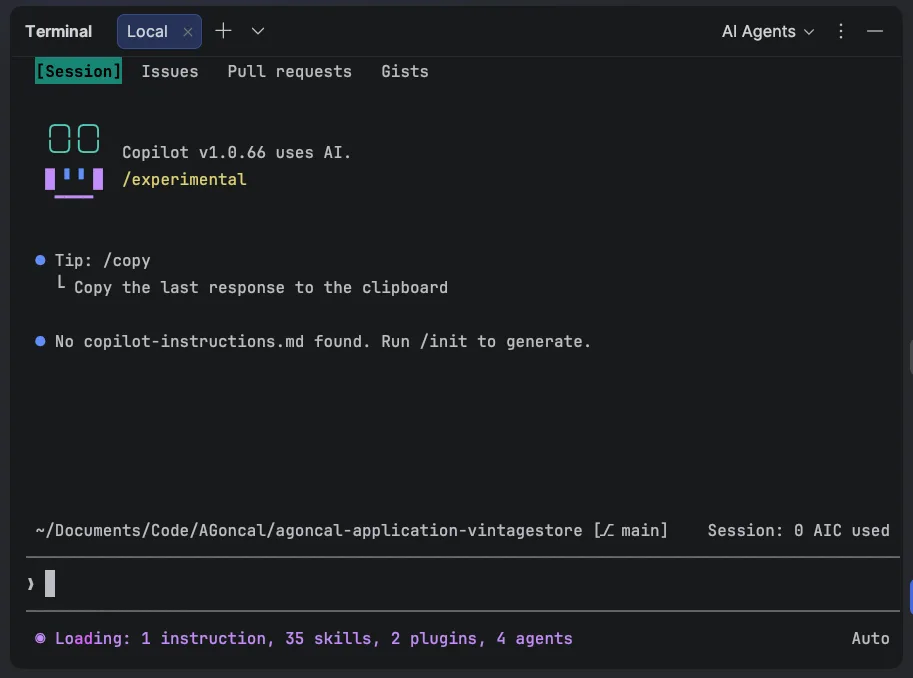
GitHub Copilot CLI brings Copilot’s capabilities directly to the terminal. It is optimized for speed in command-line contexts and installs anywhere you have a shell: macOS, Linux, or Windows, on your local machine or a remote server.
- Generate, run, and iterate without leaving the terminal.
- Explain shell commands or suggest the right invocation for a task.
- Complement editor-based workflows when you are already in a shell session.
✨ You can also use Copilot CLI in Copilot Chat
Copilot CLI is not a replacement for the plugin or the AI Assistant harness, it is a purpose-built accelerator for terminal-first workflows. If your day involves a lot of scripting, CI debugging, or shell automation, it is worth adding to your toolkit alongside the other entry points.
| GitHub Copilot Plugin | Copilot Agent in AI Assistant | Copilot CLI | |
| Best for | Complete Copilot workflow | Quick Copilot access without update | Terminal-first workflows |
| Entry point | · Code Suggestion
· Chat panel · Inline Chat · Copilot Code Review · Commit Message |
· Default Agent Picker
· ACP Registry |
Terminal / shell |
| Code completion | Yes | Not included | Not included |
| Next Edit Suggestion (NES) | Yes | Coming Soon | Not included |
| Agentic experience | Multiple Agent harnesses | · JetBrains AI default Agent picker · Copilot as Agent via ACP Registry | Copilot CLI |
| IDE Tools | Yes | Yes | Not included |
| Model selection | Yes | Yes | Yes |
| Inline Chat | Yes | Not included | Not included |
| Copilot Code Review | Yes | Not included | Not included |
| Git Commit Message | Yes | Not included | Not included |
| Subscription | GitHub Copilot | GitHub Copilot | GitHub Copilot |
Get Started Today
GitHub Copilot in the AI Assistant agent picker is available now. Here is how to try it:
- Open AI Assistant: Install AI Assistant and press Alt+A (Windows/Linux) or Cmd+Shift+A (macOS), or click the AI Assistant icon in the right tool window.
- Open the agent picker: click the agent name dropdown at the top of the chat panel.
- Select GitHub Copilot: it appears in the list if you have a valid Copilot subscription.
References
- Using GitHub Copilot CLI as an ACP Server in JetBrains IDEs (https://www.linkedin.com/pulse/using-github-copilot-cli-acp-server-jetbrains-ides-antonio-goncalves-1ytbf/)
- ACP (https://github.com/agentclientprotocol
- ACP (https://agentclientprotocol.com/get-started/introduction)
- ACP support in Copilot CLI is now in public preview (https://github.blog/changelog/2026-01-28-acp-support-in-copilot-cli-is-now-in-public-preview/)
Share Your Feedback
Your feedback helps shape the future of GitHub Copilot. Share your thoughts through the in-product feedback on feedback repository, or our quick survey.
Learn more: jetbrains.com/ai • ACP documentation: jetbrains.com/acp • GitHub Copilot plugin: plugins.jetbrains.com


0 comments
Be the first to start the discussion.