


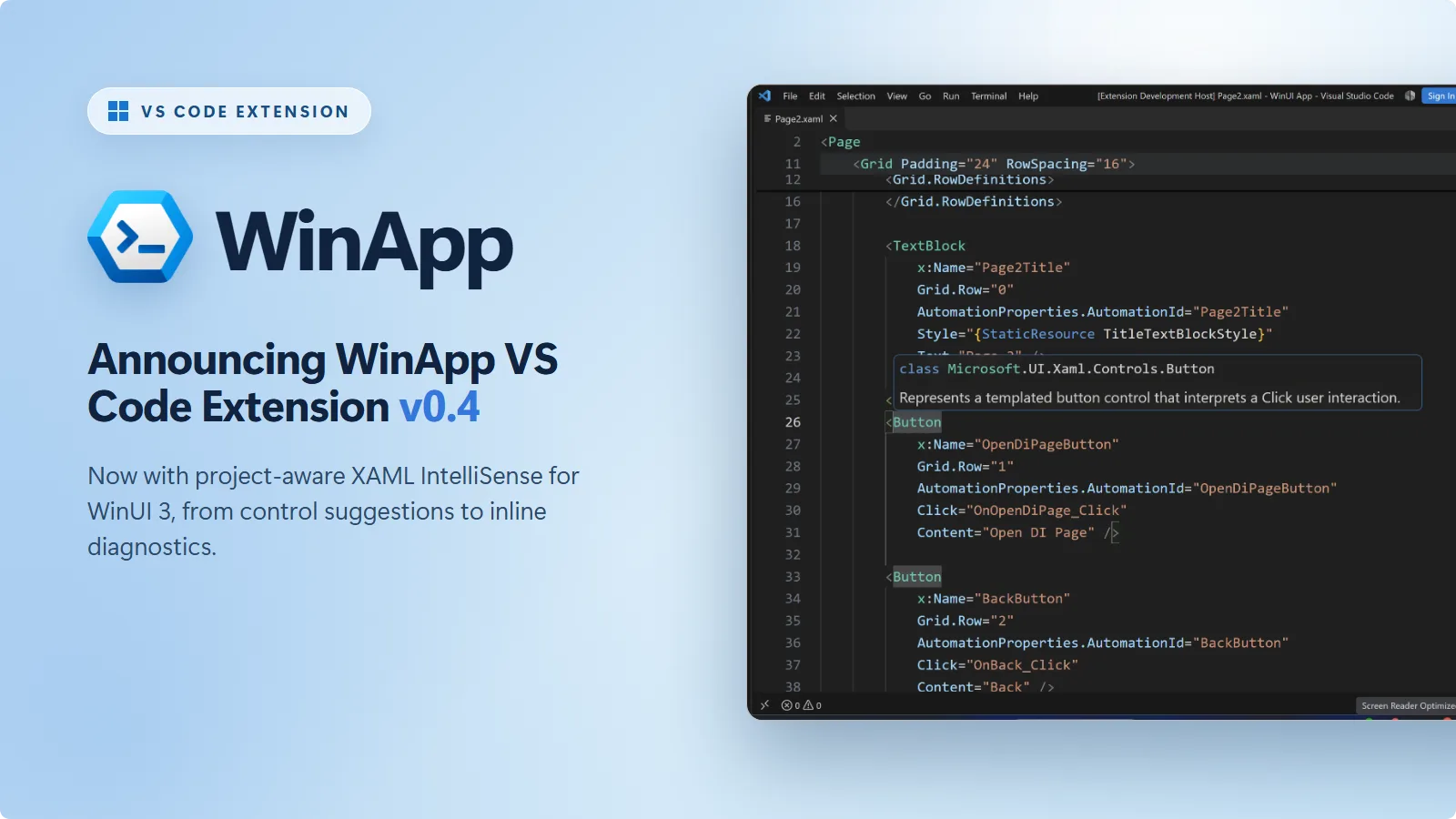
From creating your first project to writing UI and debugging with package identity, the WinApp extension helps you build Windows apps right in VS Code. It combines language support for app manifests with tools to create, run, debug, package, and sign your app, bringing more of your everyday development workflow into the editor.
Get it now: Install the WinApp extension from the VS Code Marketplace.
We’re excited to announce the release of v0.4. This release introduces an experimental preview of project-aware IntelliSense for your WinUI XAML, adds a command for creating new WinUI apps, and lets you build and run projects directly from VS Code.
IntelliSense for WinUI XAML (Preview)
Your XAML defines your app’s UI: the controls on a page, the resources they share, and the bindings that connect them to your code. Editing XAML in VS Code should come with more than syntax highlighting.
With v0.4, we’re introducing a XAML language service for WinUI. It understands your app’s types, referenced projects, and resources, so the suggestions you see reflect the project you’re actually working on.
WinUI XAML IntelliSense is an experimental preview. Please report issues to help shape the feature.
Suggestions that know your project
XAML IntelliSense in the WinApp extension supports:
- Element autocompletion: Suggests WinUI controls and your own custom controls. When a custom control needs a namespace, the extension can add the
xmlnsdeclaration for you. - Property and event autocompletion: Suggests properties, events, and attached properties for the current element.
- Value autocompletion: Suggests enum and Boolean values, markup extensions, and resource keys.
- Hover information: Shows type and member information for elements, properties, and resource references without leaving the file.

Catch errors and fix them in place
The language service checks your XAML as you type, reporting malformed XAML and semantic errors against your project’s resolved types. That means problems such as an unresolved type or an invalid x:Bind path can show up in the editor rather than waiting for your next build. Press Ctrl+. to see available fixes.
Follow your XAML into your code
Use F12 or Ctrl+Click to jump from an event handler or x:Bind member to its C# declaration, or navigate to an x:Name or resource-key declaration. Find All References and Rename are also available for XAML names and resource keys.
For framework and NuGet types that only exist as compiled metadata, use hover to inspect them; Go to Definition does not open source for those types.
Getting started
Open a .xaml file in your WinUI project. XAML IntelliSense is on by default when the WinApp extension is installed.
Full project-aware support is available for C# WinUI projects and requires the .NET 10 SDK. The language server itself ships as a self-contained native executable, so no separate runtime installation is needed to start it.
For C++/WinRT, this release provides formatting, folding, outline, automatic closing tags, document links, and syntax diagnostics. Full XAML IntelliSense support for C++ WinUI projects is coming soon; track its progress on our GitHub repo.
Features become available in stages: basic editing first, then SDK and package types, then your own types and semantic diagnostics. The status bar shows loading progress and calls out missing prerequisites or project-loading problems.

You can turn off the language service with winapp.xaml.intelliSense.enable, or keep completions while filtering diagnostic underlines with winapp.xaml.diagnostics.level. For IntelliSense in .xaml.cs code-behind, install C# Dev Kit.
The language server supports Windows x64 and ARM64. If it cannot start, the extension keeps syntax highlighting available and explains the cause in a notification.
Create a WinUI app without leaving VS Code
Until now, WinApp: Initialize Project assumed you already had a project. With v0.4, you can start one from the Command Palette.
Run WinApp: Create WinUI App, choose an official Windows App SDK template, give your app a name, and choose its parent folder. The extension creates the project and reports where it was saved. You don’t need a folder or workspace open to get started.
Templates come from the .NET CLI rather than a fixed list in the extension. The template pack is installed on first use; if you already have one installed, you can choose to keep it or install the latest version.
WinApp: Create WinUI App requires the .NET 10 SDK.
Build, run, and debug from your project file
WinApp: Run Application previously asked you to find a folder containing your built executable. In v0.4, it can discover runnable .NET projects and solutions and let the extension restore, build, and launch the app with package identity.
The extension searches for runnable projects and solutions first, falling back to build output folders when none are found. If there are several targets, you can choose from a Quick Pick. Browse… remains available for anything that wasn’t listed.

The same project support is available when you press F5. In launch.json, the new input property accepts a project, solution, or build output folder. Point it at your project to restore and build before each launch:
{
    "type": "winapp",
    "request": "launch",
    "name": "WinApp: Launch and Attach",
    "input": "${workspaceFolder}\\MyApp.csproj"
}
For more control, WinApp: Run Application With Options… prompts for the build configuration, target architecture, and run options such as skipping the build or unregistering the development package on exit. Persistent build and debug settings belong in launch.json, which now also supports target frameworks, runtime identifiers, MSBuild properties, and more.
Already-built output folders still work as before, including for non-.NET apps. They launch without a build, so rebuild first or use a preLaunchTask when debugging.
More improvements in v0.4
AppxManifest visual editor
- Image resolution: Resource-qualified assets are recognized instead of incorrectly reported as missing.
- Editor state: XML edits preserve your selected tab, expanded fields, and scroll position, even through temporary parse errors.
- Documentation links: Microsoft Learn links respect your language preferences instead of forcing English.
Signing and certificates
- Signing lists: Packages appear first, with up to 10 recent results and Browse… for other files.
- Certificate publisher: Uses the manifest’s publisher when available, or prompts you to enter one.
- Existing certificates: Choose to reuse or overwrite an existing development certificate.
Get started
The WinApp VS Code extension is available in public preview on the Visual Studio Code Marketplace.
Install from VS Code:
- Open VS Code
- Go to the Extensions view (
Ctrl+Shift+X) - Search for WinApp
- Click Install
Or from the command line:
code --install-extension Microsoft-WinAppCLI.winapp
Requirements:
- Windows 10 or later and Visual Studio Code 1.109.0 or later
- Windows x64 or ARM64 for XAML IntelliSense
- The .NET 10 SDK for WinUI app creation and full C# WinUI XAML IntelliSense
- For debugging, the debugger extension matching your app’s language: C#, C/C++, or built-in Node.js
The WinApp CLI is bundled with the extension; no separate CLI installation is required.
We want your feedback
This is still a public preview, and your feedback directly shapes what we build next.
- File a bug
- Open a feature request
- Browse open extension issues to upvote and comment on what matters to you
Happy coding!


0 comments
Be the first to start the discussion.